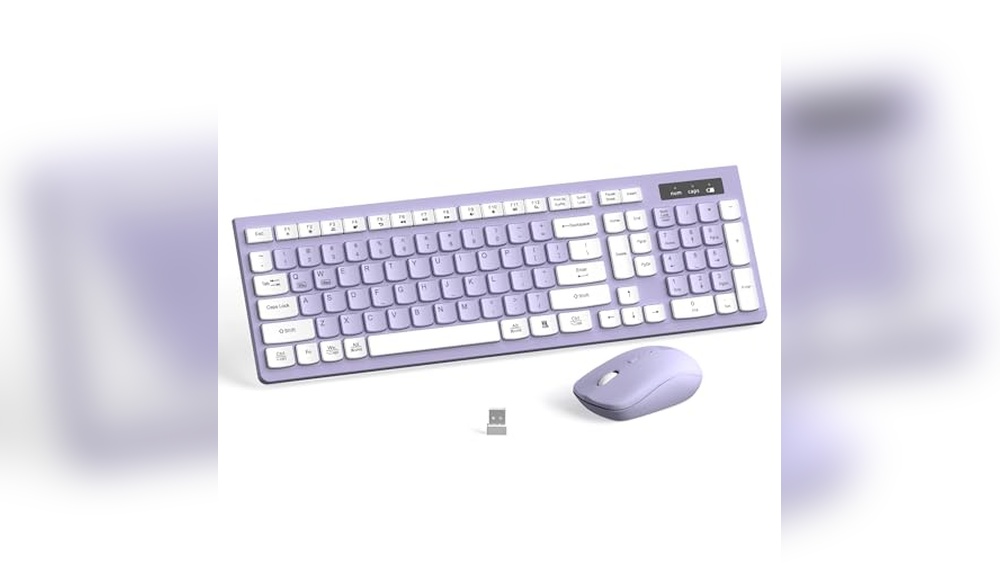
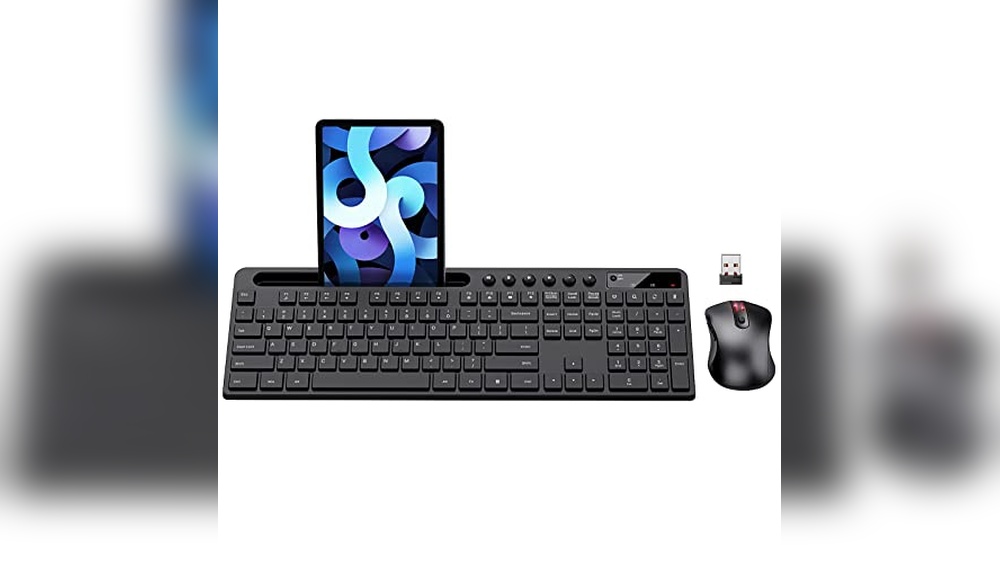
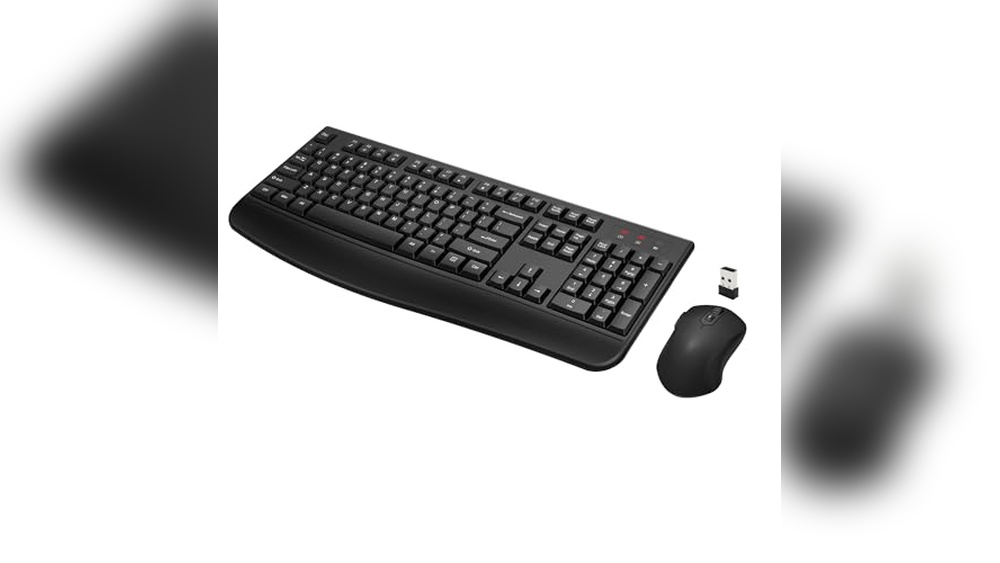
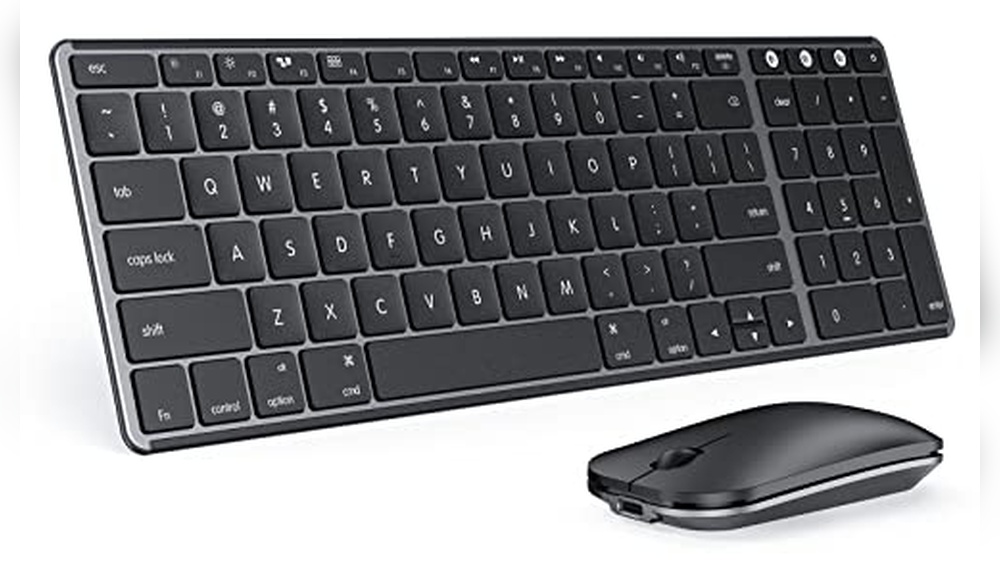
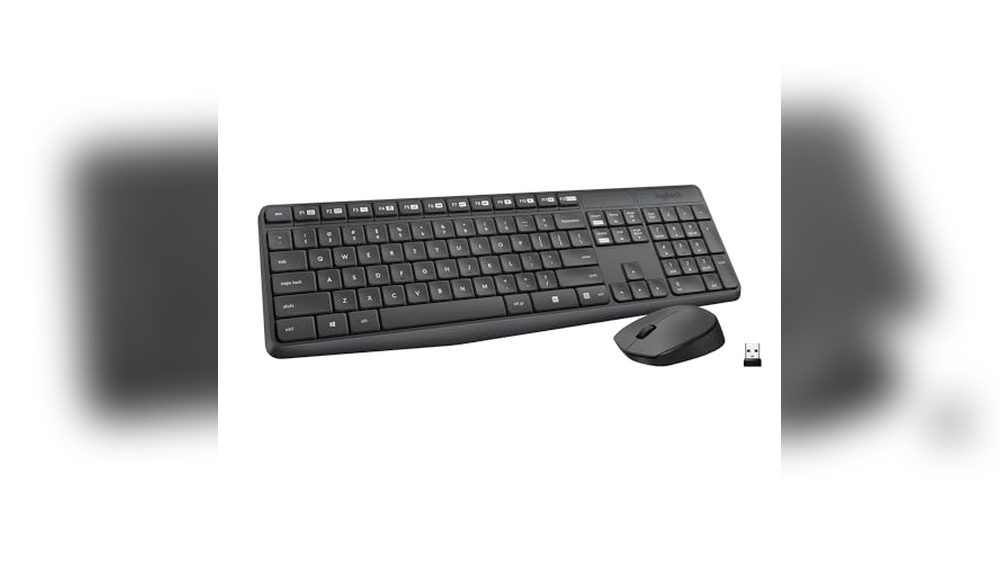
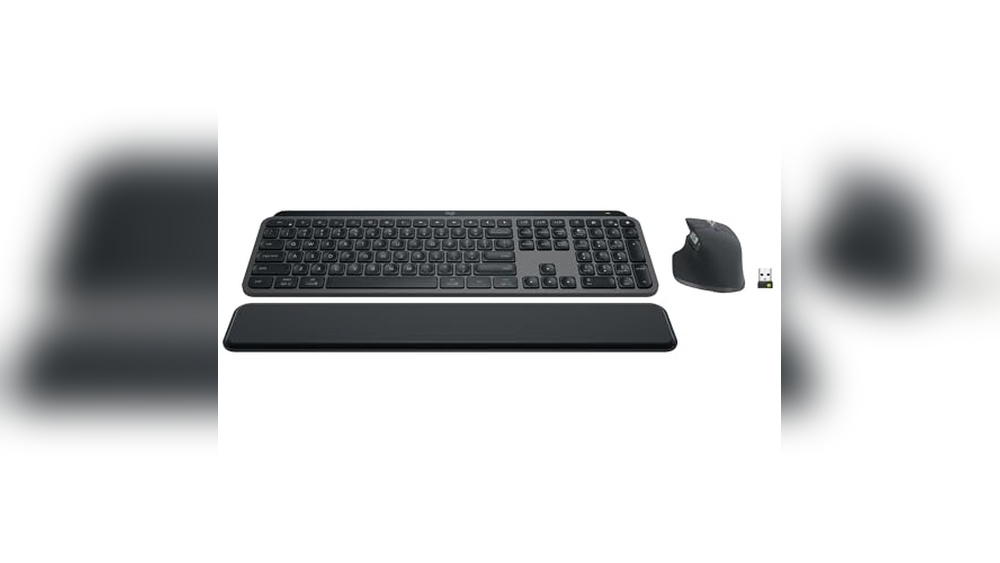
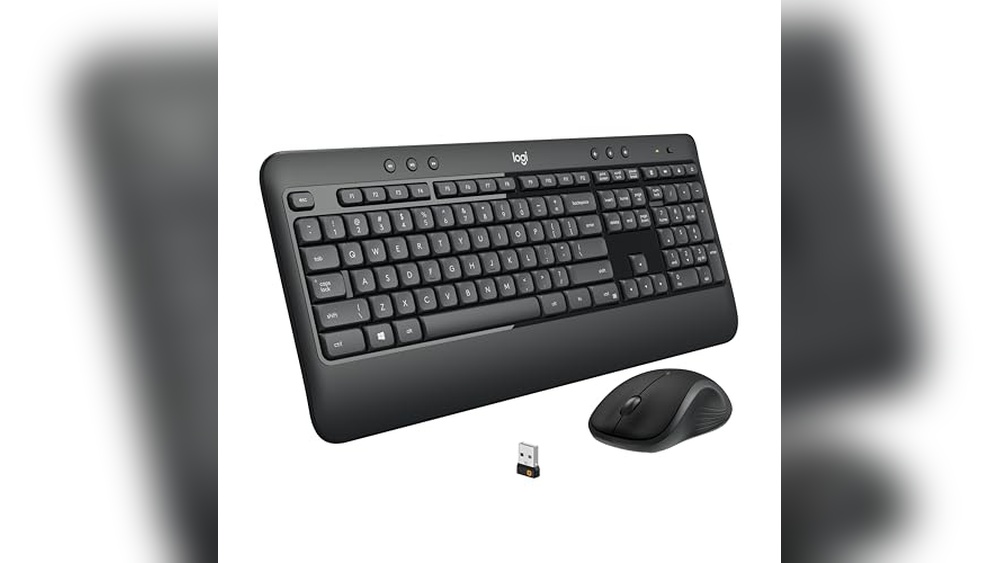
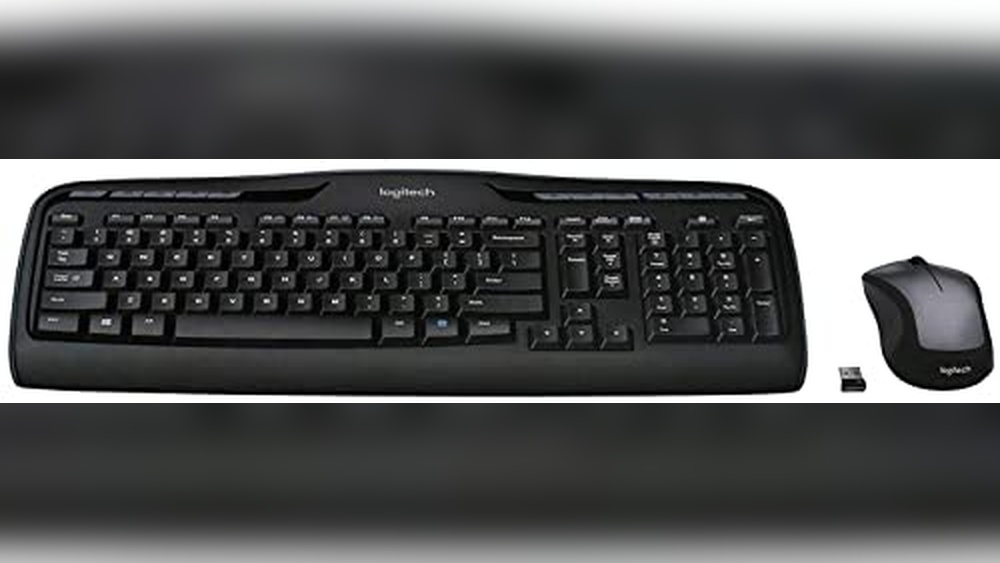
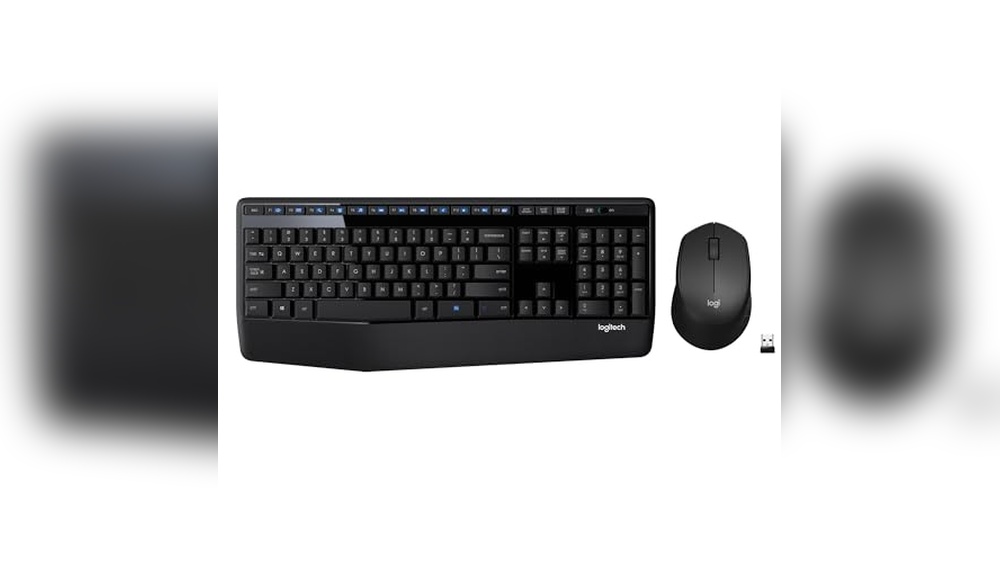
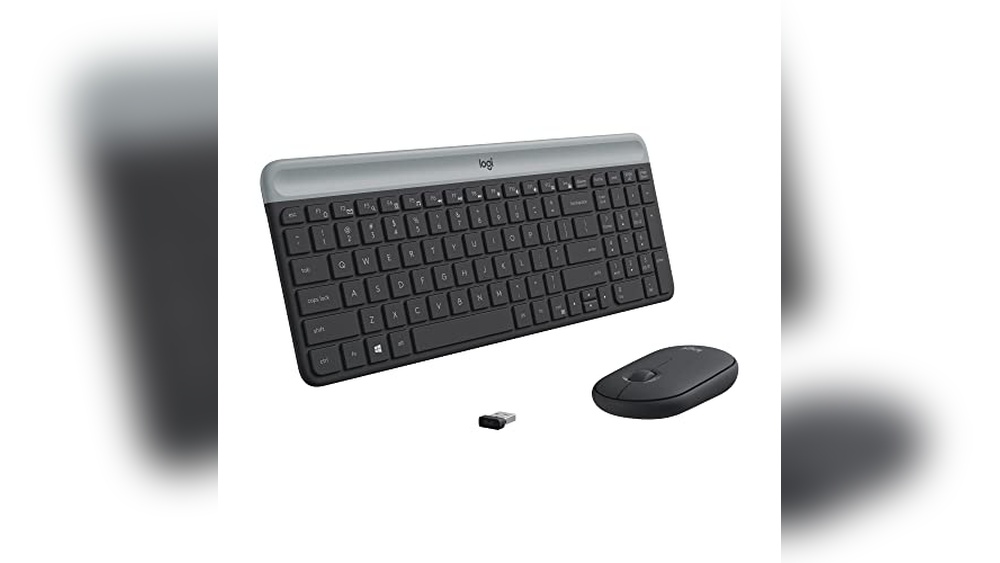
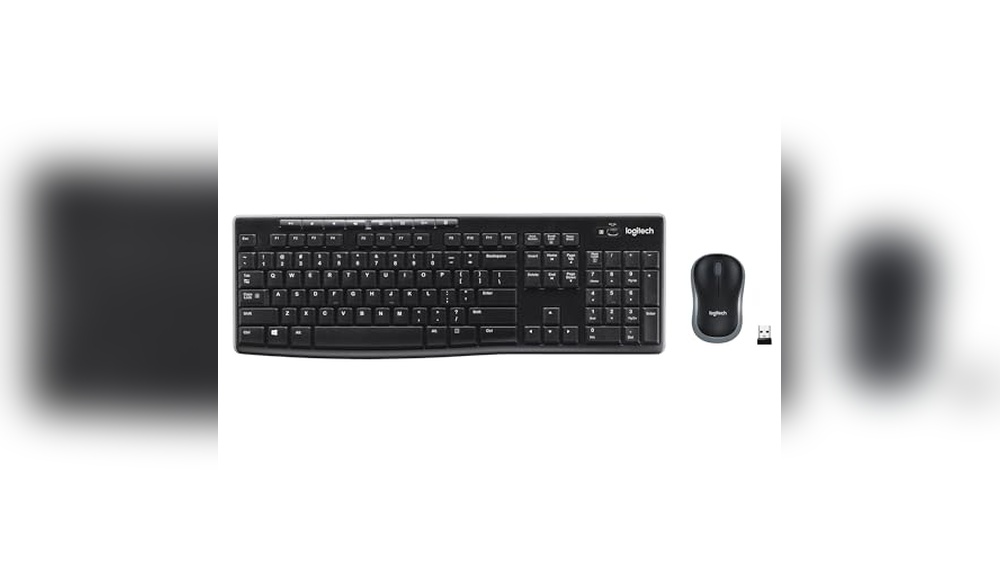
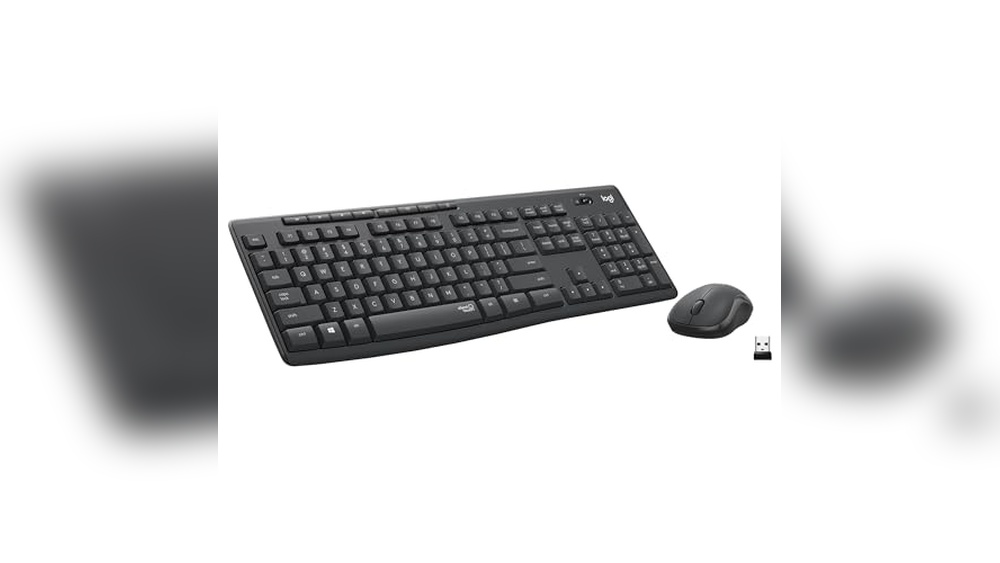
Is your Keyboard & Mouse Not Working suddenly? It’s frustrating when these essential tools stop responding, especially when you need to get things done fast.
You might feel stuck, unsure of what to try next. But don’t worry—you’re not alone, and fixing this issue might be easier than you think. Keep reading, and you’ll discover simple steps to get your keyboard and mouse back up and running quickly.
When a keyboard and mouse stop working, it can disrupt your entire workflow. Understanding the common causes helps to fix the issue quickly. Problems often arise from simple errors or hardware faults. Many users face this problem due to connection errors, software glitches, device failures, or power issues. Identifying the root cause saves time and avoids unnecessary repairs.
Connection Issues
Connection problems are the most frequent reason for keyboard and mouse failures. These devices rely on a stable link to the computer. Loose cables, faulty USB ports, or wireless interference can cause them to stop responding.
Loose or unplugged cables: Check that all cables are firmly connected.
Damaged USB ports: Try plugging the devices into different ports.
Wireless interference: Other wireless devices may block signals between your mouse or keyboard and the receiver.
Battery issues: Wireless devices often stop working if their batteries are low or dead.
Here is a quick checklist to diagnose connection problems:
Issue
Action to Take
Loose cable
Reconnect firmly to the USB port
USB port not working
Try a different port or computer
Wireless interference
Move the receiver closer or away from other devices
Dead batteries
Replace or recharge batteries
Testing the connection step by step helps find simple fixes fast.
Driver Problems
Drivers are software that allow your computer to communicate with the keyboard and mouse. Outdated, corrupted, or missing drivers can stop these devices from working. The system might not recognise the devices at all.
Common signs of driver problems include:
Devices not detected in Device Manager
Unusual error messages related to hardware
Sudden freezing or lag of input devices
Steps to solve driver issues:
Open Device Manager on your computer.
Look for yellow warning icons next to keyboard or mouse entries.
Right-click and select “Update driver.”
Use the manufacturer’s website to download the latest driver version.
Restart the computer to apply changes.
Driver updates improve compatibility and fix bugs. Avoid using generic drivers, as they may not support all device features.
Hardware Failures
Hardware failure means the keyboard or mouse has a physical defect. These problems often cannot be fixed by software or settings. Signs include:
Keys or buttons are not responding at all
Intermittent or inconsistent input
Visible damage, such as broken parts or frayed cables
Common hardware failures:
Failure Type
Description
Possible Solution
Broken keys/buttons
Physical damage to keys or buttons
Replace the keyboard or mouse
Damaged cable
Frayed or cut USB or power cable
Repair or replace the cable
Internal circuit failure
Fault inside the device’s electronics
Replace the device
Testing hardware on another computer confirms device status. Repairing is often not worth the cost compared to buying new devices.
Power Supply Concerns
Power issues can stop keyboards and mice from working, especially wireless models. These devices need a steady power source to function.
Factors affecting power supply include:
Dead or weak batteries in wireless keyboards and mice cause failure.
USB power settings may disable ports to save energy.
Power surges or outages can damage internal circuits.
Check the power supply by:
Replace batteries in wireless devices with fresh ones.
Disabling USB selective suspend settings in your power options.
Use a surge protector to guard against power spikes.
Testing devices on another computer or port to rule out power faults.
Maintaining proper power helps keep input devices running smoothly.
Troubleshooting Steps
When your keyboard and mouse stop working, it can halt all computer tasks. Troubleshooting these devices involves simple steps anyone can try. These steps help find the problem fast and fix it without extra cost. Follow each step carefully to restore your devices to working order.
Check Physical Connections
Start by checking all cables and connections. Loose or unplugged cables often cause the keyboard and mouse to stop working. Look at both ends of the cable—where it connects to the device and the computer.
USB Devices: Make sure the USB plug is fully inserted into the port.
Wireless Devices: Check if the receiver is plugged in securely.
Look for damage like frayed cables or bent connectors. These can stop signals from passing. Clean the ports gently with a dry cloth to remove dust or dirt that blocks the connection.
Try moving the cable to another USB port. Some ports may not work due to damage or power issues. If the device uses an extension cable or hub, connect it directly to the computer.
Restart The Computer
Restarting the computer often solves many hardware problems. It clears temporary glitches that stop devices from working. Save your work before restarting.
Click the Start menu.
Select Restart or Shutdown, then turn on the computer again.
Wait for the system to fully load.
During a restart, the computer reinitialises hardware drivers and settings. This can fix minor software conflicts that block device operation. Sometimes devices need a full reboot to respond again.
If the mouse or keyboard still does not work after a restart, try unplugging and plugging them back in. Then restart once more. This can help the system detect devices properly.
Keep in mind that some computers take longer to restart. Patience is key. Avoid pressing buttons repeatedly during reboot, as this can cause errors.
Test With Another Device
Testing with another keyboard or mouse helps determine if the problem is with the device or the computer. Borrow a working keyboard and mouse from a friend or use spare ones.
Connect the new keyboard and mouse to your computer.
Check if they work normally.
If the second set works, your original devices may be faulty. If the new devices don’t work either, the problem could be with the computer’s USB ports or settings.
Test Scenario
Result
Possible Issue
The original device works on another computer
Yes
Computer problem
The new device works on your computer
Yes
Original device faulty
The new device does not work on your computer
No
Computer hardware or software issue
Testing devices on another computer can also help. This step confirms whether the device hardware is damaged or not. Replace or repair the faulty device based on test results.
Update Or Reinstall Drivers
Drivers allow the computer to communicate with the keyboard and mouse. Outdated or corrupted drivers can cause devices to stop working. Updating or reinstalling drivers often fixes this issue.
Press Windows + X and select Device Manager.
Find Keyboards and Mice under the list.
Right-click your device and select Update Driver.
Choose Search automatically for updated driver software.
If updating does not help, uninstall the driver and restart the computer. Windows will reinstall the driver automatically. This often clears driver problems, causing device failure.
Keep drivers updated regularly to avoid future issues. Use official manufacturer websites for driver downloads if automatic updates fail.
Here is a simple command to open Device Manager quickly:
devmgmt.msc
Inspect Battery And Power
Wireless keyboards and mice need batteries to work. Dead or weak batteries stop the devices from functioning. Check the battery level and replace it if needed.
Open the battery compartment.
Remove old batteries carefully.
Insert fresh batteries with correct polarity (+/-).
Close the compartment securely.
Some wireless devices use rechargeable batteries. Make sure they are fully charged. Check the power switch on the device and turn it on if it is off.
Low power can cause intermittent problems like lag or no response. Keep spare batteries ready for quick replacement. Avoid mixing old and new batteries.
The table below shows common battery types for wireless devices:
Device Type
Battery Type
Notes
Wireless Keyboard
AA or AAA Alkaline
Replace every few months
Wireless Mouse
AA or AAA Alkaline
Check the battery indicator if available
Rechargeable Devices
Built-in Lithium-ion
Charge using the USB cable
Scan For Malware
Malware can interfere with keyboard and mouse functions. Some viruses block input devices to stop users from fixing issues. Running a full malware scan helps find and remove harmful software.
Open your antivirus program.
Choose Full System Scan or a similar option.
Start the scan and wait for it to complete.
Follow instructions to remove threats found.
Use trusted antivirus software to avoid fake programs. Keep your antivirus updated for the best protection. Run scans regularly to keep your system safe.
If your keyboard and mouse stop working suddenly, suspect malware. Scanning helps ensure no hidden programs cause the issue.
When a keyboard stops working, it can disrupt all tasks on a computer. Some problems affect only the keyboard, not the mouse. These are called keyboard-specific problems. Understanding these issues helps fix the keyboard faster. This section covers common problems like sticky keys, wireless connection troubles, and wrong keyboard settings. Each problem can make typing hard or impossible.
Sticky Or Unresponsive Keys
Sticky keys happen when dirt, dust, or spills block a key. This causes the key to stay pressed or not respond at all. Unresponsive keys do not register any input when pressed. Both issues slow down typing and cause errors.
Common causes of sticky or unresponsive keys:
Dirt or debris: Dust or crumbs under the keys.
Spills: Liquids can damage the keyboard circuits.
Wear and tear: Keys lose sensitivity after long use.
Mechanical faults: Broken or stuck key mechanisms.
Simple fixes include cleaning the keyboard carefully. Use compressed air to blow out dust. For deeper cleaning, remove keys if the keyboard allows. Avoid eating or drinking near the keyboard to prevent future problems.
Symptom
Possible Cause
Quick Fix
Key sticks down
Spill or dirt
Clean with compressed air, and remove the keycap
Key does not respond
Mechanical failure
Test on another device, replace keyboard if needed
Multiple keys stuck
Liquid damage
Disconnect the keyboard, dry it, and consider replacement
Wireless Keyboard Pairing Issues
Wireless keyboards connect using Bluetooth or a USB receiver. Problems in pairing stop the keyboard from working properly. Sometimes, the keyboard loses connection or does not connect at all.
Common reasons for pairing issues:
Low battery: Weak batteries reduce signal strength.
Interference: Other wireless devices can block signals.
Out of range: Keyboard too far from the computer.
Incorrect pairing mode: Keyboard not in pairing mode.
Steps to fix pairing problems:
Check and replace the batteries.
Move closer to the computer or receiver.
Remove other wireless devices nearby.
Restart the keyboard and computer.
Put the keyboard in pairing mode and reconnect.
Resetting the keyboard or reinstalling drivers can help. Some keyboards have a reset button or a specific key combination to clear old connections. Follow the manual for exact instructions.
Keyboard Settings And Layout
Sometimes the keyboard stops working because of wrong settings or layout. The computer may use a different language or key arrangement than expected. This causes typing errors or no response from some keys.
Key settings to check:
Keyboard language: English, Spanish, French, etc.
Input method: Standard QWERTY, AZERTY, Dvorak layouts.
Sticky Keys or Filter Keys: Accessibility features that change key behaviour.
Driver updates: Outdated drivers may cause malfunctions.
How to adjust settings:
Open Control Panel or Settings on your computer.
Go to the “Time & Language” or “Region & Language” section.
Select the correct keyboard layout and language.
Turn off Sticky Keys or Filter Keys under Accessibility.
Update or reinstall keyboard drivers via Device Manager.
Resetting keyboard settings often solves layout issues. Users should test the keyboard after changing these settings to confirm the fix.
Mouse-specific Issues
When the keyboard and mouse stop working, it can disrupt all computer tasks. Mouse-specific issues cause many common problems, such as the cursor not moving or erratic pointer behaviour. These issues often stem from hardware faults, connectivity troubles, or surface-related problems. Identifying the exact cause helps fix the mouse quickly and get back to work.
Cursor Not Moving
A mouse cursor that does not move is a frequent complaint. This issue can occur even when the mouse is physically connected. The problem may be caused by hardware defects, driver glitches, or system settings.
Check the physical connection: Ensure the mouse cable is plugged in firmly or the wireless receiver is inserted correctly.
Restart the computer: A reboot can refresh system drivers and resolve temporary software conflicts.
Update or reinstall drivers: Outdated or corrupted drivers often cause cursor freezing.
Test the mouse on another device: This step confirms whether the mouse itself is faulty.
Check system settings: Verify that mouse input is enabled and not blocked by accessibility options.
Sometimes, the issue relates to the USB port. Try different ports to rule out port failure. A quick table below summarises common causes and fixes:
Cause
Fix
Loose or faulty connection
Reconnect or replace the cable/receiver
Driver issues
Update or reinstall mouse drivers
Disabled input
Enable the mouse in system settings
Hardware failure
Test on another device, replace if needed
Wireless Mouse Connectivity
Wireless mice face connection challenges different from wired devices. Signal interference, low battery, or receiver issues often cause unresponsiveness or delayed cursor movement.
Common wireless mouse connectivity problems include:
Battery depletion is causing power loss.
USB receiver not detected or loose.
Radio frequency interference from other devices.
Outdated mouse software or drivers.
The distance between the mouse and the receiver is too great.
Steps to improve wireless mouse connection:
Replace or recharge batteries: Low power weakens signals.
Reseat the USB receiver: Remove and insert it firmly into the port.
Reduce interference: Move away from other wireless devices or metal objects.
Update mouse software: Use the manufacturer’s website to download the latest drivers.
Limit distance: Keep the mouse close to the receiver, ideally within 10 feet.
Many wireless mice have a connect button to pair with the receiver. Press this button if the mouse stops responding. Also, turning the mouse off and on can reset the connection.
Surface And Sensor Problems
The mouse sensor reads movement from the surface beneath it. If the surface is unsuitable or dirty, the cursor may jump or not move at all. Optical and laser sensors respond differently to surfaces.
Surface issues that affect mouse performance:
Reflective or glass surfaces cause sensor errors.
Uneven or textured surfaces disrupt smooth tracking.
Dirt or debris on the mouse sensor blocks detection.
Worn mouse feet reduce gliding and accuracy.
Use a mouse pad or a plain, non-reflective surface for best results. Clean the sensor area regularly with a soft cloth. Avoid using the mouse on glossy or transparent materials.
Here is a quick guide on sensor types and suitable surfaces:
Sensor Type
Recommended Surface
Optical Sensor
Opaque, matte surfaces like cloth mouse pads
Laser Sensor
Variety of surfaces, but avoid glass or mirror
Checking the mouse sensor and surface often resolves tracking problems effectively.
Bios And Firmware Checks
When your keyboard and mouse stop working, the problem might lie in the BIOS or firmware settings of your computer. BIOS (Basic Input/Output System) controls the hardware before the operating system loads. Firmware is software embedded in hardware devices. Checking these can help fix issues where USB devices like keyboards and mice are not recognised. This section explains how to access BIOS settings, enable USB ports, and update firmware to get your devices working again.
Accessing Bios Settings
To check BIOS settings, you first need to enter the BIOS menu. This happens before your computer fully starts.
Restart your computer.
Press the BIOS key during startup. Common keys include Delete, F2, F10, or Esc.
Watch the screen carefully for a message like “Press [key] to enter setup”.
Once inside the BIOS menu, use your keyboard to navigate. If your keyboard does not work here, try another USB port or a PS/2 keyboard if available.
BIOS menus vary by manufacturer. Below is a simple table showing common BIOS brands and their access keys:
Brand
BIOS Access Key
Dell
F2
HP
Esc or F10
ASUS
Delete or F2
Lenovo
F1 or F2
Inside BIOS, look for settings related to USB or peripherals. Adjust as needed, then save and exit to see if the keyboard and mouse work.
Enabling USB Ports
Sometimes USB ports are disabled in BIOS, causing keyboards and mice to stop working. Enabling these ports can fix the issue.
Follow these steps to enable USB ports in BIOS:
Enter BIOS using the method above.
Navigate to the Advanced or Integrated Peripherals menu.
Find options like USB Controller or USB Legacy Support.
Ensure these settings are enabled.
Save changes and exit BIOS.
USB Legacy Support allows USB keyboards and mice to work in the BIOS and during boot. Make sure this feature is turned on.
Here is a checklist to help you confirm USB settings:
USB Controller: Enabled
USB Legacy Support: Enabled
USB Port Security: Disabled (unless needed)
Fast Boot: Disabled (sometimes disables USB initialisation)
After saving and exiting the BIOS, test your keyboard and mouse. If they still don’t work, continue to firmware updates.
Updating Firmware
Firmware updates fix bugs and improve device compatibility. Updating your motherboard firmware (BIOS update) can solve keyboard and mouse detection problems.
Steps for updating firmware:
Identify your motherboard model and current BIOS version. Find this in BIOS or system info.
Visit the motherboard manufacturer’s website.
Download the latest BIOS update file.
Read the update instructions carefully.
Use the manufacturer’s update tool or BIOS interface to apply the update.
Important: Do not turn off the computer during a firmware update. Power loss can damage your system.
Firmware updates often improve USB compatibility. After updating, reboot your computer and check your keyboard and mouse again.
Some tools and tips for firmware updates:
Manufacturer Update Utilities: Many brands offer Windows or USB flash drive tools.
Backup: Save important data before updating the firmware.
Check Power: Ensure your laptop is plugged in or your desktop has a stable power supply.
When To Seek Professional Help
When your keyboard and mouse stop working, it can disrupt your entire workflow. Simple fixes may solve the issue quickly. Yet, some problems need expert attention. Knowing when to seek professional help saves time and prevents further damage.
Persistent Hardware Failures
Hardware failures happen when the keyboard or mouse stops responding despite basic troubleshooting. These issues often come from physical damage, worn-out components, or connection problems.
Signs that hardware failure needs professional repair:
Devices do not work on multiple computers
Unusual noises, like clicking or static sounds
Visible damage, such as broken keys or frayed cables
Intermittent connection or response
Battery issues in wireless devices
Professionals can test the hardware with advanced tools. They may open the devices to fix internal parts safely. Trying to repair these at home could cause more harm.
Issue
Possible Cause
Professional Solution
Keyboard keys not responding
Debris, broken switches
Cleaning, switch replacement
Mouse cursor jittering
Sensor damage, dirty lens
Sensor repair or replacement
Wireless connection drops
Battery or transmitter issues
Battery replacement, transmitter check
Persistent hardware problems usually require tools and skills beyond basic troubleshooting. Professionals can provide a proper diagnosis and fix the problem safely.
Complex Software Conflicts
Software conflicts can stop your keyboard and mouse from working properly. These conflicts may involve drivers, operating system updates, or third-party programs.
Signs of software-related issues include: The keyboard or mouse works in BIOS but not in the OS
Device recognised, but input is delayed or erratic
Error messages related to device drivers
Conflicts after installing new software or updates
Fixing complex software problems may require:
Checking and updating device drivers
Running system file checkers
Removing conflicting software
Restoring the system to a previous state
Professionals can identify hidden issues causing these conflicts. They use specialised software to detect and fix driver or system errors. This ensures devices work smoothly without risking data loss.
Trying to fix complex software problems alone may lead to accidental data loss or system corruption. Professional help offers a safe and effective solution to restore your keyboard and mouse functionality.
Frequently Asked Questions
Why Is My Keyboard And Mouse Not Working Together?
They may not be connected properly or need new drivers installed on your computer.
How Do I Fix A Keyboard And Mouse Not Responding?
Try unplugging and plugging them back in or restarting your computer to reset devices.
Can USB Ports Cause Keyboard And Mouse Failure?
Yes, faulty or damaged USB ports can stop devices from working correctly.
Will Updating Drivers Help with Keyboard And Mouse Issues?
Yes, updating device drivers often solves compatibility and performance problems.
How To Check If Keyboard And Mouse Hardware Is Damaged?
Test them on another computer to see if they work outside your system.
Conclusion
A keyboard and mouse not working can feel very frustrating. Check cables and connections first. Restart your computer to refresh settings. Try different USB ports or batteries for wireless devices. Updating drivers often solves many problems. Sometimes, a quick reset fixes the issue.
Keep calm and follow these steps carefully. Small fixes can bring your devices back to life. Don’t rush; take time to troubleshoot. Your keyboard and mouse can work again soon.