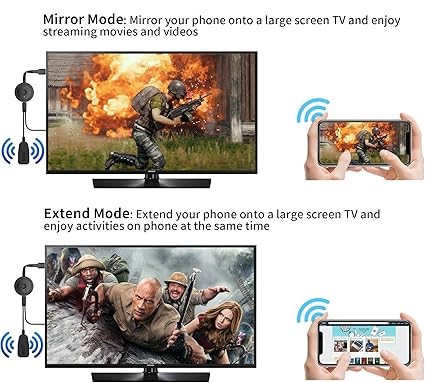
Imagine effortlessly streaming your favorite shows and movies from your smartphone straight to your Samsung TV with Video and TV Cast for Samsung. No more squinting at a small screen or struggling to find the right cables.
With the Video and TV Cast for Samsung app, this dream becomes a reality. It’s time to transform your viewing experience into something truly magical. Are you tired of complex setups and endless buffering? You’re about to discover a solution that’s not only simple but also enhances every moment of your entertainment.
Dive into this article to learn how you can unlock the full potential of your Samsung TV with just a few taps using Video and TV Cast for Samsung. Don’t miss out on the chance to elevate your viewing pleasure; read on to find out how.
Features Of Samsung Video & TV Cast
The Video and TV Cast for Samsung app offers an easy way to stream videos from your mobile device to your Samsung TV. No need for cables or complex setups. This app provides a seamless experience for enjoying your favorite shows, movies, and videos on the big screen. It’s perfect for those who love watching content with family and friends. Let’s explore the features that make Video and TV Cast for Samsung stand out.
Easy Setup
Setting up the Samsung Video & TV Cast is simple. Just connect your mobile device and Samsung TV to the same Wi-Fi network. Open the app, and you’re ready to start casting. No technical skills required.
Wide Range Of Formats Supported
The app supports a variety of video formats. This includes MP4, M3U8, and HLS live streams. You can watch almost any video without issues. It ensures compatibility with most online content.
High-quality Streaming
Experience high-definition streaming with minimal buffering. The app provides crisp and clear video quality on your Samsung TV. Enjoy a smooth viewing experience.
Browser Integration
The app comes with a built-in browser. Use it to search and find videos easily. Just browse to the video and tap to cast. No need to download files to your device.
Bookmark Feature
Save your favorite websites with the bookmark feature. Access them quickly whenever you want to watch something. It’s a handy way to keep track of your preferred video sources.
Subtitles Support
Watch videos with subtitles for better understanding. The app supports various subtitle formats. It’s ideal for non-native speakers or those with hearing challenges.
Compatible Devices
Video and TV Cast for Samsung is a popular app that allows users to stream videos from their devices to Samsung TVs. With this app, you can enjoy your favorite content on a larger screen without any hassle. The app supports various devices, making it easy for everyone to connect and watch videos. It’s important to know which devices are compatible to ensure a seamless streaming experience.
Smartphones
Smartphones are among the most common devices used for streaming videos to TVs. The Video and TV Cast for Samsung app supports a wide range of smartphones, making it easy for users to cast their content. Here are some key points about smartphone compatibility:
- Android phones with version 4.4 or higher are supported.
- iOS devices, including iPhone models from iPhone 5 onward, are compatible.
- Ensure your smartphone is connected to the same Wi-Fi network as your Samsung TV for smooth casting.
Using a smartphone to cast videos is convenient and straightforward. The app interface is user-friendly, allowing you to browse and select videos with ease. It’s crucial to keep your device and app updated for the best performance.
Tablets
Tablets offer a larger screen compared to smartphones, providing a better browsing experience. Video and TV Cast for Samsung supports many tablet models, making them ideal for casting videos. Here are some aspects of tablet compatibility:
- Android tablets running version 4.4 or higher are compatible.
- iPads from iPad Air and newer models can be used to cast videos.
- Both Android and iOS tablets should be on the same Wi-Fi network as your Samsung TV.
Tablets are perfect for browsing and streaming videos due to their larger screens. The app provides a seamless experience, allowing you to control video playback easily. Tablets are also portable, making it easy to take them anywhere and start casting.
Laptops
Laptops are versatile devices that can also be used to stream videos to Samsung TVs. Video and TV Cast for Samsung supports various laptop models, making it easy to cast your content. Here are some details about laptop compatibility:
| Laptop Type | Operating System | Wi-Fi Requirement |
|---|---|---|
| Windows | Windows 7 and later | Same network as Samsung TV |
| Mac | OS X 10.9 and later | Same network as Samsung TV |
Laptops are ideal for streaming high-quality videos. They provide more control over playback and offer a robust streaming experience. Ensure your laptop has the latest software updates for optimal performance.
Setting Up Video & TV Cast
Video and TV Cast for Samsung is a powerful tool that lets you stream content directly from your mobile device to your Samsung TV. This app is perfect for those who want to enjoy their favorite videos and TV shows on a bigger screen. Setting up Video and TV Cast for Samsung is simple, allowing users to connect their devices in minutes.
Download And Install
To start using Video & TV Cast, you must first download and install the app on your Samsung TV and your mobile device. Follow these steps:
- Open the app store on your Samsung TV.
- Search for “Video & TV Cast” using the search bar.
- Select the app and click on “Install.” Wait for the installation to finish.
Next, download the app on your mobile device:
- Open the Google Play Store or Apple App Store.
- Search for “Video & TV Cast” in the search field.
- Select the app and press “Install.” Wait for it to install.
Once installed, open the app on both devices. Make sure they are ready for the next steps.
Network Requirements
Having the right network setup is crucial for Video & TV Cast to work efficiently. Here are the requirements:
- Both your Samsung TV and mobile device must be connected to the same Wi-Fi network.
- The network should be stable and have a good signal strength.
For optimal performance, consider these tips:
- Ensure your Wi-Fi router is close to your Samsung TV.
- Avoid network congestion by limiting the number of devices connected to the Wi-Fi.
Check your network settings and make adjustments if needed. This ensures smooth streaming without interruptions.
Initial Configuration
After downloading and installing the app, it’s time for initial configuration. Follow these steps:
- Open the Video & TV Cast app on your Samsung TV.
- Open the app on your mobile device.
- Use the app’s interface to connect both devices.
The app will provide a unique code on your Samsung TV screen. Enter this code into your mobile app.
- Once connected, you can start streaming videos from your mobile device.
- Use the app’s browser to search for your favorite content.
With these steps, your devices will be connected. You can enjoy seamless streaming on your Samsung TV.
Streaming Content
Video and TV Cast for Samsung allows users to stream content directly from their devices to Samsung TVs. This tool is perfect for those who love watching their favorite shows, movies, or videos on a big screen. With simple steps, you can cast a variety of media formats, making home entertainment more enjoyable and accessible. Let’s explore the formats supported, how to cast from apps, and how to browse the web and cast your findings.
Supported Formats
Video and TV Cast for Samsung supports a wide range of media formats. This includes popular video types and audio files. Here are some examples:
- MP4: Common video format used by most devices.
- MOV: Frequently used on Apple devices.
- AVI: Older format still in use today.
- MP3: Standard format for music files.
- WAV: Uncompressed audio format.
Additionally, it supports streaming of online videos from websites like YouTube and Vimeo. This flexibility means you can enjoy a wide variety of content without worrying about compatibility issues.
Casting From Apps
Using Video & TV Cast, you can cast content directly from apps on your smartphone or tablet. This feature makes it easy to share videos and photos with family and friends. Here’s how it works:
- Open the app: Start by opening the app on your device.
- Select content: Choose the video or media you want to cast.
- Connect to TV: Ensure your Samsung TV is connected to the same Wi-Fi.
- Press cast: Tap the cast button to start streaming.
The process is quick and efficient, allowing you to enjoy your favorite apps on a larger screen.
Web Browsing And Casting
Web browsing and casting are other useful features of Video and TV Cast for Samsung. You can surf the internet and cast web videos directly to your TV. This is perfect for watching tutorials or video streams online. Here’s a brief guide:
- Navigate to browser: Open the built-in browser in the app.
- Search for content: Look for videos or streams you want to watch.
- Click Cast: Select the Cast option to display on your TV.
Supported websites include YouTube, Vimeo, and other popular streaming sites. This feature enhances your browsing experience by bringing web content to the big screen.
Troubleshooting Common Issues
Video and TV Cast for Samsung is a popular application used to stream content from mobile devices to Samsung Smart TVs. It offers a seamless way to enjoy videos, movies, and shows on a larger screen without the need for physical cables. Despite its convenience, users occasionally face challenges in ensuring a smooth streaming experience. Troubleshooting common issues can significantly enhance the viewing pleasure, allowing users to make the most of this versatile tool. This guide will address typical problems such as connection errors, playback difficulties, and audio/video synchronization to help users resolve them effortlessly.
Connection Problems
Many users encounter connection problems when attempting to link their devices with Samsung TVs. These issues can stem from various sources, including network errors or application settings. To tackle connection problems, consider the following tips:
- Ensure both devices are on the same Wi-Fi network. This is crucial for establishing a stable connection.
- Restart both the mobile device and the Samsung TV. A fresh start can clear minor glitches.
- Check the app permissions. Make sure the app has the necessary access to your network and device settings.
Here’s a table summarizing common causes and solutions:
| Problem | Solution |
|---|---|
| Devices not on the same network | Connect both to the same Wi-Fi |
| App permissions not set | Adjust settings in phone settings |
| Device software outdated | Update to the latest software |
Playback Issues
Playback issues often arise due to network instability or app bugs. These problems can interrupt streaming and reduce enjoyment. To resolve playback issues, try these strategies:
- Check the internet speed. Slow internet can cause buffering and delays.
- Clear the app cache. This can remove unnecessary data that might be causing problems.
- Reinstall the app. Sometimes, reinstalling can fix persistent playback issues.
By following these steps, users can enhance their viewing experience and enjoy uninterrupted streaming.
Audio/video Sync
Audio and video synchronization problems can be frustrating. They occur when sound and visuals are out of sync, making it difficult to follow the content. To address these issues, consider the following actions:
- Pause and resume playback. This simple action can often correct minor sync issues.
- Adjust TV settings. Explore the audio settings on your Samsung TV to make necessary adjustments.
- Update the app. Ensure you have the latest version of Video & TV Cast installed.
Correcting audio/video sync issues can greatly improve the viewing experience, allowing users to enjoy content as intended.
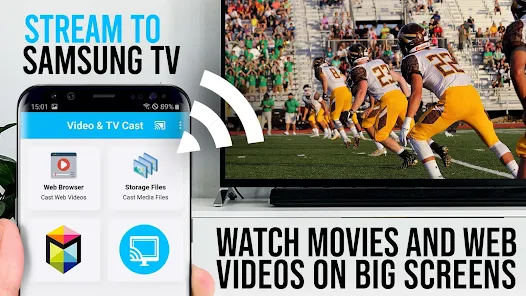
Enhancing Your Experience
Video and TV Cast for Samsung is a powerful tool that allows users to stream videos, movies, and TV shows directly from their devices to Samsung TVs. This app enhances your viewing experience by providing seamless connectivity and easy-to-use features. Whether you want to watch your favorite YouTube videos or stream content from other websites, Video & TV Cast offers a wide range of possibilities. Let’s explore some of the ways you can make the most out of this app and enjoy a better entertainment experience.
Using Remote Features
Remote features in Video and TV Cast for Samsung make controlling your content easy. You can easily navigate your media without leaving your seat. Here are some key remote functions:
- Play/Pause: Control playback with simple buttons.
- Volume Adjustment: Change the sound level easily.
- Forward/Rewind: Skip or go back in your video quickly.
These features help you manage your viewing experience effectively. The remote also offers a user-friendly interface. You can access your settings and preferences easily. This makes watching videos more comfortable and enjoyable.
Multi-screen Setup
Setting up multiple screens allows you to view content on several devices. This enhances your viewing experience significantly. Here’s how you can do it:
- Ensure all devices are on the same Wi-Fi network.
- Open the Video & TV Cast app on each device.
- Select the multi-screen option and connect devices.
Using a multi-screen setup can enhance the way you enjoy media. You can watch different content on different screens. This setup is perfect for family gatherings or parties. It makes sharing content more interactive.
Quality Settings
Quality settings in Video and TV Cast for Samsung can be adjusted to suit your preferences. Here are some options:
| Resolution | Description |
|---|---|
| HD | High definition quality for better clarity. |
| SD | Standard definition for faster streaming. |
| Auto | Adjusts quality based on internet speed. |
Choosing the right quality setting can improve your streaming experience. Higher resolutions provide clearer images but require a stronger internet connection. Adjust settings based on your device capabilities and network speed.
Comparing Alternatives
Video and TV Cast for Samsung is a popular app that lets users stream content from their devices to Samsung TVs. It’s a convenient tool for those who want to enjoy their favorite videos on a bigger screen. But is it the best option available? There are several other casting solutions to consider. Comparing these alternatives can help users make an informed choice. Understanding the various options can enhance the viewing experience and ensure compatibility with different devices.
Other Casting Apps
Several casting apps provide similar functions to Video and TV Cast for Samsung. Some of the popular ones include:
- Google Chromecast: This device and app combination offer seamless streaming. It supports a wide range of apps, including YouTube and Netflix.
- Apple AirPlay: Ideal for Apple device users. It allows easy streaming from iPhone, iPad, or Mac to Apple TV.
- Roku: Known for its user-friendly interface. Roku supports a variety of channels and apps for streaming.
A comparison of these apps can help users decide:
| App | Platform | Key Features |
|---|---|---|
| Google Chromecast | Android, iOS | Supports multiple apps, easy setup |
| Apple AirPlay | iOS, macOS | Seamless with Apple devices, high-quality streaming |
| Roku | Android, iOS | Wide range of channels, simple interface |
Built-in Casting Options
Many modern TVs come with built-in casting options. These features often remove the need for additional apps or devices. Samsung TVs, for instance, have their screen mirroring capabilities. This allows direct streaming from compatible devices.
Some of the common built-in casting technologies include:
- Miracast: A wireless display standard. It mirrors the screen of a compatible device to the TV.
- DLNA: Allows sharing of media files over a home network. Supported by many devices, including TVs and gaming consoles.
Using built-in options can be advantageous. It reduces the need for extra hardware and apps. However, compatibility and performance can vary depending on the device and TV model.
Pros And Cons
Every casting solution comes with its own set of pros and cons. Understanding these can guide users in selecting the best option for their needs.
Advantages:
- Convenience: Casting apps and built-in options make streaming easy.
- Compatibility: Many options support a wide range of devices and apps.
- Quality: High-definition streaming enhances the viewing experience.
Disadvantages:
- Compatibility Issues: Not all devices work seamlessly with every casting solution.
- Setup Complexity: Some options may require technical knowledge to set up.
- Latency: Wireless streaming can sometimes result in delays or reduced quality.
Balancing these pros and cons is key to finding the right casting solution. Users should consider their device compatibility, ease of use, and streaming needs.

User Tips And Tricks
Video & TV Cast is a popular app for streaming content on Samsung TVs. It allows users to send videos, music, and photos from their devices to the TV. This app makes it easy for users to enjoy their favorite media on a bigger screen. To get the best out of this app, there are some useful tips and tricks. This guide will help you maximize performance, find favorite channels, and explore customization options.
Maximizing Performance
To ensure smooth streaming with Video & TV Cast, consider these tips:
- Stable Wi-Fi Connection: A strong Wi-Fi connection is crucial. Ensure your TV and device are on the same network.
- Close Background Apps: Close unnecessary apps on your device. This frees up resources.
- Update Software: Regularly update the app and your TV’s firmware. This ensures compatibility and new features.
Sometimes, streaming issues can occur. Here’s a quick troubleshooting table:
| Issue | Solution |
|---|---|
| Buffering | Reduce video quality. Check the internet speed. |
| No Sound | Ensure volume is up on both devices. |
| Connection Lost | Restart the app. Reconnect to Wi-Fi. |
Favorite Channels
Discovering and saving favorite channels enhances your viewing experience. Here’s how:
- Explore Different Platforms: Use the app to browse various streaming platforms. Try YouTube, Netflix, or Hulu.
- Create a Playlist: Save your favorite channels or videos. This makes it easy to access them later.
- Use Search Function: Use the search bar to find specific channels quickly.
Saving channels as favorites is easy. Just follow these steps:
- Open the Video & TV Cast app on your device.
- Navigate to the channel you like.
- Click on the ‘Save’ or ‘Favorite’ option.
Customization Options
Personalizing the Video & TV Cast app can enhance the user experience. Here are some options:
- Change Video Quality: Adjust video quality settings. This can improve streaming performance.
- Customize App Theme: Choose a theme that suits your taste. Some apps offer dark or light modes.
- Set Default Streaming Device: If you have multiple TVs, set a default one. This saves time when casting.
Advanced users can explore more settings:
- Go to the ‘Settings’ menu in the app.
- Explore ‘Advanced Options’ for more features.
- Adjust settings like subtitles, audio language, and more.
These customization options make the app more enjoyable and tailored to your needs.
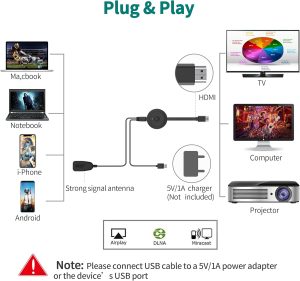
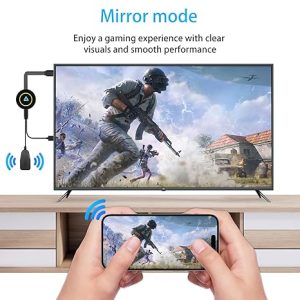
4K Wireless HDMI Display Dongle Adapter 1080P, WiFi Streaming Movies, Shows Receiver for iPhone, iPad, Android, Tablet, Laptop, Windows to HDTV/Monitor/Projector, Compatible Miracast, AirPlay, DLNA
Frequently Asked Questions
How Do I Cast Video To My Samsung Smart TV?
To cast video, connect your device and Samsung TV to the same Wi-Fi. Open the video app, tap the cast icon, and select your TV. Ensure both devices are compatible. Use the SmartThings app for screen mirroring. Follow prompts to complete casting.
Enjoy seamless streaming on your Samsung smart TV.
How To Use Video And TV Cast?
Download the Video & TV Cast app on your device. Connect your device and TV to the same Wi-Fi network. Open the app, select content, and tap “Cast” to stream. Ensure your TV supports casting or use a compatible streaming device.
Enjoy watching your favorite videos on the big screen.
What Is The Best Free Cast to TV app for Samsung TV?
The best free app to cast to a Samsung TV is “Smart View. ” It provides seamless media streaming from your device. The app is user-friendly and compatible with Android devices, allowing easy connection and control. Enhance your viewing experience with Smart View’s intuitive features.
Why Can’t I Cast To Samsung Smart TV?
Ensure your Samsung TV and casting device are on the same Wi-Fi network. Update both devices’ software and check compatibility. Restart your TV and casting device if issues persist. Verify casting settings and permissions on your device. Contact Samsung support for further assistance if needed.
How Do I Cast Videos To My Samsung TV?
Use a casting app on your phone. Connect to the same Wi-Fi as your TV. Select the video.
Conclusion
Exploring new ways to enjoy your Samsung TV? Try Video and TV Cast For Samsung. It offers a simple way to share content with family. Viewing photos and videos is easy and fun. Compatible apps enhance your experience. Connect your devices effortlessly. Enjoy entertainment from your phone or tablet.
Bring your favorite shows to the big screen. Video and TV Cast for Samsung is straightforward. You’ll love the convenience it brings. Upgrade your movie nights with this handy feature. Dive into a world of entertainment. Discover the simplicity of casting. Samsung makes it easy for everyone to enjoy.