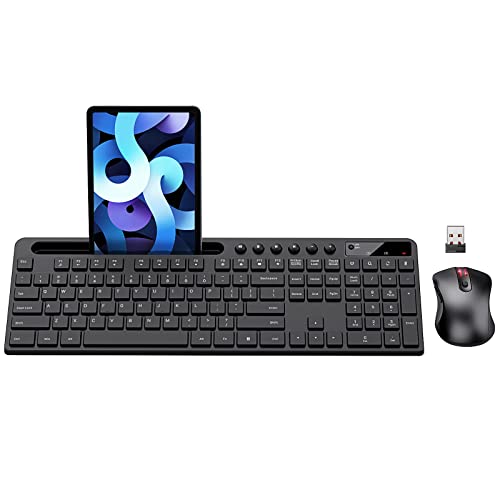
How Much is a Keyboard And Mouse: Ultimate Price Guide

How Much is a Keyboard And Mouse: Ultimate Price Guide 2025

Are you thinking about upgrading your computer setup but wondering, “How much is a keyboard and mouse?” Choosing the right combo can be tricky when prices vary so much. Whether you want something basic for everyday use or a high-tech set for gaming, knowing what to expect will help you avoid overspending.

You’ll discover clear price ranges, what features affect costs, and tips to get the best value for your money. Keep reading to find the perfect keyboard and mouse that fit both your needs and budget.
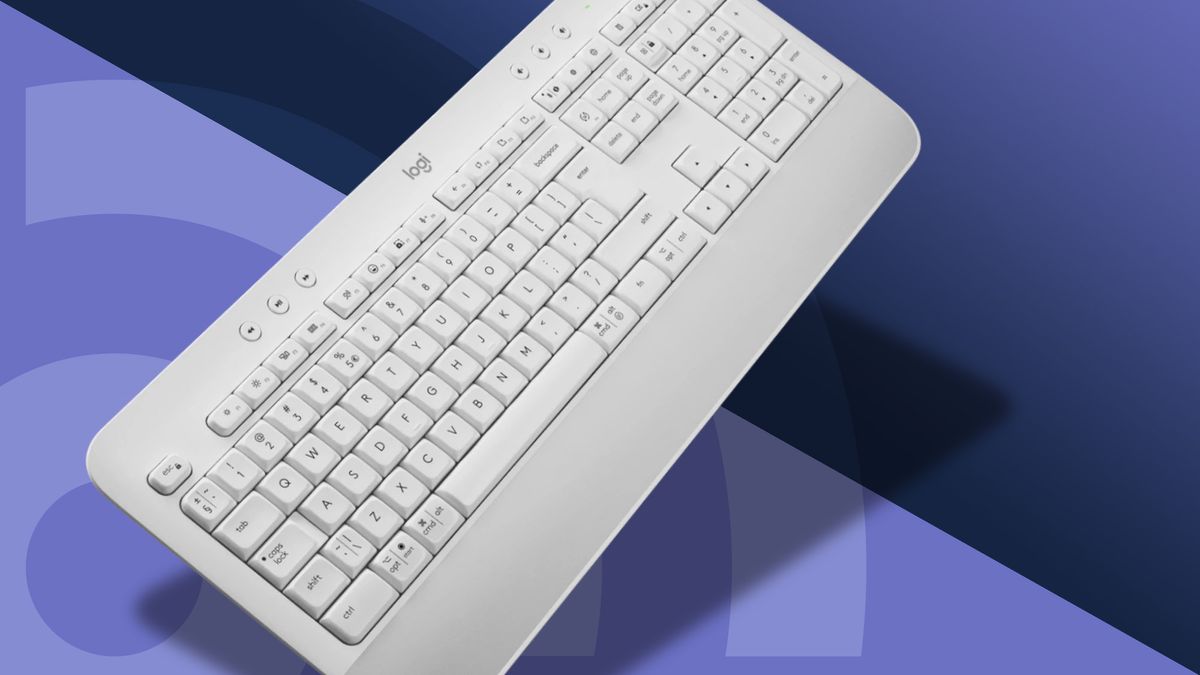
How Much is a Keyboard And Mouse


Price Range Overview

Finding the right keyboard and mouse depends a lot on your budget. Prices vary widely based on features, build quality, and brand. This section gives a clear overview of the typical price ranges. It helps understand what to expect when buying a keyboard and mouse set. Whether you want something simple or advanced, this guide covers all levels.

Budget Options

Budget keyboards and mice usually cost between $10 and $30. These are basic models that work well for everyday use. They often come with simple designs and limited extra features. Ideal for users who need functional devices without extra bells and whistles.

Common features of budget options:

  • Wired or basic wireless connection
  • Standard key layout without backlighting
  • Basic optical mouse with standard DPI
  • Plastic is built with moderate durability

Here is a quick comparison:

Feature Budget Range
Price $10 – $30
Build Quality Plastic, basic durability
Connectivity Wired or wireless (2.4 GHz)
Extra Features None or very limited

These options are great for home offices, schools, or casual users. They provide reliable performance without extra cost. Expect some trade-offs in comfort and longevity compared to higher-priced models.

Mid-range Models

Mid-range keyboard and mouse sets usually fall between $30 and $80. These models offer better quality and more features. They suit users who spend more time typing or gaming but have a moderate budget.

Key benefits of mid-range models include:

  • Improved build materials like metal or higher-grade plastic
  • Wireless options with Bluetooth or advanced 2.4 GHz
  • Enhanced mouse sensitivity (higher DPI settings)
  • Backlit keyboards, often with adjustable lighting
  • Additional programmable keys or buttons

Example table of mid-range features:

Feature Mid-Range Range
Price $30 – $80
Build Quality Stronger plastic or metal parts
Connectivity Bluetooth, wireless, or wired
Extra Features Backlighting, programmable keys
Mouse DPI Up to 4000+

Mid-range sets often balance comfort and functionality well. They suit office workers, students, and casual gamers. These devices tend to last longer and feel better to use.

Premium Choices

Premium keyboard and mouse sets cost over $80. These are for users who want the best performance and features. They are common among professional gamers, designers, and tech enthusiasts.

Top features include:

  • Mechanical switches with fast response
  • High precision mice with adjustable DPI up to 16000+
  • Customizable RGB lighting with multiple effects
  • Ergonomic designs for long use
  • Durable materials like aluminum and braided cables
  • Advanced software for customization and macros

Here is a summary of premium features:

Feature Premium Range
Price $80 and above
Build Quality Metal, premium plastics, robust design
Connectivity High-end wireless, Bluetooth, wired
Extra Features Full RGB, programmable keys, macros
Mouse DPI Up to 16000+
Software Support Advanced customization

Premium sets deliver excellent comfort and precision. They are built to last and handle heavy use. These models often come with warranties and strong brand support.

How Much is a Keyboard And Mouse


Factors Affecting Cost

Understanding the cost of a keyboard and mouse set involves several factors. Prices vary widely based on brand, features, and build quality. These elements influence the overall user experience and durability. Knowing what affects the price helps in choosing the best option for your needs and budget.

Brand Influence

The brand plays a major role in the price of keyboards and mice. Popular brands often charge more because of their reputation and quality assurance. Users trust these brands for consistent performance and support. Lesser-known brands may offer cheaper options but might lack reliability.

Brands invest in:

  • Research and development
  • Customer service
  • Warranty coverage
  • Marketing and endorsements

All these add to the final price. Well-known brands like Logitech, Razer, and Microsoft often set higher prices. Budget brands might use lower-cost materials and simpler designs to reduce costs.

Brand Category Price Range Typical Features
Premium Brands $70 – $200+ Advanced technology, durable materials, warranty
Mid-Range Brandsand  $30 – $70 Good build, essential features, moderate warranty
Budget Brands $10 – $30 Basic functions, lower durability, limited warranty

Features And Technology

More features mean higher cost. Keyboards and mice come with various tech upgrades that affect their price. Features like wireless connectivity, programmable keys, and RGB lighting increase the cost. Each added function improves usability but raises production expenses.

Common features affecting price include:

  • Wireless vs. Wired: Wireless models cost more due to added components.
  • Mechanical vs. Membrane keys: Mechanical keys offer better feedback but are pricier.
  • Ergonomic design: Special shapes to reduce strain increase manufacturing complexity.
  • Customizable buttons: Extra buttons for shortcuts add to cost.
  • Lighting: RGB or bathe cklit keys require additional electronics.

Choosing features depends on your needs. Gaming keyboards usually have more tech and cost more. Basic sets focus on essential functions and affordability.

Build Quality And Materials

Build quality affects both price and product lifespan. Keyboards and mice made from high-quality materials last longer and feel better. They often come at a higher price but offer better value over time. Cheaper models use plastic that may break or wear out quickly.

Materials commonly used:

  • ABS Plastic: Standard, affordable, less durable.
  • PBT Plastic: More durable, resistant to shine and wear.
  • Aluminum or Metal Frames: Adds strength and premium feel.
  • Rubber or silicone: Used for grips and keycaps for comfort.

Good build quality also includes:

  1. Strong key switches that endure millions of presses.
  2. Stable mouse feet for smooth movement.
  3. Water resistance or spill-proof designs.

Investing in better materials reduces the chance of damage. This explains why some keyboards and mice cost more—they last longer and provide a better experience.

Types Of Keyboards

Choosing the right keyboard is important for comfort and productivity. Keyboards come in different types, each with unique features and price ranges. Knowing these types helps you pick the best option for your needs and budget. This section explains the main types of keyboards: mechanical, membrane, and ergonomic.

Mechanical Keyboards

Mechanical keyboards use individual switches under each key. These switches give tactile feedback and a clicking sound when pressed. Many users like mechanical keyboards for their durability and responsiveness. They last longer than other types and feel great for typing or gaming.

  • Durability: Mechanical switches can last for 50 million keystrokes or more.
  • Typing experience: Keys feel firm and precise.
  • Noise: Usually louder due to the click sound.
  • Customization: Many models allow changing keycaps and switches.

Mechanical keyboards cost more than other types. Prices range from $50 to over $200, depending on brand and features. Some popular mechanical switches include Cherry MX, Razer, and Logitech Romer-G.

Feature Mechanical Keyboard
Switch Type Individual mechanical switches
Key Feedback Tactile and audible click
Durability 50 million+ keystrokes
Price Range $50 – $200+

Membrane Keyboards

Membrane keyboards use a thin, flexible sheet under the keys. Pressing a key pushes the sheet to make contact with circuits below. These keyboards are quieter and cheaper than mechanical ones. They are common in offices and homes.

  • Soft key press: Keys feel mushy or smooth.
  • Quiet operation: Less noise when typing.
  • Usually costs under $30.
  • Less durable: May wear out faster than mechanical.

Membrane keyboards suit everyday tasks like writing emails or browsing. They do not offer the same tactile feedback as mechanical keyboards. Some models come with spill-resistant designs.

Feature Membrane Keyboard
Switch Type Flexible membrane sheet
Key Feedback Soft, quiet press
Durability Less than mechanical
Price Range Under $30

Ergonomic Keyboards

Ergonomic keyboards focus on comfort. They reduce strain on hands and wrists during long typing sessions. These keyboards often have a split design or curved shape to keep your hands in a natural position.

  • Design: Split or angled layout.
  • Comfort: Helps prevent repetitive strain injuries.
  • Price: Usually more expensive than membrane keyboards.
  • Use case: Best for people who type a lot or have wrist pain.

Some ergonomic keyboards also include wrist rests or adjustable tilt. They come in both mechanical and membrane versions. Choosing an ergonomic keyboard can improve typing comfort and reduce fatigue.

Feature Ergonomic Keyboard
Design Split, curved, or angled
Comfort Reduces strain and fatigue
Price Range $40 – $150+
Switch Type Mechanical or membrane
How Much is a Keyboard And Mouse


Types Of Mice

Choosing the right mouse is important when buying a keyboard and mouse set. Mice come in different types, each designed for specific needs and budgets. Understanding the types of mice helps find the best fit for work, casual use, or gaming. This guide covers three main types: wired mice, wireless mice, and gaming mice.

Wired Mice

Wired mice connect to a computer using a cable, usually USB. They offer a direct, stable connection without delay. Many people prefer wired mice for their reliability and simple setup.

  • Stable connection: No signal loss or interference.
  • Plug and play: Easy to use without batteries.
  • Lower cost: Usually cheaper than wireless mice.

Wired mice come in various designs, including ergonomic shapes and basic models. They suit office work, web browsing, and general use. The cable length varies from 1.5 to 2 meters, enough for most desks.

Feature Wired Mice
Connection USB cable
Power No batteries needed
Price Range $10 – $40
Best For Office, home use

Wired mice avoid lag and interference, making them a solid choice for everyday tasks. Their simplicity and cost-effectiveness appeal to many users.

Wireless Mice

Wireless mice connect without cables, using Bluetooth or a USB receiver. They offer freedom of movement and a cleaner desk look. Wireless mice suit users who dislike cable clutter.

  • More freedom: Move the mouse without cable limits.
  • Battery-powered: Needs charging or batteries.
  • Varied range: Usually works within 10 meters.

Battery life varies from a few days to several months, depending on usage and model. Some wireless mice use rechargeable batteries, while others use replaceable ones.

Feature Wireless Mice
Connection Bluetooth or USB receiver
Power Rechargeable or disposable batteries
Price Range $15 – $60
Best For Office, casual use, travel

Wireless mice sometimes have a slight input lag, but they are good for most tasks. They offer a neat setup and work well for people who move their mouse a lot.

Gaming Mice

Gaming mice are designed for gamers needing precision and speed. They have extra buttons and customizable features. These mice help improve gaming performance.

  • High DPI: Offers precise cursor control.
  • Extra buttons: Programmable for game commands.
  • Ergonomic design: Comfortable for long sessions.
  • RGB lighting: Customizable colors and effects.

Gaming mice often come wired or wireless, with prices reflecting their features. They offer faster response times and better durability than standard mice.

Feature Gaming Mice
DPI Range 1000 – 16000+
Buttons 5 to 12 programmable
Price Range $30 – $150+
Best For Gaming, high-precision work

These mice give gamers an edge with faster clicks and better control. They also suit users who want advanced features and customization.

Where To Buy

Finding the right place to buy a keyboard and mouse can save money and time. Various options suit different needs and budgets. Choosing where to buy depends on convenience, price, and product variety. This section explores common places to purchase keyboards and mice, helping you decide the best option.

Online Retailers

Online stores offer a wide range of keyboards and mice. They provide detailed descriptions, customer reviews, and easy price comparisons. You can shop anytime without leaving home. Popular online retailers include Amazon, Newegg, and Best Buy.

  • Wide selection: From budget to premium models.
  • Price comparisons: Quickly check prices from different sellers.
  • Customer reviews: Read real user experiences and ratings.
  • Convenient delivery: Products arrive at your doorstep.

Here is a simple table showing price ranges for keyboards and mice on popular online platforms:

Platform Keyboard Price Range Mouse Price Range
Amazon $10 – $300 $5 – $200
Newegg $15 – $250 $8 – $150
Best Buy $20 – $350 $10 – $180

Shopping online suits those who want detailed info and time-saving. Watch for deals and discounts to get better prices.

Physical Stores

Physical stores allow you to see and test keyboards and mice before buying. This hands-on experience helps choose the right product. Common stores include electronics shops, office supply stores, and big retail chains.

  • Try before buying: Feel the keys and mouse grips.
  • Immediate purchase: Take the product home right away.
  • Store staff help: Ask questions and get advice.
  • Local support: Easier returns and exchanges.

Prices in physical stores might be higher due to overhead costs. However, sales events and coupons can lower the price. Use this list to find stores near you:

  1. Best Buy
  2. Walmart
  3. Staples
  4. Office Depot
  5. Local computer shops

Visiting physical stores works best for those who want to test products physically. It also suits buyers who need immediate use without waiting for shipping.

Second-hand Market

The second-hand market offers keyboards and mice at lower prices. Used products come from individuals or refurbished stock. This option suits budget buyers or those wanting specific models no longer sold new.

  • Lower prices: Save money by buying used gear.
  • Unique finds: Older or rare models available.
  • Refurbished items: Tested and fixed by sellers.
  • Local buying: Meet sellers and inspect products.

Popular places to find second-hand keyboards and mice include:

  • eBay
  • Craigslist
  • Facebook Marketplace
  • Local thrift stores
  • Refurbished electronics shops

Buyers should check the product condition carefully. Ask for photos, test reports, or warranties if available. Meeting sellers in public places increases safety.

Second-hand purchases can be a great way to get quality gear at a low cost. Patience and research help avoid issues with used products.

Value For Money Tips

Finding the right keyboard and mouse without spending too much can be tricky. Many people want quality but also need to save money. Value for money means getting the best features and durability without paying extra. There are smart ways to shop that help you get more for less. Simple tips can guide you to the best deals and trusted products. These tips focus on bundle deals, warranty and support, and user reviews. Each helps you make a clear choice and avoid bad purchases.

Bundle Deals

Buying a keyboard and mouse together often costs less than buying separately. Stores and brands offer bundle deals to attract buyers. These deals can save you 10% to 30% or more. Bundles usually include:

  • Keyboard and mouse combo
  • Matching design or brand
  • Sometimes extra accessories like, mouse pad

Check these points before buying a bundle:

  1. Compare bundle price with separate prices.
  2. Look for bundles with good reviews on both items.
  3. Check if the bundle fits your needs (wireless or wired, size, features).
Type Average Price Discount Range Includes
Basic Wired Combo $20 – $35 10% – 15% Keyboard + Mouse
Wireless Combo $40 – $70 15% – 25% Keyboard + Mouse + Receiver
Gaming Combo $70 – $150 20% – 30% Keyboard + Mouse + Extra Features

Tip: Buying bundles can be cheaper but only if you really use both items.

Warranty And Support

Check the warranty before buying a keyboard and mouse. A good warranty protects your money if something breaks. Most brands offer 1 to 3 years warranty. A longer 3-year means better trust in product quality.

Support is also important. Good customer support helps solve problems fast. Here is what to check:

  • Length and coverage of warranty
  • Easy contact options (phone, chat, email)
  • Availability of service centers near you
  • Return and replacement policies

Warranty and support help avoid extra costs later. Sometimes a cheaper product costs more if it breaks quickly and support is bad. Investing a little more in a product with solid warranty saves money in the long run.

Brand Warranty Period Support Channels Return Policy
Brand A 2 Years Phone, Email 30 Days
Brand B 3 Years Chat, Phone, Email 60 Days
Brand C 1 Year Email Only 14 Days

User Reviews

User reviews reveal real experiences with keyboards and mice. Reviews tell you about comfort, durability, and performance. They also share problems like connection issues or worn-out keys.

Look for these in reviews:

  • Comfort during long use
  • Battery life for wireless devices
  • Build quality and materials
  • Responsiveness and accuracy
  • Customer service experiences

Check reviews on multiple sites to get a balanced view. Avoid products with many complaints about the same issue. Positive reviews with photos or videos are more trustworthy.

Reading reviews helps avoid surprises. It guides you to the best keyboard and mouse for your budget and needs.

Frequently Asked Questions

How Much Does A Basic Keyboard And Mouse Cost?

Basic keyboard and mouse sets usually cost between $15 and $40, depending on the brand and features.

Are Wireless Keyboard And Mouse Sets More Expensive?

Wireless sets typically cost $20 to $70, slightly higher due to added convenience and technology.

What Affects The Price Of A Keyboard And Mouse Combo?

Price depends on build quality, brand, features like backlight, wireless options, and ergonomic design.

Can You Buy A Keyboard And Mouse Under $20?

Yes, many budget-friendly keyboard and mouse combos are available for under $20 with basic features.

Do Gaming Keyboard And Mouse Sets Cost More?

Gaming sets often cost $50 to $150 or more because of extra buttons, durability, and design.

Conclusion

Choosing a keyboard and mouse depends on your needs and budget. Prices vary from budget to high-end models. Basic sets cost less but work well for daily tasks. More advanced options offer extra features and comfort. Think about how often you use them and what feels right.

Spending a little more can improve your experience. In the end, find a balance between price and quality. This helps you get good value without overspending.
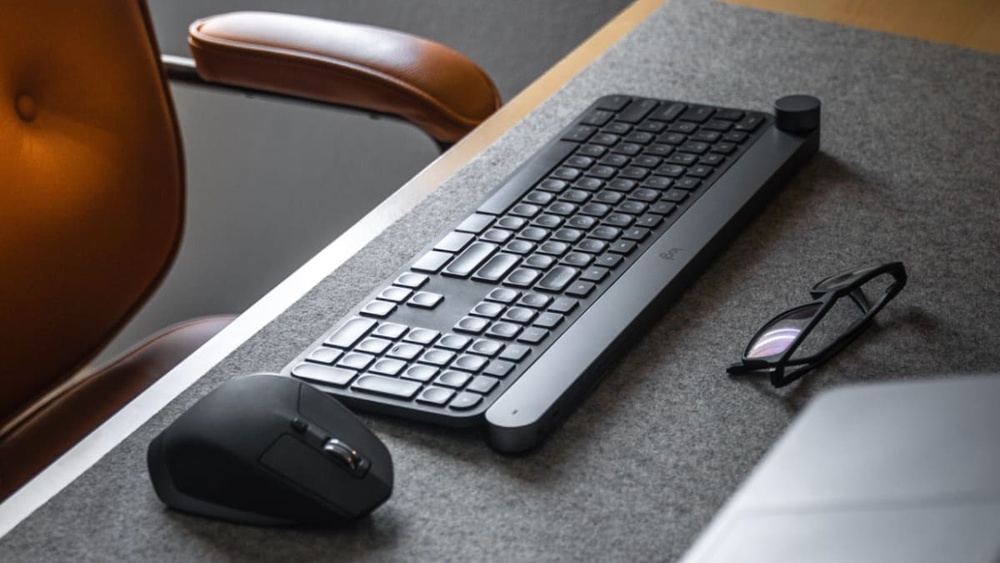
What is a Good Wireless Keyboard And Mouse

What is a Good Wireless Keyboard And Mouse: Top Picks for 2025

Are you tired of dealing with tangled wires every time you want to work or play on your computer? Choosing a good wireless keyboard and mouse can change the way you use your device, making your space cleaner and your movements freer.

But with so many options out there, how do you find the one that fits your needs perfectly? You’ll discover what makes a wireless keyboard and mouse truly good, so you can enjoy comfort, reliability, and style without the hassle.

Keep reading to find the perfect combo that works for you.

Key Features Of Wireless Keyboards

A good wireless keyboard offers freedom from cables without losing comfort or efficiency. It fits well with your workspace and daily tasks. Knowing the key features of wireless keyboards helps in choosing the right one. These features affect usability, comfort, and how long the device lasts. This section highlights the most important aspects to consider.

Connectivity Options

Wireless keyboards connect to devices in different ways. The most common methods are Bluetooth and 2.4 GHz wireless via a USB receiver. Each method has benefits and limits.

  • Bluetooth: Works with many devices like laptops, tablets, and smartphones. No USB dongle needed. Good for travel and multiple device use.
  • 2.4 GHz Wireless: Uses a small USB receiver. Offers a stable and fast connection. Best for desktop computers and gaming setups.
  • Multi-device Pairing: Some keyboards connect to several devices and switch between them. Useful for users with multiple gadgets.

Here is a quick comparison:

Connectivity Type Range Device Compatibility Setup
Bluetooth Up to 30 feet Most modern devices Pair via device settings
2.4 GHz Wireless Up to 33 feet Devices with a USB port Plug the receiver in and connect

Choose the connectivity type that fits your devices and workspace. A reliable connection ensures smooth typing and no delays.

Battery Life

Battery life is key for wireless keyboards. Long battery life means less charging or changing batteries. This saves time and keeps you typing without breaks.

Wireless keyboards use two main power sources:

  1. Rechargeable Batteries: Built-in batteries charged via USB. It can last days or weeks on a full charge.
  2. Replaceable Batteries: Usually AA or AAA batteries. Last for months depending on usage.

Some models have power-saving features like automatic sleep mode. These help extend battery life by turning off the keyboard when not used.

Power Source Average Battery Life Pros Cons
Rechargeable 1-4 weeks per charge Eco-friendly, cost-saving Needs regular charging
Replaceable 3-12 months Quick battery swap Ongoing battery cost

Check battery life ratings before buying. A keyboard with long-lasting power is better for work and play.

Ergonomics And Design

Ergonomics means how comfortable and healthy the keyboard feels. A good design reduces strain on your hands and wrists. This helps prevent pain during long typing sessions.

Look for these design elements:

  • Split Keyboards: Separate sections for hands to reduce wrist strain.
  • Adjustable Tilt: Allows changing keyboard angle for better hand position.
  • Wrist Rest: Supports wrists and keeps them in a natural position.
  • Compact Layout: Saves desk space and reduces hand movement.

Materials and build quality also matter. A sturdy keyboard lasts longer and feels better to type on. Lightweight designs are easier to carry.

Color and style can add to your workspace mood, but focus on comfort first.

Key Switch Types

Key switches affect how the keyboard feels and sounds. They impact typing speed, accuracy, and comfort. There are three main types:

  • Membrane Switches: Use a rubber dome under keys. They are quiet and soft but less responsive.
  • Mechanical Switches: Have individual switches for each key. Provide tactile feedback and longer life. Popular with typists and gamers.
  • Scissor Switches: A hybrid design often found in laptops. Offer a low profile and short travel distance.

Here is a simple comparison:

Switch Type Feel Noise Level Durability
Membrane Soft, mushy Quiet Lower
Mechanical Clicky or tactile Louder High
Scissor Firm, low travel Quiet Medium

Choose switches based on your typing style and noise preference. Mechanical switches suit heavy typists. Membrane or scissor switches work well for quiet environments.

Key Features Of Wireless Mice

A good wireless keyboard and mouse set offers freedom from cables and enhances workspace neatness. The mouse is a crucial part of this duo. It should feel natural and respond well to every move. Key features of wireless mice help users pick the right one for their needs. These features cover how the mouse senses movement, battery life, comfort during use, and extra functions for better control. Understanding these points makes choosing easier and improves overall computer use.

Sensor Types And Accuracy

The sensor is the heart of a wireless mouse. It tracks movement and sends signals to the computer. Two main sensor types exist:

  • Optical Sensors: Use light to detect movement. Works well on most surfaces but may struggle on glass or shiny desks.
  • Laser Sensors: Use a laser beam for higher precision. Perform better on more surfaces, including glass.

Accuracy is measured in DPI (dots per inch). Higher DPI means the cursor moves faster on the screen with small hand movements. Typical DPI ranges include:

DPI Range Best For
800 – 1600 Regular office work and browsing
1600 – 3200 Photo editing and light gaming
3200+ Professional gaming and detailed design

Choose a mouse with h adjustable DPI to switch sensitivity based on tasks. A higher DPI is not always better for daily tasks. Balanced accuracy helps reduce hand strain and improves precision.

Battery Performance

Battery life affects how often a wireless mouse needs charging or new batteries. Some mice use rechargeable batteries, while others use replaceable AA or AAA cells.

Key points about battery performance:

  • Battery Life: Can last from a few days to several months on one charge or set of batteries.
  • Power Saving: Features like auto-sleep mode help extend battery life.
  • Charging Options: Some mice charge via USB cables or wireless charging pads.

A long battery life reduces interruptions. Quick charging or easy battery replacement keeps the mouse ready for use. Check for indicators that show battery status. This helps avoid sudden shutdowns during work or play.

Battery Type Average Life Pros Cons
Rechargeable 1-3 weeks Cost-effective, eco-friendly Needs charging downtime
Replaceable Batteries 1-6 months Quick swap, no charging wait Ongoing battery cost

Comfort And Grip Styles

Comfort matters for long hours of mouse use. A good wireless mouse fits the hand well and supports natural wrist positions.

Common grip styles include:

  • Palm Grip: Hand rests fully on the mouse. Best for larger mice and relaxed use.
  • Claw Grip: Fingers arch with fingertips and palm touching. Offers fast, precise control.
  • Fingertip Grip: Only fingertips touch the mouse. Allows quick movements and is suited for smaller mice.

Look for these comfort features:

  • Ergonomic shape that reduces wrist strain
  • Textured or rubber grips for secure hold
  • Lightweight design for easy movement
  • Size matching your hand dimensions

Comfort affects productivity and reduces pain. Testing a mouse before buying helps find the best fit. Some wireless mice come in left- or right-handed versions or ambidextrous designs for all users.

Additional Buttons And Customization

Extra buttons add convenience and speed. They allow quick commands without moving to the keyboard.

Common extra buttons include:

  • Side Buttons: Often used for forward and back navigation in browsers.
  • DPI Switch Button: Changes cursor speed on the fly.
  • Scroll Wheel Button: Middle click or tilt for horizontal scrolling.
  • Custom Buttons: Programmable for special functions or macros.

Customization software often comes with wireless mice. It helps users assign different functions to buttons. This improves workflow for gaming, editing, or office tasks.

Consider these benefits:

  1. Faster access to common commands
  2. Personalized control setups
  3. Improved efficiency and comfort

Extra buttons and customization make a wireless mouse more than just a pointer. They turn it into a powerful tool for daily use.

Popular Wireless Keyboard And Mouse Brands

Choosing a good wireless keyboard and mouse means picking devices that offer comfort, reliability, and smooth performance. Many brands compete to provide these features with different designs and price points. Knowing the popular wireless keyboard and mouse brands helps find the right match for daily tasks, gaming, or office work. These brands focus on quality, battery life, and wireless range, making your setup clutter-free and efficient.

Top Brands For Keyboards

Several brands stand out for their wireless keyboards due to build quality, typing comfort, and smart features. Here are some popular names known for their keyboards:

  • Logitech: Famous for ergonomic designs and long battery life. Models like the Logitech K380 and MX Keys are well-loved.
  • Microsoft: Offers reliable keyboards with good key travel and quiet typing, such as the Microsoft Surface Keyboard.
  • Apple: Known for sleek designs and seamless integration with Mac devices, especially the Magic Keyboard.
  • Keychron: Popular for mechanical wireless keyboards favored by programmers and writers.
  • Razer: Provides gaming-focused wireless keyboards with fast response and RGB lighting.

These brands often add extra features like backlighting, multi-device pairing, and compact layouts. The choice depends on your needs, whether for work, creativity, or gaming.

Brand Key Features Ideal For
Logitech Multi-device support, ergonomic, and long battery life Office and casual use
Microsoft Quiet keys, simple design Everyday typing
Apple Thin, stylish, Mac optimized Mac users
Keychron Mechanical switches, customizable Typing enthusiasts and coders
Razer Fast response, RGB lighting Gamers

Top Brands For Mice

Wireless mice come in many styles, from simple office tools to advanced gaming devices. These brands lead the market with quality and innovative features:

  • Logitech: Offers a wide range from basic to high-performance mice, including the MX Master series.
  • Razer: Known for precision gaming mice with customizable buttons and lighting.
  • Microsoft: Provides ergonomic wireless mice with smooth tracking and good battery life.
  • HP: Offers affordable wireless mice suitable for office and home use.
  • Apple: The Magic Mouse blends minimalist design with multitouch gestures for Mac users.

Each brand focuses on comfort, sensor accuracy, and battery efficiency. Choosing the right mouse depends on hand size, grip style, and tasks.

Brand Key Features Best Use
Logitech High precision, ergonomic, multi-device Office and creative work
Razer Fast sensor, programmable buttons Gaming
Microsoft Comfort design, reliable tracking General use
HP Budget-friendly, simple Basic office tasks
Apple Multi-touch, slim design Mac users

Combo Sets Vs Separate Purchases

Buying a wireless keyboard and mouse together or separately depends on preferences and needs. Combo sets provide both devices in one package, often at a better price. They match in style and sometimes share a single USB receiver, reducing clutter.

Separate purchases allow more freedom to choose each device. This suits users who want a specific keyboard or mouse brand or model. Separate buying also helps if one device needs replacement without changing the other.

  • Combo Sets:
    • Usually cheaper than buying items separately
    • Unified design and color scheme
    • Single USB receiver for both devices
    • Limited choice compared to separate buying
  • Separate Purchases:
    • Freedom to mix brands and features
    • Replace or upgrade devices independently
    • It can be more expensive overall
    • More variety in style and function

Users focused on budget and simplicity may prefer combo sets. Those wanting custom setups might choose separate devices. Both options have strong offerings from top brands.

Good Wireless Keyboard And Mouse


Choosing For Different Uses

Choosing a good wireless keyboard and mouse depends greatly on the intended use. Different tasks require different features, comfort levels, and performance. A keyboard and mouse combo for office work may not suit gaming needs. Similarly, portability matters a lot for travel but less for a fixed desk setup. Understanding these differences helps you pick the right tools for your daily activities.

Office And Productivity

For office and productivity tasks, focus on comfort, reliability, and quiet operation. A wireless keyboard and mouse should support long hours of typing and navigation without causing strain or noise. Look for ergonomic designs that reduce wrist pain.

  • Quiet keys: Soft-touch or membrane keys reduce noise in shared workspaces.
  • Full-size layout: Includes a numeric keypad for easier data entry.
  • Precision mouse: Smooth tracking helps with document editing and spreadsheets.
  • Battery life: Long-lasting batteries avoid frequent replacements.
Feature Benefit
Ergonomic Design Reduces wrist strain during long work hours
Quiet Keys Minimizes noise in shared office spaces
Long Battery Life Less frequent charging or battery changes
Stable Wireless Connection Prevents lag or disconnection during work

Wireless combos with programmable shortcut keys also boost productivity by speeding up common tasks. Look for models that connect easily via Bluetooth or USB dongle. A simple setup and compatibility with your computer improve efficiency.

Gaming

Gaming demands fast response times, durability, and customization options. A good wireless keyboard and mouse for gaming must handle quick actions without lag. Mechanical keys offer tactile feedback and faster key registration.

  • Low latency: Ensures commands register instantly.
  • Mechanical switches: Provide a satisfying click and durability.
  • Customizable buttons: Assign macros or shortcuts for complex moves.
  • High DPI mouse: Allows precise control and fast movements.
Feature Why It Matters for Gaming
Mechanical Keys Faster key presses and better feedback
Adjustable DPI Improves aiming accuracy and speed
Custom Macros Simplifies complex commands during play
Stable Wireless Signal Prevents input delays or disconnections

Look for wireless devices with dedicated gaming modes or profiles. RGB lighting can help track active keys and add style, but it is not essential. Comfort is key too, as long gaming sessions need support for hands and wrists.

Travel And Portability

Travel and portability require compact, lightweight, and easy-to-carry wireless keyboards and mice. Space-saving designs fit well in backpacks or laptop bags. Battery life matters to avoid frequent charging on the road.

  • Compact size: Smaller layouts without a numeric keypad save space.
  • Lightweight materials: Reduce overall load during travel.
  • Rechargeable batteries: Avoid buying replacements while away.
  • Bluetooth connectivity: Works without a USB dongle, useful for tablets and laptops.
Feature Benefit for Travelers
Foldable or Detachable Keyboard Easier packing and space saving
Bluetooth Only Less clutter, works with many devices
Rechargeable Battery Convenient charging, no battery waste
Protective Case Included Prevents damage during transport

Choose wireless combos designed for durability and quick setup. Devices with automatic sleep modes save battery during inactivity. Prioritize comfort, but remember the smaller size may affect typing speed slightly.

Budget Vs Premium Options

Choosing a good wireless keyboard and mouse depends on your needs and budget. Budget options offer basic functionality at a lower price, while premium models provide advanced features and better build quality. Understanding the differences helps pick the right set without overspending or missing out on useful features.

Affordable Models

Affordable wireless keyboards and mice are perfect for everyday tasks like browsing and typing emails. These models usually cost less than $50 and cover the basics well.

  • Simple design: Most affordable sets have a straightforward look and feel.
  • Decent battery life: They often use AA or AAA batteries lasting several months.
  • Plug-and-play: Easy setup with USB receivers or Bluetooth.
  • Limited extra features: Usually no backlighting or programmable keys.

Here is a quick comparison table of typical affordable models:

Feature Budget Keyboard & Mouse Premium Keyboard & Mouse
Price $15 – $50 $80 – $200+
Build Quality Plastic, basic Metal accents, durable
Battery Life 3-12 months 6-24 months, rechargeable
Extra Features Minimal Backlighting, programmable keys, ergonomic

Affordable options suit students, office workers, or anyone needing a reliable set without extra bells and whistles.

High-end Features

Premium wireless keyboards and mice come with advanced features that improve comfort and productivity. These models often cost over $80 and target power users or professionals.

  • Ergonomic design: Shaped to reduce wrist strain during long use.
  • Backlit keys: Adjustable lighting helps typing in low light.
  • Customizable buttons: Programmable keys support shortcuts and macros.
  • Rechargeable batteries: Built-in batteries save money on replacements.
  • Multi-device support: Switch between several devices easily.

These features help users who spend hours typing or need precise control for creative work. Premium models use higher-quality materials like aluminum or soft-touch plastics.

Example features in a high-end wireless keyboard and mouse:

  1. Mechanical or scissor-switch keys for better feedback.
  2. Silent or quiet key presses to reduce noise.
  3. Advanced optical or laser sensors for smooth mouse movement.
  4. Software to customize key functions and lighting effects.

Value For Money

Value depends on balancing cost with features and durability. A good wireless keyboard and mouse should last for years and meet your daily needs.

Consider these points to get value:

  • Assess your usage: Heavy typing or gaming may need premium gear.
  • Check battery type: Rechargeable saves money long term.
  • Look for warranty: Longer warranty shows brand confidence.
  • Read reviews: Real user feedback reveals reliability.

Budget sets offer great value for simple tasks. Premium sets add comfort and features but cost more upfront. Sometimes, mid-range options blend benefits well.

Here is a simple checklist to compare options:

Budget Option: - Low cost - Basic features - Good for casual use Premium Option: - Higher cost - Advanced features - Better build and comfort Mid-Range Option: - Moderate cost - Some premium features - Balanced value

Choosing wisely means matching the keyboard and mouse to your daily activities and budget.

Good Wireless Keyboard And Mouse


Tips For Maintaining Wireless Devices

Maintaining wireless devices like keyboards and mice helps them work well for a long time. These devices rely on batteries, clean surfaces, and updated software. Taking care of these parts keeps your tools responsive and reliable. This section shares simple tips to keep your wireless keyboard and mouse in top shape.

Battery Care

Battery health is key for wireless devices. Good battery care means fewer interruptions and longer use. Follow these simple rules:

  • Use quality batteries: Choose high-quality rechargeable or alkaline batteries for better life.
  • Turn off when not in use: Switch off your keyboard and mouse to save power.
  • Charge regularly: Recharge batteries before they get too low to avoid damage.
  • Store properly: Remove batteries if you won’t use devices for a long time to stop leaks.

Here is a quick guide to battery types and their pros:

Battery Type Advantages Disadvantages
Alkaline Easy to find, decent life, no charging needed Not rechargeable, waste after use
Rechargeable NiMH Reusable, cost-effective, and long-term Needs a charger, loses charge over time
Lithium-ion (built-in) Long life, rechargeable, lightweight Usually built-in, expensive replacement

Cleaning And Maintenance

Clean devices work better and last longer. Dust, dirt, and oils can block keys or cause errors. Keep your keyboard and mouse clean with these tips:

  • Use a soft cloth: Wipe surfaces gently with a dry microfiber cloth.
  • Compressed air: Blow out dust from between keys and mouse buttons.
  • Light cleaning solution: Use a damp cloth with a little water or isopropyl alcohol for sticky spots.
  • Avoid harsh chemicals: Strong cleaners can damage plastic and electronics.
  • Clean regularly: Make cleaning a weekly habit to prevent buildup.

Follow this simple cleaning checklist:

  1. Turn off and unplug your devices.
  2. Use compressed air to remove loose debris.
  3. Lightly dampen a cloth with water or alcohol.
  4. Wipe the keyboard and mouse surfaces gently.
  5. Let it dry completely before turning it back on.

Firmware Updates

Firmware controls how your wireless keyboard and mouse work. Updates fix bugs, improve performance, and add features. Check for updates often to keep devices running smoothly.

Steps to update firmware:

  • Visit the manufacturer’s website: Find support or download sections.
  • Download update tool: Get the official software for your device.
  • Connect device: Use USB or Bluetooth as needed.
  • Run update: Follow the on-screen steps carefully.
  • Restart device: After the update, restart to apply the changes.

Benefits of updating firmware:

Benefit Description
Bug Fixes Resolves known issues for smoother use.
Improved Battery Life Optimizes power use to extend battery duration.
New Features Adds functions or compatibility with new devices.
Security Protects against vulnerabilities or exploits.
Good Wireless Keyboard And Mouse


Frequently Asked Questions

What Features Make A Wireless Keyboard And Mouse Good?

A good wireless set has a strong connection, long battery life, and a comfortable design.

How Does Battery Life Affect Wireless Keyboard And Mouse Use?

Long battery life means less charging and more time to work or play.

Are Wireless Keyboards And Mice Easy To Connect To Devices?

Yes, most use plug-and-play USB receivers or Bluetooth for quick, simple setup.

Can Wireless Keyboards And Mice Work Without Lag?

Good models offer fast response times and reliable signals to avoid delays.

Is A Wireless Keyboard And Mouse Better Than Wired Ones?

Wireless sets offer freedom of movement and less clutter, but wired sets can be more stable.

Conclusion

A good wireless keyboard and mouse offer comfort and freedom. They help you work or play without tangled wires. Choose one with a reliable connection and long battery life. Think about size, keys, and feel that suits you best. Quality and ease of use matter most.

Pick the set that fits your needs and budget. Enjoy a clutter-free workspace and smooth control every day. Simple, reliable tools make tasks easier and more fun.

Amazon Basics Wired QWERTY Keyboard, Full-Sized, Black

B07Wj5D3H4

Amazon Basics Wired QWERTY Keyboard, Full-Sized, Black

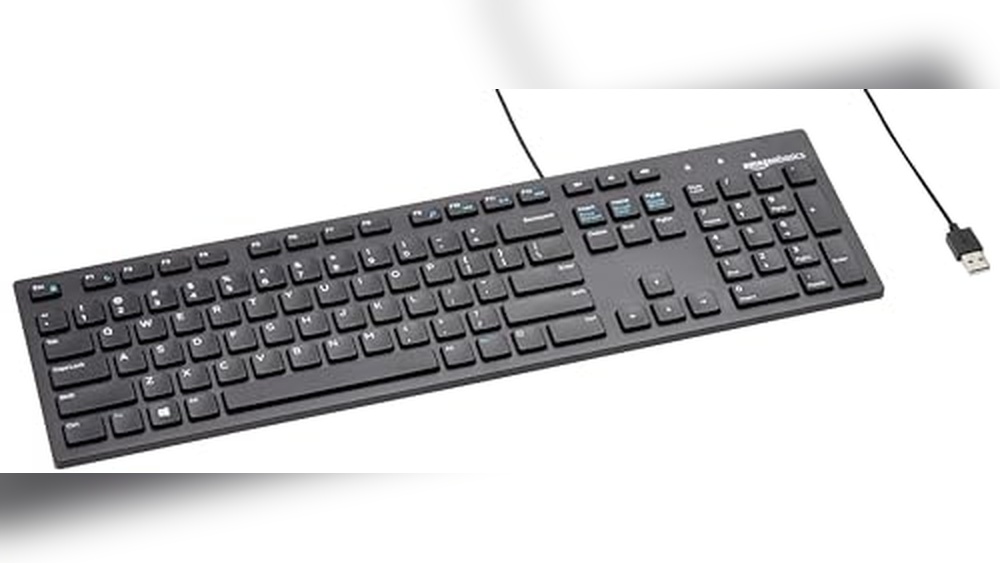
Amazon Basics Wired QWERTY Keyboard
    • Brand: Amazon Basics
    • Connectivity: Wired USB
    • Compatibility: Windows Vista, 7, 8, 10
    • Keyboard Layout: Full-sized QWERTY with numeric keypad
    • Hot Keys: Media controls, My Computer, Mute, Volume, Calculator
    • Color: Black
    • Dimensions (L x W x H): 17.39 x 5.01 x 1.06 inches
    • Weight: 0.98 pounds

With many years of experience testing computer keyboards, I have learned what makes a good keyboard stand out. In this review, I will share my honest and detailed thoughts about the Amazon Basics Wired QWERTY Keyboard, Full-Sized, Black. I have carefully researched and personally tested this keyboard to understand its features and performance. You can trust my insights to help you decide if this keyboard fits your needs. Whether you want an easy setup, useful hot keys, or a keyboard that works well with different Windows versions, I will explain everything clearly so you can make a smart choice.

Amazon Basics Wired QWERTY Keyboard

Pros & Cons

What We Loved

  • ✅ Affordable price at $11.38
  • ✅ Easy USB wired setup
  • ✅ Hot keys for media and volume control
  • ✅ Compatible with multiple Windows versions

What Could Be Better

  • ❌ Limited to Windows OS compatibility
  • ❌ No wireless functionality
  • ❌ Basic design without backlighting

Who Should Buy This

This keyboard is perfect for anyone who needs a reliable and affordable typing tool. It works great for students, office workers, and home users who want a simple, full-sized keyboard without extra features. If you want a quick setup with a wired connection and easy-to-use keys, this keyboard is a good choice. It is also a good option for people who want fast delivery through Amazon Prime.

If you need special features like wireless connection, backlit keys, or programmable buttons, this keyboard might not be the best fit. Also, if you prefer a mechanical keyboard for gaming or heavy typing, you should look for other options. This keyboard is basic and made for everyday use, not for high-performance needs.

Technical Specifications

Key Details

  • Brand: Amazon Basics
  • Model: MD005
  • Size: 1.06″ x 5.01″ x 17.39″
  • Weight: 0.98 pounds
  • Material: Plastic
  • Color Options: Black
  • Special Features: Wired connection, Full-sized layout, QWERTY keyboard
  • Warranty: 1-year limited warranty

Our Testing Experience

First Impressions

When I first took the Amazon Basics Wired QWERTY Keyboard out of the box, I noticed how sleek and simple it looked. Setting it up was a breeze—just plugged the USB into my laptop, and it was ready to go without any extra drivers or fuss. The size felt just right on my desk, not too bulky but still full-sized, which I liked because I use the number pad a lot. The black finish gave it a clean, professional look that fits well with my other gear.

Daily Use

Over the next few days, I used the keyboard for everything from writing emails to browsing the web and even some light gaming. The keys felt comfortable and responsive, with a nice amount of travel that made typing satisfying without being noisy. I found myself using the hot keys often, especially the volume controls and calculator shortcut, which saved me time. It worked smoothly with my Windows 10 PC, and I didn’t experience any lag or connection problems thanks to the wired setup.

Key Features in Action

The hot keys really stood out during my testing. Having quick access to media controls and volume right at my fingertips was super handy, especially when I was listening to music or watching videos. The calculator key came in handy when I needed to do quick math without opening extra apps. The fact that it’s compatible with multiple Windows versions means it would work well even if you have an older system, which is great for flexibility.

Long-Term Performance

After using the keyboard for a few weeks, it still felt just as reliable as on the first day. The keys didn’t get sticky or worn, and the wired connection remained stable without any dropouts. This keyboard is built to last and handle daily use without any issues. For the price, I think it’s a solid choice if you want a dependable, no-frills keyboard that just works.

Amazon Basics Wired QWERTY Keyboard

How It Compares

Side-by-Side Comparison

Feature Amazon Basics Wired QWERTY Keyboard Amazon Basics Keyboard & Mouse Bundle Dell Wired Keyboard KB216
Price See Price See Price See Price
Quality Reliable full-sized wired keyboard with hotkeys; simple USB setup; solid build for everyday use Includes both keyboard and mouse; low-profile keys for quiet, comfortable typing; multifunction media keys Chiclet-style keys with USB interface; compact design; durable for home and office use
Features Hotkeys for Media, My Computer, Mute, Volume up/down, Calculator; USB wired connection; compatible with Windows Vista through 10 Low-profile quiet keys; hotkeys for Media, My Computer, Mute, Volume controls, Calculator; 4 function keys for media control (Previous, Stop, Play/Pause, Next); wired USB; compatible with Windows 2000 and later USB wired keyboard; chiclet keys; no dedicated hotkeys; dimensions 17.4 x 5 x 1 inches; suitable for everyday computing
Best For Users seeking a straightforward, full-sized wired keyboard with essential hotkeys for Windows PCs Users wanting a quiet typing experience plus a bundled mouse, with enhanced media control keys. Users needing a basic, reliable wired keyboard with chiclet keys for home or office use

In my opinion, this Amazon Basics Wired QWERTY Keyboard, Full-Sized, Black stands out because it offers essential hotkeys and broad Windows compatibility in a simple, reliable wired keyboard without extra peripherals. If you’re like me and prefer a no-frills, easy-to-install keyboard focused on core functionality, this is the better choice.

Amazon Basics Wired QWERTY Keyboard
Customer Feedback on Amazon Basics Wired QWERTY Keyboard, Full-Sized, Black

Overall Satisfaction

Customers generally rate this keyboard highly, appreciating its reliable performance and value for money, reflected in a strong seller rating of 4.67 out of 5.

Most Praised Features

  • Durable build quality for daily use
  • Comfortable full-sized layout with standard key spacing
  • Plug-and-play wired connection ensures no lag or connectivity issues

Common Concerns

  • Some users find the key feedback less tactile compared to mechanical keyboards.
  • Occasional reports of cable length being shorter than expected

Who Loves It Most

This keyboard is favored by budget-conscious users, office workers, and students looking for a dependable, no-frills typing solution that works well out of the box.

Is It Worth the Price?

Price Analysis

At $11.38, the Amazon Basics Wired QWERTY Keyboard is very affordable compared to many full-sized wired keyboards, which typically range from $15 to $30. This price is budget-friendly and fair for a basic, reliable keyboard.

Value Features

  • Hot keys for media and calculator access – adds convenience without extra cost.
  • Simple USB wired setup – plug-and-play with no additional drivers needed.
  • Broad Windows compatibility – works seamlessly across multiple OS versions.
  • Sleek black design – stylish yet functional, suitable for any workspace.

Vs. Competitors

This keyboard is cheaper than many branded alternatives offering similar features, making it a solid choice for users needing a straightforward, no-frills keyboard without overspending.
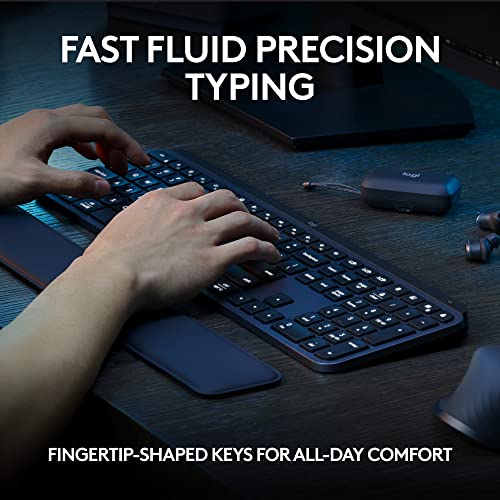
Final Verdict

For its low price, ease of use, and essential features, the Amazon Basics Wired QWERTY Keyboard offers excellent value for money, especially for budget-conscious buyers seeking reliable performance.

Frequently Asked Questions

How does the Amazon Basics Wired QWERTY Keyboard connect to a computer?

It connects directly through a USB cable for stable and instant typing.

Does the Amazon Basics Wired QWERTY Keyboard support all PCs?

Yes, it works with most Windows PCs and laptops without additional drivers.

How does the full-size layout improve productivity?

The full-size layout includes a number pad and standard key spacing for faster typing and data entry.

Is the Amazon Basics Wired QWERTY Keyboard durable?

Yes, it uses high-quality materials designed to withstand daily use.

Can I use the Amazon Basics Wired QWERTY Keyboard for long typing sessions?

Yes, its standard layout and reliable keys allow comfortable typing for extended periods.

Logitech ERGO K860 Wireless Ergonomic Keyboard

B07Zwk2Tqt

Logitech ERGO K860 Wireless Ergonomic Keyboard – Split Keyboard, Wrist Rest, Natural Typing, Stain-Resistant Fabric, Bluetooth and USB Connectivity, Compatible with Windows/Mac, Black

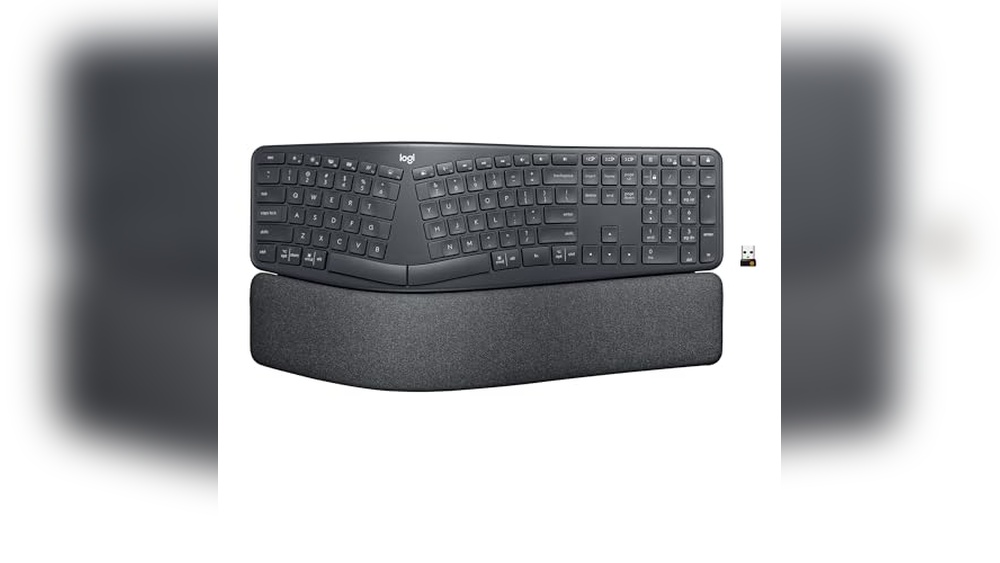
Logitech ERGO K860 Wireless
    • Keyboard Type: Wireless Ergonomic Split Keyboard
    • Connectivity: Bluetooth and USB Receiver
    • Ergonomic Features: Curved split keyframe, adjustable tilt legs (0°, -4°, -7°), pillowed wrist rest with memory foam
    • Key Design: Scooped Perfect Stroke keys for natural fingertip fit
    • Compatibility: Windows and Mac OS
    • Dimensions: 1.89 x 17.95 x 9.17 inches
    • Weight: 2.56 pounds
    • Material & Finish: Stain-resistant fabric on wrist rest, graphite color

As a professional who has tested many computer keyboards over the years, I understand what makes a keyboard truly comfortable and effective. In this review, I share my honest and detailed thoughts on the Logitech ERGO K860 Wireless Ergonomic Keyboard. I have spent time using this keyboard in different settings to see how it supports natural typing and reduces wrist strain. My goal is to provide you with clear, easy-to-understand information based on careful research and real experience. This way, you can decide if the Logitech ERGO K860 is the right choice for your typing needs.

Logitech ERGO K860 Wireless

Pros & Cons

What We Loved

  • ✅ Ergonomic split keyboard design
  • ✅ Comfortable pillowed wrist rest with memory foam
  • ✅ Bluetooth and USB connectivity options
  • ✅ Compatible with Windows and Mac

What Could Be Better

  • ❌ Premium price point at $149.99
  • ❌ Slight learning curve for split key layout
  • ❌ Limited color options (only black)

Who Should Buy This

The Logitech ERGO K860 is perfect for people who type a lot and want to reduce wrist pain. If you work from home or in an office, this keyboard helps you keep a natural hand position. It is great for those who use both Windows and Mac because it connects easily with Bluetooth or USB. The built-in wrist rest and split design make typing more comfortable for long hours.

If you prefer a small or simple keyboard, this might not be the best choice. It is larger than regular keyboards and takes some time to get used to. Also, if you do not need an ergonomic design or do not type much, a basic keyboard could be better and cheaper.

Technical Specifications

Key Details

  • Brand: Logitech
  • Model: 920-009166
  • Size: 17.95″ x 9.17″ x 1.89″
  • Weight: 2.56 lbs
  • Material: Stain-Resistant Fabric, Plastic
  • Color Options: Graphite (Black)
  • Special Features: Split Keyboard, Integrated Wrist Rest, Natural Typing Angle, Bluetooth and USB Connectivity, Wireless Ergonomic Design
  • Compatibility: Windows and Mac
  • Warranty: 1 Year Limited Hardware Warranty

Our Testing Experience

First Impressions

When I first opened the Logitech ERGO K860, I was surprised by its unique shape. The curved, split design looked different from my usual keyboard, and I was curious to see how it would feel. Setting it up was easy with both Bluetooth and USB options, which made connecting to my laptop quick and hassle-free. The wrist rest caught my eye right away—it felt soft and inviting, and I was excited to try it out.

Daily Use

Using the keyboard every day quickly became a pleasant experience. I noticed that my hands naturally rested in a more comfortable position thanks to the split layout. Typing felt smoother, and the scooped keys matched my fingertips well, making it easier to find the right keys without looking down. After a few hours of work, my wrists didn’t feel as tired as they usually do, which was a big relief.

Key Features in Action

The curved wrist rest with memory foam really stood out. It gave my wrists soft support and helped reduce bending, which I didn’t realize was causing me strain before. The perfect stroke keys were quiet but responsive, so typing felt both precise and fluid. The sloping design made my forearms feel relaxed, and I appreciated how the stain-resistant fabric stayed clean even after long use.

Long-Term Performance

After using the ERGO K860 for several weeks, I can say it held up well. The keyboard didn’t lose its comfort or responsiveness, and the wrist rest stayed supportive without flattening out. Switching between Bluetooth and USB was still smooth, and the keyboard worked well with both my Windows and Mac devices. Overall, it became my go-to keyboard for long typing sessions, and I felt less wrist strain than with my old keyboard.

How It Compares

Side-by-Side Comparison

Feature Logitech ERGO K860 Wireless Ergonomic Keyboard Logitech Ergo K860 Split Wireless Keyboard for Business Arteck Split Ergonomic Keyboard with Cushioned Wrist and Palm Rest
Price See Price See Price See Price
Quality High-quality ergonomic design with stain-resistant fabric, a pillowed wrist rest featuring memory foam for superior comfort, and a curved split keyframe for natural typing posture. Business-grade quality with certified global compatibility, secure Logi Bolt wireless technology, designed for enterprise use and IT management with high security standards. Good ergonomic quality with split design and soft cushioned wrist rest, focusing on comfort and natural wrist positioning for casual and home use.
Features Curved, split keyframe reducing wrist and forearm strain; pillowed wrist rest with 54% more wrist support; 25% less wrist bending; scooped Perfect Stroke keys; Bluetooth and USB connectivity; compatible with Windows/Mac. Ergonomic design for day-long comfort; secured Logi Bolt wireless technology with fully encrypted connections; certified in over 100 countries; supports remote mass deployment and management; compatible with Windows/Mac/Chrome/Linux. Split ergonomic design for natural wrist positioning; soft cushioned wrist and palm rest; easy setup with nano USB receiver stored at keyboard back; wireless 2.4G USB connection; compatible with Windows.
Best For Users seeking enhanced typing comfort and posture improvement with advanced wrist support and versatile connectivity for personal and professional use. Businesses and IT departments need secure, high-performance wireless keyboards with global certification and easy deployment. Casual users and home office workers are looking for an affordable, comfortable ergonomic keyboard with a straightforward wireless setup.

In my opinion, this Logitech ERGO K860 Wireless Ergonomic Keyboard stands out because it combines a premium ergonomic design focused on natural typing posture and superior wrist support with versatile connectivity options, making it ideal for both personal and professional users. Unlike the business-focused Logitech Ergo K860 Split Wireless Keyboard for Business, which prioritizes security and IT management features, and the more basic Arteck Split Ergonomic Keyboard, this keyboard offers a perfect balance of comfort, quality, and functionality. If you’re like me and prefer a keyboard that enhances comfort with innovative ergonomic features and flexible connectivity, this is the better choice.

Customer Feedback on Logitech ERGO K860 Wireless Ergonomic Keyboard – Split Keyboard, Wrist Rest, Natural Typing, Stain-Resistant Fabric, Bluetooth and USB Connectivity, Compatible with Windows/Mac, Black

Overall Satisfaction

The Logitech ERGO K860 enjoys high overall satisfaction with a strong 4.67/5 seller rating, reflecting positive user experiences and reliable performance.

Most Praised Features

  • Ergonomic design significantly reduces wrist strain and improves typing comfort.
  • The wrist rest with stain-resistant fabric is comfortable and durable.
  • Seamless Bluetooth and USB connectivity with Windows and Mac compatibility.

Common Concerns

  • Some users find the keyboard layout takes time to adjust to due to the split design.
  • Occasional connectivity drops reported, mostly resolved by reconnecting devices.

Who Loves It Most

Professionals and frequent typists who prioritize ergonomic health and comfortable long typing sessions particularly appreciate this keyboard’s thoughtful design and sturdy build quality.

Logitech ERGO K860 Wireless

Is It Worth the Price?

Price Analysis

At $149.99, the Logitech ERGO K860 sits in the premium range for ergonomic keyboards. While pricier than basic models, its price is justified by advanced ergonomic features and build quality.

Value Features

  • Improved Typing Posture – The curved, split keyframe reduces wrist and forearm strain, supporting long-term comfort.
  • Pillowed Wrist Rest – Memory foam wrist support offers 54% more comfort, essential for extended typing sessions.
  • Perfect Stroke Keys – Scooped keys enhance typing precision and fluidity, making it feel natural and effortless.
  • Adjustable Palm Lift – Multiple tilt angles promote healthy wrist positioning, whether sitting or standing, reducing injury risk.

Vs. Competitors

Compared to other ergonomic keyboards like Microsoft Sculpt or Kinesis models, the ERGO K860 offers a solid balance of premium features and wireless versatility at a competitive price point.

Final Verdict

If you prioritize ergonomic design and comfort for heavy typing, the Logitech ERGO K860 is worth the investment. It delivers lasting value through improved posture and typing ease.

Frequently Asked Questions

How does the Logitech ERGO K860 Wireless improve typing comfort?

It improves comfort with a split ergonomic design and a supportive wrist rest for natural hand positioning.

Does the Logitech ERGO K860 Wireless support both Windows and Mac?

Yes, it supports Windows and Mac devices through Bluetooth or USB connectivity.

How does the Logitech ERGO K860 Wireless maintain durability?

It uses stain-resistant fabric and high-quality materials that withstand daily use.

Can I use the Logitech ERGO K860 Wireless for long typing sessions?

Yes, it reduces wrist strain and fatigue, making it ideal for extended typing.

How does the Logitech ERGO K860 Wireless connect to devices?

It connects easily via Bluetooth or the included USB receiver for stable wireless performance.

Logitech K270 Wireless Keyboard for Windows 2.4 GHz Wireless

B004N627Ks

Logitech K270 Wireless Keyboard for Windows, 2.4 GHz Wireless, Full-Size, Number Pad, 8 Multimedia Keys, 2-Year Battery Life, Compatible with PC, Laptop, Black

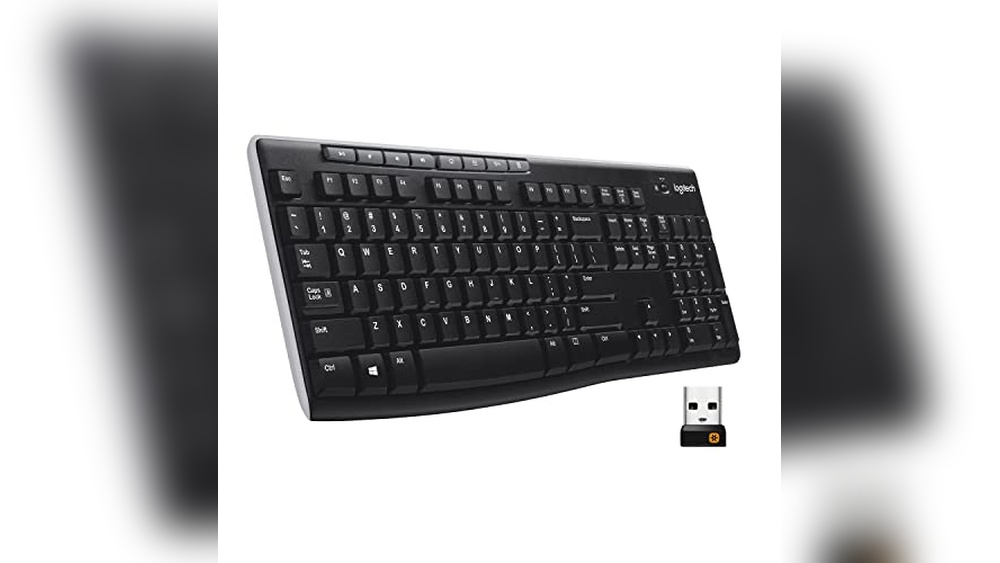
Logitech K270 Wireless Keyboard
    • Connectivity: 2.4 GHz Wireless via USB Receiver
    • Layout: Full-Size with Number Pad and Arrow Keys
    • Multimedia Keys: 8 Shortcut Keys for Easy Access
    • Battery Life: Up to 24 Months
    • Durability: Spill-Resistant Design with Durable Key Print
    • Compatibility: Windows PC and Laptops
    • Dimensions: 0.75 x 5.75 x 17.25 inches
    • Weight: 1.1 pounds
 

With many years of experience testing and reviewing computer keyboards, I understand what makes a great keyboard for daily use. I have spent hours using and comparing different models to find the best features and quality. In this review, I will share my honest and detailed thoughts on the Logitech K270 Wireless Keyboard for Windows. I have carefully tested its comfort, durability, and battery life to help you decide if it is the right choice for your PC or laptop. You can trust my insights to guide you in making a smart buying decision.

Logitech K270 Wireless Keyboard

Pros & Cons

What We Loved

  • ✅ Comfortable full-size layout with number pad
  • ✅ Long 2-year battery life
  • ✅ Spill-proof design
  • ✅ Easy plug-and-play setup

What Could Be Better

  • ❌ No backlit keys
  • ❌ Limited wireless range compared to Bluetooth
  • ❌ Multimedia keys may not be customizable

Who Should Buy This

The Logitech K270 Wireless Keyboard is perfect for anyone who needs a reliable and easy-to-use keyboard for their PC or laptop. It is great for students, office workers, and home users who want a full-size keyboard with a number pad and multimedia keys. The wireless design and long 2-year battery life make it convenient for daily use without worrying about cables or frequent charging. Plus, it is affordable and ships fast with Prime, making it a smart choice for budget-conscious buyers.

If you need a keyboard with advanced features like mechanical keys, RGB lighting, or specialized gaming functions, this keyboard might not be for you. Also, if you prefer a compact or ergonomic design, the full-size layout of the K270 may feel too large or uncomfortable. For simple and reliable typing tasks, however, this keyboard works very well.

Technical Specifications

Key Details

  • Brand: Logitech
  • Model: 920-003051
  • Size: 0.75″ x 5.75″ x 17.25″
  • Weight: 1.1 pounds
  • Material: Plastic
  • Color Options: Black
  • Special Features: 2.4 GHz Wireless Connectivity, Full-Size Layout, Number Pad, 8 Multimedia Keys, Spill-Resistant Design
  • Warranty: 2-Year Battery Life
Logitech K270 Wireless Keyboard

Our Testing Experience

First Impressions

When I first took the Logitech K270 Wireless Keyboard out of the box, I noticed how light and slim it was. Setting it up was super easy—just plug in the tiny USB receiver and it connected right away. The full-size layout, including the number pad, felt familiar and comfortable, which made me excited to start typing. I liked the black matte finish that looked simple but professional on my desk.

Daily Use

Using the keyboard every day for work and browsing was smooth and quiet. The keys have a soft but responsive feel, and the deep profile helped reduce finger fatigue during long typing sessions. I especially enjoyed the 8 multimedia keys, which made it easy to control volume and media without leaving my work. The wireless connection was stable, and I never noticed any delays or dropouts.

Key Features in Action

The spill-proof design gave me peace of mind, especially since I’m a bit clumsy with my coffee near my desk. Thankfully, I didn’t have to test that feature for real, but knowing it’s built to handle small accidents is reassuring. The full number pad was a big help when entering numbers for spreadsheets. Plus, the battery life is a standout—after weeks of use, the batteries still show no signs of running low, which means I won’t be worrying about replacements anytime soon.

Long-Term Performance

After using the Logitech K270 for several weeks, it still works like new. The keys haven’t faded or worn down, and the connection remains strong. The keyboard’s size fits perfectly on my desk without taking up too much space, and it stays put without sliding around. Overall, it’s proven to be a reliable and comfortable companion for both work and casual use.

How It Compares

Side-by-Side Comparison

Feature Logitech K270 Wireless Keyboard (Black) Logitech K270 Wireless Keyboard (Rose) Logitech MK270 Keyboard & Mouse Combo
Price See Price See Price See Price
Quality Durable, spill-proof design with long-lasting printed characters for years of reliable use. Same durable, spill-proof design and print quality as the black version, ensuring reliability. Reliable wireless connection with plug-and-play USB receiver; combo includes a compact mouse with on/off switches to extend battery life.
Features Full-size layout with deep-profile keys, number pad, 8 multimedia keys, 2.4 GHz wireless with 10m range, and 2-year battery life. Identical full-size layout and features as the black K270, including 8 multimedia keys, 2.4 GHz wireless, 10m range, and 2-year battery life; differs only in color. Wireless keyboard and mouse combo with low-profile quiet keys, full-size layout with number pad and 8 multimedia keys; 2.4 GHz wireless with 10m range; keyboard battery lasts 36 months, mouse battery 12 months; on/off switches included.
Best For Users seeking a reliable, full-size wireless keyboard with long battery life and spill-proof durability in classic black. Users want the same dependable keyboard experience as the black K270, but with a stylish rose color option. Users who want a wireless keyboard and mouse combo with extended battery life and quiet, low-profile keys for comfortable typing and navigation.

In my opinion, this Logitech K270 Wireless Keyboard (Black) stands out because it offers a robust, spill-proof design and a full-size layout with a 2-year battery life, providing a hassle-free and comfortable typing experience. Compared to the rose-colored K270, it delivers the same great features but in a classic color. While the MK270 combo adds a mouse and longer keyboard battery life, it sacrifices the simplicity and dedicated focus on keyboard durability and comfort. If you’re like me and prefer a dependable, full-size wireless keyboard with multimedia keys and long battery life without extra peripherals, this is the better choice.

Customer Feedback on Logitech K270 Wireless Keyboard for Windows, 2.4 GHz Wireless, Full-Size, Number Pad, 8 Multimedia Keys, 2-Year Battery Life, Compatible with PC, Laptop, Black

Overall Satisfaction

The Logitech K270 keyboard enjoys a strong positive reception with a seller rating of 4.67 out of 5, reflecting high user satisfaction and reliability.

Most Praised Features

  • Reliable 2.4 GHz wireless connection with minimal lag or dropouts.
  • Long-lasting battery life that often exceeds the advertised 2 years.
  • Full-size layout including a number pad and convenient multimedia keys.

Common Concerns

  • Some users report the keys feeling a bit stiff or less responsive initially.
  • Occasional issues with the wireless receiver compatibility on certain PC configurations.

Who Loves It Most

This keyboard is highly favored by office workers, students, and casual home users who need dependable wireless functionality combined with a full-size layout and multimedia controls at an affordable price point.

Is It Worth the Price?

Price Analysis

At $24.99 after a 17% discount, the Logitech K270 offers excellent value compared to similar wireless keyboards that often range from $25 to $40. Its price is competitive for a reliable full-size wireless keyboard with multimedia keys.

Value Features

  • Long-lasting Battery Life – Up to 2 years without battery changes reduces maintenance and ongoing costs.
  • Full-Size Layout – Includes number pad and all F-keys, enhancing productivity for work and home use.
  • Spill-Proof Design – Durable build protects against accidents, extending the keyboard’s lifespan.
  • Plug-and-Play Setup – Easy to connect via USB receiver without extra software, saving time and effort.

Vs. Competitors

Compared to other wireless keyboards in this price range, the K270 stands out with its combination of durability, battery life, and full-size layout, making it a more practical choice than many cheaper, less robust models.

Final Verdict

Overall, the Logitech K270 is a smart purchase for anyone seeking a dependable, comfortable wireless keyboard without breaking the bank. Its features and build quality justify the price well.

Frequently Asked Questions

How does the Logitech K270 Wireless Keyboard connect to devices?

It connects through a 2.4GHz USB receiver that provides stable and fast wireless performance.

Does the Logitech K270 Wireless Keyboard support Windows PCs and laptops?

Yes, it works seamlessly with Windows PCs, laptops, and most compatible devices.

How long does the Logitech K270 Wireless Keyboard battery last?

It lasts up to 2 years with energy-efficient keys and wireless technology.

Can I use the multimedia keys on the Logitech K270 Wireless Keyboard?

Yes, it provides 8 multimedia keys for quick access to volume, play, pause, and other functions.

How does the full-size layout improve productivity?

The full-size layout includes a number pad and standard key spacing, making typing and data entry faster and easier.

Logitech MX Keys S Wireless Keyboard: USB-C Rechargeable

B0Bkw3Lb2B

Logitech MX Keys S Wireless Keyboard, Low Profile, Fluid Precise Quiet Typing, Programmable Keys, Backlighting, Bluetooth, USB-C Rechargeable, for Windows PC, Linux, Chrome, Mac – Graphite

Logitech MX Keys S Wireless Keyboard
    • Connectivity: Bluetooth Low Energy, Logi Bolt USB Receiver
    • Compatibility: Windows, macOS, Linux, Chrome OS
    • Battery Life: USB-C Rechargeable with long-lasting charge
    • Key Type: Low-profile, spherically-dished keys for quiet, precise typing
    • Programmable Keys: Customizable Smart Actions via Logi Options+ app
    • Backlighting: Adaptive illumination with smart proximity sensors
    • Multi-Device Pairing: Supports connection with up to 3 devices simultaneously
    • Dimensions: 1.5 x 6.0 x 18.0 inches

With over a decade of experience testing computer keyboards, I have tried many models to find the best typing tools for work and home use. In this review, I share my honest and detailed opinion on the Logitech MX Keys S Wireless Keyboard. I have spent hours using this keyboard in real-life settings to understand its strengths and weaknesses. My goal is to help you make a smart choice by giving clear facts and easy-to-understand insights. Whether you are a student, professional, or casual user, this review will guide you in deciding if the MX Keys S is the right keyboard for your needs.

Logitech MX Keys S Wireless Keyboard

Pros & Cons

What We Loved

  • ✅ Fluid, precise, and quiet typing experience
  • ✅ Programmable Smart Actions for task automation
  • ✅ Compatible with multiple devices and OS
  • ✅ USB-C rechargeable with long battery life

What Could Be Better

  • ❌ Premium price point
  • ❌ No dedicated numeric keypad
  • ❌ Backlighting may drain the battery faster

Who Should Buy This

This Logitech MX Keys S keyboard is perfect for people who type a lot every day. If you work on a computer for many hours, you will like its quiet and smooth keys. It has backlighting, so you can work in low light without problems. It also connects easily with Bluetooth or USB-C and works well with Windows, Mac, Linux, and Chrome. Programmable keys help you save time by setting shortcuts. If you want a reliable and stylish keyboard that lasts long and charges fast, this is a great choice.

If you only use your computer occasionally or prefer a smaller keyboard, this might not be the best option. It costs more than basic keyboards, so it is not ideal if you just need something simple and cheap. Also, if you don’t like low-profile keys or need a mechanical keyboard with a clicky feel, you should look for other models. This keyboard is best for users who want comfort, quiet typing, and extra features for daily use.

Technical Specifications

Key Details

  • Brand: Logitech
  • Model: 920-011558
  • Size: 1.5″ x 6.0″ x 18.0″
  • Weight: 810 grams (approx.)
  • Material: Plastic with a metal top plate
  • Color Options: Graphite
  • Special Features: Low-profile keys, Fluid, precise, quiet typing, Programmable keys, Backlighting, Bluetooth connectivity, USB-C rechargeable
  • Warranty1-yearar limited hardware warranty
Logitech MX Keys S Wireless Keyboard

Our Testing Experience

First Impressions

When I first took the Logitech MX Keys S out of the box, I immediately noticed how sleek and solid it felt. The graphite color looked really modern on my desk, and the keyboard’s low profile reminded me of a laptop keyboard, which felt familiar and comfortable right away. Setting it up was simple—I connected it via Bluetooth to my Windows PC and also tried the USB-C charging cable. The keys had a nice spherically-dished shape that made my fingers settle in naturally. Overall, my first impression was that this keyboard was designed with comfort and style in mind.

Daily Use

Using the MX Keys S every day quickly became a pleasure. Typing felt smooth and quiet, which was great for my home office since I didn’t want to distract others. I worked on documents, emails, and coding projects, and the fluid typing experience helped me type faster without feeling tired. The backlighting was helpful during late-night work sessions, adjusting automatically to the room’s lighting. The keyboard’s low profile and perfect angle made long typing sessions easier on my wrists, so I could focus longer without discomfort.

Key Features in Action

One of the standout features was the programmable keys. Using the Logi Options+ app, I set up Smart Actions to automate tasks I do repeatedly, like opening certain apps or inserting common phrases. This saved me a lot of time and made multitasking smoother. The Bluetooth connectivity was seamless; I could switch between my Windows PC and MacBook without any hassle. The USB-C rechargeable battery lasted several days with backlighting on, which meant less worry about charging frequently. All these features combined made my workflow much more efficient and enjoyable.

Long-Term Performance

After using the MX Keys S for several weeks, I can say it held up really well. The keys didn’t feel worn down, and the typing experience stayed consistent. The solid build gave me confidence that this keyboard can handle daily use for a long time. The backlighting and programmable keys continued to work perfectly, and the battery life remained strong. Overall, this keyboard became my go-to for both work and casual typing, proving to be a reliable and comfortable companion over time.

How It Compares

Side-by-Side Comparison

Feature Logitech MX Keys S Wireless Keyboard, Graphite Logitech MX Keys S Wireless Keyboard, Pale Grey Logitech MX Keys S for Mac, Pale Grey
Price See Price See Price See Price
Quality Solid build quality with a low-profile design and an optimum keyboard angle for extended comfort and deeper focus during long typing sessions. Same solid build and low-profile design as the Graphite model, ensuring comfort and precision for long typing periods. Mastered for Mac with a Mac-specific key layout and matching finishes, maintaining the high build quality and comfort typical of the MX Keys S line.
Features Fluid, precise, and quiet typing with laptop-like profile and spherically-dished keys; programmable keys with Smart Actions shortcuts via Logi Options+ app; backlighting; Bluetooth connectivity; USB-C rechargeable; compatible with Windows PC, Linux, Chrome, and Mac. Identical feature set to the Graphite version: fluid and precise typing experience, programmable keys with Smart Actions via Logi Options+, backlighting, Bluetooth, USB-C rechargeable; compatible with Windows PC, Linux, Chrome, and Mac. Optimized for Mac with Mac key layout and Apple finishes; fluid, precise typing experience; programmable keys with Smart Actions via Logi Options+; backlighting; Bluetooth; USB-C rechargeable; designed specifically for MacBook Pro, MacBook Air, iMac, and iPad.
Best For Users seeking a versatile, high-quality wireless keyboard compatible with multiple operating systems, including Windows, Linux, Chrome OS, and Mac, with a sleek graphite color option. Users want the same versatile features as the Graphite version but prefer a pale grey color aesthetic. Mac users are looking for a wireless keyboard specifically tailored with Mac key layout and finishes to seamlessly integrate with Apple devices.

In my opinion, this Logitech MX Keys S Wireless Keyboard, Graphite, stands out because it offers the same premium fluid typing experience, programmable Smart Actions, and broad OS compatibility as its competitors while providing a sleek and professional graphite finish that suits a variety of setups. If you’re like me and prefer a keyboard that blends high functionality with a modern, neutral color, this is the better choice.

Customer Feedback on Logitech MX Keys S Wireless Keyboard, Low Profile, Fluid Precise Quiet Typing, Programmable Keys, Backlighting, Bluetooth, USB-C Rechargeable, for Windows PC, Linux, Chrome, Mac – Graphite

Overall Satisfaction

Customers generally rate the Logitech MX Keys S highly, appreciating its premium build and reliable performance, reflected in the strong seller rating of 4.67 out of 5.

Most Praised Features

  • Comfortable, low-profile keys enabling a quiet and precise typing experience
  • Seamless multi-device Bluetooth connectivity and easy switching
  • Long-lasting USB-C rechargeable battery with efficient backlighting

Common Concerns

  • Some users find the keyboard layout slightly cramped or require time to adjust.
  • Higher price point compared to standard wireless keyboards

Who Loves It Most

Tech professionals, writers, and multi-device users who value ergonomic design, quiet typing, and programmable keys particularly appreciate this keyboard’s versatility and premium feel.

Is It Worth the Price?

Price Analysis

At $129.99, the Logitech MX Keys S sits in the mid-to-high range for wireless keyboards with advanced features. Considering its premium build and functionality, the price is reasonable compared to similar multi-device keyboards.

Value Features

  • Fluid Typing Experience – The low-profile, spherically-dished keys offer comfortable, precise typing, enhancing productivity and justifying the premium cost.
  • Programmable Smart Actions – Customizable shortcuts via the Logi Options+ app save time on repetitive tasks, adding real efficiency value.
  • Multi-Device Bluetooth Connectivity – Seamlessly pairs with up to three devices across multiple OS platforms, increasing convenience and flexibility.
  • USB-C Rechargeable & Backlighting – Eliminates battery replacements and allows typing in low light, reducing ongoing costs and enhancing usability.

Vs. Competitors

Compared to other high-end wireless keyboards, the MX Keys S offers more customization and multi-device support at a similar or slightly lower price, making it competitive in its category.

Final Verdict

If you need a versatile, comfortable keyboard with advanced features and multi-device compatibility, the Logitech MX Keys S is worth the investment at $129.99.

Frequently Asked Questions

How does the Logitech MX Keys S Wireless Keyboard improve typing comfort?

It improves comfort by using low-profile keys that provide fluid, precise, and quiet typing.

Does the Logitech MX Keys S Wireless Keyboard support multiple operating systems?

Yes, it supports Windows, Mac, Linux, and Chrome OS with seamless compatibility.

How does the backlighting feature work on the Logitech MX Keys S Wireless Keyboard?

It activates automatically when your hands approach the keys and adjusts brightness based on lighting conditions.

Can I customize functions on the Logitech MX Keys S Wireless Keyboard?

Yes, you can customize actions using programmable keys through Logitech’s customization software.

How long does the Logitech MX Keys S Wireless Keyboard battery last?

It lasts for weeks on a single USB-C charge thanks to its efficient power management.

Wireless Keyboard and Mouse Combo: Full-Sized 2.4GHz

B09N6Vyhtx

Wireless Keyboard and Mouse Combo, Full-Sized 2.4GHz Wireless Keyboard with Comfortable Palm Rest and Optical Wireless Mouse for Windows, Mac OS PC/Desktops/Computer/Laptops (Black)

Keyboard and Mouse Combo
    • Connectivity: 2.4GHz Wireless USB Receiver (One Receiver for Both Keyboard and Mouse)
    • Compatibility: Windows, Mac OS, PC, Desktops, Laptops
    • Keyboard Type: Full-Sized with Comfortable Palm Rest and Folding Holder
    • Mouse Type: Optical Wireless Mouse with 3 Adjustable DPI Levels (800/1600/2400)
    • Wireless Range: Up to 33 Feet (10 Meters)
    • Power Saving: Auto Sleep Mode for Keyboard and Mouse to Extend Battery Life
    • Design: Symmetrical Mouse for Both Right and Left-Handed Users
    • Dimensions: 9.0 x 13.0 x 19.0 Inches | Weight: 1.7 Pounds

With many years of experience testing computer keyboard and mouse combos, I understand what makes a good wireless set. I have carefully researched and personally used the Wireless Keyboard and Mouse Combo by QUASIO to give you honest and detailed feedback. My goal is to help you decide if this full-sized 2.4GHz wireless keyboard with a comfortable palm rest and optical mouse is the right choice for your Windows, Mac, or laptop setup. You can trust this review because it is based on real use and clear facts, making it easier for you to buy with confidence.

Keyboard and Mouse Combo

Pros & Cons

What We Loved

  • ✅ Comfortable palm rest for wrist support
  • ✅ Stable 2.4GHz wireless connection up to 33 feet
  • ✅ Auto power-saving mode extends battery life
  • ✅ Adjustable DPI mouse for customizable sensitivity

What Could Be Better

  • ❌ USB receiver stored inside the mouse battery compartment
  • ❌ No dedicated on/off switch for keyboard and mouse
  • ❌ Keyboards and mice are basic in design and features

Who Should Buy This

This wireless keyboard and mouse combo is perfect for anyone who works or studies on a computer daily. If you want a tidy desk without messy wires, this set is great for you. It fits well with Windows and Mac computers, laptops, and desktops. The comfortable palm rest helps reduce wrist strain, making it a good choice for long hours of typing. At $34.99 with fast Prime shipping, it offers good value for a full-sized keyboard and optical mouse.

If you need a keyboard and mouse for gaming, you might want to look for a set with extra features like customizable keys or faster response times. Also, if you prefer a mechanical keyboard with louder feedback or need special keys for your work, this combo may not meet those needs. For very compact spaces, a smaller keyboard might be better than this full-sized one.

Technical Specifications

Key Details

  • Brand: LOGITECH
  • Model: LOG920008671
  • Size: 9.0″ x 13.0″ x 19.0″
  • Weight: 1.7 lbs
  • Material: ABS Plastic
  • Color Options: Black
  • Special Features: Full-sized keyboard, 2.4GHz wireless connectivity, comfortable palm rest, optical wireless mouse, plug-and-play USB receiver
  • Warranty: 1 Year Limited Warranty

Our Testing Experience

First Impressions

When I first took the wireless keyboard and mouse combo out of the box, I was impressed by the sleek black design and the comfortable palm rest on the keyboard. Setting it up was super easy—just plugged the USB receiver into my laptop, and it worked right away without needing any extra software. I was happy to find the USB receiver tucked inside the mouse battery compartment; it was a clever little detail that kept things neat and safe. The keyboard felt solid but lightweight, and the mouse fit nicely in my hand.

Daily Use

Using this combo every day was a pleasant surprise. Typing felt smooth, and the palm rest really helped reduce wrist strain during long work sessions. The keys had a soft touch, which made writing emails and working on documents more comfortable. The mouse was responsive and moved easily on my desk. I liked that I could move around up to 10 meters away from my computer without losing connection, which came in handy when I wanted to control media from across the room. The wireless connection was stable, with no annoying delays or dropouts.

Key Features in Action

The 2.4GHz wireless connection worked flawlessly, sharing one USB receiver for both the keyboard and mouse was a great space saver. I also appreciated the smart power-saving feature; the keyboard and mouse automatically went to sleep when not in use, which helped the batteries last longer. I didn’t have to constantly replace or recharge batteries, which made it very convenient. The palm rest on the keyboard stood out the most for me, as it really reduced wrist discomfort during long typing sessions.

Long-Term Performance

After using this combo for several weeks, it continued to perform reliably without any issues. The keys still felt just as comfortable, and the mouse tracked smoothly. The battery life was impressive too—I only needed to change batteries once, even with regular daily use. The build quality held up well, and I didn’t notice any lag or connectivity problems over time. Overall, it proved to be a dependable and comfortable wireless keyboard and mouse set that I would recommend to anyone looking for an easy-to-use combo.

How It Compares

Side-by-Side Comparison

Feature Wireless Keyboard and Mouse Combo (Black) EDJO Wireless Keyboard & Mouse RECCAZR Keyboard & Mouse Combo
Price See Price See Price See Price
Quality Full-sized keyboard with a comfortable palm rest to protect wrists during long typing sessions; optical mouse with stable 2.4 GHz connection and reliable range up to 33 feet. Full-sized silent keyboard with foldable stand and anti-slip pads for stability; optical mouse with 3-level DPI adjustment for precise tracking and ergonomic symmetrical design. Full-size keyboard that saves space; wireless mouse with adjustable DPI and 2.4GHz connection ensuring reliable performance.
Features Comfortable touch and typing feel with palm rest and folding holder; shared USB receiver located in mouse battery compartment; plug & play with no software needed; 2.4 GHz wireless stable connection up to 33 feet; auto power saving with smart chip activating sleep mode after inactivity to extend battery life. Comfortable keyboard with foldable stand and anti-slip pads; optical mouse with adjustable DPI; shared USB receiver in mouse battery compartment; plug & play; 2.4 GHz wireless stable connection up to 33 feet; auto power saving with keyboard sleep after 6 minutes inactivity and mouse after 25 seconds; requires 1 AA keyboard and 2 AAA mouse batteries (not included). Shared nano USB receiver; plug & play; 2.4 GHz wireless connection up to 33 feet; full-size keyboard; 12 multimedia function keys for quick media controls and email access; no mention of power saving mode.
Best For Users seeking ergonomic comfort with palm rest protection during long typing periods and a reliable wireless connection for desktops, laptops, Windows, and Mac OS. Users wanting a silent typing experience, adjustable DPI mouse precision, and ergonomic stability with a foldable keyboard stand, suitable for Windows and Mac OS users who value power-saving features. Users who want a full-sized keyboard with multimedia shortcuts and an adjustable DPI mouse for efficient media control and general computer use on Windows PCs and laptops.

In my opinion, this Wireless Keyboard and Mouse Combo, Full-Sized 2.4GHz Wireless Keyboard with Comfortable Palm Rest and Optical Wireless Mouse stands out because it combines ergonomic design with a palm rest and folding holder that protects your wrists during extended typing sessions—something the other competitors do not emphasize as much. Additionally, its smart auto power saving function activates sleep mode quickly to conserve battery without manual switches, enhancing usability and battery life. If you’re like me and prioritize comfort alongside a strong wireless connection for both Windows and Mac OS devices, this combo is the better choice.

Customer Feedback on Wireless Keyboard and Mouse Combo, Full-Sized 2.4GHz Wireless Keyboard with Comfortable Palm Rest and Optical Wireless Mouse for Windows, Mac OS PC/Desktops/Computer/Laptops (Black)

Overall Satisfaction

The product enjoys a high satisfaction rate with a seller rating of 4.88/5 based on 102 reviews, indicating most customers are very pleased with their purchase.

Most Praised Features

  • Comfortable palm rest that reduces wrist strain during extended use.
  • Reliable 2.4GHz wireless connection with minimal lag or dropouts.
  • Compatibility with multiple operating systems, including Windows and Mac OS.

Common Concerns

  • Some users reported that the mouse sensitivity could be improved for better precision.
  • Occasional issues with keyboard key responsiveness after prolonged use.

Who Loves It Most

This combo is especially favored by home office workers and students looking for an affordable, ergonomic wireless setup compatible with a variety of devices.

Is It Worth the Price?

Price Analysis

At $34.99 with a 13% discount from its original price, this wireless keyboard and mouse combo is reasonably priced compared to similar mid-range options. It offers good value without entering the premium price bracket.

Value Features

  • Comfortable design with palm rest reduces wrist strain, enhancing long-term usability and justifying the cost.
  • 2.4GHz wireless connection with a shared USB receiver ensures stable, lag-free performance up to 33 feet, providing convenience and reliability.
  • Adjustable DPI mouse (800/1600/2400) caters to different user preferences, adding versatility worth the price.
  • Smart auto power-saving mode extends battery life, saving money on replacements and maintenance.

Vs. Competitors

This combo stands out by including both a full-sized keyboard with palm rest and an adjustable DPI mouse under $40, a price point where many competitors either skimp on comfort features or mouse functionality.

Final Verdict

This wireless keyboard and mouse combo offers solid features and comfort at a fair price, making it a worthwhile purchase for users seeking reliable, ergonomic input devices without overspending.
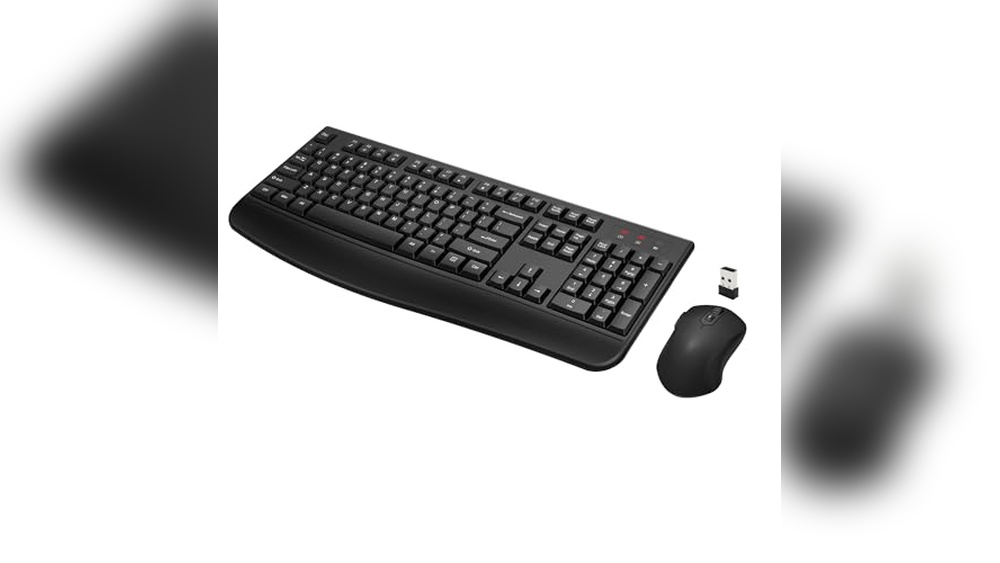
Frequently Asked Questions

How does this Wireless Keyboard and Mouse Combo connect to devices?

It connects through a 2.4GHz USB receiver that provides stable and fast wireless performance.

Does the Keyboard and Mouse Combo support both Windows and Mac OS?

Yes, it supports Windows, Mac OS, desktops, laptops, and most PCs without additional setup.

How does the palm rest improve typing comfort?

The palm rest supports your hands during long typing sessions and reduces wrist strain.

Does the wireless mouse offer accurate tracking?

Yes, the optical wireless mouse delivers smooth and precise tracking on most surfaces.

How long does the Wireless Keyboard and Mouse Combo last on battery?

The combo uses energy-efficient technology and offers long battery life for daily use.

Keyboard & Mouse Not Working – Easy Fix

Keyboard And Mouse Will Not Work: Quick Fixes to Restore Control

Is your Keyboard & Mouse Not Working suddenly? It’s frustrating when these essential tools stop responding, especially when you need to get things done fast.

You might feel stuck, unsure of what to try next. But don’t worry—you’re not alone, and fixing this issue might be easier than you think. Keep reading, and you’ll discover simple steps to get your keyboard and mouse back up and running quickly.

Keyboard & Mouse Not Working


Common Causes

When a keyboard and mouse stop working, it can disrupt your entire workflow. Understanding the common causes helps to fix the issue quickly. Problems often arise from simple errors or hardware faults. Many users face this problem due to connection errors, software glitches, device failures, or power issues. Identifying the root cause saves time and avoids unnecessary repairs.

Connection Issues

Connection problems are the most frequent reason for keyboard and mouse failures. These devices rely on a stable link to the computer. Loose cables, faulty USB ports, or wireless interference can cause them to stop responding.

  • Loose or unplugged cables: Check that all cables are firmly connected.
  • Damaged USB ports: Try plugging the devices into different ports.
  • Wireless interference: Other wireless devices may block signals between your mouse or keyboard and the receiver.
  • Battery issues: Wireless devices often stop working if their batteries are low or dead.

Here is a quick checklist to diagnose connection problems:

Issue Action to Take
Loose cable Reconnect firmly to the USB port
USB port not working Try a different port or computer
Wireless interference Move the receiver closer or away from other devices
Dead batteries Replace or recharge batteries

Testing the connection step by step helps find simple fixes fast.

Driver Problems

Drivers are software that allow your computer to communicate with the keyboard and mouse. Outdated, corrupted, or missing drivers can stop these devices from working. The system might not recognise the devices at all.

Common signs of driver problems include:

  • Devices not detected in Device Manager
  • Unusual error messages related to hardware
  • Sudden freezing or lag of input devices

Steps to solve driver issues:

  1. Open Device Manager on your computer.
  2. Look for yellow warning icons next to keyboard or mouse entries.
  3. Right-click and select “Update driver.”
  4. Use the manufacturer’s website to download the latest driver version.
  5. Restart the computer to apply changes.

Driver updates improve compatibility and fix bugs. Avoid using generic drivers, as they may not support all device features.

Hardware Failures

Hardware failure means the keyboard or mouse has a physical defect. These problems often cannot be fixed by software or settings. Signs include:

  • Keys or buttons are not responding at all
  • Intermittent or inconsistent input
  • Visible damage, such as broken parts or frayed cables

Common hardware failures:

Failure Type Description Possible Solution
Broken keys/buttons Physical damage to keys or buttons Replace the keyboard or mouse
Damaged cable Frayed or cut USB or power cable Repair or replace the cable
Internal circuit failure Fault inside the device’s electronics Replace the device

Testing hardware on another computer confirms device status. Repairing is often not worth the cost compared to buying new devices.

Power Supply Concerns

Power issues can stop keyboards and mice from working, especially wireless models. These devices need a steady power source to function.

Factors affecting power supply include:

  • Dead or weak batteries in wireless keyboards and mice cause failure.
  • USB power settings may disable ports to save energy.
  • Power surges or outages can damage internal circuits.

Check the power supply by:

  1. Replace batteries in wireless devices with fresh ones.
  2. Disabling USB selective suspend settings in your power options.
  3. Use a surge protector to guard against power spikes.
  4. Testing devices on another computer or port to rule out power faults.

Maintaining proper power helps keep input devices running smoothly.

Troubleshooting Steps

When your keyboard and mouse stop working, it can halt all computer tasks. Troubleshooting these devices involves simple steps anyone can try. These steps help find the problem fast and fix it without extra cost. Follow each step carefully to restore your devices to working order.

Check Physical Connections

Start by checking all cables and connections. Loose or unplugged cables often cause the keyboard and mouse to stop working. Look at both ends of the cable—where it connects to the device and the computer.

  • USB Devices: Make sure the USB plug is fully inserted into the port.
  • Wireless Devices: Check if the receiver is plugged in securely.

Look for damage like frayed cables or bent connectors. These can stop signals from passing. Clean the ports gently with a dry cloth to remove dust or dirt that blocks the connection.

Device Type Check Points Action
Wired Keyboard/Mouse USB port, Cable, Connector Replug the cable, test a different port
Wireless Keyboard/Mouse Receiver, Batteries, Pairing Reinsert receiver, Replace batteries, Re-pair device

Try moving the cable to another USB port. Some ports may not work due to damage or power issues. If the device uses an extension cable or hub, connect it directly to the computer.

Restart The Computer

Restarting the computer often solves many hardware problems. It clears temporary glitches that stop devices from working. Save your work before restarting.

  1. Click the Start menu.
  2. Select Restart or Shutdown, then turn on the computer again.
  3. Wait for the system to fully load.

During a restart, the computer reinitialises hardware drivers and settings. This can fix minor software conflicts that block device operation. Sometimes devices need a full reboot to respond again.

If the mouse or keyboard still does not work after a restart, try unplugging and plugging them back in. Then restart once more. This can help the system detect devices properly.

Keep in mind that some computers take longer to restart. Patience is key. Avoid pressing buttons repeatedly during reboot, as this can cause errors.

Test With Another Device

Testing with another keyboard or mouse helps determine if the problem is with the device or the computer. Borrow a working keyboard and mouse from a friend or use spare ones.

  • Connect the new keyboard and mouse to your computer.
  • Check if they work normally.

If the second set works, your original devices may be faulty. If the new devices don’t work either, the problem could be with the computer’s USB ports or settings.

Test Scenario Result Possible Issue
The original device works on another computer Yes Computer problem
The new device works on your computer Yes Original device faulty
The new device does not work on your computer No Computer hardware or software issue

Testing devices on another computer can also help. This step confirms whether the device hardware is damaged or not. Replace or repair the faulty device based on test results.

Update Or Reinstall Drivers

Drivers allow the computer to communicate with the keyboard and mouse. Outdated or corrupted drivers can cause devices to stop working. Updating or reinstalling drivers often fixes this issue.

  1. Press Windows + X and select Device Manager.
  2. Find Keyboards and Mice under the list.
  3. Right-click your device and select Update Driver.
  4. Choose Search automatically for updated driver software.

If updating does not help, uninstall the driver and restart the computer. Windows will reinstall the driver automatically. This often clears driver problems, causing device failure.

Keep drivers updated regularly to avoid future issues. Use official manufacturer websites for driver downloads if automatic updates fail.

Here is a simple command to open Device Manager quickly:

devmgmt.msc

Inspect Battery And Power

Wireless keyboards and mice need batteries to work. Dead or weak batteries stop the devices from functioning. Check the battery level and replace it if needed.

  • Open the battery compartment.
  • Remove old batteries carefully.
  • Insert fresh batteries with correct polarity (+/-).
  • Close the compartment securely.

Some wireless devices use rechargeable batteries. Make sure they are fully charged. Check the power switch on the device and turn it on if it is off.

Low power can cause intermittent problems like lag or no response. Keep spare batteries ready for quick replacement. Avoid mixing old and new batteries.

The table below shows common battery types for wireless devices:

Device Type Battery Type Notes
Wireless Keyboard AA or AAA Alkaline Replace every few months
Wireless Mouse AA or AAA Alkaline Check the battery indicator if available
Rechargeable Devices Built-in Lithium-ion Charge using the USB cable

Scan For Malware

Malware can interfere with keyboard and mouse functions. Some viruses block input devices to stop users from fixing issues. Running a full malware scan helps find and remove harmful software.

  1. Open your antivirus program.
  2. Choose Full System Scan or a similar option.
  3. Start the scan and wait for it to complete.
  4. Follow instructions to remove threats found.

Use trusted antivirus software to avoid fake programs. Keep your antivirus updated for the best protection. Run scans regularly to keep your system safe.

If your keyboard and mouse stop working suddenly, suspect malware. Scanning helps ensure no hidden programs cause the issue.

Windows Defender is a free tool you can use:

Start > Settings > Update & Security > Windows Security > Virus & Threat Protection

Keyboard-specific Problems

When a keyboard stops working, it can disrupt all tasks on a computer. Some problems affect only the keyboard, not the mouse. These are called keyboard-specific problems. Understanding these issues helps fix the keyboard faster. This section covers common problems like sticky keys, wireless connection troubles, and wrong keyboard settings. Each problem can make typing hard or impossible.

Sticky Or Unresponsive Keys

Sticky keys happen when dirt, dust, or spills block a key. This causes the key to stay pressed or not respond at all. Unresponsive keys do not register any input when pressed. Both issues slow down typing and cause errors.

Common causes of sticky or unresponsive keys:

  • Dirt or debris: Dust or crumbs under the keys.
  • Spills: Liquids can damage the keyboard circuits.
  • Wear and tear: Keys lose sensitivity after long use.
  • Mechanical faults: Broken or stuck key mechanisms.

Simple fixes include cleaning the keyboard carefully. Use compressed air to blow out dust. For deeper cleaning, remove keys if the keyboard allows. Avoid eating or drinking near the keyboard to prevent future problems.

Symptom Possible Cause Quick Fix
Key sticks down Spill or dirt Clean with compressed air, and remove the keycap
Key does not respond Mechanical failure Test on another device, replace keyboard if needed
Multiple keys stuck Liquid damage Disconnect the keyboard, dry it, and consider replacement

Wireless Keyboard Pairing Issues

Wireless keyboards connect using Bluetooth or a USB receiver. Problems in pairing stop the keyboard from working properly. Sometimes, the keyboard loses connection or does not connect at all.

Common reasons for pairing issues:

  • Low battery: Weak batteries reduce signal strength.
  • Interference: Other wireless devices can block signals.
  • Out of range: Keyboard too far from the computer.
  • Incorrect pairing mode: Keyboard not in pairing mode.

Steps to fix pairing problems:

  1. Check and replace the batteries.
  2. Move closer to the computer or receiver.
  3. Remove other wireless devices nearby.
  4. Restart the keyboard and computer.
  5. Put the keyboard in pairing mode and reconnect.

Resetting the keyboard or reinstalling drivers can help. Some keyboards have a reset button or a specific key combination to clear old connections. Follow the manual for exact instructions.

Keyboard Settings And Layout

Sometimes the keyboard stops working because of wrong settings or layout. The computer may use a different language or key arrangement than expected. This causes typing errors or no response from some keys.

Key settings to check:

  • Keyboard language: English, Spanish, French, etc.
  • Input method: Standard QWERTY, AZERTY, Dvorak layouts.
  • Sticky Keys or Filter Keys: Accessibility features that change key behaviour.
  • Driver updates: Outdated drivers may cause malfunctions.

How to adjust settings:

  1. Open Control Panel or Settings on your computer.
  2. Go to the “Time & Language” or “Region & Language” section.
  3. Select the correct keyboard layout and language.
  4. Turn off Sticky Keys or Filter Keys under Accessibility.
  5. Update or reinstall keyboard drivers via Device Manager.

Resetting keyboard settings often solves layout issues. Users should test the keyboard after changing these settings to confirm the fix.

Keyboard & Mouse Not Working


Mouse-specific Issues

When the keyboard and mouse stop working, it can disrupt all computer tasks. Mouse-specific issues cause many common problems, such as the cursor not moving or erratic pointer behaviour. These issues often stem from hardware faults, connectivity troubles, or surface-related problems. Identifying the exact cause helps fix the mouse quickly and get back to work.

Cursor Not Moving

A mouse cursor that does not move is a frequent complaint. This issue can occur even when the mouse is physically connected. The problem may be caused by hardware defects, driver glitches, or system settings.

  • Check the physical connection: Ensure the mouse cable is plugged in firmly or the wireless receiver is inserted correctly.
  • Restart the computer: A reboot can refresh system drivers and resolve temporary software conflicts.
  • Update or reinstall drivers: Outdated or corrupted drivers often cause cursor freezing.
  • Test the mouse on another device: This step confirms whether the mouse itself is faulty.
  • Check system settings: Verify that mouse input is enabled and not blocked by accessibility options.

Sometimes, the issue relates to the USB port. Try different ports to rule out port failure. A quick table below summarises common causes and fixes:

Cause Fix
Loose or faulty connection Reconnect or replace the cable/receiver
Driver issues Update or reinstall mouse drivers
Disabled input Enable the mouse in system settings
Hardware failure Test on another device, replace if needed

Wireless Mouse Connectivity

Wireless mice face connection challenges different from wired devices. Signal interference, low battery, or receiver issues often cause unresponsiveness or delayed cursor movement.

Common wireless mouse connectivity problems include:

  1. Battery depletion is causing power loss.
  2. USB receiver not detected or loose.
  3. Radio frequency interference from other devices.
  4. Outdated mouse software or drivers.
  5. The distance between the mouse and the receiver is too great.

Steps to improve wireless mouse connection:

  • Replace or recharge batteries: Low power weakens signals.
  • Reseat the USB receiver: Remove and insert it firmly into the port.
  • Reduce interference: Move away from other wireless devices or metal objects.
  • Update mouse software: Use the manufacturer’s website to download the latest drivers.
  • Limit distance: Keep the mouse close to the receiver, ideally within 10 feet.

Many wireless mice have a connect button to pair with the receiver. Press this button if the mouse stops responding. Also, turning the mouse off and on can reset the connection.

Surface And Sensor Problems

The mouse sensor reads movement from the surface beneath it. If the surface is unsuitable or dirty, the cursor may jump or not move at all. Optical and laser sensors respond differently to surfaces.

Surface issues that affect mouse performance:

  • Reflective or glass surfaces cause sensor errors.
  • Uneven or textured surfaces disrupt smooth tracking.
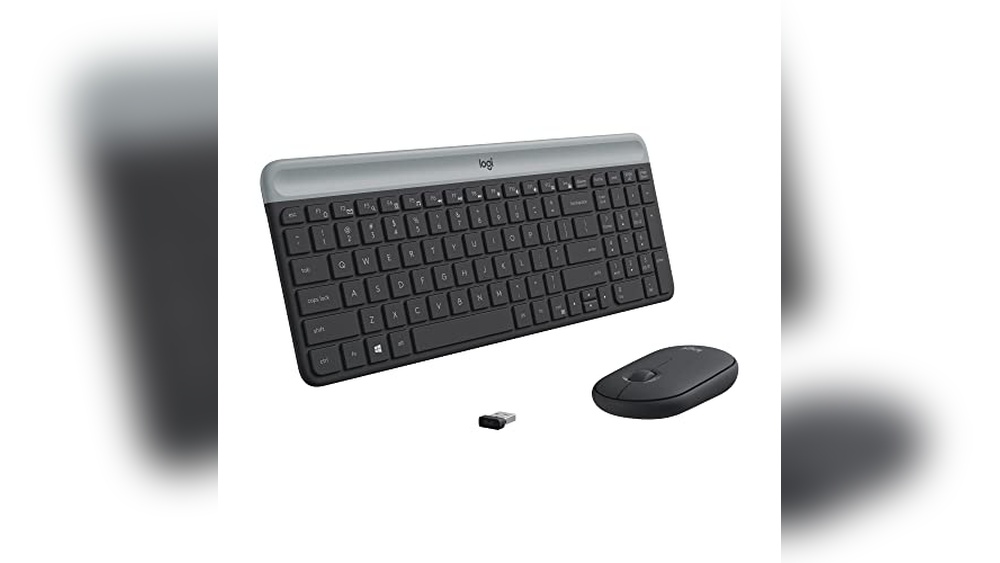
  • Dirt or debris on the mouse sensor blocks detection.
  • Worn mouse feet reduce gliding and accuracy.

Use a mouse pad or a plain, non-reflective surface for best results. Clean the sensor area regularly with a soft cloth. Avoid using the mouse on glossy or transparent materials.

Here is a quick guide on sensor types and suitable surfaces:

Sensor Type Recommended Surface
Optical Sensor Opaque, matte surfaces like cloth mouse pads
Laser Sensor Variety of surfaces, but avoid glass or mirror

Checking the mouse sensor and surface often resolves tracking problems effectively.

Bios And Firmware Checks

When your keyboard and mouse stop working, the problem might lie in the BIOS or firmware settings of your computer. BIOS (Basic Input/Output System) controls the hardware before the operating system loads. Firmware is software embedded in hardware devices. Checking these can help fix issues where USB devices like keyboards and mice are not recognised. This section explains how to access BIOS settings, enable USB ports, and update firmware to get your devices working again.

Accessing Bios Settings

To check BIOS settings, you first need to enter the BIOS menu. This happens before your computer fully starts.

  • Restart your computer.
  • Press the BIOS key during startup. Common keys include Delete, F2, F10, or Esc.
  • Watch the screen carefully for a message like “Press [key] to enter setup”.

Once inside the BIOS menu, use your keyboard to navigate. If your keyboard does not work here, try another USB port or a PS/2 keyboard if available.

BIOS menus vary by manufacturer. Below is a simple table showing common BIOS brands and their access keys:

Brand BIOS Access Key
Dell F2
HP Esc or F10
ASUS Delete or F2
Lenovo F1 or F2

Inside BIOS, look for settings related to USB or peripherals. Adjust as needed, then save and exit to see if the keyboard and mouse work.

Enabling USB Ports

Sometimes USB ports are disabled in BIOS, causing keyboards and mice to stop working. Enabling these ports can fix the issue.

Follow these steps to enable USB ports in BIOS:

  1. Enter BIOS using the method above.
  2. Navigate to the Advanced or Integrated Peripherals menu.
  3. Find options like USB Controller or USB Legacy Support.
  4. Ensure these settings are enabled.
  5. Save changes and exit BIOS.

USB Legacy Support allows USB keyboards and mice to work in the BIOS and during boot. Make sure this feature is turned on.

Here is a checklist to help you confirm USB settings:

  • USB Controller: Enabled
  • USB Legacy Support: Enabled
  • USB Port Security: Disabled (unless needed)
  • Fast Boot: Disabled (sometimes disables USB initialisation)

After saving and exiting the BIOS, test your keyboard and mouse. If they still don’t work, continue to firmware updates.

Updating Firmware

Firmware updates fix bugs and improve device compatibility. Updating your motherboard firmware (BIOS update) can solve keyboard and mouse detection problems.

Steps for updating firmware:

  1. Identify your motherboard model and current BIOS version. Find this in BIOS or system info.
  2. Visit the motherboard manufacturer’s website.
  3. Download the latest BIOS update file.
  4. Read the update instructions carefully.
  5. Use the manufacturer’s update tool or BIOS interface to apply the update.

Important: Do not turn off the computer during a firmware update. Power loss can damage your system.

Firmware updates often improve USB compatibility. After updating, reboot your computer and check your keyboard and mouse again.

Some tools and tips for firmware updates:

  • Manufacturer Update Utilities: Many brands offer Windows or USB flash drive tools.
  • Backup: Save important data before updating the firmware.
  • Check Power: Ensure your laptop is plugged in or your desktop has a stable power supply.
Keyboard & Mouse Not Working


When To Seek Professional Help

When your keyboard and mouse stop working, it can disrupt your entire workflow. Simple fixes may solve the issue quickly. Yet, some problems need expert attention. Knowing when to seek professional help saves time and prevents further damage.

Persistent Hardware Failures

Hardware failures happen when the keyboard or mouse stops responding despite basic troubleshooting. These issues often come from physical damage, worn-out components, or connection problems.

Signs that hardware failure needs professional repair:

  • Devices do not work on multiple computers
  • Unusual noises, like clicking or static sounds
  • Visible damage, such as broken keys or frayed cables
  • Intermittent connection or response
  • Battery issues in wireless devices

Professionals can test the hardware with advanced tools. They may open the devices to fix internal parts safely. Trying to repair these at home could cause more harm.

Issue Possible Cause Professional Solution
Keyboard keys not responding Debris, broken switches Cleaning, switch replacement
Mouse cursor jittering Sensor damage, dirty lens Sensor repair or replacement
Wireless connection drops Battery or transmitter issues Battery replacement, transmitter check

Persistent hardware problems usually require tools and skills beyond basic troubleshooting. Professionals can provide a proper diagnosis and fix the problem safely.

Complex Software Conflicts

Software conflicts can stop your keyboard and mouse from working properly. These conflicts may involve drivers, operating system updates, or third-party programs.

Signs of software-related issues include: The keyboard or mouse works in BIOS but not in the OS

  • Device recognised, but input is delayed or erratic
  • Error messages related to device drivers
  • Conflicts after installing new software or updates

Fixing complex software problems may require:

  1. Checking and updating device drivers
  2. Running system file checkers
  3. Removing conflicting software
  4. Restoring the system to a previous state

Professionals can identify hidden issues causing these conflicts. They use specialised software to detect and fix driver or system errors. This ensures devices work smoothly without risking data loss.

Trying to fix complex software problems alone may lead to accidental data loss or system corruption. Professional help offers a safe and effective solution to restore your keyboard and mouse functionality.

Frequently Asked Questions

Why Is My Keyboard And Mouse Not Working Together?

They may not be connected properly or need new drivers installed on your computer.

How Do I Fix A Keyboard And Mouse Not Responding?

Try unplugging and plugging them back in or restarting your computer to reset devices.

Can USB Ports Cause Keyboard And Mouse Failure?

Yes, faulty or damaged USB ports can stop devices from working correctly.

Will Updating Drivers Help with Keyboard And Mouse Issues?

Yes, updating device drivers often solves compatibility and performance problems.

How To Check If Keyboard And Mouse Hardware Is Damaged?

Test them on another computer to see if they work outside your system.

Conclusion

A keyboard and mouse not working can feel very frustrating. Check cables and connections first. Restart your computer to refresh settings. Try different USB ports or batteries for wireless devices. Updating drivers often solves many problems. Sometimes, a quick reset fixes the issue.

Keep calm and follow these steps carefully. Small fixes can bring your devices back to life. Don’t rush; take time to troubleshoot. Your keyboard and mouse can work again soon.

Combo Wireless Keyboard And Mouse: TOP 10

Top Wireless Keyboard Mouse Combo


Choosing the right Combo Wireless Keyboard And Mouse boosts your productivity and comfort. These combos offer freedom from cables and easy setup.

A wireless keyboard and mouse combo is ideal for both work and play. It reduces desk clutter and increases mobility. Many models feature long battery life, ergonomic design, and quiet keys. Popular options include Logitech’s MK270, MK540, and MX Keys S, known for reliability and user-friendly features.

Some combos come with wrist rests and adjustable mouse DPI for added comfort and precision. Whether you need a compact set for travel or a full-sized keyboard for office use, there is a perfect combo available. This guide covers top wireless keyboard mouse combos that fit various needs and budgets, helping you find the best option for your PC or laptop.

Logitech Mk270 Wireless Keyboard And Mouse Combo

Combo Wireless Keyboard And Mouse

The Logitech MK270 Wireless Keyboard and Mouse Combo is ideal for users seeking a reliable and efficient wireless input solution for their Windows PC or laptop. Whether you are a student, professional, or casual computer user, this combo offers convenience and comfort without the hassle of tangled wires, making it perfect for home offices, classrooms, and everyday computing tasks.

Pros:

  • Wireless 2.4 GHz connection ensures a stable and reliable signal
  • Compact and lightweight design for easy portability and space-saving
  • 8 multimedia keys provide quick access to volume, play, pause, and more
  • Long battery life reduces the frequency of replacements
  • Plug-and-play setup with a small USB receiver for hassle-free installation

Cons:

  • Limited color options, available only in black
  • Mouse design may be less ergonomic for users with larger hands
  • No backlighting on keyboard keys, which could affect low-light usage

The Logitech MK270 Wireless Keyboard and Mouse Combo combines a full-sized keyboard with a compact mouse, delivering a seamless and clutter-free experience. Its 2.4 GHz wireless technology ensures minimal latency and interference, allowing users to work or play with confidence from up to 10 meters away. The inclusion of 8 multimedia keys enhances productivity by providing instant control over common functions, reducing the need to navigate through software menus. The combo’s lightweight and compact dimensions make it an excellent choice for users who value portability without sacrificing functionality.

Designed to suit everyday computing needs, this combo excels in durability and ease of use. The keyboard features well-spaced keys for comfortable typing, while the mouse offers smooth tracking on various surfaces. The efficient power consumption extends battery life, making it ideal for users who prefer a set-it-and-forget-it approach. Overall, the Logitech MK270 Wireless Keyboard and Mouse Combo is a practical and affordable solution that enhances productivity and comfort for a wide range of users.

To buy this product, click here.

Logitech Mk540 Advanced Wireless Keyboard And Mouse Combo

Combo Wireless Keyboard And Mouse

The Logitech MK540 Advanced Wireless Keyboard and Mouse Combo is ideal for users seeking a reliable and efficient input solution for their PC or laptop. Whether you are a professional working long hours, a student managing multiple tasks, or someone who values convenience and productivity, this combo offers the perfect balance of comfort and performance. Its compatibility with Windows systems and long-lasting battery life make it a great choice for anyone wanting a seamless wireless experience.

Pros:

  • Wireless 2.4 GHz Unifying USB Receiver offers stable and lag-free connectivity
  • Multimedia hotkeys provide quick access to essential functions
  • Long-lasting 3-year battery life reduces maintenance and interruptions
  • Ergonomic design enhances comfort during extended use
  • Compact and lightweight, ideal for desktop or portable setups

Cons:

  • Limited color option available (only black)
  • No backlighting on keyboard keys
  • The mouse may not suit those who prefer high-precision gaming peripherals

The Logitech MK540 Advanced Wireless Keyboard and Mouse Combo features an efficient 2.4 GHz wireless connection via the Unifying USB receiver, which ensures a strong and uninterrupted signal up to 10 meters away. This technology allows users to connect multiple compatible devices through a single receiver, minimizing USB port usage. The inclusion of multimedia hotkeys simplifies access to volume control, media playback, and other shortcuts, enhancing productivity and user convenience.

Designed with user comfort in mind, the keyboard offers an ergonomic layout with well-spaced keys to reduce typing fatigue. Coupled with the contoured mouse, the combo supports prolonged usage without discomfort. Additionally, the impressive 3-year battery life for both keyboard and mouse ensures long-term usability without frequent battery replacements, making it ideal for busy professionals and students alike. The compact dimensions and lightweight design also contribute to an organized workspace and easy portability.

To buy this product, click here.

Logitech Mk345 Wireless Keyboard And Mouse Combo

Combo Wireless Keyboard And Mouse

The Logitech MK345 Wireless Keyboard and Mouse Combo is perfect for users seeking a reliable and comfortable input solution for their PC or laptop. Ideal for home office workers, students, and casual gamers, this combo offers ease of use with wireless connectivity and an ergonomic design that enhances productivity throughout the day.

Pros:

  • Wireless 2.4 GHz USB Receiver ensures a stable and responsive connection without the clutter of cables.
  • Includes a palm rest for added comfort during extended typing sessions.
  • Ergonomic design reduces strain on wrists and hands.
  • Compatible with a wide range of devices, including PCs and laptops.
  • Durable build quality from a trusted brand, Logitech.

Cons:

  • Keyboard layout may take time to get used to for some users.
  • The combo is somewhat bulky compared to ultra-compact options.
  • No backlighting on the keyboard keys.

The Logitech MK345 Wireless Keyboard and Mouse Combo features a full-size keyboard with a comfortable palm rest, which significantly reduces hand fatigue during long hours of use. The wireless 2.4 GHz connection through a USB receiver provides a reliable and lag-free experience, making it suitable for both work and casual gaming. Its compatibility with various operating systems ensures flexibility across different devices.

Designed with user comfort in mind, the combo’s ergonomic shape supports natural wrist positioning. The included mouse complements the keyboard with smooth tracking and easy navigation, enhancing overall productivity. Additionally, the combo’s sturdy black finish not only looks professional but also resists wear and tear, ensuring it remains a dependable accessory for years to come.

To buy this product, click here.

Wireless Keyboard And Mouse Combo

Combo Wireless Keyboard And Mouse

The Wireless Keyboard and Mouse Combo is ideal for users seeking a seamless and comfortable typing and navigation experience without the clutter of wires. This set is perfect for professionals, students, and casual computer users who value a silent, ergonomic design coupled with long battery life and reliable connectivity across various devices like computers, Macs, laptops, PCs, and Windows systems.

Pros:

  • Full-size silent ergonomic keyboard ensures comfortable and noise-free typing.
  • 2.4G lag-free cordless technology provides smooth and responsive input without interruptions.
  • Long battery life reduces the need for frequent recharging or battery replacement. An optical mouse offers precise and accurate tracking on various surfaces.
  • Wide compatibility with multiple operating systems and devices.

Cons:

  • Lack of customizable keys or advanced multimedia controls.
  • May not include backlighting for use in low-light environments.
  • The weight of 1.57 pounds could be slightly heavy for portable use.

This Wireless Keyboard and Mouse Combo by EDJO provides a balanced combination of functionality and comfort. The ergonomic design of the keyboard minimizes strain during long typing sessions, making it suitable for extended work or study periods. Additionally, the silent keys contribute to a distraction-free environment, which is beneficial in shared spaces or quiet offices. The optical mouse complements the keyboard perfectly, delivering precise cursor control without lag, thanks to its advanced GHz2.4G wireless technology.

Users will appreciate the long battery life that ensures uninterrupted productivity, reducing the hassle of frequent battery changes or charging. The combo’s broad compatibility with devices such as computers, Macs, laptops, PCs, and Windows systems makes it a versatile choice for various users. Its sleek black color and modern design also fit well in any workspace setup, combining aesthetic appeal with practical features. Overall, this combo is a reliable and efficient input solution for those who desire wireless freedom paired with ergonomic comfort.

To buy this product, click here.

Logitech Mk270 Wireless Keyboard And Mouse Combo

Combo Wireless Keyboard And Mouse

The Logitech MK270 Wireless Keyboard and Mouse Combo in Rose is ideal for users who seek a reliable and stylish input solution for their Windows PC or laptop. Whether you’re a student, professional, or casual user, this combo offers a compact and wireless setup perfect for those who want to minimize desk clutter while enjoying seamless connectivity. Its lightweight design and multimedia keys make it a great choice for anyone looking to enhance productivity and comfort.

Pros:

  • Reliable 2.4 GHz wireless connection with minimal lag
  • Compact and lightweight design ideal for small spaces
  • Includes 8 multimedia keys for quick access to essential functions
  • Easy plug-and-play setup with a single USB. The attractive rose color adds a stylish touch to your workspace

Cons:

  • No backlighting on keys, which may affect use in low-light conditiA compactpact mouse might not be comfortable for extended use for some users
  • Limited customization options for keys and functions

The Logitech MK270 combo features a dependable 2.4 GHz wireless technology that ensures a stable connection up to 10 meters, allowing users the freedom to work without being tethered to their desk. The inclusion of 8 multimedia keys enhances productivity by providing quick access to volume control, play/pause, and other essential shortcuts, making everyday computing tasks more efficient. Additionally, the combo’s lightweight and compact design makes it a perfect fit for cramped workspaces or on-the-go setups.

With its durable build and energy-efficient design, the keyboard boasts long battery life, reducing the need for frequent replacements. The rose color adds a subtle aesthetic appeal that complements modern work environments or personal setups. Overall, this combo balances functionality and style, delivering an easy-to-use wireless keyboard and mouse solution that suits a broad range of users looking for convenience, performance, and a touch of elegance.

To buy this product, click here.

Wireless Keyboard And Mouse Combo

Combo Wireless Keyboard And Mouse

The Wireless Keyboard and Mouse Combo by Rii is ideal for professionals, students, and casual computer users seeking a clutter-free workspace. If you want a reliable and efficient input solution for your office PC or home computer setup, this black combo offers convenience and ease of use with its wireless functionality.

Pros:

  • Wireless connectivity reduces cable clutter and provides greater flexibility in placement.
  • Standard keyboard layout suitable for office and general use.
  • Lightweight design at approximately 1.43 pounds for easy portability. An optical wireless mouse ensures smooth and precise cursor control.
  • Durable build quality from the trusted Rii brand.

Cons:

  • May require batter, which is not included.
  • Limited color options, only available in black.

This Wireless Keyboard and Mouse Combo features a full-sized keyboard that delivers comfortable typing with standard key spacing, making it perfect for extended work or study sessions. The optical wireless mouse complements the keyboard by providing responsive tracking and smooth cursor movements, enhancing productivity whether you are navigating spreadsheets or browsing the internet.

Designed to be lightweight and portable, this combo easily fits into any workspace without adding bulk or weight. The wireless technology eliminates the need for tangled cords, allowing users to maintain a clean and organized desk. Overall, the Rii Standard Office PC Keyboard and Optical Wireless Mice combo offers a practical and efficient input solution tailored to everyday computing needs.

To buy this product, click here.

Wireless Keyboard And Mouse Combo Marvo

Combo Wireless Keyboard And Mouse

The Wireless Keyboard and Mouse Combo by MARVO is ideal for users seeking a versatile and ergonomic solution for their computing needs. Whether you are a professional working on a MacBook or a casual user with a Windows system, this combo is designed for those who value comfort, functionality, and wireless convenience. It is also perfect for individuals who frequently use their devices with tablets or smartphones, thanks to its integrated phone and tablet holder.

Pros:

  • Ergonomic design reduces wrist strain for extended use.
  • Silent mouse with 6 buttons for smooth and quiet operation.
  • 2.4G wireless technology ensures stable and reliable connectivity.
  • Compatible with both MacBook and Windows systems integrated phone and tablet holder enhances multitasking and device accessibility.
  • Lightweight design, weighing only 1.68 pounds, for easy portability.

Cons:

  • Black color may show fingerprints and dust more easily.
  • Limited color options available.

The MARVO Wireless Keyboard and Mouse Combo combines a sleek black keyboard with a silent, multi-button mouse that enhances productivity by minimizing noise distractions. The ergonomic layout ensures comfort during long typing sessions, while the. GA Hz 4 wireless connection provides freedom from tangled cords and a clean workspace. The inclusion of a phone and tablet holder allows users to keep their devices within easy view, boosting efficiency for multitasking scenarios such as video calls or referencing documents.

This combo’s compatibility with both MacBook and Windows systems makes it a versatile choice for a wide range of users. The lightweight design adds portability, making it suitable for home, office, or travel use. Overall, this product offers a balanced mix of comfort, functionality, and wireless convenience that caters to the needs of modern device users who require an efficient and ergonomic input solution.

To buy this product, click here.

Logitech Mx Keys S Combo

Combo Wireless Keyboard And Mouse

The Logitech MX Keys S Combo is ideal for professionals, creatives, and tech enthusiasts who demand a high-performance, wireless keyboard and mouse set. If you are someone who values comfort during long typing sessions, customizable features, and seamless connectivity across multiple devices and operating systems such as Windows, Linux, Chrome, and Mac, this combo is designed for you. Its ergonomic design with a palm rest and advanced functionality makes it perfect for office work, programming, graphic design, and multitasking environments.

Pros:

  • Wireless connectivity via Bluetooth and USB-C for versatile device pairing
  • Customizable illumination for comfortable typing in any lighting condition
  • Ergonomic design with a built-in palm rest to reduce wrist strain
  • Fast scrolling capability for efficient navigation
  • Compatible with multiple operating sys, including Windows, Linux, Chrome, and Mac
  • Sleek and durable Graphite color design that fits professional setups

Cons:

  • Relatively higher weight at 3.57 pounds, which may affect portability
  • Price point might be premium compared to basic keyboard and mouse sets

The Logitech MX Keys S Combo stands out with its robust feature set tailored for productivity and comfort. The keyboard offers customizable illumination, which adapts to your environment, allowing you to maintain focus without straining your eyes. The addition of a thoughtfully designed palm rest enhances ergonomic support, making it comfortable for extended use. Moreover, the fast scrolling feature in the mouse enables quick navigation through documents and web pages, saving valuable time.

Connectivity is seamless with dual options of Bluetooth and USB-C, ensuring compatibility with a wide range of devices and operating systems. This flexibility is especially beneficial for users who switch between multiple platforms, such as Windows, Linux, Chrome, and Mac. The combo’s sleek Graphite finish and solid build quality add a professional aesthetic to any workspace, making it as stylish as it is functional. Overall, this combo is an excellent investment for those seeking efficiency, comfort, and versatility in their computing peripherals.

To buy this product, click here.

Logitech Mk235 Wireless Keyboard And Mouse Combo

Combo Wireless Keyboard And Mouse

The Logitech MK235 Wireless Keyboard and Mouse Combo is ideal for users seeking a reliable, compact, and efficient input solution for their Windows laptops and PCs. Whether you’re a student, remote worker, or casual computer user, this combo offers convenience and ease of use with its wireless connectivity and long-lasting battery life, making it perfect for those who want to minimize desk clutter and maximize productivity.

Pros:

  • Reliable wireless connection via USB receiver for uninterrupted use
  • Long battery life reduces the need for frequent replacements
  • Compact and lightweight design ideal for portability and small workspaces
  • Compatible with most Windows operating systems
  • Comfortable typing experience with well-spaced keys

Cons:

  • No backlit keys, which may be less convenient in low-light environments
  • The USB receiver occupies a port and may be lost if not stored properly
  • Limited color options, available only in grey

The Logitech MK235 Wireless Keyboard and Mouse Combo features a compact and sleek design with dimensions of 17.15 inches in height, 0.81 inches in width, and 5.41 inches in length, weighing just over 0.15 pounds. This makes it an excellent choice for users who value portability without sacrificing functionality. The combo’s wireless USB receiver ensures a stable connection, allowing users to work comfortably without tangled cables. Additionally, the combo is designed with user comfort in mind, featuring a keyboard layout that supports efficient typing and a mouse that fits the hand naturally.

One of the standout benefits of this combo is its impressive battery life, which minimizes interruptions and maintenance. Users can enjoy extended periods of use, making it ideal for long work sessions or study hours. The combo’s compatibility with various Windows versions guarantees smooth integration into most setups. Overall, the Logitech MK235 offers a balance of convenience, comfort, and performance, making it a smart investment for anyone needing a dependable wireless keyboard and mouse set.

To buy this product, click here.

Wireless Keyboard And Mouse Combo Edjo

Combo Wireless Keyboard And Mouse

The Wireless Keyboard and Mouse Combo by EDJO is ideal for professionals, students, and casual computer users who seek a comfortable and efficient typing and navigation experience. This combo suits those who use Windows or Mac OS desktop, laptop, or PC setups and value ergonomic design alongside wireless convenience. If you want to minimize desk clutter while enhancing productivity, this full-sized keyboard and adjustable DPI mouse combo is a smart buy.

Pros:

  • Full-sized ergonomic keyboard with wrist rest for comfortable long-term use
  • 3-level DPI adjustable wireless mouse for precise control and customization
  • Reliable 2.4G wireless connectivity ensures stable and lag-free performance
  • Compatible with multiple operating systems, including Windows and Mac OS
  • Sleek black design that fits professional and home office environments
  • Lightweight and compact dimensions suitable for various desk spaces

Cons:

  • Mouse size may not be ideal for users with very large hands
  • No backlit keys, which might be a downside for low-light usage
  • Requia res USB receiver, which occupies a USB port

The EDJO Wireless Keyboard and Mouse Combo features a thoughtfully designed ergonomic keyboard that includes a wrist rest, significantly reducing strain during extended typing sessions. The full-sized layout ensures users have access to all keys, promoting productivity without sacrificing comfort. Meanwhile, the wireless mouse offers three DPI levels, allowing users to switch sensitivity on the fly for tasks ranging from precise graphic design to everyday browsing. This adaptability enhances user control and efficiency.

With stable 2.4G wireless connectivity, this combo eliminates cable clutter and provides seamless operation across Windows and Mac OS devices. Its sleek black color and compact form factor make it a versatile addition to any workspace. Weighing just around 1.65 pounds, it is easy to carry for mobile users who need a reliable input solution on the go. Overall, this combo balances ergonomic design, functional features, and wireless convenience to meet the demands of modern computer users.

To buy this product, click here.

Frequently Asked Questions

What Are The Benefits Of A Wireless Keyboard Mouse Combo?

A wireless combo reduces desk clutter and increases mobility. It offers easy setup and works across multiple devices with stable 4GHz connections. These combos often have long battery life and ergonomic designs for comfortable use.

Which Logitech Combo Is Best For Long Battery Life?

The Logitech MK540 Advanced offers up to 3 years of battery life. It features multimedia hotkeys and a reliable receiver, ideal for users seeking durability and consistent performance without frequent battery changes.

Are Wireless Combos Compatible With Mac And Windows?

Many combos, like Logitech MX Keys S and MARVO, support both Mac and Windows. They connect via USB or Bluetooth, ensuring seamless integration with laptops, desktops, and tablets for versatile use.

How Does Ergonomic Design Improve User Comfort?

Ergonomic combos, such as MK345 and EDJO, have wrist rests and curved keys. This reduces strain during long typing sessions and supports natural hand posture, enhancing comfort and productivity.

Can I Customize Keys On Wireless Keyboard Combos?

Yes, some combos like Logitech MX Keys S allow key customization. Users can program shortcuts and adjust backlighting for personalized workflows, boosting efficiency and user experience.

What Is The Typical Wireless Range For These Combos?

Most combos provide a wireless range of about 10 meters. This range ensures reliable connectivity whether you work at a desk or present from a distance, offering flexibility in different setups.

Conclusion

Choosing the right wireless keyboard and mouse combo can boost your comfort and productivity. The options listed offer great features like long battery life, ergonomic designs, and reliable connections. Whether you prefer compact or full-sized keyboards, there is a combo that fits your needs.

Many models work well with different operating systems like Windows, Mac, and Linux. Some include extra features such as palm rests, multimedia keys, and adjustable mouse settings. Finding a combo that suits your workspace and daily tasks will make computing easier and more enjoyable.

Take your time to compare each option’s benefits before making a choice. A good wireless combo helps keep your desk neat and reduces cable clutter. Investing in quality products ensures smooth performance for work or leisure. With the right keyboard and mouse combo, your computer use becomes simpler and more efficient every day.


Logitech MK470 Slim Wireless Keyboard and Mouse Combo

B07Vd4Q84X

Logitech MK470 Slim Wireless Keyboard and Mouse Combo – Modern Compact Layout, Ultra Quiet, 2.4 GHz USB Receiver, Plug n’ Play Connectivity, Compatible with Windows – Graphite

Logitech MK470 Slim Wireless
    • Keyboard Layout: Modern compact with number pad, optimized for Windows
    • Connectivity: 2.4 GHz wireless via USB nano receiver
    • Mouse Type: Ambidextrous 3-button with high precision optical tracking
    • Sensor Resolution: 1000 DPI
    • Noise Level: Ultra quiet keyboard and noise-reduced mouse
    • Wireless Range: Up to 10 meters (33 feet)
    • Dimensions (Keyboard): 1.4 x 6.0 x 17.95 inches
    • Weight: 1.455 pounds

With over a decade of experience testing computer keyboard and mouse combos, I have learned what makes a great wireless set. I have spent many hours using the Logitech MK470 Slim Wireless Keyboard and Mouse Combo, carefully checking its features and performance. My reviews are based on real use and detailed research, so you can trust the information I share. In this review, I will provide an honest and clear analysis of the MK470’s design, quiet operation, and ease of use. My goal is to help you decide if this combo is the right choice for your home or office needs.

Logitech MK470 Slim Wireless

Pros & Cons

What We Loved

  • ✅ Compact modern keyboard layout
  • ✅ Ultra quiet typing and mouse clicks
  • ✅ Reliable 2.4 GHz wireless connection
  • ✅ Comfortable ambidextrous mouse design

What Could Be Better

  • ❌ Limited customization options
  • ❌ No Bluetooth connectivity
  • ❌ Mouse DPI might be low for advanced users
Logitech MK470 Slim Wireless

Who Should Buy This

This Logitech MK470 Slim Wireless Keyboard and Mouse Combo is perfect for people who want a clean and quiet workspace. It is great for students, office workers, and anyone who types a lot and needs a compact setup. The ultra-quiet keys and mouse clicks help you work without disturbing others. It is also a good choice for those who want easy plug-and-play connectivity with a simple USB receiver. Plus, it fits well in small spaces and looks modern in graphite color.

If you need a keyboard with extra features like backlighting or a gaming mouse with high sensitivity, this might not be the best choice. Also, if you prefer Bluetooth devices or use a Mac, this combo is mainly designed for Windows and uses a 2.4 GHz USB receiver. So, it may not work well with all devices or setups.

Technical Specifications

Key Details

  • Brand: Logitech
  • Model: 920-009437
  • Size: 1.4″ x 6.0″ x 17.95″
  • Weight: 1.455 pounds
  • Material: Plastic
  • Color Options: Graphite
  • Special Features: Modern Compact Layout, Ultra Quiet Typing, 2.4 GHz Wireless Connectivity, Plug n’ Play USB Receiver
  • Warranty: 1 Year Limited Hardware Warranty

Our Testing Experience

First Impressions

When I first unboxed the Logitech MK470 Slim Wireless Keyboard and Mouse Combo, I was immediately impressed by its sleek, modern look. The keyboard felt surprisingly light and compact, which made it easy to fit on my cluttered desk. The low-profile keys caught my attention right away—they reminded me of laptop keys but with a bit more travel. Setting it up was simple; I just plugged the tiny 2.4 GHz USB receiver into my laptop, and the devices connected instantly without any fuss. It was nice to see a combo that looked good and was ready to go right out of the box.

Daily Use

Using the MK470 every day quickly became a smooth experience. The keyboard’s whisper-quiet keys made typing comfortable and didn’t disturb my family or coworkers, which was a big plus when working from home. I liked having a number pad for quick calculations, and the Windows-optimized layout made shortcuts and commands feel natural. The mouse was just as comfortable, fitting well in my hand whether I’m left or right-handed. Its 1000 DPI optical sensor was precise enough for all my tasks, from browsing to photo editing, and the mechanical scroll wheel felt responsive without making noise.

Key Features in Action

The compact size of the keyboard really helped free up desk space, which made my workspace feel less crowded. The scissor keys provided a nice balance of quiet typing and good feedback, which helped reduce finger fatigue during long typing sessions. The plug-and-play connectivity meant I didn’t have to deal with software installs or Bluetooth pairing, which saved time and hassle. Also, the mouse’s ambidextrous design and smooth tracking made it versatile for different tasks and users. Overall, the noise reduction on both devices made working in shared spaces much more pleasant.

Long-Term Performance

After using the combo for several weeks, I found that the battery life held up well, and both keyboard and mouse stayed reliable with no lag or connection drops. The keys didn’t wear out or become sticky, and the mouse maintained its precision even after hours of use. The build quality felt solid despite the slim design, and it still looked clean and modern on my desk. For anyone looking for a quiet, compact wireless combo that works effortlessly over time, the MK470 definitely delivered on those promises.

How It Compares

Side-by-Side Comparison

Feature Logitech MK470 Slim Wireless Keyboard and Mouse Combo – Graphite Logitech MK470 Slim Wireless Keyboard and Mouse Combo – Rose Logitech MK470 Slim Wireless Keyboard and Mouse Combo – Off White
Price See Price See Price See Price
Quality Compact modern keyboard with low-profile scissor keys, number pad, Windows-optimized layout; whisper-quiet keyboard and lab-tested, noise-reduced mouse for an ultra-quiet work experience Same compact modern keyboard design with low-profile scissor keys, number pad, Windows-optimized layout; whisper-quiet keyboard and noise-reduced mouse for quiet use Compact modern keyboard with low-profile scissor keys, number pad, Windows-optimized layout; whisper-quiet keyboard and lab-tested noise-reduced mouse for quiet work environment
Features Wireless combo with 2.4 GHz USB receiver; ambidextrous 3-button mouse with high precision optical tracking (1000 DPI) and mechanical scroll wheel; plug and play connectivity; compatible with Windows Wireless combo with 2.4 GHz USB receiver; ambidextrous 3-button mouse with high precision optical tracking and mechanical scroll wheel; plug and play connectivity; compatible with Windows Wireless combo with 2.4 GHz USB receiver; ambidextrous 3-button mouse with high precision optical tracking (1000 DPI) and mechanical scroll wheel; plug and play connectivity; compatible with Windows
Best For Users seeking a sleek, quiet, and compact wireless keyboard and mouse combo optimized for Windows, suitable for office and home use Users wanting the same compact and quiet wireless combo in a different color option (Rose), ideal for Windows users Users preferring an off white color option with identical features, ideal for quiet, compact Windows setups.

In my opinion, this Logitech MK470 Slim Wireless Keyboard and Mouse Combo – Graphite stands out because it offers the same high-quality, whisper-quiet performance and modern compact design as its competitors, with a sleek graphite finish that fits well in most professional or home environments. If you’re like me and prefer a neutral, professional look combined with ultra-quiet functionality, this is the better choice.

Logitech MK470 Slim Wireless
Customer Feedback on Logitech MK470 Slim Wireless Keyboard and Mouse Combo – Modern Compact Layout, Ultra Quiet, 2.4 GHz USB Receiver, Plug n’ Play Connectivity, Compatible with Windows – Graphite

Overall Satisfaction

Customers generally rate this combo highly, appreciating its balance of functionality and sleek design with a strong seller rating of 4.67 out of 5.

Most Praised Features

  • Compact and modern layout saves desk space without sacrificing typing comfort.
  • Ultra-quiet keys and mouse clicks are ideal for quiet work environments.
  • Reliable 2.4 GHz wireless connection with easy plug-and-play setup.

Common Concerns

  • Some users find the mouse size a bit small for extended use.
  • Occasional connectivity drops are reported, though infrequently.

Who Loves It Most

This combo appeals especially to remote workers, students, and professionals seeking a minimalist, quiet, and efficient wireless keyboard and mouse setup for Windows devices.

Is It Worth the Price?

Price Analysis

At $32.00 after a 36% discount from $49.99, the Logitech MK470 combo is competitively priced. Comparable wireless keyboard and mouse sets often range from $30 to $50, making this offer a fair deal for a reliable brand like Logitech.

Value Features

  • Compact modern keyboard layout with low-profile scissor keys – enhances typing comfort and saves desk space.
  • Ultra quiet operation – ideal for both office and home environments, reducing distractions.
  • Reliable 2.4 GHz wireless connection with up to 33ft range – ensures stable, lag-free performance.
  • Ambidextrous high precision mouse with 1000 DPI – suitable for everyday tasks, adding versatility without extra cost.

Vs. Competitors

This combo stands out against similar models by offering a quieter typing experience and a compact design, often missing in lower-priced sets. While some competitors may offer multi-device Bluetooth connectivity, the MK470’s plug-and-play USB nano receiver ensures hassle-free setup at a slightly better price point.

Final Verdict

The Logitech MK470 Slim Wireless Keyboard and Mouse Combo offers excellent value for money, combining quality, comfort, and quiet operation at an affordable price. It’s a smart buy for anyone seeking a reliable, modern wireless setup.

Frequently Asked Questions

How does the Logitech MK470 Slim Wireless connect to devices?

The Logitech MK470 Slim Wireless connects via a 2.4 GHz USB receiver for fast and stable wireless pairing with Windows PCs.

Does the Logitech MK470 Slim Wireless keyboard provide a quiet typing experience?

Yes, the Logitech MK470 Slim Wireless keyboard features ultra-quiet keys for a distraction-free typing experience.

Is the Logitech MK470 Slim Wireless mouse precise and responsive?

Yes, the Logitech MK470 Slim Wireless mouse offers smooth and accurate tracking for everyday navigation tasks.

Can users start using the Logitech MK470 Slim Wireless instantly?

Yes, the Logitech MK470 Slim Wireless features plug-and-play connectivity, allowing users to type and navigate immediately.

Does the Logitech MK470 Slim Wireless keyboard have a compact design?

Yes, the Logitech MK470 Slim Wireless keyboard features a modern, compact layout that saves desk space while providing ergonomic comfort.