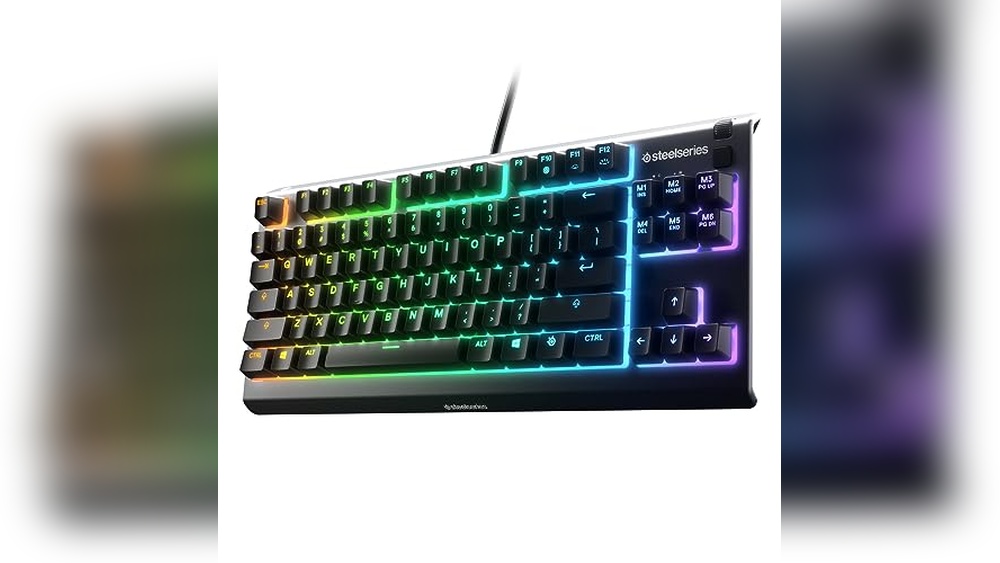
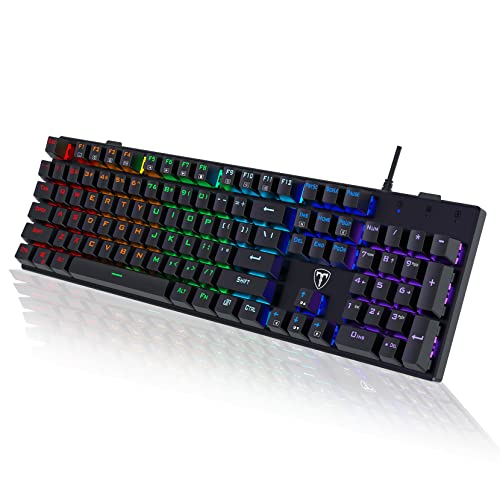
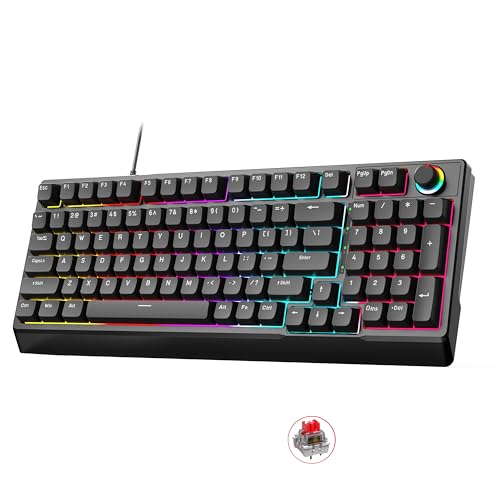
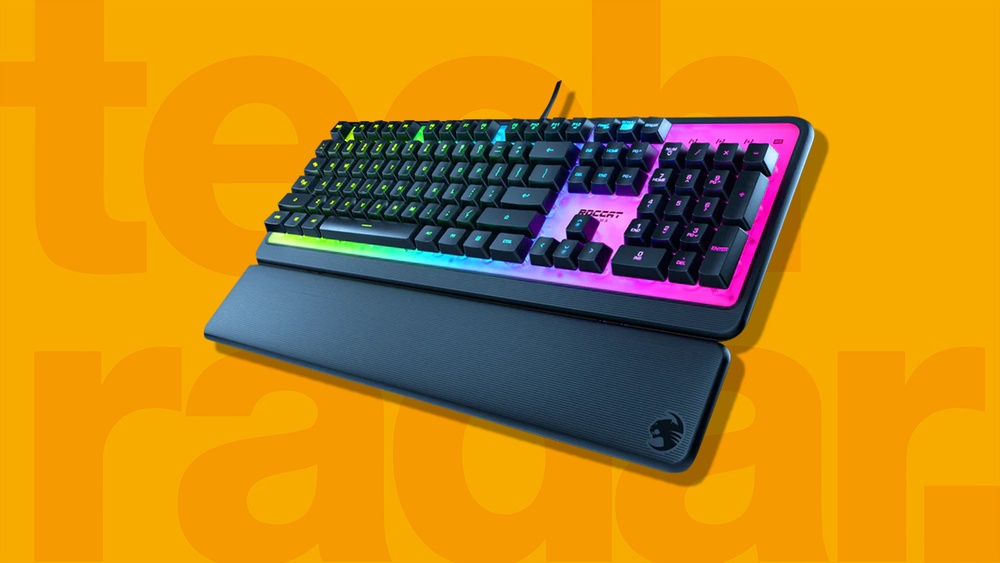
Have you ever been in the middle of an intense gaming session only to realize your Windows key is locked, and you don’t know how to unlock Windows key on gaming keyboard to access essential shortcuts? It’s frustrating, right?
Knowing how to unlock the Windows key on your gaming keyboard can save you from unnecessary pauses and keep your focus sharp. You’ll discover simple, step-by-step methods to quickly unlock your Windows key so nothing stands between you and your game.
Ready to regain full control of your keyboard? Let’s dive in.
Identify Windows Key Lock Feature
Many gaming keyboards have a special feature that can disable the Windows key. This feature helps prevent accidental presses during gaming. Before trying to enable the Windows key, it is important to identify whether your keyboard has this lock feature. Knowing how to find and recognize the Windows key lock can save time and avoid confusion. This section explains how to identify the lock feature easily.
Locate The Windows Key
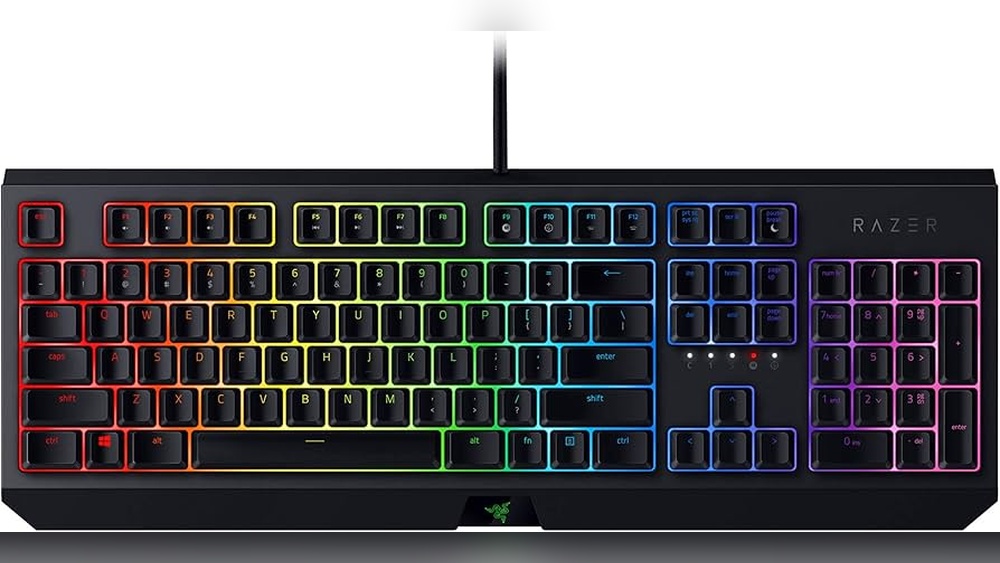
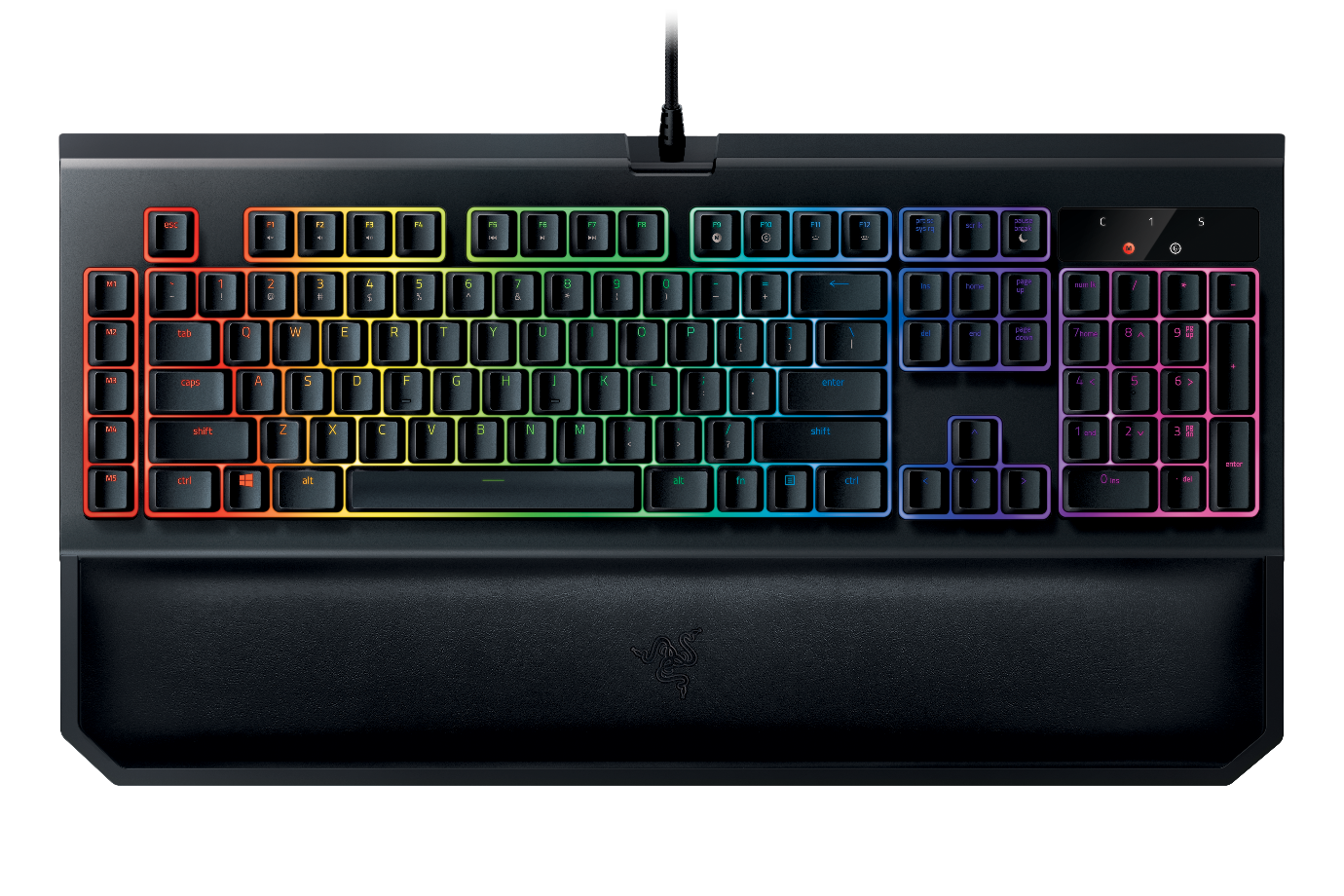
The Windows key is usually on the bottom row of the keyboard. It often has the Windows logo on it, which looks like a small flag. On most keyboards, you will find it between the Ctrl and Alt keys.
Standard position: Bottom left side, near the spacebar.
Secondary Windows key: Some keyboards have a second Windows key on the right side.
Different labels: Some keyboards might show a different icon or text instead of the Windows logo.
In gaming keyboards, the Windows key might have a special design or color to stand out. Sometimes, the key may be smaller or placed differently to prevent accidental presses.
Keyboard Type
Windows Key Location
Common Label
Standard Keyboard
Bottom row, left of the Alt key
Windows logo
Gaming Keyboard
Bottom row or custom position
Windows logo or custom icon
Laptop Keyboard
Usually, the bottom row varies by brand
Windows logo or key name
Knowing the Windows key location helps check if it is locked or disabled. Some gaming keyboards have a physical switch or software option to disable this key. Look for any unusual buttons near the Windows key or on the keyboard edges. These might control the lock feature.
Check the keyboard manual or labels.
The keyboard manual or packaging often explains the Windows key lock feature. It shows how to enable or disable the key. Manuals provide clear instructions for each keyboard model. If the manual is not available in print, check the manufacturer’s website for a digital copy.
Look for sections like:
Key functions or special features
Locking keys or the Windows key lock
Gaming mode or disable the Windows key
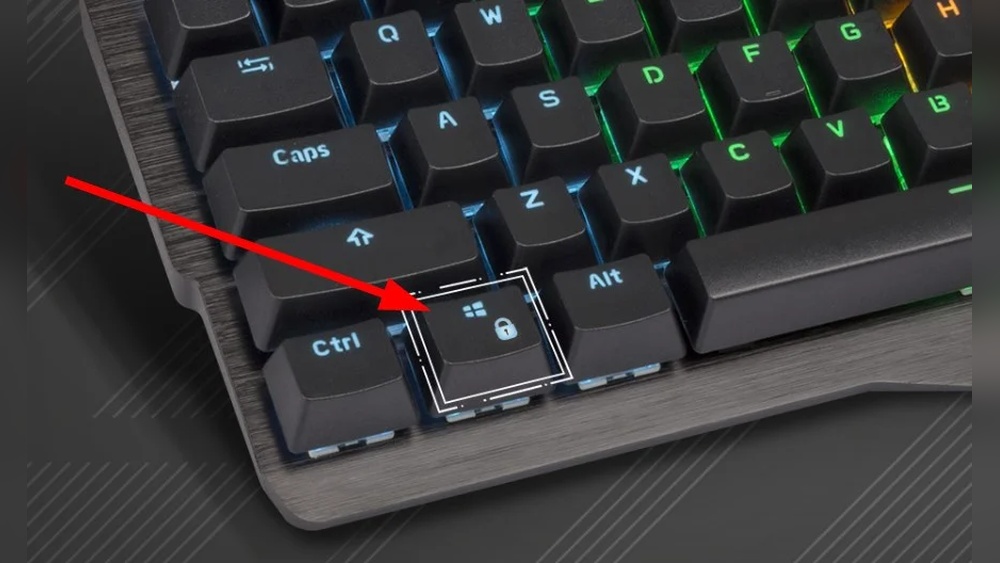
Labels on the keyboard itself can also provide hints. Some gaming keyboards include small icons or text near keys or on the keyboard frame. These labels might show a lock symbol or a key combination to control the Windows key.
Common key combinations to toggle the Windows key lock include:
Fn + Windows key
Fn + F6 or other function keys
Dedicated lock key with a lock icon
Reading the manual helps understand these shortcuts and their effects. It also explains any software tools that may be needed to manage the Windows key lock. Many gaming keyboards come with software to customize keys and enable or disable the Windows key easily.
Use Keyboard Shortcuts To Unlock
Many gaming keyboards have a Windows key lock feature to prevent accidental presses during gameplay. This helps avoid interruptions like opening the Start menu or switching windows. To quickly enable or disable this lock, using keyboard shortcuts is the fastest method. These shortcuts save time and let you stay focused on gaming without digging through software menus or settings.
Common Shortcut Combinations
Most gaming keyboards use standard key combinations to toggle the Windows key lock. These shortcuts are easy to remember and work on many models. The most common ones include:
Fn + Windows key – Pressing the Function (Fn) key together with the Windows key often locks or unlocks it.
Fn + F6 – Some keyboards assign the F6 key as a toggle for the Windows key lock.
Fn + F5 or Fn + F7 – These keys can also serve this function on certain gaming keyboards.
Try these shortcuts one by one. Press and hold the Fn key, then tap the suggested key. If the Windows key is locked, pressing it won’t open the Start menu. Repeat the shortcut to unlock it.
Here is a quick reference table:
Shortcut
Function
Fn + Windows key
Toggle Windows key lock
Fn + F6
Toggle Windows key lock
Fn + F5 or Fn + F7
Toggle Windows key lock (varies by model)
Manufacturer-specific Shortcuts
Some keyboard brands use their own shortcut keys to lock or unlock the Windows key. Knowing the exact combination can save time and confusion. Here are examples from popular manufacturers:
Razer: Press Fn + F10 to toggle the Windows key lock on many Razer gaming keyboards.
Corsair: Use Fn + Windows key or Fn + F1 depending on the model.
Logitech: Logitech gaming keyboards often use Fn + F8 a dedicated lock key marked with a Windows logo.
SteelSeries: Try Fn + Windows key or check the keyboard’s software for custom shortcuts.
Manufacturers sometimes include software utilities that allow reprogramming of these shortcuts. You can check the manual or support website for your keyboard model. If the shortcut doesn’t work, the software might have disabled or changed it.
Here is a summary table of manufacturer shortcuts:
Manufacturer
Shortcut
Notes
Razer
Fn + F10
Common on many Razer models
Corsair
Fn + Windows key or Fn + F1
Varies by keyboard model
Logitech
Fn + F8 or dedicated lock key
May have a physical lock key
SteelSeries
Fn + Windows key
Check the software for custom options
Utilize Keyboard Software
Many gaming keyboards block the Windows key to prevent accidental presses during gameplay. This can be frustrating when you need to use the key for shortcuts or multitasking. Utilizing keyboard software is a simple and effective way to enable or disable the Windows key as you prefer. Most gaming keyboards come with dedicated software that lets you customize key functions, including the Windows key lock. Using this software puts control in your hands without needing complex system tweaks.
Download Official Software
Start by downloading the official software for your gaming keyboard. Manufacturers provide this software on their websites for free. It is designed to work specifically with your keyboard model, ensuring full compatibility and functionality.
Visit the manufacturer’s website: Find the support or downloads section.
Select your keyboard model: Make sure to pick the exact model to avoid issues.
Download the software: It usually comes as an installer file.
Install the software: Follow the on-screen instructions to complete setup.
Using the official software ensures your keyboard functions correctly and avoids risks from third-party programs. The software often includes updates that improve performance and add new features. Keep the software updated to get the best experience.
Step
Description
1
Go to the keyboard brand website
2
Find your keyboard model
3
Download official keyboard software
4
Install and launch the software
Adjust Key Settings
After installing the software, open it to adjust the Windows key settings. Most keyboard software offers a straightforward interface to customize keys. Look for a section labeled “Key Assignment,” “Key Lock,” or “Gaming Mode.”
Here’s how to adjust the settings:
Locate the Windows key setting or gaming mode toggle.
Choose whether to enable or disable the Windows key.
Save your changes.
Some software allows you to create profiles. These profiles can switch the Windows key lock on or off based on your current activity. For example, you can have one profile with the Windows key disabled for gaming, and another with it enabled for work.
Benefits of adjusting key settings via software:
Quickly change Windows key behavior without unplugging the keyboard.
Customize other keys for better productivity or gaming experience.
Create multiple profiles for different uses.
Many programs also show the status of the Windows key lock on the screen. This helps avoid confusion about whether the key is active. Changing settings through software is safer than editing system files or the registry.
Troubleshoot Common Issues
Sometimes, the Windows key on a gaming keyboard does not work as expected. This issue can stop you from using shortcuts or accessing the Start menu. Troubleshooting common problems helps fix these issues quickly. Simple steps often bring the key back to life. This section covers easy ways to solve common Windows key problems on gaming keyboards.
Update Keyboard Drivers
Keyboard drivers control how your computer talks to the keyboard. Outdated or missing drivers can cause the Windows key to stop working. Updating drivers often solves this problem. Follow these steps to update your keyboard drivers:
Press Windows + X and select Device Manager.
Find and expand the Keyboards section.
Right-click your gaming keyboard and choose Update driver.
Select Search automatically for updated driver software.
Follow the instructions if a new driver is found.
Restart your computer to apply changes.
Updating drivers manually is also possible. Visit the keyboard manufacturer’s website. Search for the latest drivers using your keyboard’s model number. Download and install the correct version.
Step
Action
Notes
1
Open Device Manager
Use Windows + X, then select Device Manager
2
Locate Keyboard
Expand the Keyboards category
3
Update Driver
Right-click the keyboard, choose Update driver
4
Search Online
Select Search automatically for updated software
5
Restart PC
Apply changes after update
Note: Sometimes, the Windows key may be disabled by software or keyboard settings. Check any gaming software for Windows key lock options.
Test On Another Device
Testing the keyboard on another device helps find hardware problems. If the Windows key works on a different computer, the issue is with your original system. If it still does not work, the keyboard may be faulty.
Follow these steps to test your keyboard on another device:
Turn off your computer and unplug the keyboard.
Connect the keyboard to a second computer or laptop.
Check if the Windows key functions correctly.
Try using different USB ports for the connection.
Restart the second device if needed.
This test isolates the problem. If the key works on the second device, update or fix your original computer settings. If the key fails again, clean the keyboard or contact support.
Step
Action
Purpose
1
Unplug Keyboard
Prepare for testing
2
Connect to Another Device
Test the hardware function
3
Press Windows Key
Check if it works
4
Try Different USB Ports
Rule out port issues
5
Restart Device
Refresh connection
Tip: Keep your keyboard clean. Dust or dirt under keys can block their function.
Alternative Methods To Access the Windows Key
Some gaming keyboards block the Windows key to avoid accidental presses during gameplay. This can be frustrating when you need quick access to the Start menu or shortcuts. Alternative methods help regain Windows key functionality without relying on the physical key. These methods work well for users whose keyboards lack a dedicated Windows key or have it disabled by default. Below are two practical ways to access the Windows key functions easily.
Remap Keys
Remapping keys lets you assign the Windows key function to another key on your keyboard. This method is useful if your keyboard’s Windows key is disabled or missing. You can choose a less-used key to act as the Windows key. Software tools like Microsoft PowerToys or third-party apps make remapping simple and safe.
Here is a basic guide to remapping a key using Microsoft PowerToys:
Download and install Microsoft PowerToys from the official website.
Open PowerToys and select the Keyboard Manager module.
Click on Remap a key.
Choose the key you want to change (e.g., Right Ctrl or Menu key).
Select Win (Windows key) as the new function.
Save the changes and test the new key function.
Remapping keys offers these benefits:
Custom key assignments based on your preference.
Works with most Windows versions.
Can be reverted anytime without hardware changes.
Key to Remap
Recommended Use
Notes
Right Ctrl
Easy reach for the Windows key
Good for gaming setups
Menu key
Less used, suitable for remap
Usually near Right Ctrl
Caps Lock
Can be remapped if not used often
Might affect typing habits
Use On-screen Keyboard
The On-Screen Keyboard (OSK) is a built-in Windows tool that shows a virtual keyboard on the screen. It includes the Windows key and works with mouse or touch input. This method is helpful when your physical Windows key is blocked or broken.
Steps to open and use the On-Screen Keyboard:
Press Ctrl + Esc to open the Start menu.
Type On-Screen Keyboard and press Enter.
The virtual keyboard appears with all keys, including the Windows key.
Click on the Windows key on the OSK to perform Windows shortcuts.
The On-Screen Keyboard supports these uses:
Access Windows key functions without physical keys.
Works with touch screens and mouse clicks.
Available in all Windows versions by default.
Useful for quick shortcuts during gaming or work.
Below is a quick comparison of physical and On-Screen Keyboard use:
Feature
Physical Windows Key
On-Screen Keyboard Windows Key
Accessibility
Direct press
Click or tap
Speed
Faster for fast shortcuts
Slower, needs mouse/touch
Availability
May be disabled on gaming keyboards
Always available in Windows
Frequently Asked Questions
How Do I Enable The Windows Key On My Gaming Keyboard?
Most gaming keyboards have a dedicated key or switch to enable the Windows key. Look for a key labeled “Win Lock” or check your keyboard software settings.
Why Is My Windows Key Disabled During Gaming?
Keyboards often disable the Windows key to prevent accidental presses that interrupt gameplay. This is a common gaming mode feature.
Can I Use Software To Unlock The Windows Key?
Yes, some keyboard manufacturers provide software that lets you toggle the Windows key on or off easily.
What Keys Or Shortcuts Unlock The Windows Key?
Common shortcuts include pressing Fn + Windows key or a special “Win Lock” key, depending on your keyboard model.
Will Unlocking The Windows Key Affect My Gaming Performance?
Unlocking the Windows key might cause accidental menu interruptions, but it does not affect game speed or graphics.
Conclusion
You now know how to enable the Windows key on your gaming keyboard. This helps you switch between games and apps quickly. Some keyboards have a special key or button to do this. Others need you to press two keys at once.
Remember to check your keyboard’s manual if you get stuck. Playing games and using your computer will feel easier. Try these steps and enjoy smoother control. Keep your keyboard settings ready for any game or task. Simple tricks like these save time and avoid frustration.
Have you ever wondered how many keys on a gaming keyboard really matter for your gameplay? Knowing this can make a big difference in your gaming experience.
Whether you’re customizing controls or choosing the perfect setup, understanding your keyboard’s layout is key. You’ll discover exactly how many keys are on a gaming keyboard and why that number matters to your gameplay. Keep reading to unlock the full potential of your gear!
Standard Key Counts
Gaming keyboards come in different sizes, each with a specific number of keys. Standard key counts help gamers choose the right keyboard for their needs. The keys affect gameplay, comfort, and desk space. Understanding these counts makes picking the best keyboard easier.
Full-size Keyboards
Full-size keyboards have all the keys you see on a regular keyboard. They usually have 104 to 108 keys. This includes:
Alphanumeric keys (letters and numbers)
Function keys (F1 to F12)
Arrow keys
Number pad (numpad) on the right side
Control keys (Ctrl, Alt, Shift)
Navigation keys (Home, End, Page Up, Page Down)
Many gamers like full-size keyboards because of the numpad. It is useful for games that use many commands. The number pad also helps with tasks like typing numbers quickly.
Here is a quick overview:
Feature
Number of Keys
Purpose
Alphanumeric Keys
61
Typing letters and numbers
Function Keys
12
Special commands
Navigation Keys
6
Cursor movement
Number Pad
17
Number input and shortcuts
Control Keys
8
Modifier functions
Full-size keyboards are large and need more desk space. They also weigh more, which makes them less portable. Still, they offer complete functionality for gaming and work.
Tenkeyless Models
Tenkeyless (TKL) keyboards remove the number pad. This makes them smaller and lighter. TKL keyboards usually have 87 keys. They keep all the main keys but save space.
Here are some benefits of TKL keyboards:
More desk space for mouse movement
Easier to carry to gaming events
Less strain on the right hand
Still have function and navigation keys
Because they lack the numpad, some gamers find them less useful for games needing many keybinds. But many prefer TKL for fast, competitive play.
Key layout comparison:
Keyboard Type
Total Keys
Includes Numpad?
Full-Size
104-108
Yes
Tenkeyless (TKL)
87
No
TKL keyboards balance size and function well. They suit gamers who want a compact setup without losing important keys.
Compact Keyboards
Compact gaming keyboards are smaller than TKL models. They remove extra keys like function keys or navigation keys. The most common types are 75%, 65%, and 60% keyboards.
Typical key counts for compact keyboards:
75%: About 84 keys, keep function row
65%: Around 67 keys, drop function row
60%: Roughly 61 keys, no function or navigation keys
Compact keyboards save lots of desk space and are very portable. They focus on essential keys for gaming. Many gamers use software or key combos for missing keys.
Advantages of compact keyboards:
Minimal footprint on the desk
Lightweight and easy to carry
Modern look and design
Often customizable layouts
Compact keyboards suit gamers who prefer simplicity and speed. They may take time to get used to missing keys, but they offer a clean setup.
Summary table of compact keyboard sizes:
Size
Approximate Keys
Includes Function Row?
Navigation Keys
75%
84
Yes
Yes
65%
67
No
Some
60%
61
No
No
Special Gaming Keys
Gaming keyboards often have more keys than standard keyboards. This is because they include special gaming keys designed to improve gameplay and convenience. These keys help players perform complex actions quickly and control their gaming setup without leaving the game. Understanding these keys can help you choose the right keyboard and enhance your gaming experience.
Macro Keys
Macro keys are extra buttons found on many gaming keyboards. They let players record a series of commands or actions and activate them with one press. This saves time and effort during intense gaming moments.
These keys are especially useful in games that require repeating the same actions quickly. For example, casting spells, switching weapons, or building structures in a fast-paced game. Instead of pressing many keys, one macro key does it all.
Here are some benefits of macro keys:
Perform complex moves with one key press
Save time during gameplay
Customize commands to fit your style
Improve accuracy and speed
Most gaming keyboards allow users to program macro keys using software. You can assign:
Multiple key presses
Mouse clicks
Delays between actions
The number of macro keys varies by keyboard model. Some have just 5 extra keys, while others may have 20 or more. This table shows typical counts:
Keyboard Type
Number of Macro Keys
Standard Gaming Keyboard
5-10
High-End Gaming Keyboard
10-20+
Macro keys make gameplay smoother. They reduce the need for complex finger movements and let you focus on the game.
Media Control Keys
Gaming keyboards often include dedicated media control keys. These keys help manage music, videos, and sound without leaving the game screen. They improve convenience and keep you in control during play.
Common media control keys include:
Play/Pause
Stop
Next Track
Previous Track
Volume Up
Volume Down
Mute
Using these keys means no need to open media apps or use a mouse. You can quickly adjust volume or skip songs during breaks or quiet moments in the game.
Some keyboards also provide a dedicated wheel or slider for volume control. It offers precise and fast adjustments.
Media keys may be physical buttons or integrated as secondary functions on other keys. They usually work with a special function key (Fn) for easy access.
This setup helps players multitask better. You stay focused on gaming while controlling background media smoothly.
RGB Lighting Controls
RGB lighting controls are special keys or software options on gaming keyboards. They let users change the keyboard’s backlight colors and effects. RGB lighting adds style and can improve visibility in low light.
Gaming keyboards offer many lighting options, such as:
Static colors
Breathing effects
Color waves
Reactive lighting
Some keyboards have dedicated keys to cycle through these modes or adjust brightness. Others require software for detailed customization.
Lighting controls help gamers match their keyboard to the game theme or personal taste. They also highlight important keys, making them easier to find during fast gameplay.
Here is a simple overview of RGB lighting control methods:
Control Method
Description
Dedicated Keys
Quickly change lighting modes or brightness
Software
Full customization of colors and effects
Mobile App
Remote control and syncing with other devices
RGB lighting controls add fun and function. They make gaming keyboards not just tools, but also a part of the gaming setup’s look.
Key Layout Variations
Gaming keyboards come with different key layouts that affect how many keys they have and how comfortable they feel. Key layout variations change the position and size of keys, which impacts gaming and typing performance. Understanding these layouts helps gamers pick the right keyboard that suits their style and needs. Two common layout types are ANSI and ISO, while some keyboards focus on ergonomic design for better comfort during long gaming sessions.
Ansi Vs Iso Layouts
The ANSI (American National Standards Institute) and ISO (International Organization for Standardization) layouts are the most popular key arrangements worldwide. Both have unique features that affect the total number of keys and how they are placed.
ANSI layout features:
Used mostly in the United States and Canada
104 keys on a full-size keyboard
Wide left Shift key
Single-row Enter key
Backslash key above Enter
ISO layout features:
Common in Europe and other regions
105 keys on a full-size keyboard
Narrow left Shift key
Large L-shaped Enter key
Extra key next tothe left Shift
Feature
ANSI Layout
ISO Layout
Number of Keys
104
105
Enter Key Shape
Single-row
L-shaped
Left Shift Key
Wide
Narrow
Extra Key
No
Yes, next to Left Shift
Choosing between ANSI and ISO depends on your location and typing habits. Some gamers prefer ANSI for its simplicity, while others like ISO for the extra key and layout style. Both layouts support gaming well, but key placement can affect comfort and speed.
Ergonomic Designs
Ergonomic gaming keyboards focus on reducing strain and improving comfort during long gaming sessions. These keyboards often change the shape and arrangement of keys. This helps prevent hand fatigue and improves posture.
Common ergonomic features include:
Split key layout to keep hands natural and relaxed
Curved or tented design to reduce wrist bending
Wrist rests to support wrists and reduce pressure
Adjustable angles to fit different desk setups
Compact designs to minimize hand movement
Ergonomic keyboards might have fewer keys to allow better hand placement. For example, a 75% or 65% keyboard removes the number pad and some function keys. This design helps gamers keep their hands closer to the mouse.
The table below shows some popular ergonomic keyboard types and their key counts:
Keyboard Type
Key Count
Description
Full-size
104-108
Includes number pad and all keys
TKL (Tenkeyless)
87-88
Removes the number pad for a smaller size
75%
80-84
Compact with a function row but no number pad
65%
67-68
Smaller, removes the function row and number pad
Ergonomic designs improve comfort without sacrificing gaming performance. They suit gamers who play for hours and want to avoid strain or injury. Choosing the right ergonomic layout depends on hand size, desk space, and personal comfort needs.
Choosing The Right Keyboard
Choosing the right keyboard plays a big role in gaming comfort and performance. Gaming keyboards come with different numbers of keys, layouts, and features. Picking a keyboard that fits your needs helps improve gameplay and reduces fatigue. Consider what you use the keyboard for, how often you move it, and how much you want to spend. These points guide you toward the best choice for your setup.
Purpose And Usage
The number of keys on a gaming keyboard depends on what you need it for. Some keyboards have a full layout with 104 keys, including a number pad, function keys, and arrow keys. Others have fewer keys, like tenkeyless (TKL) models, which remove the number pad to save space. There are also compact keyboards with 60% or 75% of full keys, focusing on essential keys only.
Think about your gaming style and daily tasks. For example:
MMORPG players benefit from extra macro keys for custom commands.
FPS gamers prefer smaller, minimalist keyboards for fast movement.
General users might want a full keyboard for typing and gaming.
Here is a quick comparison:
Keyboard Type
Number of Keys
Ideal For
Pros
Cons
Full-size
104+
Typing, gaming, macros
All keys, number pad
Large size, less portable
Tenkeyless (TKL)
87-88
Gaming, smaller desk space
Compact, lighter
No number pad
60%-75%
61-84
FPS, travel, minimalists
Very compact, portable
Missing some keys
Choose based on what keys you use most and your gaming needs.
Portability Considerations
Portability matters if you take your keyboard to gaming events or use a small desk. Smaller keyboards weigh less and take up less space in bags. Keyboards without number pads or with compact layouts are easier to carry.
Think about these points:
Size and weight: Smaller means lighter and easier to pack.
Durability: Travel-friendly keyboards often have stronger builds.
Connectivity: Wireless keyboards avoid cable clutter but need charging.
Example of keyboard types and portability:
Keyboard Type
Weight (approx.)
Portability Level
Notes
Full-size
1.5 – 2 kg
Low
Heavy, large, less travel-friendly
Tenkeyless (TKL)
1.0 – 1.3 kg
Medium
Good balance of keys and size
60%-75%
0.6 – 0.9 kg
High
Very portable, best for travel
Pick a keyboard size based on how often you move it. Choose wireless if you want fewer cables, but check battery life.
Budget Factors
Budget affects which gaming keyboard you can buy. Prices vary by size, features, and brand. Mechanical keyboards tend to cost more than membrane ones due toa better feel and durability.
Here are key points to consider:
Basic models: Usually membrane, fewer features, $20-$50.
High-end: Extra macro keys, wireless, premium build, $100+.
Use this table for budget planning:
Price Range
Key Features
Keyboard Types
$20 – $50
Membrane, basic layout
Full-size, budget models
$50 – $100
Mechanical switches, RGB
TKL, 60%, 75%
$100+
Wireless, macro keys, premium build
Full-size, TKL
Set a budget before buying. Focus on important features over extras. A good keyboard fits your needs and wallet.
Frequently Asked Questions
How Many Keys Does A Standard Gaming Keyboard Have?
A standard gaming keyboard usually has 104 to 108 keys, including function and media keys.
Do Gaming Keyboards Have Extra Keys For Macros?
Yes, many gaming keyboards include extra macro keys for custom commands and shortcuts.
What Is The Difference Between Gaming And Regular Keyboard Keys?
Gaming keyboards often have mechanical keys with faster response and better durability.
Can Smaller Gaming Keyboards Have Fewer Keys?
Yes, compact or tenkeyless gaming keyboards may have 87 keys or fewer.
Why Do Gaming Keyboards Have Multimedia Keys?
Multimedia keys help control volume, play, pause, and skip without leaving the game.
Conclusion
Gaming keyboards have different numbers of keys to fit your needs. Most have around 104 keys, like regular keyboards. Some include extra keys for quick actions in games. Smaller keyboards may have fewer keys to save space. Choosing the right keyboard depends on your game style.
Remember, the key count affects your comfort and control. Pick a keyboard that feels good and works well. Your gaming experience can improve with the right setup. Simple and clear choices work best for every player.
Are you ready to take your gaming to the next level? Your keyboard is more than just a tool—it’s the key to faster reactions, smoother gameplay, and ultimate control.
A Razer gamer keyboard can give you the edge you need to outplay your opponents and fully enjoy every moment of your gaming sessions. Whether you’re a casual player or a serious competitor, discovering what makes these keyboards special will change how you game forever.
Keep reading to find out how a Razer keyboard can transform your setup and boost your performance.
Razer Keyboard Models
Razer offers a wide range of keyboards designed for gamers with different needs. Their keyboard models focus on performance, comfort, and style. Choosing the right Razer keyboard depends on the type of switches, design, and connectivity. Understanding the main types of Razer keyboards helps gamers pick the best fit for their setup and play style.
Mechanical Keyboards
Razer mechanical keyboards use individual mechanical switches under each key. These switches provide a precise and tactile feel. Many gamers prefer mechanical keyboards for their fast response and durability.
Switch Types: Razer offers several switch options, such as Green (clicky), Orange (silent tactile), and Yellow (linear).
Durability: Mechanical switches can last for up to 80 million keystrokes.
Customization: Most models support customizable RGB lighting and programmable keys.
The table below shows popular Razer mechanical keyboard models and their key features:
Model
Switch Type
Size
Special Features
Razer BlackWidow V4 Pro
Green, Yellow, Orange
Full-size
RGB, Macro Keys, USB Passthrough
Razer Huntsman Elite
Optical Purple, Clicky
Full-size
Optical Switches, Wrist Rest, RGB
Razer BlackWidow V4 Tenkeyless
Green, Yellow, Orange
Tenkeyless
Compact Design, RGB Lighting
Mechanical keyboards offer excellent feedback and speed. They suit gamers who want precision and long-lasting performance.
Membrane Keyboards
Razer membrane keyboards use a softer rubber dome under each key. This design creates a quieter and cheaper keyboard option. Membrane keyboards feel softer but have less key feedback than mechanical ones.
Quiet Typing: Keys are more peaceful, great for shared spaces or streaming.
Cost-Effective: These models usually cost less than mechanical keyboards.
Spill-Resistant: Some membrane keyboards offer spill protection.
Razer’s membrane keyboards focus on comfort and simplicity. They have fewer customization options but still provide solid performance for casual gaming.
Model
Key Type
Size
Special Features
Razer Cynosa V2
Membrane
Full-size
RGB Lighting, Programmable Keys
Razer Cynosa Lite
Membrane
Full-size
Single-Color Backlight, Spill-Resistant
These keyboards suit gamers who want a quiet, budget-friendly keyboard. They are good for beginners or light gaming sessions.
Wireless Options
Razer offers wireless keyboards for gamers who want a clean setup without cables. These keyboards use Bluetooth or Razer’s proprietary wireless technology.
Low Latency: Razer wireless tech reduces input lag for smooth gameplay.
Multi-Device Support: Some models connect to multiple devices and switch easily.
Battery Life: Wireless models have long battery life, some with charging via USB-C.
Wireless keyboards balance freedom and performance. They work well for gamers who move their keyboard often or want a minimalist desk.
Model
Connection
Battery Life
Features
Razer BlackWidow V4 Pro Wireless
Razer HyperSpeed Wireless, Bluetooth
Up to 40 hours
Mechanical Switches, RGB, Multi-Device
Razer Turret
Razer HyperSpeed Wireless
Up to 40 hours
Mechanical Switches, Compact Design
Razer Cynosa V2 Pro
Bluetooth, Razer HyperSpeed
Up to 20 hours
Membrane, RGB, Multi-Device
Wireless keyboards offer flexibility without much loss in performance. Ideal for gamers who want a clean, portable setup.
Key Features
The Razer Gamer Keyboard stands out with powerful features that boost gaming performance. These key features enhance comfort, speed, and control. Each feature is designed to improve your gaming experience, whether you play casually or compete seriously. Understanding these features helps you get the most from your keyboard.
Chroma Rgb Lighting
The Chroma RGB Lighting on the Razer Gamer Keyboard offers vibrant colors and effects. It uses 16.8 million colors to create eye-catching lighting. This feature lets you customize your keyboard’s look to match your style or game theme.
You can choose from many lighting effects:
Static: A single color glows steadily.
Breathing: The lights fade in and out smoothly.
Wave: Colors move across the keyboard in a wave pattern.
Reactive: Keys light up when pressed.
Ripple: A ripple spreads from the pressed key.
The lighting is easy to control using Razer’s software. You can create custom profiles for different games or moods. The lighting also helps in low-light environments. It highlights important keys, making them easier to find.
Feature
Benefit
16.8 million colors
Wide range of color options
Multiple effects
Customizable lighting styles
Software control
Easy customization and profiles
Programmable Keys
The Razer Gamer Keyboard includes programmable keys that let you assign commands and macros. This feature saves time and simplifies complex actions. You can customize keys for faster gameplay and better control.
Key benefits:
Assign any key to perform a specific action
Create macros to execute multiple commands with one press
Switch profiles easily for different games or apps
Use software to program keys without coding
For example, you can program a key to reload your weapon and switch to a different gun in one step. This gives you an edge in fast-paced games. The keyboard stores these settings in its memory. So, your custom keys work even on different computers.
Here is a simple example of a macro for a game:
/reload
/switch_weapon 2
/use_grenade
This macro reloads, switches weapons, and uses a grenade with one key press. Programmable keys make gameplay smoother and more efficient.
Anti-ghosting Technology
Anti-Ghosting Technology ensures every key press registers correctly during intense gaming sessions. Ghosting happens when extra, unintended keys register. It causes mistakes and disrupts gameplay.
The Razer Gamer Keyboard prevents ghosting by using advanced hardware and software. This allows multiple keys to be pressed at the same time without errors. This feature is crucial in games requiring fast, multiple key presses.
Advantages of Anti-Ghosting:
Accurate input recognition
Supports simultaneous key presses
Improves reaction time and gameplay
Reduces missed commands
The keyboard supports full n-key rollover. This means every key press is recorded,d no matter how many keys you press simultaneously. It is a must-have for gamers playing competitive or fast games.
Feature
Explanation
Anti-Ghosting
Blocks false key signals
Full n-key rollover
Registers all simultaneous keys
Improved gameplay
Faster, accurate key response
Switch Types
The Razer Gamer Keyboard offers a variety of switch types designed to fit different gaming styles and preferences. Each switch has unique features affecting how keys feel and respond. Choosing the right switch can improve comfort, speed, and accuracy during gameplay.
Green Switches
Green switches are known for their tactile bump and audible click. They provide clear feedback with every key press, making them popular for gamers who like to feel and hear each action.
Actuation Force: Approximately 50 grams
Travel Distance: 1.9 mm to actuate, 4.0 mm total
Sound Level: Loud click
This switch suits players who prefer a strong response and do not mind the noise. The tactile bump helps avoid accidental key presses. Gamers who play FPS or MOBA games may find this switch helpful for precise control.
Feature
Green Switch
Type
Clicky, Tactile
Force Required
50g
Sound
Loud Click
Best For
Gamers who like feedback and audible clicks
Orange Switches
Orange switches offer a quiet tactile experience. They have a softer bump without the loud click, making them great for gamers who want feedback but less noise.
Actuation Force: Around 45 grams
Travel Distance: 1.9 mm to actuate, 3.5 mm total
Sound Level: Quiet, no click
This switch type suits players who game in shared spaces or prefer a silent keyboard. The tactile bump helps with accuracy but keeps noise low. It works well for typing and gaming alike, especially in long sessions.
Feature
Orange Switch
Type
Tactile, Silent
Force Required
45g
Sound
Quiet
Best For
Gamers who want quiet feedback
Yellow Switches
Yellow switches are linear and smooth. They do not have a tactile bump or click sound, allowing quick and easy key presses.
Actuation Force: About 45 grams
Travel Distance: 1.2 mm to actuate, 3.5 mm total
Sound Level: Very quiet
These switches suit fast-paced games requiring rapid key presses. The smooth action helps reduce finger fatigue during long gaming sessions. Players who want a silent, quick response choose yellow switches.
Feature
Yellow Switch
Type
Linear, Silent
Force Required
45g
Sound
Very Quiet
Best For
Fast-paced gaming and silent typing
Build And Design
The Razer Gamer Keyboard stands out with its strong focus on build and design. This keyboard combines style, comfort, and durability. Every detail aims to improve your gaming experience. From the shape of the keys to the materials used, Razer ensures both performance and comfort.
Ergonomics
Ergonomics plays a major role in the design of the Razer Gamer Keyboard. The keyboard is built to reduce strain during long gaming sessions. It features a wrist rest that supports your hands and keeps them in a natural position. This helps prevent fatigue and discomfort.
The keys are spaced perfectly to allow fast and accurate typing. The keyboard also has adjustable feet. These let you change the angle to find the most comfortable typing posture.
Wrist Rest: Soft, cushioned, and detachable for comfort.
Key Shape: Slightly curved keys for finger comfort.
Adjustable Height: Two-level feet for better hand positioning.
Anti-Slip Base: Keeps the keyboard steady during intense play.
These ergonomic features reduce wrist pain and improve hand positioning. This design supports longer gaming without strain. The keyboard also uses mechanical switches that need less force to press. This helps decrease finger fatigue during rapid keystrokes.
Materials Used
The build quality of the Razer Gamer Keyboard is impressive. It uses high-quality materials to ensure durability and a premium feel. The keyboard frame is made from anodized aluminum, which makes it strong and lightweight. The aluminum surface also resists scratches and fingerprints.
The keys are made from double-shot molded ABS plastic. This process molds two layers of plastic together. It makes the key legends (letters and symbols) very durable and clear. The keys do not fade even after heavy use.
Component
Material
Benefit
Frame
Anodized Aluminum
Lightweight, strong, scratch-resistant
Keycaps
Double-shot ABS Plastic
Durable, clear legends, long-lasting
Wrist Rest
Soft-touch plastic with foam padding
Comfort reduces wrist strain
Razer also uses high-quality mechanical switches inside the keyboard. These switches offer consistent feedback and last for millions of keystrokes. The material choices make the keyboard tough and comfortable for daily use.
Compact Vs Full-size
Razer offers both compact and full-size gamer keyboards. Each type suits different needs and spaces. The full-size keyboard includes a numeric keypad and extra function keys. It is ideal for gamers who want all keys readily available.
The compact keyboard is smaller and more portable. It removes the numeric keypad and some extra keys. This saves desk space and makes it easier to carry.
Feature
Compact Keyboard
Full-size Keyboard
Size
Smaller, saves space
Larger, more keys
Numeric Keypad
No
Yes
Portability
Easy to carry
Less portable
Function Keys
Limited
Full set available
Choose the compact keyboard for tight spaces or travel. Pick the full-size keyboard for complete key access. Both versions keep the solid build and ergonomic design. The choice depends on the user’s preference and gaming setup.
Software Integration
The Razer Gamer Keyboard does more than just offer mechanical keys and RGB lighting; its true power lies in its seamless software integration. This integration allows users to control, customize, and enhance their gaming experience through advanced software tools. The Razer Synapse software is at the core, providing an intuitive interface for managing all keyboard features. With this software, users can tailor their keyboard settings, create unique profiles, and optimize performance for different games or tasks.
Razer Synapse Features
Razer Synapse is a cloud-based software that connects your Razer Gamer Keyboard to your PC. It offers many features that improve gameplay and usability. The software automatically detects your device and syncs settings across devices.
Cloud Storage: Save your settings online and access them on any computer.
Real-Time Lighting Effects: Customize RGB lighting with effects like wave, ripple, and reactive modes.
Macro Recording: Record sequences of keystrokes and assign them to a single key.
Hardware Configuration: Adjust polling rate, key response time, and more.
Below is a summary of key Razer Synapse features:
Feature
Description
Cloud Sync
Stores profiles and settings on the cloud for easy access.
RGB Lighting Control
Customize lighting zones and effects with ease.
Macro Management
Create and assign macros for complex commands.
Device Customization
Adjust keyboard hardware settings for better performance.
Customization Options
The Razer Gamer Keyboard offers extensive customization through Razer Synapse. Users can change almost every aspect of the keyboard to fit their style and needs. The software makes customization simple.
Key Remapping: Change what each key does with a drag-and-drop interface.
Lighting Zones: Divide the keyboard into multiple zones and assign different colors.
Effect Layers: Stack multiple lighting effects for dynamic visuals.
Macro Setup: Create macros with delays, repeats, and key sequences.
Customization helps users create a personalized setup that improves both aesthetics and gameplay. For example, you can highlight important keys in bright colors or set lighting to react to in-game actions. The software even supports third-party integrations for added effects.
Here is a simple example of key remapping code in Razer Synapse:
{ "key": "F1", "remap_to": "Ctrl+C" }
This snippet shows how to remap the F1 key to perform the copy command (Ctrl+C), useful for quick actions.
Profile Management
Profile management is vital for gamers who switch between different games or tasks. The Razer Gamer Keyboard lets users create multiple profiles, each with unique settings and macros. Profiles can be saved locally or synced to the cloud.
Profiles help by:
Keeping game-specific keybindings separate.
Allowing quick switching without manual changes.
Saving time during tournaments or multi-game sessions.
Profiles can be set to switch automatically based on the active application. For example, your FPS game profile will load when you launch the game, and your work profile will activate when you open office software.
Profile Feature
Benefit
Automatic Switching
Switches profiles based on running applications.
Cloud Backup
Profiles are stored online for easy recovery.
Profile Sharing
Share profiles with friends or teammates.
Managing profiles is simple within Razer Synapse. Users can duplicate, rename, or delete profiles as needed. This system ensures every game or task has its ideal keyboard configuration ready to go.
Performance In Gaming
The Razer Gamer Keyboard is designed to meet the high demands of gaming performance. It offers features that help players react faster, maintain long gaming sessions, and enjoy a reliable device. This keyboard’s performance can greatly affect gameplay, especially in fast-paced games where every millisecond counts.
Response Time
Response time is crucial for gamers. The Razer Gamer Keyboard uses mechanical switches that register key presses almost instantly. This speed helps players execute commands quickly and accurately.
Mechanical Switches: Razer uses its own switches, like the Razer Green or Yellow, known for fast actuation.
Anti-Ghosting: Allows multiple keys to be pressed simultaneously without errors.
Polling Rate: The keyboard has a high polling rate (up to 1000 Hz), meaning it sends data to the computer every 1 ms.
Below is a comparison of response times for popular Razer switch types:
Switch Type
Actuation Force
Actuation Point
Response Time (ms)
Razer Green
50 g
1.9 mm
~0.2 ms
Razer Yellow
45 g
1.2 mm
~0.15 ms
Fast response times reduce input lag. This feature ensures that commands are registered the moment keys are pressed. For gamers, this means smoother gameplay and quicker reactions.
Durability
Durability is a key factor for any gaming keyboard. The Razer Gamer Keyboard is built to last through intense gaming sessions.
It uses high-quality materials and mechanical switches rated for millions of keystrokes. This means the keyboard can handle heavy use over a long period without failing.
Switch Lifespan: Most Razer switches last up to 80 million keystrokes.
Build Quality: Sturdy frames made from aluminum or reinforced plastic.
Keycap Design: Double-shot or laser-etched keycaps prevent wear and fading.
Here is a breakdown of durability features:
Feature
Details
Benefit
Mechanical Switches
Rated for 80 million presses
Long-lasting and reliable performance
Aluminum Frame
Strong and lightweight
Resists damage from heavy use
Keycap Material
Double-shot or laser-etched
Prevents fading and wear
Many gamers appreciate how the Razer keyboard stays responsive and intact even after months of daily use.
User Feedback
Users share positive experiences about the Razer Gamer Keyboard’s gaming performance. Many mention improved reaction times and comfortable typing during long sessions.
Common praises include:
Responsive keys: Players notice faster actions in games.
Comfort: Ergonomic design reduces hand fatigue.
Customization: Ability to program keys and lighting helps personalize setups.
Some users report minor issues, like key noise or price concerns, but overall feedback remains strong.
Here is a summary of user ratings from popular review sites:
Aspect
Average Rating (out of 5)
Comments
Performance
4.7
Fast and reliable key response
Durability
4.5
Strong build and long-lasting switches
Comfort
4.3
Good ergonomics for long play
Overall, users find the Razer Gamer Keyboard a solid choice for gaming performance. It supports fast input, lasts long, and feels comfortable during play.
Price And Availability
The Razer Gamer Keyboard is a popular choice for gamers who want precision and style. Knowing about its price and availability helps buyers plan their purchase. This section covers the cost details, special offers, and where to find these keyboards. Understanding these points makes it easier to get the best value for your money.
Retail Pricing
The price of a Razer Gamer Keyboard varies depending on the model and features. Basic models are more affordable, while advanced versions with extra keys and lighting cost more.
Entry-Level Models: Usually priced between $70 and $100. These have standard keys and basic RGB lighting.
Mid-Range Models: Cost around $100 to $150. They include mechanical switches and customizable lighting.
High-End Models: Range from $150 to $250. These offer premium switches, programmable keys, and advanced lighting effects.
Prices can change based on sales, new releases, and stock levels. Some keyboards include extra features like wrist rests or USB ports, which may increase the price.
Model Type
Price Range (USD)
Key Features
Entry-Level
$70 – $100
Membrane switches, basic RGB lighting
Mid-Range
$100 – $150
Mechanical switches, customizable lighting
High-End
$150 – $250
Premium switches, programmable keys, and advanced effects
Checking prices regularly helps catch the best deals and avoid paying too much.
Bundles And Deals
Razer often offers bundles that include the keyboard with other gaming gear. These bundles give extra value and save money.
Keyboard + Mouse Combos: Get both devices together at a lower price than buying them separately.
Keyboard + Headset Bundles: Ideal for gamers needing a full setup.
Limited-Time Discounts: Seasonal sales or special events may lower prices by 10% to 30%.
Retailers sometimes add free items like mousepads or keycap sets to bundles. These extras improve the gaming experience.
Some deals require signing up for newsletters or membership programs. This can unlock exclusive discounts or early access to sales.
Bundle Type
Includes
Typical Discount
Keyboard + Mouse
Razer Keyboard, Razer Mouse
15% – 25%
Keyboard + Headset
Razer Keyboard, Gaming Headset
10% – 20%
Seasonal Offers
Varies (may include accessories)
Up to 30%
Watching for deals can reduce the cost significantly. Signing up for alerts keeps you updated.
Where To Buy
Razer Gamer Keyboards are available in many places. Choosing a trusted seller ensures the product is genuine and covered by warranty.
Official Razer Website: Direct purchase with full warranty and latest models.
Online Retailers: Amazon, Best Buy, and Newegg offer a wide selection and user reviews.
Physical Stores: Electronics shops and gaming stores carry popular models for hands-on testing.
Prices may differ between stores. Some online shops offer free shipping or faster delivery.
Buying from official or authorized sellers reduces the risk of counterfeit products. It also makes returns and support easier.
Check the seller’s ratings and reviews before buying.
Compare prices across different platforms.
Look for warranty and return policies.
Many stores allow pre-orders for new releases. This guarantees a keyboard on launch day without extra cost.
Frequently Asked Questions
What Makes Razer Gamer Keyboards Popular Among Players?
Razer keyboards have fast response times and durable keys suited for gaming.
Do Razer Gamer Keyboards Support Customizable Rgb Lighting?
Yes, they offer full RGB lighting with many colors and effect options.
Are Razer Gamer Keyboards Compatible With Mac And Windows?
Most Razer keyboards work well with both Windows and Mac computers.
Can I Program Macros On Razer Gamer Keyboards?
Yes, you can easily create and assign macros using Razer software.
What Types Of Switches Are Used In Razer Gamer Keyboards?
Razer uses mechanical switches like Green, Orange, and Yellow for different feels.
Conclusion
Razer gamer keyboards offer solid performance and great comfort. They help players react fast and play longer. The keys feel smooth and respond quickly. Lighting effects add a cool look without distraction. Many models suit different budgets and needs. Choosing the right keyboard can boost your gaming fun.
Think about what features matter most to you. A good keyboard makes gaming easier and more enjoyable. Try one to see the difference yourself.
Have you ever been in the middle of an intense game, only to realize your setup is holding you back? Unresponsive keys, lagging clicks, and mismatched lighting quickly ruin the experience—until you switch to the Best PC Gaming RGB Keyboard Mouse Combo designed to keep up with every fast move and critical moment.
It’s frustrating and can ruin the whole experience. Choosing the right RGB gaming keyboard and mouse combo can change that. It makes your gaming smoother and more enjoyable every day. Plus, the vibrant lights add a cool vibe to your space.
Whether you’re a casual player or a serious gamer, having gear that works well and looks great makes a big difference. In this article, I’ll share some of the best combos that fit different needs and budgets. Keep reading to find the perfect setup that will boost your game and brighten your desk!
The Redragon S101-3 PRO Gaming Keyboard and Mouse combo is perfect for gamers and professionals seeking a reliable, customizable, and visually appealing setup. Ideal for users who want an affordable yet high-performance keyboard and mouse with RGB backlighting and programmable features to enhance their gaming or work experience.
Pros:
RGB backlit programmable keyboard with customizable lighting effects
Includes a responsive and precise gaming mouse
Independent macro record keys for personalized commands
Comes as a value combo set offering great price-to-performance
Software support for easy customization of keys and lighting
Durable build with sleek black design
Cons:
May require time to fully learn and utilize all programmable features
Keyboard dimensions might be slightly bulky for compact desk spaces
The weight of the combo set may not be ideal for portability
The Redragon S101-3 PRO keyboard features an updated design that supports independent macro record keys, allowing users to program complex commands directly without relying solely on software. This enhances gameplay efficiency and productivity by enabling quick access to frequently used functions. The RGB backlit keys provide customizable lighting modes, adding a visually immersive element to your setup while also improving key visibility in low-light conditions.
Paired with a high-precision gaming mouse, this combo set ensures smooth and accurate control, vital for competitive gaming scenarios. The accompanying software allows full customization of both the keyboard and mouse, making it easy to tailor the experience to individual preferences. With a solid build and sleek black aesthetics, the Redragon S101-3 PRO offers both style and functionality, making it a great choice for gamers and users wanting to upgrade their input devices.
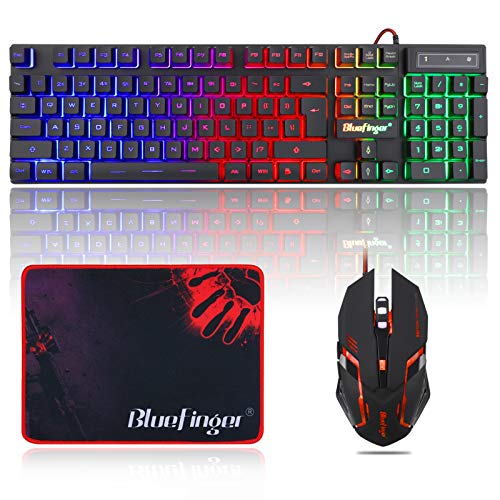
The BlueFinger RGB Gaming Keyboard and Backlit Mouse Combo is ideal for gamers and professionals who seek a vibrant, responsive, and reliable USB wired setup for their laptop or PC. This combo is perfect for users who want to enhance their gaming experience or improve productivity with backlit keys and a precision mouse, all in a sleek black design.
Pros:
Vivid RGB lighting enhances the gaming ambiance and allows for easy key visibility in low-light environments.
Ergonomic keyboard and mouse design for comfortable extended use.
USB wired connection ensures reliable and lag-free performance.
Compact and lightweight combo ideal for both gaming and work setups.
Durable build quality from the trusted BlueFinger brand.
Cons:
A wired setup may limit mobility compared to wireless options.
Limited customization options for RGB lighting.
May not include advanced gaming features like programmable keys.
The BlueFinger RGB Gaming Keyboard and Backlit Mouse Combo features vibrant LED backlighting that not only improves aesthetics but also enhances usability in dimly lit rooms. The keyboard’s responsive keys provide tactile feedback suitable for fast-paced gaming and precise typing, while the mouse offers smooth tracking and reliable clicks to support both competitive gaming and everyday tasks.
Designed with durability and comfort in mind, this combo weighs just over two pounds, making it easy to transport between gaming stations or workspaces. The wired USB connection guarantees a stable, lag-free experience, essential for gamers who demand accuracy and speed. Overall, this combo offers an excellent balance of style, performance, and value for users looking to upgrade their gaming or work setup.
The Redragon Updated S107 Gaming Keyboard and Mouse Combo is ideal for gamers who seek a reliable and high-performance setup without breaking the bank. This combo is perfect for both casual and competitive gamers looking for responsive controls, customizable features, and vibrant RGB lighting to enhance their gaming experience on PC or laptop.
Pros:
RGB lighting for an immersive gaming atmosphere
25-key anti-ghosting to ensure accurate keystroke recognition
10000 DPI programmable mouse for precision and speed
1K Hz polling rate for ultra-fast response times
Plug & Play functionality with no complicated setup
Durable build quality from Redragon
Cons:
Limited color options, available only in black
May feel heavy for users preferring ultra-light mice
Software customization might have a learning curve for beginners
The Redragon Updated S107 Combo features a mechanical-style keyboard equipped with 25-key anti-ghosting technology, which allows multiple keys to be pressed simultaneously without input conflicts. This is especially beneficial for fast-paced games that require complex key combinations. The keyboard’s RGB lighting enhances the gaming setup, providing customizable colors and effects that can match any gaming environment.
Accompanying the keyboard is a 10000 DPI programmable mouse with a 1K Hz polling rate, offering precise cursor control and rapid response times. The mouse’s software allows users to customize DPI settings and button functions, tailoring performance to individual gaming styles. Additionally, the plug-and-play design ensures quick and easy installation, making it compatible with most PCs and laptops without the need for additional drivers.
The AULA Keyboard, T102 104 Keys Gaming Keyboard and Mouse Combo is ideal for PC gamers and computer users who demand a reliable, durable, and visually appealing keyboard setup. This combo is perfect for those seeking a high-performance, RGB backlit keyboard with a full number pad, built to withstand intense gaming sessions and everyday use.
Pros:
All-metal panel ensures durability and a premium feel
RGB backlit number pad adds customizable lighting effects for enhanced aesthetics
Waterproof design protects against accidental spills
Includes both keyboard and mouse in one combo for convenience
Compatible with multiple Windows versions (Win XP/7/8/10)
Full 104 keys layout supports comprehensive gaming and typing needs
Cons:
A wired connection may limit mobility compared to wireless options
Relatively heavy weight (2.17 pounds) may reduce portability
The AULA T102 keyboard and mouse combo features a robust all-metal panel construction, providing excellent durability and a sleek, modern look. The RGB backlit number pad not only enhances the visual appeal but also improves usability in low-light environments, allowing gamers to play comfortably during late-night sessions. Its waterproof design adds an extra layer of protection, ensuring that minor spills won’t damage the keyboard, making it a practical choice for everyday users.
With a full set of 104 keys, the keyboard offers comprehensive functionality that caters to both gaming and professional tasks. The wired USB connection guarantees a stable and lag-free experience, essential for competitive gaming. Additionally, the combo is compatible with a wide range of Windows operating systems, making it a versatile option for various PC setups. Overall, the AULA T102 combo combines style, durability, and performance, making it an excellent investment for gamers and PC enthusiasts alike.
Ideal for PC gamers and enthusiasts seeking a complete and immersive gaming setup, the RedThunder K10 Wired Gaming Keyboard and Mouse and Wrist Rest Combo offers a comprehensive package designed to enhance both performance and comfort during extended gaming sessions.
Pros:
RGB Backlit keyboard for customizable lighting effects
Mechanical feel with anti-ghosting keys for precise and responsive gameplay
7D 7200 DPI mouse providing high accuracy and smooth tracking
Includes a soft leather wrist rest to reduce fatigue and improve comfort
All-in-one 3-in-1 PC gamer accessories combo for convenience
Cons:
A wired connection may limit mobility compared to wireless options
Black color might show fingerprints and dust easily
Mechanical feel may not satisfy users looking for true mechanical switches
The RedThunder K10 Wired Gaming Keyboard features an anti-ghosting design, ensuring that every keypress is accurately registered, even during fast-paced gaming. The RGB backlighting adds a vibrant aesthetic to your setup and can be customized to match your style or game environment. Complementing the keyboard, the 7D 7200 DPI mouse offers precision and multiple programmable buttons, enhancing control and versatility in various game genres.
In addition to performance, the combo includes a soft leather wrist rest that provides ergonomic support, reducing strain during long hours of use. This thoughtful design element helps prevent discomfort and potential repetitive strain injuries, making the combo ideal for gamers who prioritize both functionality and comfort. Overall, the RedThunder K10 Combo is a well-rounded choice for gamers looking to upgrade their gear with reliable, feature-packed accessories.
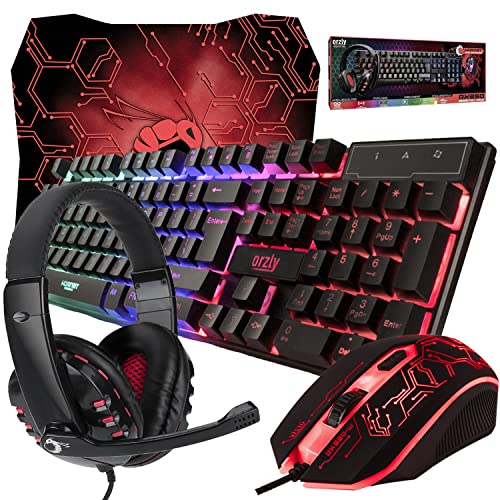
The Gaming Keyboard and Mouse and Mouse pad and Gaming Headset, Wired LED RGB Backlight Bundle is ideal for PC gamers and console users on Xbox and PS4 who want an all-in-one, high-performance gaming setup. This bundle is perfect for those seeking an immersive gaming experience with synchronized RGB lighting and responsive, reliable peripherals that enhance gameplay without the hassle of purchasing items separately.
Pros:
Comes as a 4-in-1 bundle including keyboard, mouse, mouse pad, and headset
Features Wired LED RGB Backlight for customizable lighting effects
Compatible with PC, Xbox, and PS4 gaming systems
Ergonomic design for comfortable long gaming sessions
Lightweight setup, weighing only 0.55 pounds for easy portability
Cons:
A wired connection may limit movement compared to wireless options
RGB lighting customization options could be basic for advanced users
A black color scheme may show fingerprints and dust easily
This Orzly gaming bundle delivers excellent value by combining essential gaming peripherals into one cohesive package. The LED RGB Backlight adds vibrant, customizable lighting to enhance the gaming atmosphere, while the wired connection ensures stable and lag-free performance crucial for competitive play. The inclusion of a gaming headset completes the setup by providing clear audio and communication capabilities, making it easier to coordinate with teammates.
Designed with gamers in mind, each component offers ergonomic comfort to reduce fatigue during marathon gaming sessions. The lightweight and compact design also makes it an attractive choice for gamers who travel or attend LAN parties. Overall, this bundle from Orzly is a convenient, stylish, and functional option that meets the needs of both casual and serious gamers across multiple platforms.
The Gaming Keyboard and Mouse Combo by Trueque is ideal for gamers and professionals who seek a reliable and stylish setup that enhances both gaming performance and productivity. This combo is perfect for users who want a seamless experience with features like RGB backlit lighting, anti-ghosting keys, and a highly responsive,e adjustable DPI mouse. Whether you are into fast-paced games or need a quiet, efficient keyboard for work, this combo caters to your needs.
Pros:
14 RGB lighting effects create a visually immersive experience
26-key anti-ghosting ensures accurate keypresses during intense gaming
Quiet typing reduces noise for a more comfortable working environment
Volume wheel for easy audio control
An adjustable DPI mouse allows precise sensitivity customization
USB wired connection guarantees low latency and stable performance
Cons:
A wired setup might limit mobility compared to wireless options
Limited to black color, which might not match all setups
The Trueque Gaming Keyboard and Mouse Combo stands out with its vibrant RGB backlit lighting, offering 14 different effects, allowing users to personalize their gaming or work environment. The 26-key anti-ghosting technology ensures that multiple key presses are registered accurately, which is essential during complex gaming commands or fast typing sessions. Additionally, the quiet typing feature makes it suitable for office environments or late-night gaming without disturbing others.
The combo also includes a volume wheel for quick and convenient audio adjustments without interrupting your workflow or gameplay. The adjustable DPI mouse enhances control and precision, enabling users to switch sensitivity based on their activity, whether it’s gaming or detailed work tasks. Its USB wired connection offers a stable and responsive experience, making it an excellent choice for those who prioritize performance and reliability over wireless convenience.
The FLAGPOWER RGB Gaming Keyboard and Breathing Mouse Combo is ideal for gamers and professionals who seek a stylish and functional setup for both PC and laptop use. If you want a keyboard with a mechanical feel and an adjustable RGB backlight combined with a high-precision mouse, this combo is perfect for enhancing your gaming and work experience.
Pros:
Adjustable breathing backlit mechanical keyboard for an immersive gaming atmosphere
4 colors 4800DPI backlight mouse offering precision and visual appeal
Compact and lightweight design, easy to fit on any desk
Suitable for both gaming and work environments
Durable build quality by the reputable FLAGPOWER brand
Cons:
Mechanical feeling keys may not be genuine mechanical switches, affecting tactile feedback
Limited customization options for the mouse DPI settings
Keyboard size may be slightly larger for users with limited desk space
The FLAGPOWER RGB Gaming Keyboard features an adjustable breathing backlit design that cycles through vibrant colors, enhancing your gaming setup’s visual appeal. The mechanical feeling keys provide a satisfying typing and gaming experience, helping users maintain accuracy and speed during intense gaming sessions or long work hours. The keyboard’s dimensions make it a compact yet comfortable choice for most users.
Complementing the keyboard is the 4800DPI backlight mouse, which offers precise cursor control ideal for gaming and productivity tasks. The mouse’s multi-color lighting adds an aesthetic touch that matches the keyboard’s RGB effects, creating a cohesive and eye-catching setup. Together, this combo supports enhanced performance and style for users seeking an affordable and functional peripheral set.
The Gaming Keyboard and Mouse Combo, K1 RGB LED Backlit Keyboard with 104 Keys for PC/Laptop (White) is ideal for gamers and professionals seeking a reliable and visually appealing input device set. If you want a durable keyboard with responsive keys and a matching mouse that enhances your gaming or work setup, this combo is designed to meet those needs. It suits users who value both functionality and aesthetics in their computer accessories.
Pros:
Features a vibrant RGB LED backlit keyboard for an immersive gaming experience and easy key visibility in low light.
Comes with a full set of 104 keys, providing comprehensive functionality for gaming and typing tasks.
Lightweight design with dimensions of 17.72 inches in length, 8.7 inches in width, and 1.81 inches in height, making it comfortable to use and transport.
Attractive K1 white color that adds a modern and clean look to your setup.
The combo pack includes both keyboard and mouse, ensuring compatibility and cohesive design.
Cons:
The white color might show dirt and stains more easily compared to darker options.
The weight of 2.2 pounds may feel slightly heavier for users looking for ultra-light peripherals.
The MageGee Gaming Keyboard and Mouse Combo offers a highly responsive typing experience with its 104 full-size keys, which ensures that every keystroke is registered accurately during intense gaming sessions or professional work. The RGB LED backlighting not only enhances the aesthetic appeal but also improves usability in dim environments, allowing users to maintain focus without straining their eyes. The combination of the keyboard and mouse in a matching white color provides a sleek and coordinated look for any PC or laptop setup.
Designed with user comfort and performance in mind, this combo includes a keyboard that balances size and portability, weighing just over 2 pounds and measuring under 2 inches in height. This makes it suitable for both desktop use and easy transport to gaming events or workspaces. The high-quality build by MageGee ensures durability, while the comprehensive key layout supports a wide range of applications beyond gaming, including office productivity and creative tasks. Overall, this combo delivers excellent value for users seeking both style and functionality in their peripherals.
The CHONCHOW 87 Keys TKL Gaming Keyboard and Mouse Combo is ideal for gamers and professionals who seek a compact yet highly functional setup. This combo is perfect for users who value both performance and aesthetics, whether you’re playing on a PS4, Xbox, PC, Laptop, or Mac. If you want a stylish, wired RGB keyboard and mouse combo that doesn’t take up too much desk space, this product is designed for you.
Pros:
Compact Tenkeyless (TKL) Design saves desk space and improves ergonomics.
Wired connection ensures zero input lag for gaming precision.
LED Rainbow Backlit Keyboard enhances gaming ambiance with vibrant RGB lighting.
Adjustable DPI Mouse (800-3200 DPI) offers customizable sensitivity for different gaming styles.
Wide compatibility across multiple platforms, including PS4, Xbox, PC, Laptop, and Mac.
Cons:
Lacks wireless functionality,y which may limit portability.
No dedicated macro keys for advanced gaming customization. The built-in weight of 1.64 pounds might feel heavier compared to ultra-light peripherals.
The CHONCHOW 87 Keys TKL Gaming Keyboard features a streamlined layout that omits the numeric keypad, making it ideal for gamers who prefer a more compact design without sacrificing essential keys. The keyboard’s wired connection guarantees a stable and responsive experience, which is crucial for competitive gaming. Its vibrant LED rainbow backlighting not only adds an aesthetic appeal but also allows gamers to play comfortably in low-light environments. The keyboard’s black color gives it a sleek and professional look that fits well in any gaming setup.
Complementing the keyboard is the RGB mouse with an adjustable DPI range from 800 to 3200. This flexibility enables users to tailor mouse sensitivity according to their gameplay or work needs, providing precision and speed when required. The mouse’s ergonomic design ensures comfortable long-term use, reducing fatigue during extended gaming sessions. Together, this combo offers a balanced blend of style, performance, and compatibility, making it an excellent choice for gamers and users across multiple platforms.
The RedThunder K10 Wireless Gaming Keyboard and Mouse Combo is ideal for PC gamers seeking a reliable and stylish setup that enhances their gaming experience. If you want a combo that offers a mechanical feel keyboard with anti-ghosting capabilities and a high-precision mouse featuring 3200 DPI sensitivity, this product is perfect for you. It is also suitable for users who prefer wireless convenience with long-lasting battery life during intense gaming sessions.
Pros:
Wireless design eliminates cable clutter for a cleaner gaming space.
LED backlit keyboard provides excellent visibility in low-light environments.
Rechargeable 3800mAh battery ensures extended usage without frequent charging.
Mechanical feel keys offer tactile feedback similar to mechanical keyboards for improved responsiveness.
Anti-ghosting technology allows multiple key presses to be made simultaneously without input errors.
7D 3200 DPI mouse delivers precise and customizable control for accurate aiming.
Cons:
The combo might be slightly heavier compared to some ultra-light gaming peripherals.
Limited color options, as it comes only in black.
May require occasional firmware updates to maintain optimal performance.
The RedThunder K10 Wireless Gaming Keyboard and Mouse Combo stands out with its impressive LED backlit keyboard that enhances gaming ambiance and usability in dark rooms. The keyboard’s mechanical feel keys simulate the tactile sensation of mechanical switches, providing gamers with responsive and satisfying keystrokes. Its anti-ghosting feature ensures that multiple simultaneous key presses are accurately registered, crucial for executing complex moves during gameplay.
On the mouse side, the 7D 3200 DPI sensor offers precise tracking and customizable sensitivity, enabling gamers to fine-tune their control for different game genres. The combo’s wireless design,n paired with a large 3800mAh rechargeablebatterye,ry delivers long-lasting power, minimizing interruptions and the need for frequent recharging. Overall, this combo provides a seamless balance of performance, comfort, and style tailored for passionate PC gamers.
The MSI Forge GK110 Combo US is ideal for gamers seeking a reliable and stylish gaming RGB keyboard and mouse set that enhances gameplay precision and offers durability. If you want to enjoy seamless gaming with features like 26-key anti-ghosting and a highly sensitive 12800 DPI optical sensor, this combo is designed for you.
Pros:
26-key anti-ghosting ensures accurate key registration during intense gaming sessions.
Customizable RGB lighting adds an immersive gaming atmosphere.
12800 DPI optical sensor delivers precise and smooth mouse movements.
Ergonomic design for comfortable long-term use.
Compact dimensions make it suitable for various desk setups.
Cons:
Lack of additional programmable macro keys on the keyboarThe mouseuse may feel lightweight for users preferring heavier devices.
The MSI Forge GK110 Combo US combines a responsive keyboard with a high-performance mouse, offering gamers the tools they need for competitive play. The 26-key anti-ghosting feature prevents missed or repeated keystrokes, which is crucial during fast-paced gaming where every input counts. Additionally, the RGB lighting not only enhances aesthetics but can be customized to match your gaming setup or mood.
On the mouse side, the 12800 DPI optical sensor provides exceptional accuracy and speed control, allowing gamers to adjust sensitivity on the fly for different gaming scenarios. The compact size of both keyboard and mouse makes them versatile for various desk spaces without sacrificing comfort. Overall, this combo offers a balance of performance and style, making it a great choice for both casual and serious gamers.
The GEODMAER 65% Gaming Keyboard and Mouse Combo is ideal for gamers and PC users who seek a compact, efficient, and visually appealing setup. If you want a high-performance keyboard with RGB backlighting and a responsive gaming mouse with adjustable 7200 DPI, this combo is perfect for enhancing your gaming experience without occupying too much desk space. It’s especially suited for those who value portability and anti-ghosting features in their peripherals.
Pros:
Ultra-compact 65% keyboard design saves desk space
Customizable RGB backlit keyboard for immersive gamingThe
7200 DPI gaming mouse offers precision and speed
Anti-ghosting technology ensures accurate key presses
Wired connection for reliable and lag-free performance
Lightweight and portable setup, weighing only 1.4 pounds
Cons:
Compact size may have a learning curve for users used to full-sized keyboards
Wired design limits mobility compared to wireless options
The GEODMAER 65% Gaming Keyboard features a space-saving layout that retains all essential keys while eliminating unnecessary bulk, making it an excellent choice for gamers with limited desk space or those who prefer a minimalist setup. The RGB backlighting not only enhances aesthetics but also allows users to customize their lighting preferences, improving visibility during late-night gaming sessions. Coupled with anti-ghosting technology, every keypress is registered accurately, giving gamers the competitive edge they need.
Complementing the keyboard, the 7200 DPI gaming mouse offers precise tracking and adjustable sensitivity, catering to a variety of gaming styles and preferences. The wired connection guarantees consistent responsiveness without the worry of battery life or interference, making it reliable for intense gaming marathons. Together, this combo provides a balanced blend of performance, style, and practicality for PC and laptop gamers alike.
The Redragon S101M-KS Gaming Keyboard and Mouse Wireless set is ideal for gamers seeking a versatile and responsive gaming experience. Designed for both casual and competitive gamers, this combo offers the convenience of wireless connectivity with the flexibility of tri-mode support, making it perfect for users who want to enhance their gaming setup without the clutter of cables. If you’re looking for an affordable yet feature-rich keyboard and mouse duo compatible with Windows and PC, this product is tailored for you.
Pros:
Tri-mode wireless connectivity ensures seamless switching between devices and connection types.
RGB backlit keyboard with customizable lighting effects enhances the gaming ambiance.
4800 DPI gaming mouse offers precision and smooth tracking for accurate gameplay.
Ten independent multimedia keys provide quick access to controls without interrupting gaming.
Lightweight design at approximately 2.6 pounds for easy portability.
Cons:
The wireless range may be limited in larger rooms or through obstacles.
Lacks mechanical key switches, which some gamers prefer for tactile feedback.
Battery life may vary depending on the usage of RGB lighting and wireless mode.
Featuring a wireless tri-mode connection, the Redragon S101M-KS allows gamers to effortlessly switch between Bluetooth, 2.4GHz wireless, and wired USB modes. This flexibility means you can connect to multiple devices or choose the connection that best suits your gaming environment, reducing input lag and maintaining consistent performance. The RGB backlit keyboard not only adds vibrant aesthetics but also improves key visibility in low-light settings, making late-night gaming sessions more comfortable and immersive.
The included 4800 DPI gaming mouse delivers precise and smooth cursor control, essential for fast-paced games where accuracy is key. Additionally, the set’s ten independent multimedia keys allow quick access to volume, playback, and other controls, enabling gamers to adjust settings without interrupting gameplay. With its sleek black design and ergonomic build, this combo provides both style and comfort, making it a practical choice for gamers looking to upgrade their setup with reliable and versatile peripherals.
The Keyboard and Mouse Gaming LED Wired Combo is ideal for avid gamers and tech enthusiasts who demand precision, style, and compatibility in their gaming setup. Whether you play on a PC, Raspberry Pi, Mac, Xbox One, or PS4, this combo is designed to enhance your gaming experience with its responsive keys and high-performance mouse features. If you seek a durable and visually appealing gaming accessory that offers mechanical-like feedback and customizable lighting, this combo is perfect for you.
Pros:
4800DPI high-precision mouse sensor for accurate tracking
Rainbow backlit keyboard and mouse for a vibrant gaming atmosphere
Mechanical feeling keys provide satisfying tactile feedback
Two side buttons on the mouse for additional functionality
Wide compatibility with multiple platforms, including PC, Mac, Xbox One, PS4, and Raspberry Pi
Durable wired connection ensuring stable and lag-free performance
Cons: A wired
d connection might limit mobility compared to wireless alternatives
Keyboard dimensions are quite large, requiring ample desk space
No customizable software for backlight or button programming included
The Keyboard and Mouse Gaming LED Wired Combo features a high-precision mouse with a 4800DPI sensor, which ensures smooth and accurate cursor movements essential for fast-paced gaming. The mouse includes two side buttons that can be easily programmed for quick actions, improving gameplay efficiency. The keyboard offers a mechanical feeling with emitting character keys that provide tactile feedback, allowing for a more responsive and immersive typing or gaming experience. The vibrant rainbow backlit design adds a stylish and dynamic look to any gaming setup, enhancing the visual appeal during late-night gaming sessions.
Compatibility is a major strength of this combo, as it supports various platforms such as PC, Mac, Xbox One, PS4, and Raspberry Pi. This flexibility makes it an excellent choice for gamers who use multiple devices or plan to switch platforms in the future. Additionally, the wired USB connection ensures a reliable and lag-free experience, which is crucial in competitive gaming scenarios where every millisecond counts. With its large dimensions and robust build, this combo is designed for gamers who prefer a full-sized keyboard and a durable mouse that can withstand intense gaming sessions.
What Features Make RGB Gaming Keyboard And Mouse Combos Popular?
RGB combos offer customizable lighting, programmable keys, and high-DPI mice. These enhance the gaming experience and improve performance. They also provide aesthetic appeal and compatibility with various systems like PC, Xbox, and PS4.
How Does Anti-ghosting Benefit Gaming Keyboards?
Anti-ghosting allows multiple key presses to register simultaneously without conflict. This ensures accurate in-game actions during intense gameplay. It is essential for fast-paced games where multiple commands are issued at once.
Are Wireless RGB Gaming Keyboard And Mouse Combos Reliable?
Yes, wireless combos like RedThunder K10 offer stable connections with minimal latency. They include rechargeable batteries and tri-mode connectivity, making them suitable for gaming without cables.
Can Programmable Macro Keys Improve Gaming Performance?
Programmable macro keys automate complex commands or sequences. This saves time and increases efficiency in games. Combos like Redragon S101-3 PRO include independent macro recording for customization.
What Dpi Range Is Ideal For Gaming Mice In Combos?
A DPI range between 3200 and 12800 suits most gaming styles. Higher DPI offers faster cursor movements, while lower DPI provides precision. Many combos feature adjustable DPI settings to match player preference.
Are RGB Keyboard And Mouse Combos Compatible With Multiple Devices?
Most combos support PCs, laptops, Xbox, and PS4. USB wired and wireless options ensure broad compatibility. Always check product specifications for system requirements before purchase.
Conclusion
Choosing the best RGB gaming keyboard and mouse combo depends on your needs and budget. Each set offers unique features like customizable lighting, programmable keys, and a comfortable design. Whether you want a compact combo or a full-sized keyboard with a high-DPI mouse, there is an option here for you.
These combos not only improve your gaming experience but also look great on any desk. Remember, a good combo should feel comfortable and respond quickly during gameplay. Take your time to compare the options and pick the one that fits your style.
Investing in the right keyboard and mouse combo can make gaming more enjoyable and efficient. Happy gaming!
Are you stuck trying to turn off Gaming Mode on Keyboard? It can get frustrating when keys don’t respond as expected, but our guide helps you regain full control quickly and easily.
Maybe you accidentally enabled it or want to switch back to normal typing fast. Luckily, turning off Gaming Mode is easier than you think. You’ll discover simple steps to get your keyboard back to normal in no time. Keep reading, and you’ll be typing smoothly again before you know it.
Locate Gaming Mode Key
To turn off gaming mode on your keyboard, the first step is to locate the gaming mode key. This key is designed to disable certain functions, like the Windows key,y to prevent accidental interruptions during gameplay. Finding this key can be tricky because its name and position vary depending on the keyboard model and brand. Knowing where to find it helps you quickly toggle gaming mode on or off without hassle.
Common Key Names
The gaming mode key often has different names or symbols. Recognizing these names helps in spotting the key on your keyboard easily. Here are some common names and labels you might see:
Game Mode – A straightforward label found on many gaming keyboards.
G Mode – A shorter version, often printed on smaller keys.
Fn + F Lock – Sometimes, gaming mode is activated by pressing a function key combo.
Windows Lock – This key specifically disables the Windows key during gaming.
Crossed-out Windows logo – A symbol showing the Windows key blocked.
Some keyboards combine the gaming mode function with other keys. For example, pressing Fn + F12 might toggle gaming mode. Other keyboards have a dedicated physical switch or button.
Key Name
Description
Example Location
Game Mode
Dedicated key to toggle gaming mode on/off
Top row, near function keys
Windows Lock
Disablethe s Windows key to avoid interruptions
Between Ctrl and Alt keys or as an Fn combo
Fn + F12
Function key combination for gaming mode
Top right corner of the keyboard
Tip: Check your keyboard manual or manufacturer’s website to confirm the exact key name and function.
Keyboard Layout Variations
Keyboard layouts differ across brands and models. This affects where the gaming mode key is located and how it looks. Some keyboards have a small switch, others use key combinations or special keys.
Here are some common layout types and how they handle gaming mode keys:
Full-size gaming keyboards: Often include a dedicated gaming mode button near the function keys or on the top row.
Tenkeyless keyboards: May use Fn key combinations due to fewer keys.
Compact and laptop keyboards: Usually rely on key combos like Fn + Windows or Fn + another function key.
Some gaming keyboards place the gaming mode key in a unique spot for easy access:
Above the arrow keys
Near the numeric keypad
Along the keyboard’s edge as a slider or switch
Keyboard Type
Gaming Mode Key Location
Activation Method
Full-size
Top row near F keys
Dedicated button or switch
Tenkeyless
Function key row
Fn + F12 or similar combo
Laptop/Compact
Function keys or side buttons
Fn + Windows key or others
Understanding your keyboard layout helps you find the gaming mode key fast. Try pressing keys labeled with gaming-related terms or use key combos with the Fn key. Keep your keyboard manual nearby for exact details.
Use Keyboard Shortcuts
Using keyboard shortcuts is a quick way to turn off gaming mode on your keyboard. Gaming mode blocks some keys, like the Windows key, to prevent interruptions during games. Instead of digging into software settings, many keyboards let you toggle gaming mode on or off with a simple key combination. This method saves time and works even without extra software installed.
Typical Shortcut Combinations
Most keyboards use common shortcut keys to switchthe gaming mode on or off. These shortcuts usually involve pressing the Fn key combined with another key. The exact key depends on the keyboard model, but often includes keys with game-related icons or labels.
Here are some typical shortcut combinations:
Fn + F6: Common on many gaming keyboards to toggle gaming mode.
Fn + F8: Used by some brands to enable or disable gaming mode.
Fn + Windows key: Disables the Windows key to prevent accidental presses.
Fn + Pause/Break: Another option on certain models.
These shortcuts often turn off gaming mode instantly. You might see a small light or icon on your keyboard indicating the mode status. If the light is on, gaming mode is active. Pressing the shortcut again turns it off.
The following table shows common shortcuts for popular keyboard brands:
Shortcut
Function
Notes
Fn + F6
Toggle gaming mode
Common on many gaming keyboards
Fn + F8
Toggle gaming mode
Used by some brands
Fn + Windows key
Disable Windows key
Prevents accidental game interruptions
Fn + Pause/Break
Toggle gaming mode
Less common but used on some models
Manufacturer Specific Shortcuts
Some keyboard makers use unique shortcuts to control gaming mode. These combinations depend on the brand and model. Checking your keyboard manual helps find the exact keys. Here are shortcuts from popular manufacturers:
Razer: Press Fn + F10 or Fn + Esc on some models.
Logitech: Use Fn + F8 a dedicated gaming mode key.
Corsair: PressOrr use the iCUE software for toggling.
ASUS ROG:Fn + F5 or a special gaming mode key with a gamepad icon.
Many keyboards include an LED indicator to show if gaming mode is active. This helps confirm the status without testing keys.
For some brands, you might need software to fully control or customize the gaming mode. For example, Corsair’s iCUE software allows you to assign keys and control gaming mode settings in detail. Without software, shortcuts still work for basic toggling.
Here is a quick reference table for manufacturer-specific shortcuts:
Brand
Shortcut
Extra Info
Razer
Fn + F10 or Fn + Esc
Some models vary
Logitech
Fn + F8 or dedicated key
Check the model manual
Corsair
Fn + F12 or iCUE software
Software enhances control
ASUS ROG
Fn + F5 or gaming icon key
LED indicator available
Access Keyboard Software
Accessing your keyboard’s software is the key step to turning off Gaming Mode. Most gaming keyboards come with special software. This software controls features like lighting, macros, and Gaming Mode. Without it, you cannot change settings easily. The software allows you to customize the keyboard according to your needs. You can enable or disable Gaming Mode with just a few clicks. Using the software is safer and faster than using keyboard shortcuts. It also gives you more control over how the keyboard behaves.
Installing Required Software
First, find out the brand and model of your keyboard. Visit the official website of the keyboard manufacturer. Look for the “Support” or “Downloads” section. Here you will find the software needed for your keyboard. Download the latest version of the software to avoid bugs.
Check if your computer meets the software requirements.
Close other programs before installing to avoid conflicts.
Run the installer and follow the on-screen instructions.
After installation, restart your computer if the software asks you to do so. The software usually appears as an icon on the taskbar or desktop. Sometimes, you may have to create an account to use the full features.
Keyboard Brand
Software Name
Website
Logitech
Logitech G Hub
logitech.com
Razer
Razer Synapse
razer.com
Corsair
Corsair iCUE
corsair.com
Navigating Settings To Disable Gaming Mode
Open the keyboard software after installation. Look for the section named “Gaming Mode,” “Game Mode,” or similar. This section controls keys that are disabled during gaming. Gaming Mode often blocks keys like Windows or Alt to avoid interruptions.
Follow these steps to disable Gaming Mode:
Click on the keyboard or device icon.
Find the “Gaming Mode” tab or option.
Toggle the Gaming Mode switch off or uncheck the box.
Save your changes before exiting the software.
Some software allows you to customize which keys to disable during Gaming Mode. You can turn off the entire mode or just specific keys.
Action
Effect
Disable Gaming Mode
All blocked keys work normally
Customize keys
Only selected keys are blocked
After turning off Gaming Mode, test your keyboard to confirm keys work. Open a text editor and press keys like Windows or Alt. If they respond, Gaming Mode is off. This method is more reliable than using keyboard shortcuts alone.
Troubleshoot Gaming Mode Issues
Gaming mode on keyboards helps prevent accidental key presses during games. Sometimes, this mode can cause problems or get stuck. Troubleshooting gaming mode issues can fix these problems and bring your keyboard back to normal. This guide explains two simple ways to solve gaming mode issues: resetting keyboard settings and checking for firmware updates.
Resetting Keyboard Settings
Resetting your keyboard settings can clear any glitches related to gaming mode. Many keyboards have a reset option that restores default settings. This can help if the gaming mode won’t turn off or if keys behave strangely.
Follow these steps to reset your keyboard:
Unplug the keyboard from your computer.
Press and hold the Escape (Esc) key and the Spacebar together.
While holding these keys, plug the keyboard back into the computer.
Keep holding the keys for about 5 seconds, then release.
Wait for the keyboard lights to flash or turn off, indicating a reset.
Some keyboards use different key combinations for reset. Check your keyboard manual for specific instructions.
Keyboard Brand
Reset Key Combination
Notes
Logitech
Esc + Spacebar
Standard reset for many models
Razer
Fn + Right Ctrl + Left Alt
Some models require a software reset
Corsair
Fn + F1
Check Corsair iCUE software
Resetting clears custom settings. You may need to reconfigure lighting or macros after.
Checking For Firmware Updates
Firmware controls how your keyboard works. Outdated firmware can cause the gaming mode to malfunction. Updating firmware often fixes bugs and improves performance.
Here’s how to check and update your keyboard firmware:
Visit the keyboard manufacturer’s website.
Find the support or downloads section.
Look for your keyboard model.
Download the latest firmware update tool.
Run the tool and follow the instructions to update firmware.
Some keyboards use software apps for updates and settings, like Logitech G Hub or Razer Synapse. Use these apps to check firmware status easily.
Brand
Update Method
Software/App
Logitech
Download from the website or use G Hub
Logitech G Hub
Razer
Use Razer Synapse software
Razer Synapse
Corsair
Use iCUE software
Corsair iCUE
After updating, restart your computer and test the keyboard. The gaming mode issue may be resolved.
Alternative Methods To Disable Gaming Mode
Disabling Gaming Mode on your keyboard can be necessary to restore normal key functions. Besides the common method of using software, there are alternative ways to turn off Gaming Mode. These methods help when software options are unavailable or if you prefer quick physical controls. Two practical alternatives include using onboard keyboard buttons and consulting the user manual for specific instructions. Both approaches can save time and simplify the process.
Using Onboard Keyboard Buttons
Many keyboards have dedicated keys or key combinations to toggle Gaming Mode on or off. This method works without opening any software or settings. Usually, a specific key or a combination of keys disables Gaming Mode instantly. The exact keys differ by keyboard brand and model, but the process is often simple and fast.
Common key combinations include:
Fn + F9 or another function key with a game controller icon
Fn + Windows key to enable or disable Gaming Mode
Dedicated Gaming Mode key marked by a joystick or gamepad symbol
Try these steps:
Locate the Fn key and the function key with a game icon on your keyboard.
Press both keys simultaneously.
Check if the Gaming Mode indicator light turns off.
Test your keyboard to see if all keys work normally.
The table below shows examples of key combinations for popular keyboard brands:
Brand
Key Combination to Disable Gaming Mode
Logitech
Fn + F8 or Fn + F12
Razer
Fn + F10
Corsair
Fn + Windows key
ASUS
Fn + F9
Using onboard buttons is quick and avoids software issues. It helps when you want to switch modes fast during gaming or work.
Consulting User Manual
Your keyboard’s user manual provides detailed instructions to disable Gaming Mode. Manuals include specific information for your keyboard model. They cover key combinations, software settings, and LED indicators related to Gaming Mode.
Steps to use the manual effectively:
Find the physical manual that came with your keyboard or download the PDF from the manufacturer’s website.
Look for sections titled “Gaming Mode,” “Function Keys,” or “Keyboard Settings.”
Read the instructions carefully to identify the exact keys or software steps needed.
Follow any troubleshooting tips if Gaming Mode does not turn off as expected.
The manual may include diagrams or images showing the location of keys. It also explains the LED signals that show when Gaming Mode is active or inactive.
Benefits of consulting the manual:
Accurate information tailored for your keyboard model
Clear guidance on both hardware and software methods
Helps avoid accidental key presses that could enable Gaming Mode again
Offers troubleshooting advice for persistent issues
Always keep your manual handy or save a digital copy. It ensures quick access to support without searching online.
Frequently Asked Questions
How Do I Disable Gaming Mode On My Keyboard?
Press the dedicated gaming mode key or use the keyboard software to turn it off.
What Keys Are Blocked In Gaming Mode?
Usually, the Windows key and some shortcut keys are blocked to avoid interruptions.
Can I Turn Off Gaming Mode Without Software?
Yes, many keyboards have a physical switch or key to disable gaming mode.
Why Is My Keyboard Stuck In Gaming Mode?
A stuck key or software glitch often causes this; restarting or updating helps.
Does Turning Off Gaming Mode Affect Keyboard Performance?
Turning it off restores normal key functions but does not impact typing speed.
Conclusion
Turning off gaming mode on your keyboard is quick and simple. Just follow the steps your keyboard brand suggests. This helps return your keys to normal use. You can switch modes anytime you want. No need to worry about confusing settings.
Keep your keyboard working the way you like. Enjoy smooth typing and easy control every day. This small change can improve your computer use a lot. Try it out and see the difference yourself.
Your gaming keyboard is more than just a tool—it’s your command center. By learning to Customize Your Gaming Keyboard, you can set every key exactly how you want it, giving you a competitive edge over your opponents.
Customizing your gaming keyboard can make your gameplay smoother, faster, and more enjoyable. Whether you want to change the lighting, remap keys, or add macros, this guide will show you how to turn your keyboard into a powerhouse tailored just for you.
Ready to level up your gaming experience? Keep reading to discover simple steps that will transform your setup.
Choosing The Right Keyboard
Choosing the right keyboard is the first step to customizing your gaming setup. The keyboard affects your comfort, speed, and accuracy during gameplay. Picking the right one depends on your personal style and gaming needs. Consider the type of keyboard, the key switches, and the size and layout before making a choice. This guide will help you understand the key features to look for.
Mechanical Vs Membrane
Two main types of keyboards exist: mechanical and membrane. Mechanical keyboards use individual switches for each key. Membrane keyboards have a thin layer that registers key presses.
Mechanical keyboards offer:
Better durability and longer lifespan
More precise and tactile feedback
Louder key presses, which some gamers prefer
Easy to customize key switches and keycaps
Membrane keyboards provide:
Quieter typing experience
Lower cost, usually more affordable
Lighter and thinner design
Less precise key feedback
Feature
Mechanical
Membrane
Durability
High (up to 50 million key presses)
Lower (around 5 million key presses)
Key Feedback
Clicky, tactile, or linear
Soft and quiet
Price
Higher
Lower
Customization
High (switches, keycaps)
Limited
Mechanical keyboards suit gamers who want performance and custom options. Membrane keyboards suit casual users or budget buyers.
Key Switch Types
Key switches define how each key feels and sounds. Mechanical keyboards have many switch options. Each switch type changes the force needed to press the key and the sound it makes.
Common switch types include:
Linear switches: Smooth and quiet. No tactile bump. Good for fast key presses.
Tactile switches: Have a small bump to feel when the key registers. Provide feedback without loud click sounds.
Clicky switches: Tactile bump plus a loud click sound. Great for users who want audible feedback.
Switch Type
Feel
Sound
Best for
Linear
Smooth
Quiet
Fast-paced gaming
Tactile
Bump feedback
Moderate
Balanced gaming and typing
Clicky
Bump + click
Loud
Typing and feedback lovers
Choosing the right switch affects your gaming speed and comfort. Testing different switches helps find the best fit.
Size And Layout Options
Keyboard size and layout change how many keys are available and how compact the keyboard is. Size affects desk space and ease of use.
Common keyboard sizes include:
Full-size (100%): Has all keys, includinga number pad. Best for users who need all functions.
Tenkeyless (TKL, 87%): No number pad. Saves space and allows better mouse movement.
75%, 65%, 60%: Smaller layouts that remove function keys, arrow keys, or navigation keys. Very compact and portable.
Layouts vary by region and language. Most gaming keyboards use the standard QWERTY layout, but some offer alternative layouts for comfort.
Size
Keys Included
Desk Space
Best for
Full-size (100%)
104+ keys
Largest
Office work, gaming with a number pad
Tenkeyless (TKL, 87%)
87 keys
Medium
Gaming saves space
75%
~84 keys
Compact
Gaming, small desks
65%
~67 keys
Smaller
Portable setups
60%
~61 keys
Smallest
Minimalist, travel
Pick the size that fits your desk and gaming style. Smaller keyboards improve portability but may lack extra keys.
Keycap Customization
Customizing your gaming keyboard starts with keycap customization. Keycaps are the top part of each key, the part you press. Changing them can improve your typing feel and the keyboard’s look. Custom keycaps help personalize your setup and can make gaming more comfortable. This guide covers keycap material choices, profile styles, and custom keycap sets.
Material Choices
Keycap material affects durability, feel, and sound. The two most common materials are ABS and PBT. Both have pros and cons for gamers.
ABS (Acrylonitrile Butadiene Styrene): Smooth and shiny surface. Feels soft but wears out faster. Key legends may fade over time. Usually cheaper and easier to find.
PBT (Polybutylene Terephthalate): More textured and matte finish. Very durable and resists shine. Legends last longer. Slightly thicker, which some users like for typing.
Other less common materials include:
POM (Polyoxymethylene): Smooth and slippery, with good durability.
Metal: Heavy and very durable, but expensive and loud.
Material
Texture
Durability
Legend Longevity
Price
ABS
Smooth, shiny
Moderate
Fades quickly
Low
PBT
Textured, matte
High
Lasts long
Medium
POM
Smooth
High
Good
Medium
Metal
Hard, cold
Very High
Permanent
High
Choosing the right material depends on your preferences for feel, sound, and budget.
Profile Styles
Keycap profile means the shape and height of the keys. Different profiles change how your fingers move and rest on the keyboard. Some profiles suit gaming better, others typing.
OEM: The most common. Medium height and curved shape. Comfortable for most users.
Cherry: Lower and shorter than OEM. Smooth curve for faster typing and gaming.
SA (Spherical All): Tall and rounded. Vintage look and feel. Can be tiring for long use.
XDA: Flat and uniform height. Easy to press all keys equally.
DSA: Flat and uniform, like XDA but with a slightly different shape.
Profile
Height
Shape
Best For
OEM
Medium
Curved
General use
Cherry
Low
Curved
Fast typing, gaming
SA
Tall
Rounded
Style, retro look
XDA
Uniform
Flat
Equal key feel
DSA
Uniform
Flat, low
Compact layouts
Select a profile that feels comfortable. Gaming needs quick and precise key presses. Profiles like Cherry or OEM fit well.
Custom Keycap Sets
Custom keycap sets offer unique designs and colors. They let you style your keyboard to match your personality. Many sets include extra keys for different layouts.
Common features of custom sets:
Bright or subtle colors
Unique fonts and legends
Special symbols or icons for games
Different materials and profiles combined
Popular custom keycap themes include:
Gaming-themed with icons for abilities and functions
Retro or vintage style sets
Minimalist or monochrome designs
Artistic or anime-inspired designs
When buying custom sets, check compatibility with your keyboard layout. Some sets may lack keys for non-standard layouts. Also, consider if the legends are printed or dye-sublimated. Dye-sublimation lasts longer.
Custom keycaps enhance both aesthetics and usability. They make your gaming keyboard truly yours.
Lighting Effects
Lighting effects play a big role in customizing a gaming keyboard. They not only make your setup look cool but can also help improve your gaming experience. By changing the lights, you can create a unique style that fits your personality or game theme. Lights can also highlight important keys, making it easier to play fast and accurately. Understanding different lighting options helps you choose the best one for your needs.
Rgb Vs Single Color
There are two main types of lighting effects on gaming keyboards: RGB and single color. Each has its own benefits and suits different users.
RGB lighting means the keyboard can show millions of colors. You can change every key’s color or create cool effects like waves and ripples. This type is popular because it offers lots of customization. You can match your keyboard lights with your PC or game themes easily.
Single color lighting means the keyboard lights up in one color only. It is simple but still looks nice. Many gamers like single-color lights because they are less distracting and easier to set up.
Feature
RGB Lighting
Single Color Lighting
Color Options
Millions of colors
One color only
Customization
High – custom effects and zones
Low – usually on/off and brightness
Power Usage
Higher
Lower
Price
Usually more expensive
Usually cheaper
Distraction Level
Can be distracting
Less distracting
Choose RGB if you want full control over colors and effects. Pick a single color if you want a simple, clean look.
Software Control
Most gaming keyboards come with software to control lighting effects. This software lets you change colors, brightness, and animations easily. It gives you a user-friendly way to customize your keyboard without guesswork.
With software, you can:
Set different colors for each key
Create lighting effects like breathing, waves, or reactive
Save profiles for different games or moods
Adjust brightness and speed of effects
The software often includes a simple interface with buttons and sliders. Some advanced programs let you assign macros or special commands to keys, synced with lighting changes.
Here is a basic example of a lighting control code snippet some software uses:
function setKeyColor(key, color) { keyboard.setKeyColor(key, color); } setKeyColor('W', 'FF0000'); // Set W key to red
Using software puts you in charge of how your keyboard looks and feels. Spend time exploring different settings to find your favorite look.
Syncing With Games
Many modern gaming keyboards can sync their lighting with games. This feature makes the lights change based on what happens in the game. It adds extra excitement and helps you react faster.
Examples of syncing:
Keys light up red when your health is low
Colors change to match the game’s environment
Special effects during game events like kills or level-ups
Game syncing uses software that connects to the game’s data. It then sends commands to the keyboard to change lighting in real time. This creates a more immersive experience.
Not all games support this feature. Popular games with good keyboard syncing include:
Fortnite
Overwatch
Call of Duty
League of Legends
Check if your keyboard and games support syncing. Update your keyboard software and game patches for the best results. Syncing lights can help you notice important game events faster and enjoy a dynamic look.
Programming Macros
Programming macros lets gamers customize their keyboards to perform multiple actions with a single key press. This feature saves time and improves gameplay efficiency. Macros can be simple or complex sequences of commands that automate repetitive tasks. Learning to program macros enhances your gaming experience by reducing effort and increasing precision.
Setting Up Macros
Setting up macros starts with understanding your keyboard’s software or built-in macro functions. Most gaming keyboards come with dedicated software for easy macro programming. Follow these basic steps:
Open your keyboard’s macro software. This software controls macro creation and assignment.
Select the key you want to assign the macro to. Some keyboards have dedicated macro keys.
Record the sequence of actions. This can include key presses, mouse clicks, and delays.
Edit the macro. Adjust timing or add extra commands if needed.
Save and apply the macro. Test it in your game or app to ensure it works correctly.
Here is a simple example of a macro sequence:
Step
Action
Description
1
Press W
Move forward
2
Press Space
Jump
3
Press Left Mouse Button
Shoot
Use delays between actions for better timing. Start with simple macros to avoid mistakes. Keep testing and adjusting until the macro feels natural.
Common Macro Uses
Macros help automate many gaming tasks. They reduce the need to press several keys quickly. This makes complex moves easier and faster. Common uses include:
Combo attacks: Perform a series of attacks with one key.
Building structures: Place materials or walls quickly in games like Fortnite.
Inventory management: Organize items or use potions fast.
Reload and shoot: Reload the weapon and shoot immediately.
Chat commands: Send preset messages during gameplay.
Here is a list of popular macro functions by game type:
Game Type
Macro Function
Benefit
FPS
Quick reload + shoot
Improves reaction time
MMORPG
Cast multiple spells
Saves time in battles
Strategy
Build units fast
Speeds up gameplay
Survival
Craft items quickly
Makes resource use efficient
Macros make repetitive actions less tiring. Use them to focus on strategy and fun instead of button-mashing.
Macro Software Tools
Macro software controls how macros are created and used. Most gaming keyboards come with their own tools. These programs offer easy recording and editing features. Popular macro software includes:
Razer Synapse: For Razer keyboards, supports complex macros and profiles.
Logitech G Hub: Works with Logitech devices, offers cloud storage for macros.
AutoHotkey: Free third-party tool for Windows, highly customizable but needs scripting knowledge.
Each tool has pros and cons. Here is a comparison table:
Software
Ease of Use
Features
Best For
Razer Synapse
Easy
Macro recording, profile management
Razer users
Logitech G Hub
Easy
Cloud sync, macro editor
Logitech users
Corsair iCUE
Moderate
Advanced macro setup, lighting control
Corsair users
AutoHotkey
Hard
Script-based macros, wide customization
Advanced users
Choose software that fits your keyboard and skill level. Start with built-in tools before trying complex programs. Regular updates improve software stability and add features.
Physical Modifications
Customizing a gaming keyboard physically enhances comfort and performance. Physical modifications change how the keyboard feels and sounds. These tweaks help match the keyboard to personal preferences. Simple changes can make typing and gaming more enjoyable.
Replacing Switches
Switches control how keys respond and feel. Changing switches lets users pick a softer or louder key press. Mechanical keyboards often allow switch replacement. This upgrade improves typing speed and accuracy.
Here are common switch types:
Switch Type
Feel
Sound
Best For
Linear
Smooth, consistent
Quiet
Fast gaming
Tactile
Light bump on press
Moderate
Typing and gaming
Clicky
Strong bump, click noise
Loud
Typing feedback
Steps to replace switches:
Remove keycaps with a keycap puller.
Use a soldering iron for fixed switches or pull out hot-swappable switches.
Insert new switches carefully.
Reattach keycaps and test keys.
Replacing switches requires care. Use proper tools to avoid damage. Test each key after replacement to confirm function.
Adding O-rings
O-rings are small rubber rings placed under keycaps. They reduce key travel and noise. This makes typing quieter and softer. Installing O-rings is quick and cheap.
Benefits of O-rings:
Less noise on key press.
Reduced finger fatigue.
Shorter key travel distance.
Improved typing comfort.
Types of O-rings vary by thickness and hardness. Choose based on desired feel:
Thickness
Effect
1mm
Minimal travel reduction, slight noise dampening
1.5mm
Balanced travel and noise reduction
2mm
Significant travel reduction, quieter typing
How to install O-rings:
Remove keycaps using a puller.
Place the O-ring around the keycap stem.
Press the keycap back onto the switch firmly.
O-rings suit those who want quieter, softer key presses. Test different thicknesses to find comfort level.
Custom Cables
Custom cables improve keyboard style and durability. Factory cables may be plain and stiff. Custom cables come in many colors and materials. They add personality and reduce wear.
Benefits of custom cables:
More vibrant colors and designs.
Better flexibility and less tangling.
Stronger connectors and longer lifespan.
Matching other gaming gear aesthetics.
Popular custom cable types:
Cable Type
Description
Use
Coiled
Spring-like coil for adjustable length
Desk neatness, style
Paracord
Flexible, lightweight sleeving
Minimal resistance
USB-C or Micro USB
Connector type varies by keyboard
Compatibility
Steps to replace a cable:
Unplug the old cable from the keyboard.
Connect the custom cable to the keyboard port.
Plug the other end into the computer.
Test the connection and adjust the cable position.
Custom cables are easy to install. Choose one with the correct connector type. Match cable style to your gaming setup.
Maintenance Tips
Maintaining a customized gaming keyboard keeps it working well and feeling great to use. Regular care helps avoid problems and extends its life. This section covers simple maintenance tips that anyone can follow. From cleaning to updates and fixing common issues, these steps keep your keyboard in top shape.
Cleaning Techniques
Cleaning your gaming keyboard is important to keep keys responsive and bright. Dust, crumbs, and oils from fingers build up over time. Clean your keyboard regularly using these simple steps:
Unplug the keyboard before cleaning to avoid damage.
Remove keycaps gently using a keycap puller if possible.
Use compressed air to blow dust and debris from between keys.
Wipe the surface with a soft cloth slightly dampened with water or isopropyl alcohol.
Clean keycaps by soaking them in warm, soapy water for 20 minutes, then dry completely.
Use cotton swabs dipped in alcohol to clean tight spaces.
Here is a quick cleaning checklist:
Step
Tool
Purpose
Remove keycaps
Keycap puller
Access hard-to-reach areas
Blow out dust
Compressed air
Remove loose debris
Wipe surface
Soft cloth
Remove oils and stains
Clean keycaps
Soap and water
Deep clean keys
Regular cleaning prevents sticky keys and keeps your keyboard looking new. Avoid harsh chemicals that can damage the finish or electronics.
Firmware Updates
Firmware controls how your keyboard works. Updating firmware can fix bugs and add new features. Check your keyboard’s software often for updates. Follow these easy steps:
Visit the manufacturer’s website or use their software.
Download the latest firmware version for your model.
Connect your keyboard via USB for a stable connection.
Run the update tool and follow the on-screen instructions.
Do not disconnect the keyboard during the update.
Benefits of firmware updates include:
Improved key response and lighting effects
Bug fixes for common problems
Compatibility with new games and software
Added customization options
Keep firmware up to date to enjoy the best performance and latest features from your gaming keyboard.
Troubleshooting Common Issues
Sometimes, your customized gaming keyboard may face simple problems. Common issues include unresponsive keys, lighting errors, or connection problems. Use these steps to troubleshoot:
Check cable connections to ensure the keyboard is plugged in securely.
Restart your computer to reset device drivers.
Test keys using a keyboard tester tool online to find stuck or dead keys.
Reset keyboard settings to factory defaults via the keyboard software.
Reinstall drivers through your device manager to fix software conflicts.
If lighting does not work:
Verify that lighting profiles are active in the software.
Try different USB ports to rule out hardware issues.
Update firmware as described above.
Keep a simple troubleshooting chart handy:
Problem
Possible Cause
Solution
Unresponsive keys
Dust or debris
Clean keyboard, remove keycaps
Lighting not working
Software settings
Reset lighting profile
Keyboard not detected
Loose cable or driver error
Check cable, reinstall drivers
Most issues can be fixed quickly with these tips. Keep your keyboard clean, updated, and well-connected for smooth gaming.
Frequently Asked Questions
How Do I Change Key Functions On My Gaming Keyboard?
Most gaming keyboards have software to remap keys. Open it, select a key, and assign a new function.
Can I Customize Rgb Lighting On My Gaming Keyboard?
Yes, use the keyboard’s software or built-in controls to change colors, patterns, and brightness of the lights.
What Are Macros And How To Set Them On My Keyboard?
Macros record multiple key presses into one. Use the software to create and assign macros to keys.
Is It Safe To Update My Gaming Keyboard Firmware?
Yes, firmware updates fix bugs and add features. Download from the official website and follow the instructions carefully.
How Can I Clean My Gaming Keyboard Without Damage?
Turn off and unplug it. Use a soft brush or cloth and avoid liquids near electronics.
Conclusion
Customizing your gaming keyboard can improve your play and comfort. Small changes like key remapping and lighting make a big difference. Choose colors and layouts that suit your style and needs. Test each change to find what feels best for you.
Keep your setup simple at first, then add more tweaks. Enjoy the process and see how it helps your game. Your keyboard should fit you, not the other way around. Take time, and have fun customizing!
Choosing the right keyboard switch can completely transform your gaming experience. With The Best Gaming Keyboard Switches, every key responds instantly and feels perfectly tactile under your fingers, giving you the precision and speed you need to dominate every match.
But with so many options out there, how do you know which switch is best for you? This guide will help you find the perfect keyboard switch that matches your gaming style. By the end, you’ll be ready to pick a switch that makes every keystroke count and gives you an edge over your opponents.
Keep reading to discover which switches can boost your gameplay and comfort!
Mechanical Vs Membrane Switches
Choosing the best keyboard switches affects gaming comfort and response time. Mechanical and membrane switches are the two main types used in gaming keyboards. Mechanical switches use individual springs and physical mechanisms under each key. Membrane switches use pressure pads beneath a flat surface. Both types have unique traits that affect feel, durability, and performance during gaming.
Key Differences
Mechanical and membrane switches differ in design, feedback, and lifespan. Mechanical switches have separate moving parts, making them more precise and tactile. Membrane switches rely on a single rubber or silicone layer that registers key presses.
Build: Mechanical switches have springs and sliders; membrane switches use pressure pads.
Feedback: Mechanical keys give clear tactile or clicky feedback; membrane keys feel softer and quieter.
Durability: Mechanical switches last around 50 million keystrokes; membrane switches last 5-10 million.
Typing Noise: Mechanical switches are louder; membrane switches are quieter.
Price: Mechanical keyboards cost more; membrane keyboards are budget-friendly.
Feature
Mechanical Switches
Membrane Switches
Mechanism
Individual springs and stems
Pressure pads under a membrane
Feedback
Tactile or clicky
Soft and mushy
Durability
~50 million keystrokes
5-10 million keystrokes
Noise Level
Louder, noticeable clicks
Quieter, less audible
Cost
Higher price
Lower price
Impact On Gaming Performance
Mechanical switches improve gaming by offering faster response and better accuracy. Their tactile feedback lets players know when a key is pressed. This reduces errors and improves timing in fast games. Mechanical switches also support N-key rollover, which registers multiple key presses simultaneously.
Membrane switches feel softer but may delay input slightly. This delay can affect fast-paced gaming where every millisecond counts. Membrane keyboards often have limited rollover, causing missed or dropped key presses during intense gameplay.
Mechanical Switch Advantages:
Quick and precise key actuation
Better feedback for confident key presses
High durability for long gaming sessions
Supports multiple simultaneous key presses
Membrane Switch Drawbacks:
Softer feedback may cause accidental presses
Slower response times
Limited rollover capability
Less durable under heavy use
Gaming Factor
Mechanical Switches
Membrane Switches
Response Time
Fast, precise
Slower, less precise
Key Feedback
Clear, tactile, or clicky
Soft, mushy
Multi-Key Input
Full N-key rollover
Limited rollover
Durability
High, lasts for years
Lower, wears faster
Popular Switch Types
Choosing the right keyboard switches is vital for gaming performance and comfort. Different switch types offer unique feedback and feel, affecting your speed and accuracy. Understanding popular switch types helps pick the best one for your gaming style. The three main types are linear, tactile, and clicky switches. Each has distinct characteristics that suit different preferences and games.
Linear Switches
Linear switches provide a smooth, consistent keystroke without any tactile bump or audible click. They move straight down with little resistance, making key presses feel fluid and fast. This makes them popular among gamers who want quick response times and effortless key presses.
Key features of linear switches:
Smooth keystroke: No bumps or clicks during the press
Quiet operation: Ideal for shared spaces or streaming
Consistent resistance: Makes rapid key presses easier
Common examples include Cherry MX Red and Gateron Red switches. These switches often have an actuation force of around 45g, which is light and reduces finger fatigue over long gaming sessions.
Switch
Actuation Force
Sound Level
Best For
Cherry MX Red
45g
Quiet
Fast-paced games, FPS
Gateron Red
45g
Quiet
General gaming
Overall, linear switches suit gamers who want smooth, quiet keystrokes and fast key presses.
Tactile Switches
Tactile switches offer a noticeable bump midway through the keystroke. This bump gives physical feedback, letting you know the key has registered without pressing it all the way down. This feedback helps reduce accidental key presses and improves typing accuracy.
Benefits of tactile switches include:
Physical feedback: Feel the bump when the key actuates
Moderate noise: Less loud than clicky switches
Balanced force: Usually requires 45-55g to actuate
Popular tactile switches are Cherry MX Brown and Kailh Brown. They suit gamers who want feedback but prefer quieter keys than clicky switches. Tactile switches work well for games requiring precision and some typing during play.
Switch
Actuation Force
Sound Level
Best For
Cherry MX Brown
45g
Moderate
MMORPG, MOBA, typing
Kailh Brown
50g
Moderate
General gaming, typing
Tactile switches strike a balance between speed and feedback, making them versatile for many game types.
Clicky Switches
Clicky switches combine tactile feedback with an audible click sound. The click happens at the point of actuation, giving clear confirmation that the key press has registered. This sound and feel appeal to users who want strong feedback.
Key traits of clicky switches:
Audible click: Loud, satisfying sound with every press
Tactile bump: Physical feedback to confirm actuation
Higher actuation force: Usually 50-60g, requiring more pressure
Examples include Cherry MX Blue and Razer Green switches. These are popular among gamers who enjoy typing and want clear feedback. The louder sound may not suit shared spaces, but it enhances typing enjoyment.
Switch
Actuation Force
Sound Level
Best For
Cherry MX Blue
60g
Loud
Typing, strategy games
Razer Green
50g
Loud
Typing, casual gaming
Clicky switches deliver strong feedback and sound. They suit users who want to hear and feel every key press clearly.
Top Switch Brands
Top Switch Brands play a crucial role in defining the gaming experience. A keyboard switch affects how fast you react, how comfortable typing feels, and how noisy your keyboard is. Many brands produce different types of switches, each with unique features. Choosing the right brand can help you get the best performance and feel for gaming. Below are some of the most popular and trusted switch brands used by gamers worldwide.
Cherry Mx
Cherry MX is the most famous and trusted keyboard switch brand. Known for reliability and quality, Cherry MX switches are a favorite among gamers and typists. They come in many types, each with a different feel and sound.
Cherry MX Red: Smooth and light, ideal for fast gaming.
Cherry MX Brown: Tactile feedback without loud noise, good for mixed use.
Cherry MX Blue: Clicky and tactile, great for typing, but noisy.
Cherry MX switches have a long lifespan, often rated for 50 million key presses. Their consistent performance makes them a safe choice for serious gamers.
Switch Type
Feel
Noise Level
Best Use
Red
Linear, Light
Quiet
Fast Gaming
Brown
Tactile, Medium
Moderate
Gaming + Typing
Blue
Clicky, Tactile
Loud
Typing
Razer
Razer designs switches mainly for gaming keyboards. Their switches often focus on speed and responsiveness. Razer offers both mechanical and optical switches, each built to reduce input lag.
Razer switches come in several types:
Razer Green: Clicky and tactile, similar to Cherry MX Blue.
Razer Orange: Tactile but quieter, like Cherry MX Brown.
Razer Yellow: Linear and very fast, made for rapid key presses.
Many gamers prefer Razer switches for their smooth keypress and fast actuation. Optical switches by Razer use light-based actuation, which means keys register faster and wear downmore slowlyr.
Switch Type
Actuation Force
Noise
Special Feature
Green
50g
Clicky
Mechanical, tactile
Orange
45g
Silent
Tactile, silent
Yellow
45g
Silent
Linear, optical
Gateron
Gateron switches are popular for smoothness and affordability. Many gamers like Gateron as an alternative to Cherry MX because they feel lighter and smoother. Gateron offers many switch types that suit different needs.
Common Gateron switches include:
Gateron Red: Light and linear, great for quick keystrokes.
Gateron Brown: Tactile and quiet, good for both gaming and typing.
Gateron Blue: Clicky and tactile, preferred by typists.
Gateron switches often have a smoother keystroke compared to Cherry MX. This smoothness reduces finger fatigue during long gaming sessions.
Switch
Type
Sound
Use Case
Red
Linear
Quiet
Fast gaming
Brown
Tactile
Moderate
Gaming + typing
Blue
Clicky
Loud
Typing
Kailh
Kailh switches are known for innovation and variety. Kailh creates many switch types, including some designed for fast gaming and others for durability. Their switches often cost less, making them popular for budget builds.
Kailh offers unique switches like:
Kailh Red: Linear and light, perfect for fast keypresses.
Kailh Box White: Clicky and tactile, with dust and water resistance.
Kailh Speed Silver: Ultra-fast linear switches for competitive gaming.
Kailh switches often come with a box design. This box protects the switch from dust and moisture. This feature helps increase the switch’s lifespan and reliability.
Switch
Type
Features
Best For
Red
Linear
Light actuation
Fast gaming
Box White
Clicky
Dust & water resistant
Typing + gaming
Speed Silver
Linear
Fast actuation
Competitive gaming
Factors Affecting Switch Choice
Choosing the best keyboard switches for gaming depends on several key factors that affect performance and comfort. Each gamer has unique preferences, so understanding these factors helps make a better choice. The main elements to consider are actuation force, travel distance, and noise level. These affect how fast, accurate, and enjoyable your gaming experience will be. Let’s explore each factor to understand how it influences your switch choice.
Actuation Force
Actuation force is the amount of pressure needed to register a key press. It is measured in grams (g). A lower actuation force means the key presses easier, allowing faster and less tiring gameplay. A higher actuation force requires more pressure, which can help avoid accidental key presses during intense gaming sessions.
Consider these points about actuation force:
Light Actuation Force (30-45g): Suitable for fast-paced games where quick reactions matter.
Medium Actuation Force (45-60g): Balances speed and accuracy for most gaming styles.
Heavy Actuation Force (60g+): Helps prevent accidental key presses but may cause finger fatigue over time.
Actuation Force
Best For
Example Switches
Light (30-45g)
Fast reaction games, eSports
Cherry MX Red, Gateron Yellow
Medium (45-60g)
General gaming, mixed use
Cherry MX Brown, Kailh Box White
Heavy (60g+)
Typing-heavy, fewer accidental presses
Cherry MX Black, Razer Green
Choosing the right actuation force depends on your play style. Light switches suit fast, repetitive actions. Heavy switches add precision but may slow you down.
Travel Distance
Travel distance is how far a key moves before it registers a press. It is measured in millimeters (mm). Shorter travel distance means quicker key presses and faster response times. A longer travel distance can provide more feedback, which some gamers prefer for accuracy.
Key points about travel distance:
Short Travel (≤2mm): Faster input, ideal for competitive gaming.
Medium Travel (2-4mm): Balanced feel for gaming and typing.
Long Travel (≥4mm): More tactile feedback, better for typing comfort.
Travel Distance
Effect
Example Switches
Short (1.2-2.0mm)
Faster key registration, less finger movement
Razer Optical, Cherry MX Speed Silver
Medium (2.0-4.0mm)
Good balance for games and typing
Cherry MX Brown, Gateron Blue
Long (4.0mm+)
More feedback, less fatigue for long typing
Cherry MX Blue, Kailh Box Jade
Gamers focused on speed prefer switches with a short travel distance. Those who want a clear press feel may choose medium or long travel switches.
Noise Level
Noise level refers to how loud the switch sounds when pressed. Some switches produce a soft sound, while others create a loud click. Noise can affect your gaming environment, especially if you share space with others.
Types of switch noise:
Linear switches: Quiet and smooth with no clicking sound.
Tactile switches: Moderate noise with a bump feeling, usually quieter than clicky switches.
Clicky switches: Loud clicks with each key press, providing strong feedback.
Switch Type
Noise Level
Example Switches
Linear
Quiet
Cherry MX Red, Gateron Clear
Tactile
Moderate
Cherry MX Brown, Kailh Box White
Clicky
Loud
Cherry MX Blue, Razer Green
Choose a noise level that suits your setting. Quiet switches work well in shared spaces. Clicky switches offer satisfying feedback but can be distracting to others.
Switches For Different Game Genres
Choosing the best keyboard switches for gaming depends a lot on the type of games you play. Different game genres demand different keyboard responses and feel. Some switches offer fast actuation, while others provide tactile feedback or quiet operation. Understanding which switches suit each game genre helps improve comfort and performance during play. Below, we explore the ideal switches for popular game types and explain why they work well for those games.
First-person Shooters
First-person shooters (FPS) need quick and precise key presses. Players often tap keys rapidly to move, reload, or switch weapons. Linear switches are best here because they register key presses smoothly without tactile bumps.
Popular linear switches include Cherry MX Reds and Gateron Yellows. These switches have a low actuation force, usually around 45g, meaning less finger fatigue during long sessions.
Fast response: Linear switches register input quickly with no delay.
Smooth keystrokes: No tactile bump or click sound to disrupt rapid key presses.
Low force: Press keys lightly for faster reaction times.
Here is a quick comparison table for FPS-suited switches:
Switch
Type
Actuation Force
Sound Level
Cherry MX Red
Linear
45g
Quiet
Gateron Yellow
Linear
50g
Quiet
Razer Linear Optical
Linear
40g
Quiet
Mmorpgs
Massively multiplayer online role-playing games (MMORPGs) require many key presses for spells, skills, and chat. Tactile switches suit this genre well. They provide a bump that tells the player when the key activates without needing to press fully down.
Players benefit from feedback and accuracy when using tactile switches like Cherry MX Browns or Zealios V2. These switches reduce mistakes during complex combos.
Tactile feedback: Feel the key activate without bottoming out.
Moderate force: Usually 45g to 65g, balancing comfort and precision.
Quieter than clicky switches: Good for long gaming sessions without noise distractions.
Here is a quick comparison table for MMORPG-friendly switches:
Switch
Type
Actuation Force
Feedback
Cherry MX Brown
Tactile
45g
Light bump
Zealios V2 65g
Tactile
65g
Strong bump
Kailh Box Browns
Tactile
45g
Moderate bump
Moba Games
Multiplayer online battle arena (MOBA) games need fast and accurate key presses with some feedback. Players press skill keys quickly and often. Speed-oriented tactile or light clicky switches work well here.
Switches like Kailh Speed Silvers and Cherry MX Clears offer fast actuation with a tactile or audible click to confirm key activation. This helps prevent mispresses during intense moments.
Fast actuation: Quick response times for rapid skill use.
Tactile or clicky feedback: Confirms key presses clearly.
Balanced force: Around 45g to 65g to avoid finger fatigue.
Here is a table comparing MOBA-friendly switches:
Switch
Type
Actuation Force
Feedback
Sound
Kailh Speed Silver
Linear
40g
None
Quiet
Cherry MX Clear
Tactile
65g
Strong bump
Quiet
Kailh Box Jade
Clicky
50g
Clicky bump
Loud
Customizing Switch Feel
Choosing the best keyboard switches for gaming involves more than just picking a brand or type. Customizing switch feel lets gamers fine-tune their keyboards for comfort and performance. Small changes can make keys smoother, quieter, or faster. This section covers three popular ways to customize switches: lubrication, spring swaps, and O-rings. Each method changes how the switch feels and sounds during gameplay. Understanding these options helps gamers create a keyboard that suits their style.
Lubrication
Lubrication means applying a special grease to keyboard switch parts. It reduces friction between the moving parts inside the switch. This makes key presses feel smoother and quieter. Many gamers prefer lubed switches because they improve the overall typing and gaming experience.
Key benefits of lubrication:
Smoother key travel with less scratchy noise.
Quieter operation, ideal for shared spaces.
Improved consistency across all keys.
Lubricants come in different types, such as:
Type
Use
Characteristics
Thick grease
For sliders and springs
Reduces scratchiness, adds smoothness
Thin oil
For springs
Prevents spring noise, less thick
Dry lubricants
For dust prevention
Less messy, lower friction
Applying lube requires opening the switch housing. This process takes patience and care. Using too much lubricant can cause sluggish keys, while too little won’t help much. Many gamers lube their switches themselves or buy pre-lubed switches for convenience.
Spring Swaps
Spring swaps involve changing the metal spring inside a keyboard switch. Springs control how much force is needed to press a key and how it feels when returning. By swapping springs, gamers adjust the switch’s actuation force and overall feel.
Advantages of spring swaps include:
Changing the switch resistance to lighter or heavier.
Adjusting key bounce and reset speed.
Personalizing switch response to match play style.
Typical spring weights measured in grams (g):
Spring Weight
Feel
Best For
35g
Light and fast
Speedy key presses, FPS gaming
45g
Medium resistance
Balanced typing and gaming
60g
Heavy and firm
Prevents accidental presses
Changing springs requires disassembling switches, which is easier with hot-swappable keyboards. Springs should be chosen based on personal comfort and game type. Some gamers prefer lighter springs for fast reactions, while others want heavier springs for accuracy.
O-rings
O-rings are small rubber rings that fit on the keycap stems. They cushion the keypress by softening the impact when the key hits the keyboard base. O-rings reduce noise and make typing less harsh on fingers.
Key effects of using O-rings:
Quieter keystrokes by dampening bottom-out noise.
Shorter key travel distance for faster presses.
Reduced finger fatigue during long gaming sessions.
O-rings come in different thicknesses and materials:
Thickness (mm)
Effect
Material
1.0
Minimal travel reduction, light cushioning
Silicone or rubber
1.5
Moderate cushioning, quieter keys
Silicone or rubber
2.0
Strong cushioning, noticeable travel reduction
Silicone or rubber
Installing O-rings is simple. Remove keycaps, slide O-rings onto the stems, and replace keycaps. This method is popular for gamers who want a quick and affordable way to soften their keyboard’s feel without opening switches.
Switch Durability And Lifespan
Choosing the best keyboard switches for gaming means thinking about how long they last and how strong they are. Switch durability and lifespan matter a lot for gamers. A switch that wears out fast can slow you down or break in the middle of a game. Good switches keep working smoothly even after millions of key presses. This section covers how long switches usually last and simple ways to take care of them. Knowing this helps you pick switches that stay reliable and feel great for a long time.
Expected Lifespan
Most gaming keyboard switches are built to last many years. Manufacturers often state the number of key presses a switch can handle before it starts to fail. This number is called the expected lifespan. Here’s a general idea:
Switch Type
Expected Lifespan (Key Presses)
Mechanical (Cherry MX, Gateron, etc.)
50 million or more
Optical Switches
Up to 100 million
Membrane Switches
5 to 10 million
Mechanical switches are the most popular for gaming because of their high durability and fast response. Optical switches last even longer due to fewer moving parts. Membrane switches wear out faster and feel less precise.
Switch lifespan depends on factors like keypress force, how often you play, and switch quality. A high-quality mechanical switch can easily last 5 to 10 years for regular gamers. Optical switches may last even longer, making them good for heavy users.
Maintenance Tips
Keeping keyboard switches clean and well-maintained helps them last longer. Dust, dirt, and spilled liquids can cause switches to stick or fail. Follow these easy maintenance tips:
Clean regularly: Use compressed air or a soft brush to remove dust from between keys.
Avoid eating or drinking near the keyboard: Liquids and crumbs can damage switches.
Use keycap pullers: Remove keycaps gently to clean underneath without breaking the switch.
Lubricate switches: Some mechanical switch users apply special lubricant to reduce friction and noise.
Check for loose connections: Make sure keyboard cables are secure to avoid input issues.
Proper care also means not pressing keys too hard or using sharp objects on them. If a switch starts to feel sticky or unresponsive, cleaning it can often fix the problem. In rare cases, individual switches can be replaced on some keyboards.
Good maintenance extends the life of your switches and keeps your gaming smooth and fast. Taking a few minutes every month to clean and inspect your keyboard pays off with better performance and fewer problems over time.
Frequently Asked Questions
What Keyboard Switch Type Is Best For Gaming?
Mechanical switches with fast response and low actuation force suit gaming well.
Are Linear Switches Good For Gaming Keyboards?
Yes, linear switches provide smooth and quiet keystrokes, ideal for fast gaming.
How Do Tactile Switches Help In Gaming Performance?
Tactile switches offer a small bump, giving feedback without loud clicks.
Should I Choose Clicky Switches For Gaming?
Clicky switches give sound feedback but can be noisy and distracting.
Do Keyboard Switches Affect Gaming Accuracy?
Yes, switches with quick and consistent actuation improve gaming precision.
Conclusion
Choosing the right keyboard switch can boost your gaming experience. Mechanical switches offer better speed and accuracy. Some gamers prefer tactile feedback, while others like a smooth press. Quiet switches suit shared spaces or late-night play. Testing different switches helps find the best fit.
Your comfort and style matter most. A good switch feels natural and helps you play longer. Try to pick one that matches your game type. Remember, the best switch is the one you enjoy using every time.
Have you ever been in the middle of a game when your keyboard misses a keystroke or your mouse lags at the worst moment? That frustration can instantly break your focus and ruin the match—but the Best Gaming Mouse Keyboard Combos eliminate those problems by delivering fast response, pinpoint accuracy, and all-day comfort exactly when you need it most.
Choosing the right gaming mouse and keyboard combo can change everything. It makes your gaming smoother and more enjoyable. No more missed moves or awkward setups. With the right combo, you get fast response times, comfortable designs, and cool lighting that sets the mood.
Whether you’re a casual player or a serious gamer, the right tools make your daily gaming easier and more fun. In this article, we’ll explore some of the best gaming mouse and keyboard combos that fit different needs and budgets. Keep reading to find the perfect set that will level up your game and bring you joy every time you play.
The Redragon S101-3 PRO Gaming Keyboard and Mouse combo is ideal for gamers and computer enthusiasts seeking a reliable and feature-rich setup without breaking the bank. Whether you’re a casual gamer looking to enhance your gaming experience or a professional gamer in need of programmable keys and responsive controls, this combo set offers an excellent balance of performance and value.
Pros:
RGB backlit programmable keyboard with customizable lighting effects
Independent macro record keys for easy in-game command execution
Includes both keyboard and mouse for a complete gaming setup
Durable build quality with a sleek black design
Software support for personalized key mapping and macros
Value combo set offering great features at an affordable price
Cons:
The keyboard size may be bulky for users with limited desk space
The mouse might lack the advanced DPI settings preferred by pro gamers
Software may require a learning curve for beginners
The Redragon S101-3 PRO Gaming Keyboard and Mouse features an RGB backlit keyboard that enhances your gaming ambiance with vibrant lighting effects. The independent macro record keys allow users to program complex commands quickly, which is especially useful in fast-paced gaming scenarios. Additionally, the included software enables customization of key functions and lighting, providing a tailored experience to match individual preferences.
The mouse complements the keyboard with a responsive design that supports precise movements, essential for gaming accuracy. Built with durable materials and a sleek black finish, this combo is designed to withstand intense gaming sessions while maintaining an attractive aesthetic. With dimensions optimized for comfort and usability, the Redragon S101-3 PRO delivers both functionality and style in one affordable package.
The MSI Forge GK110 Combo US is ideal for gamers who seek a reliable and stylish gaming keyboard and mouse set with advanced features. If you want precise control, fast response times, and a visually appealing RGB setup to enhance your gaming experience, this combo is designed for you. It is perfect for both casual and competitive gamers looking to upgrade their peripherals without breaking the bank.
Pros:
26-Key Anti-Ghosting technology ensures accurate key presses during intense gaming sessions.
RGB lighting adds customizable aesthetics to your gaming setup.
High-precision 12800 DPI optical sensor on the mouse for smooth and responsive tracking.
Compact dimensions make it suitable for various desk sizes.
Cons:
Keyboard layout might feel tight for users with larger hands.
The mouse may lack additional programmable buttons found in higher-end models.
The MSI Forge GK110 Combo features a sturdy design with a keyboard height of 1.8 inches, width of 18.8 inches, and length of 6.7 inches, making it a compact yet comfortable option. Its 26-key anti-ghosting capability ensures that every keystroke is registered precisely, which is crucial during fast-paced gameplay. The RGB lighting not only enhances the look of your gaming station but also allows customization to match your personal style or game ambiance.
The included mouse comes equipped with a 12800 DPI optical sensor, delivering exceptional accuracy and smooth tracking for all types of games, from FPS to MOBA titles. This high DPI range allows users to adjust sensitivity on the fly, providing both swift maneuvers and fine control. Together, the keyboard and mouse combo offer excellent value for gamers looking to elevate their performance with dependable hardware and visually appealing features.
The Gaming Keyboard and Mouse and Mouse pad and Gaming Headset, Wired LED RGB Backlight Bundle by Orzly is perfect for PC gamers, as well as Xbox and PS4 users looking for an all-in-one gaming accessory set. Ideal for those who want to enhance their gaming experience with synchronized RGB lighting and reliable wired performance, this bundle suits both casual and competitive gamers seeking quality and convenience in one package.
Pros:
Includes a keyboard, mouse, mouse pad, and headset for a complete gaming setup
Vibrant LED RGB backlighting enhances the gaming atmosphere
Wired connection ensures low latency and reliable performance
Compatible with PC, Xbox, and PS4 platforms
Lightweight design with a total weight of just 0.55 pounds
Cons:
WA wiredsetup may limit mobility compared to wireless alternatives
A black color scheme may not appeal to users seeking more vibrant aesthetics
Bundle may not include the advanced mechanical keyboard switches preferred by some gamers
The Orzly 4-in-1 Hornet RX-250 bundle combines essential gaming peripherals into a single package, providing users with immediate access to a cohesive and stylish setup. The LED RGB backlighting on both the keyboard and mouse adds a dynamic visual element that enhances immersion during gameplay. Each component is optimized for performance, with the wired design ensuring minimal input lag, critical for competitive gaming scenarios.
Beyond aesthetics and performance, the headset delivers clear audio quality with a comfortable fit, allowing gamers to communicate effectively during multiplayer matches. The lightweight mouse pad offers a smooth surface for precise tracking, complementing the responsive mouse. This bundle is a practical choice for gamers who want a consistent, plug-and-play experience without the hassle of buying individual peripherals separately.
The BlueFinger RGB Gaming Keyboard and Backlit Mouse Combo is ideal for gamers and professionals who seek a reliable and visually appealing USB-wired LED gaming set. Whether you are playing intense PC games or working on your laptop or desktop computer, this combo offers enhanced precision and style. It’s perfect for users who want a durable and responsive keyboard and mouse with customizable lighting effects to elevate their gaming or work setup.
Pros:
Vibrant RGB backlighting that enhances the gaming atmosphere.
Ergonomic design for comfortable long sessions.
USB wired connection ensures stable and lag-free performance.
Compatible with laptops and PCs for versatile use.
Durable build quality with a weight of approximately 2.09 pounds for stability.
Cons:
A wired setup may limit mobility compared to wireless options.
Limited customization software for advanced lighting controls.
The BlueFinger RGB Gaming Keyboard and Backlit Mouse Combo features a sleek black design with striking LED lights that can transform any gaming or work environment. The keyboard provides tactile and responsive key presses, which help reduce fatigue during extended gaming or typing sessions. The mouse complements this with precise tracking and ergonomic contours, making it easier to navigate and control in fast-paced games or detailed tasks.
With a robust USB wired connection, users benefit from consistent input with zero lag, crucial for competitive gaming and productivity. The combo’s durable construction ensures longevity, while the RGB lighting adds a customizable flair to your setup. This combination is an excellent choice for those who want a balance of functionality, comfort, and style without breaking the bank.
The AULA Keyboard, T102 104 Keys Gaming Keyboard and Mouse Combo is ideal for passionate PC gamers and users who seek a durable and stylish keyboard with advanced features. If you want a reliable gaming setup that enhances your gaming experience with vibrant RGB backlit keys and a sturdy all-metal panel, this combo is perfect for you. It caters to gamers using Windows XP, 7, 8, or 10, looking for a complete wired solution that combines performance and aesthetics.
Pros:
Features 104 keys for comprehensive functionality and gaming precision
RGB backlit number pad adds customizable lighting effects for an immersive gaming atmosphere
Durable all-metal panel ensures long-lasting use and a premium feel
Waterproof design protects against accidental spills
Complete combo with both keyboard and mouse for convenience
Compatible with multiple Windows versions, including XP, 7, 8, and 10
Cons: A wired
A connection may limit mobility compared to wireless alternatives
Relatively heavy weight (2.17 pounds) may reduce portability
Lacks advanced mechanical switches that some gamers prefer
The AULA T102 Gaming Keyboard and Mouse Combo stands out with its robust build, featuring a solid all-metal panel that offers durability and a sleek silver finish complemented by black keycaps. This design not only enhances the aesthetic appeal of your gaming setup but also ensures the keyboard withstands intense daily use. The inclusion of 104 keys provides gamers and users with full access to all essential functions, optimizing gameplay and productivity. Additionally, the RGB backlit number pad allows users to customize lighting effects, creating a visually engaging environment that can improve focus and mood during long gaming sessions.
Beyond its appealing look, the keyboard is engineered for practicality with a waterproof feature that safeguards it against accidental liquid spills, a critical benefit for gamers who spend hours at their desks. The wired USB connection guarantees a stable and responsive input, crucial for competitive gaming where every millisecond counts. Its compatibility with various Windows systems ensures broad usability, making it a versatile choice for different setups. Overall, this combo delivers a balanced mix of style, functionality, and reliability, tailored for gamers seeking an all-in-one solution to elevate their PC gaming experience.
The RedThunder K10 Wired Gaming Keyboard, Mouse, and Wrist Rest Combo is ideal for avid gamers looking for an all-in-one solution to enhance their gaming setup. This combo is perfect for players who want a seamless experience with responsive controls, comfortable ergonomics, and vibrant aesthetics without purchasing separate peripherals. If you seek a reliable and stylish gaming accessory bundle that improves both performance and comfort, this set is tailored for you.
Pros:
RGB Backlit keyboard for customizable and immersive gaming lighting effects
Mechanical Feel Anti-ghosting Keyboard ensures fast and accurate key presses without input lag
7D 7200 DPI Mouse provides high-precision tracking suitable for various game genres
Soft Leather Wrist Rest offers ergonomic support to reduce wrist strain during extended gaming sessions
Convenient3-in-11 PC Gamer Accessories combo saves space and budget
Durable Wired Connection for stable, lag-free performance
Cons:
A wired setup may limit mobility compared to wireless alternatives
The keyboard’s mechanical feel is simulated and may not satisfy enthusiasts seeking true mechanical switches
Limited color options—only available in Black
The RedThunder K10 Combo features an RGB backlit keyboard that not only looks striking but also enhances visibility in low-light environments, making it easier to play for hours without missing a keystroke. The anti-ghosting technology ensures that every keypress is registered accurately, even during intense gameplay, giving users a competitive edge. Complementing the keyboard is the 7D 7200 DPI mouse, which allows for precise cursor movements and customizable button functions to adapt to different game styles and user preferences.
Additionally, the inclusion of a soft leather wrist rest provides essential ergonomic support to reduce fatigue and prevent repetitive strain injuries during extended gaming sessions. This thoughtful accessory makes the combo suitable for gamers who prioritize comfort alongside performance. The wired connection guarantees consistent responsiveness, eliminating the lag or interference sometimes experienced with wireless devices. Altogether, the RedThunder K10 combo offers a balanced package of performance, style, and comfort tailored for serious PC gamers.
The RedThunder K10 Wireless Gaming Keyboard and Mouse Combo is ideal for PC gamers seeking a reliable, high-performance, and visually appealing setup. If you want a mechanical feel keyboard with anti-ghosting capabilities paired with a high-DPI mouse for a seamless gaming experience without the hassle of wires, this combo is designed for you. It suits both casual and competitive gamers looking to enhance their gameplay with responsive controls and vibrant LED backlighting.
Pros:
Wireless convenience with a long-lasting 3800mAh rechargeable battery
Mechanical feel keyboard offering tactile feedback and anti-ghosting for precise key presses
LED backlit keys for enhanced visibility and aesthetics during gaming sessions
7D 3200DPI mouse provides customizable sensitivity for accurate targeting
Lightweight and ergonomic design suitable for extended gaming periods
Cons:
Limited color options available (only black)
May require occasional recharging depending on usage intensity
Not fully mechanical, so it may not satisfy purists seeking true mechanical switches
The RedThunder K10 combo features a wireless connection that eliminates cable clutter, allowing gamers to enjoy flexibility and freedom of movement. Its LED backlit keyboard enhances the gaming atmosphere, making it easier to play in low-light conditions. The keyboard’s anti-ghosting technology ensures every keystroke is accurately registered, which is critical during fast-paced gaming where multiple keys are pressed simultaneously.
The accompanying 7D 3200DPI mouse offers high precision and responsiveness, which benefits gamers who require pinpoint accuracy. The ergonomic design reduces hand fatigue during long gaming sessions, and the rechargeable 3800mAh battery ensures extended playtime without frequent interruptions. Overall, this combo is a well-rounded choice for gamers who want performance, comfort, and style in one package.
The Redragon Updated S107 Gaming Keyboard and Mouse Combo is ideal for gamers who demand precision, durability, and style in their gaming setup. Whether you’re a casual gamer or a competitive player, this combo offers enhanced performance with features like RGB lighting, 25-key anti-ghosting, and a 10000 DPI programmable mouse, making it a perfect choice for PC and laptop users seeking a reliable and visually appealing gaming accessory.
Pros:
High precision with a 10000 DPI adjustable mouse for smooth and accurate movements
RGB backlit keyboard for customizable lighting effects
25-key anti-ghosting technology to ensure every keystroke is registered
1K Hz polling rate for ultra-responsive mouse performance
Easy plug & play setup compatible with PC and laptop
Durable build quality from the trusted Redragon brand
Cons:
Mouse software customization may require an initial setup time
The weight of the combo might be heavier than some ultra-light alternatives
The Redragon Updated S107 gaming keyboard and mouse combo features a robust design with a black finish that complements any gaming rig. The keyboard’s 25-key anti-ghosting ensures that complex commands and simultaneous keystrokes are flawlessly detected, enhancing gameplay responsiveness. Additionally, the RGB lighting system not only adds aesthetic appeal but can also be customized to suit different moods or game profiles, providing a personalized gaming environment.
On the mouse side, the 10000 DPI programmable sensor allows gamers to switch sensitivities on the fly, catering to different gaming scenarios such as sniping or fast-paced action. The 1K Hz polling rate ensures minimal input lag, giving users a competitive edge. Together, this combo delivers seamless performance and durability, making it a valuable investment for gamers looking to elevate their gaming experience.
The Redragon S101M-KS Gaming Keyboard and Mouse Wireless is ideal for gamers looking for a versatile and responsive setup that supports multiple connection modes. Whether you are a casual player or a dedicated gamer seeking enhanced control with customizable features, this combo offers both wireless convenience and high-performance hardware suited for PC and Windows users.
Pros:
Tri-mode connectivity provides flexibility between wired, 2.4GHz wireless, and Bluetooth connections.
RGB backlit keyboard with customizable lighting effects for an immersive gaming experience.
High precision 4800 DPI wireless gaming mouse for accurate and smooth tracking.
10 independent multimedia keys for quick access to essential functions without interrupting gameplay.
Durable build with a sleek black design that fits well in any gaming setup.
Cons:
WThe weightof approximately 2.6 pounds may be slightly heavy for some users seeking ultra-light peripherals.
Wireless connectivity might experience occasional interference depending on the environment.
Limited color options as it comes only in black, new color.
The Redragon S101M-KS stands out with its tri-mode wireless capability, allowing gamers to switch seamlessly between wired USB, 2.4GHz wireless, and Bluetooth. This flexibility ensures compatibility with various devices and gaming setups. The RGB keyboard not only adds aesthetic appeal but also features customizable lighting modes that enhance visibility and ambiance during gaming sessions. Additionally, the 4800 DPI gaming mouse delivers precision and responsiveness, vital for fast-paced gameplay and accurate targeting.
Another highlight is the inclusion of 10 independent multimedia keys on the keyboard, which provide convenient control over media playback and volume without interrupting the game. The durable construction and ergonomic design of both keyboard and mouse ensure comfort during long hours of use. Overall, this combo is well-suited for gamers who want a reliable, feature-rich wireless setup that enhances both performance and style.
The Logitech G305 Lightspeed Wireless Gaming Mouse and Logitech G213 Prodigy Gaming Keyboard are ideal for gamers and tech enthusiasts seeking high-performance, reliable, and stylish peripherals. If you want a combination that delivers precise control, fast response times, and durability without breaking the bank, this duo is designed for you. Whether you are a casual gamer or an aspiring professional, these devices offer the essential features to enhance your gaming experience.
Pros:
Wireless Lightspeed technology for ultra-fast and reliable mouse performance.
Lightweight mouse design at just 0.218 pounds for effortless maneuverability.
Durable and spill-resistant keyboard built to withstand intense gaming sessions.
Customizable RGB lighting on the keyboard for personalized aesthetics.
High precision sensor in the mouse for accurate tracking and control.
Cons: The mouse
It lacks additional programmable buttons compared to some high-end models.
The keyboard may not be suitable for users who prefer mechanical switches.
Limited color options, as both devices come in black only.
The Logitech G305 Lightspeed Wireless Gaming Mouse features advanced wireless technology that ensures lag-free performance, making it perfect for fast-paced games where every millisecond counts. Its compact and lightweight design reduces hand fatigue during long gaming marathons. Additionally, the high-precision sensor provides exceptional accuracy, allowing users to execute precise movements effortlessly.
Complementing the mouse, the Logitech G213 Prodigy Gaming Keyboard offers a tactile and responsive typing experience with its spill-resistant design to protect against accidental damage. The customizable RGB lighting not only adds a vibrant look but also allows gamers to personalize their setup to match their style. Together, these peripherals provide a balanced mix of performance, durability, and aesthetics for gamers looking to upgrade their gear.
The GEODMAER 65% Gaming Keyboard and Mouse Combo is ideal for gamers and PC users who seek a compact, efficient, and visually appealing setup. This combo is perfect for those with limited desk space or anyone who prefers a minimalist keyboard without sacrificing essential gaming functions. It’s also well-suited for laptop users and casual gamers who want an upgrade from standard peripherals with enhanced performance and style.
Pros:
Ultra-compact 65% keyboard design saves desk space while maintaining essential keys.
Customizable RGB backlit keyboard for an immersive gaming experience.The
7200 DPI gaming mouse offers high precision and responsiveness.
Wired connection provides reliable, lag-free input for competitive gaming.
Lightweight and portable, weighing just 1.4 pounds.
Cons:
A wired setup may limit mobility compared to wireless alternatives.
A smaller keyboard layout may take time to get used to for users accustomed to full-sized keyboards.
The GEODMAER gaming keyboard and mouse combo features a sleek, ultra-compact design that maximizes desk space without compromising functionality. The 65% keyboard layout retains essential keys while eliminating bulky extras, making it ideal for gamers who need quick access to important commands. The RGB backlighting not only adds a striking visual element but also allows users to customize lighting effects, enhancing the overall gaming atmosphere. The combo’s compact footprint makes it especially convenient for laptop users or setups with limited room.
Complementing the keyboard is the high-precision 7200 DPI gaming mouse, which delivers smooth and accurate tracking for fast-paced gaming sessions. The wired connection ensures stable and lag-free performance, which is critical for competitive gaming. Additionally, the keyboard incorporates anti-ghosting technology, allowing multiple keys to be pressed simultaneously without input errors. This feature is essential for executing complex combos and commands during gameplay. Together, these features provide a reliable and immersive gaming experience for both casual and serious gamers.
The MSI Forge GK310 Combo RED US is an ideal choice for avid gamers and tech enthusiasts who seek a reliable and customizable mechanical keyboard and mouse set. If you prioritize precision, durability, and vibrant RGB lighting in your gaming setup, this combo offers excellent value. It’s perfect for users who want a hot-swappable mechanical keyboard and a high-performance mouse with a 7200 DPI optical sensor for seamless gameplay.
Pros:
A hot-swappable mechanical keyboard allows easy customization of switches without soldering.
RGB lighting enhances the gaming atmosphere with customizable effects.
The Forge mouse features a 7200 DPI optical sensor for precise tracking and responsiveness.
Anti-ghosting technology prevents input errors during intense gaming sessions.
Durable build quality with an appealing red color design.
Cons:
The keyboard size might be bulky for users with limited desk space.
The mouse may feel heavy for those who prefer ultra-light gaming mice.
Limited availability of key switch options with the combo pack.
The MSI Forge GK310 Combo RED US stands out with its hot-swappable mechanical keyboard, which enables gamers to easily replace switches to suit their typing preferences without needing technical skills. This feature, combined with the keyboard’s robust anti-ghosting capability, ensures every keystroke is registered accurately, providing a competitive edge in fast-paced games. The vibrant RGB lighting not only adds style but also allows for personalized customization to match any gaming setup.
Complementing the keyboard, the Forge mouse boasts a powerful 7200 DPI optical sensor that delivers smooth and precise cursor movements, essential for accuracy in gaming and productivity tasks. The ergonomic design and solid build make it comfortable for extended use, while the combo’s overall red color theme adds a striking visual appeal. This set is ideal for gamers looking to upgrade their peripherals with reliable, feature-rich devices that enhance both performance and aesthetics.
The Gaming Keyboard and Mouse Combo, K1 RGB LED Backlit Keyboard with 104 Keys in white,e is ideal for gamers and PC users who want an affordable, stylish, and functional input solution. This combo is perfect for those who seek a reliable keyboard and mouse set that enhances their gaming experience with vibrant RGB lighting anda comfortable key design, suitable for both casual and competitive gaming on PC or laptop.
Pros:
Bright and customizable RGB LED backlit keys for enhanced visibility and style.
Full 104-key layout providing comprehensive control and easy access to all functions.
Ergonomic design with compact dimensions (1.81 inches height, 8.7 inches width, 17.72 inches length) for comfortable use over long sessions.
Lightweight at approximately 2.2 pounds, making it portable and easy to handle.
High compatibility with both PC and laptop systems.
Cons:
The white color may show dirt and wear more quickly than darker keyboards.
Limited advanced gaming features compared to high-end mechanical keyboards.
The mouse included may lack customizable buttons and DPI settings found in specialized gaming mice.
The K1 RGB LED Backlit Keyboard offers a visually appealing gaming experience thanks to its vibrant lighting effects that help users maintain focus in low-light environments. Its full 104-key layout ensures that gamers have access to all necessary commands without compromise, making it suitable for a wide variety of game genres. The keyboard’s ergonomic shape and moderate weight contribute to comfort and ease of use, reducing fatigue during extended gameplay.
Additionally, the combo includes a mouse designed to complement the keyboard’s performance, providing smooth tracking and control. The compact and lightweight design of both peripherals makes this set especially convenient for users who need portability without sacrificing essential gaming features. Overall, this combo from MageGee is a practical choice for gamers seeking an attractive and functional setup at a reasonable price point.
The CHONCHOW 87 Keys TKL Gaming Keyboard and Mouse Combo is ideal for gamers who seek a compact yet efficient setup for their PS4, Xbox, PC, Laptop, or Mac. This combo is perfect for those who want a reliable, wired connection with vibrant LED backlighting and high precision in their gaming peripherals without taking up too much desk space. Whether you’re a casual gamer or an enthusiast, this combo offers great value and performance for your gaming needs.
Pros:
Compact 87 Keys TKL design saves desk space and allows for easier portability.
Wired connection ensures lag-free and stable performance during intense gaming sessions.
Vibrant LED Rainbow Backlit Keyboard enhances aesthetics and improves key visibility in low-light environments.
800-3200 DPI RGB Mouse provides customizable sensitivity for precise control.
Compatible with multiple platforms, including PS4, Xbox, PC, Laptop, and Mac.
Lightweight design (1.64 pounds) for easy handling and setup.
Cons:
No wireless option, which might limit flexibility for some users.
Lack of dedicated macro keys or additional gaming features found in higher-end models.
The keyboard layout might take some adjustment for users accustomed to full-sized keyboards.
The CHONCHOW TKL Gaming Keyboard and Mouse Combo features an 87-key tenkeyless design that provides a balance between compactness and functionality. This layout allows for more mouse movement space, which is crucial for gaming performance. The keyboard’s wired connection guarantees a stable and responsive experience, eliminating the risk of input lag that wireless devices sometimes suffer from. The vibrant LED rainbow backlighting not only gives the keyboard a visually appealing look but also helps gamers easily locate keys during late-night gaming sessions.
Complementing the keyboard, the RGB mouse offers an adjustable DPI range from 800 to 3200, allowing users to customize sensitivity according to their gaming style or task requirements. This adaptability benefits both fast-paced shooters and precise strategy games. Additionally, the combo’s broad compatibility with various gaming platforms, including consoles like PS4 and Xbox, makes it a versatile choice for multi-platform gamers. Its lightweight and sleek black design furtherenhancese its appeal as a practical and stylish gaming accessory.
The Rii Gaming Keyboard and Mouse Set is ideal for both professionals and casual gamers looking for a versatile and stylish input solution. If you want a mechanical feel keyboard combined with a colorful backlit mouse that enhances your workspace or gaming setup, this set is perfect for you. It suits office workers, students, and gamers who appreciate functionality paired with aesthetic appeal.
Pros:
Features a 3-LED backlit mechanical feel keyboard for a tactile and responsive typing experience.
The colorful breathing backlit mouse adds a dynamic visual element while maintaining precision.
Compact and lightweight design with dimensions of 1.0 inch height, width, and length,th and weighing just over 2 pounds, making it easy to fit into any workspace.
Suitable for both business office use aprimarymer gaming, providing versatility across different tasks.
Manufactured by Riitek, a reputable brand known for quality peripherals.
Cons:
Limited to only 3-LED backlighting colors, which might not satisfy users looking for customizable RGB lighting.
The compact size might not be comfortable for users preferring a full-sized keyboard layout.
The Rii Gaming Keyboard and Mouse Set combines the aesthetic benefits of LED lighting with practical features suited for both work and gaming environments. The mechanical feel of the keyboard enhances typing comfort and accuracy, which is crucial for long hours of office work or intense gaming sessions. The colorful breathing LED lights on the mouse not only create an attractive setup but also help in low-light conditions, improving usability.
Additionally, the lightweight and compact design means this set won’t take up much desk space, making it ideal for smaller workstations or on-the-go setups. Its dual purpose as a business and gaming device ensures users get great value, as it supports productivity and entertainment needs seamlessly. Overall, this set offers a balanced mix of style, functionality, and comfort for a wide range of users.
An ideal combo offers responsive keys, high DPI mouse, RGB lighting, and anti-ghosting features. It enhances gameplay and comfort. Durability and software customization add value.
Are Wired Or Wireless Combos Better For Gaming?
Wired combos have zero latency and a steady connection, preferred for competitive gaming. Wireless combos offer freedom and convenience but may have a slight input delay.
How Important Is Rgb Lighting In Gaming Combos?
RGB lighting improves aesthetics and helps key visibility in low light. It can also indicate game-specific functions and enhance immersion.
Can These Combos Work With Consoles Like Xbox And Ps4?
Many combos, like the Hornet RX-250, support Xbox and PS4 via USB connection. Compatibility depends on device drivers and console settings.
What Is Anti-Ghosting And Why Is It Useful?
Anti-ghosting prevents missed or phantom key presses during multiple simultaneous keystrokes. It ensures accurate input for fast-paced gaming.
How To Choose The Right Dpi For A Gaming Mouse?
Choose DPI based on game type; FPS games need higher DPI for precision, while strategy games work with lower DPI for control. Most combos offer adjustable DPI settings.
Conclusion
Choosing the best gaming mouse keyboard combo depends on your needs and budget. Each set offers unique features like RGB lighting, programmable keys, and high DPI mice. Whether you prefer wired or wireless, compact or full-size keyboards, there is a perfect combo for every gamer.
These combos improve comfort and control during long gaming sessions. Investing in a reliable combo can enhance your gameplay experience without breaking the bank. Remember to consider key factors such as anti-ghosting, build quality, and software support. With options from brands like Redragon, MSI, Logitech, and others, you can find a combo that fits your style.
Take your time to compare features and reviews. The right gaming mouse and keyboard combo can make your games more enjoyable and responsive. Start your search now and level up your gaming setup with the ideal combo for you.
Have you ever been in the middle of a game, only to have your keyboard miss a keypress or feel unresponsive? Choosing from the Best Gaming Keyboards for under $100 helps you stay accurate, responsive, and fully focused on winning.
Choosing the right gaming keyboard changes everything. A good keyboard feels smooth, reacts quickly, and even looks great with colorful lights. It makes your gaming more enjoyable and less stressful every day. The best part? You don’t have to spend a fortune to get one.
In this article, I’ll guide you through some of the best gaming keyboards under $100 that combine quality, style, and performance. Whether you want a compact design or a full-sized keyboard with cool RGB lighting, there’s something here for you. Let’s find the perfect keyboard to boost your gaming setup and help you play at your best. Keep reading to discover the top picks!
The SteelSeries Apex 3 TKL RGB Gaming Keyboard is ideal for gamers who prefer a compact design without sacrificing performance. Its tenkeyless form factor makes it perfect for those with limited desk space or who want a more portable keyboard. Additionally, this keyboard suits gamers who value quiet keystrokes and durability with features like IP32 water and dust resistance.
Pros:
Compact tenkeyless design saves desk space and enhances portability
8-zone RGB illumination for customizable lighting effects
Whisper-quiet gaming switches reduce noise during intense gaming sessions
IP32 water and dust resistant for enhanced durability
Gaming-grade anti-ghosting ensures accurate key presses
Cons:
Lacks dedicated macro keys for advanced customization
No wrist rest included, which may affect comfort during long gaming sessions
The SteelSeries Apex 3 TKL RGB Gaming Keyboard boasts a sturdy build with a sleek black finish and dimensions designed to optimize space efficiency. Its tenkeyless compact form factor allows gamers to enjoy more mouse movement area, which is especially beneficial for competitive gaming. The 8-zone RGB illumination offers vibrant lighting that can be tailored to match individual setups, enhancing the overall gaming ambiance.
Equipped with whisper-quiet gaming switches, this keyboard provides a smooth and silent typing experience, minimizing distractions during gameplay. The IP32 water and dust resistance adds an extra layer of protection, making it resilient against accidental spills and dust accumulation. Furthermore, the gaming-grade anti-ghosting ensures every key press is registered accurately, giving players a competitive edge.
The Redragon K582 RGB Mechanical Gaming Keyboard is ideal for gamers and typing enthusiasts seeking a durable, high-performance keyboard with a classic layout. If you want a reliable mechanical keyboard that offers vibrant RGB lighting, a comfortable typing experience with linear red switches, and customizable software support, this keyboard is a perfect choice. It’s particularly suited for those who prefer a full-sized 104-key standard layout and value both aesthetics and functionality in their gaming setup.
Pros:
Equipped with double-shot ABS keycaps for long-lasting durability and wear resistance
Dynamic 16.8 million RGB backlighting options for personalized lighting effects
Reliable and smooth linear red mechanical switches are ideal for gaming and fast typing.
Full-size 100% 104 keys standard layout providing comprehensive key coverage
Support for Redefine software, enabling advanced customization and macro programming
Sturdy build with a sleek black color design that fits any gaming desk
Cons: The keyboard’s
The weight of 2.6 pounds may be less portable for on-the-go use
Lack of dedicated macro keys compared to some specialized gaming keyboards
Absence of wireless connectivity limits flexibility to wired use only
The Redragon K582 RGB Mechanical Gaming Keyboard boasts a robust design featuring double-shot ABS keycaps that ensure longevity and resistance to wear from intense gaming sessions or heavy typing. Its linear red switches provide a smooth and quiet keystroke experience, making it an excellent option for gamers who require fast response times without the noise of tactile switches. The full-sized 104-key layout allows users to access all necessary keys without compromise, which is great for both gaming and productivity tasks.
Additionally, the keyboard’s dynamic 16.8 million RGB backlighting adds a visually striking element that can be customized through the Redefine software. Users can create personalized lighting profiles, adjust brightness, and program macros to enhance their gameplay and workflow. The software support, combined with the keyboard’s solid build quality, makes the Redragon K582 a versatile and dependable choice for gamers and professionals looking to elevate their desk setup.
The Logitech G213 Prodigy Gaming Keyboard with LIGHTSYNC RGB Backlit Keys is ideal for gamers and typing enthusiasts who seek a reliable and responsive keyboard without breaking the bank. This keyboard is perfect for users who want customizable lighting effects, durable performance, and comfortable key feedback, making it suitable for both casual and competitive gaming sessions.
Pros:
Customizable RGB lighting with LIGHTSYNC technology foran immersive gaming experience
Spill-resistant design to protect against accidental liquid damage
Dedicated media controls for easy access to volume and playback
Comfortable, quiet membrane keys with tactile feedback
Durable construction from a trusted brand, Logitech G
Cons:
Membrane keys may not satisfy users preferring mechanical keyboards
Lack of programmable macro keys for advanced customization
Bulkier design compared to minimalist gaming keyboards
The Logitech G213 Prodigy features LIGHTSYNC RGB backlit keys that allow users to customize lighting effects and synchronize with other Logitech devices for an enhanced visual setup. The keyboard’s spill-resistant design ensures durability, making it suitable for intense gaming sessions or everyday use without worrying about accidental spills. Its keys offer a quiet yet tactile typing experience, ideal for gamers who want both responsiveness and comfort.
With its dedicated media controls, the keyboard provides quick access to volume adjustments and playback options, enhancing convenience during gameplay or media consumption. The overall design balances performance and durability, making the Logitech G213 Prodigy a great choice for gamers seeking a stylish and functional keyboard that supports their gaming needs without the premium price tag.
The RGB Mechanical Gaming Keyboard Blue Switch is ideal for gamers and professionals who seek a durable, responsive, and visually appealing keyboard. If you want a full-size keyboard with anti-ghosting capabilities and vibrant backlit modes to enhance your gaming or typing experience, this keyboard is the perfect choice for you.
Pros:
104 keys with blue mechanical switches for tactile feedback and fast response
11 backlit modes with customizable RGB lighting effects
Anti-ghosting technology ensures accurate key presses during intense gaming sessions
Double-shot ABS keycaps for durability and long-lasting lettering
USB wired connection for stable and lag-free performance
Cons:
May be noisy due to blue mechanical switches, which might not suit quiet environments
Wired design limits portability compared to wireless keyboards
Lack of dedicated macro keys for advanced customization
The RGB Mechanical Gaming Keyboard boasts a robust design from Wegear with dimensions tailored for comfortable use: 17.3 inches in length, 5.03 inches in width, and 1.42 inches in height. Its blue switches provide satisfying tactile and audible feedback, making it especially suitable for gamers who demand precision and rapid key actuation. The full-size layout includes 104 keys, ensuring all essential functions and a numeric keypad for productivity.
One of the standout features is the keyboard’s 11 backlit modes, allowing users to customize the RGB lighting to match their setup or mood. The anti-ghosting technology guarantees that every keypress is registered, even during complex key combinations, which is crucial for competitive gaming. Additionally, the double-shot ABS keycaps enhance the keyboard’s durability, preventing the legends from fading over time. Overall, this keyboard provides an excellent balance of aesthetics, functionality, and performance for Windows PC gamers.
The SOLAKAKA KI99 Pro 96% Wireless Mechanical Keyboard is ideal for gamers, tech enthusiasts, and professionals who seek a high-performance, customizable keyboard with a compact design. If you want a wireless keyboard that combines vibrant RGB lighting, hot-swappable pre-lubed switches, and a premium gasket structure for a smooth typing experience, this keyboard is tailored for you. Its gradient-black aesthetic also appeals to users looking for a stylish and modern setup.
Pros:
Wireless connectivity for clutter-free desk space
Hot-swappable pre-lubed switches allow easy customization and enhanced typing feel
96% layout offers a compact design without sacrificing essential keys
Vibrant RGB lighting enhances gaming and typing ambiance
Gasket structure provides a cushioned, quieter typing experience
Attractive gradient-black color adds a sleek, modern look
Cons:
The non-silent version might be too loud for shared or quiet environments
Wireless connectivity may occasionally introduce minor latency compared to wired options
Limited color options, only available in gradient-black
The SOLAKAKA KI99 Pro keyboard features a 96% layout, which strikes a perfect balance between compactness and functionality. This design preserves essential keys while saving desk space, making it ideal for users with limited workspace or those who prefer a minimalist setup. The hot-swappable pre-lubed switches enhance user experience by allowing effortless switch replacements or upgrades without soldering, ensuring long-term adaptability and superior typing comfort.
Additionally, the keyboard’s gasket structure plays a vital role in reducing typing noise and providing a cushioned keypress feel, which benefits gamers and typists who spend extended periods on their keyboards. The vibrant RGB lighting not only adds a visually appealing element but also allows users to customize the lighting effects to match their gaming rig or workspace ambiance. Overall, the SOLAKAKA KI99 Pro blends performance, aesthetics, and versatility, making it a compelling choice for a wide range of users.
The RisoPhy Mechanical Gaming Keyboard is ideal for avid gamers and professional typists who seek a responsive and durable keyboard. If you are looking for a high-performance, ultra-slim keyboard with vibrant RGB backlit keys and reliable mechanical switches, this keyboard is designed to meet your needs. It is perfect for users who demand precision, speed, and comfort during extended gaming sessions or heavy typing tasks.
Pros:
Equipped with 104 ultra-slim blue mechanical switches for tactile feedback and fast response
RGB LED backlighting with customizable lighting effects enhances the gaming atmosphere
Durable ABS keycaps ensure long-lasting use and resistance to wear
Anti-ghosting technology allows multiple key presses without input errors
Spill-resistant design protects the keyboard from accidental liquid damage
Compatible with PC, Mac, and Xbox for versatile use
Ultra-slim and lightweight design saves desk space and offers portability
Cons:
Blue switches may be too noisy for shared or quiet environments
No wireless connectivity; USB wired only
Lacks dedicated macro keys for advanced customization
The RisoPhy Mechanical Gaming Keyboard features 104 keys with ultra-slim blue switches that provide satisfying tactile feedback and an audible click, enhancing both gaming and typing experiences. The keyboard’s RGB LED backlighting allows users to customize lighting patterns to match their setup or mood, adding an immersive visual element. With a slim profile measuring just 0.98 inches in height, it fits comfortably on any desk without taking up excessive space.
Designed with durability in mind, the keyboard uses ABS keycaps that resist wear and maintain their texture over time. The anti-ghosting feature ensures every keypress registers accurately, even during fast-paced gameplay requiring multiple simultaneous key inputs. Additionally, the spill-resistant construction provides peace of mind against accidental liquid spills, making it a reliable choice for long-term use across different platforms, including PC, Mac, and Xbox.
The Redragon S101-3 PRO Gaming Keyboard and Mouse combo is ideal for gamers who want a reliable and affordable setup with advanced features. It is perfect for both casual and competitive gamers looking for a durable, programmable, and visually appealing keyboard and mouse set that enhances their gaming experience without breaking the bank.
Pros:
RGB Backlit keyboard with customizable lighting effects for immersive gameplay.
Includes programmable keys and independent macro record keys for personalized controls.
Comes as a value combo set including both keyboard and mouse, providing great cost efficiency.
Equipped with user-friendly software to easily configure settings and macros.
Robust build quality with a sleek black design suitable for any gaming setup.
Cons:
May have a learning curve for beginners unfamiliar with macro programming.
Keyboard size and weight might not suit users preferring ultra-compact peripherals.
RGB lighting customization options, while extensive, are not as advanced as some premium models.
The Redragon S101-3 PRO offers a sturdy and responsive keyboard with RGB backlighting that not only enhances the aesthetic but also improves visibility in low-light conditions. Its programmable keys and dedicated macro recording capabilities allow gamers to execute complex commands effortlessly, giving them an edge during intense gameplay. The accompanying mouse complements the keyboard perfectly, featuring precise tracking and comfortable ergonomics for long gaming sessions.
Additionally, the combo’s software suite makes it easy to customize key bindings and lighting effects, tailoring the setup to individual preferences. The set’s durable construction ensures it can withstand rigorous use, while the sleek black finish adds a professional look to any gaming desk. Overall, this combo delivers excellent value by combining essential gaming features with user-friendly customization at an accessible price point.
The SABLUTE Silent Gaming Keyboard is ideal for gamers who seek a blend of quiet performance and visually stunning effects. If you play competitively on PC, Xbox, or PS5 and value both responsive keystrokes and immersive lighting, this keyboard is designed to elevate your gaming experience without distracting noise. It’s perfect for those who wanta mechanical switch feel without the loud clicks that can disrupt focus or disturb others.
The SABLUTE Silent Gaming Keyboard features a unique sound-sync light show LED display that dynamically reacts to your game sounds, creating an immersive atmosphere that intensifies your gameplay. Its quiet mechanical feel switches deliver satisfying tactile feedback while maintaining silence, making it suitable for shared spaces or streaming environments. The anti-ghosting technology guarantees every keypress is accurately detected, crucial for executing complex commands during fast-paced games.
Equipped with ultra-low latency wired connectivity, this keyboard ensures your inputs are registered instantly, giving you a competitive edge. The RGB backlit keys not only look impressive but also can be customized to suit your gaming mood or setup theme. With its robust build and semi-transparent black design, the SABLUTE keyboard combines functionality with style, making it an excellent choice for serious gamers seeking performance and aesthetics.
The EPOMAKER x Aula F65 65% Wireless Mechanical Keyboard is ideal for gamers, programmers, and keyboard enthusiasts who seek a compact yet highly functional keyboard. Those who value customization, portability, and multiple connectivity options will find this keyboard an excellent choice. Its hot-swappable design also makes it perfect for users who like to experiment with different switches without soldering.
Pros:
Hot Swappable Gasket Mount allows easy switch replacement for a personalized typing experience.
Five-Layer Padding enhances typing comfort and reduces noise.
Multiple Connectivity Options, including Bluetooth, 2.4GHz wireless, and USB-C for versatile use.
RGB Backlit with customizable lighting effects adds aesthetic appeal and usability in low light.
Compact 65% Layout saves desk space while retaining essential keys.
Attractive Light Blue Color design complements modern setups.
Cons:
A smaller layout may require adjustment for users accustomed to full-size keyboards.
Battery life can vary depending on RGB usage and connectivity mode.
Limited physical dimensions might not suit users needing a numeric keypad.
The EPOMAKER x Aula F65 features a sleek 65% layout that balances minimalism with functionality, making it ideal for users with limited desk space or those who prefer a cleaner setup. Its hot-swappable gasket mount design allows users to effortlessly swap out the Reaper switches without soldering, providing a customizable typing experience tailored to individual preferences. The inclusion of five-layer padding not only improves typing comfort by reducing vibrations but also minimizes noise, which is beneficial for shared workspaces or late-night gaming sessions.
Connectivity is a standout feature of this keyboard, supporting Bluetooth, 2.4GHz wireless, and USB-C RGB bbacklighting which not only adds a visually appealing element but also improves key visibility in low-light environments, contributing to better accuracy and an immersive gaming atmosphere. The compact dimensions in a stylish light blue color make the EPOMAKER x Aula F65 a visually striking and functional choice for modern users.
The Gegago Mechanical Gaming Keyboard with Red Switches is perfect for elite PC and Mac gamers who demand precision, speed, and durability in their gaming peripherals. This keyboard is ideal for users who want a compact yet fully functional design with advanced features like customizable backlighting and volume control, enhancing the overall gaming experience.
Pros:
98 keys layout offers a compact and efficient design
Red switches provide smooth, fast, and quiet keystrokes ideal for gaming
Backlit keys with customizable lighting enhance visibility and aesthetics
Multi-function volume and lighting knob for quick and easy adjustments
Anti-ghosting technology ensures every keypress registers accurately
Wired USB connection guarantees reliable and lag-free performance
Cons:
The manufacturer’s name is quite long and difficult to pronounce
Lacks wireless functionality, limiting mobility
May require some time to get used to the compact 98-key layout
The Gegago Mechanical Gaming Keyboard features red switches known for their smooth and responsive keystrokes, which significantly enhance gameplay by reducing finger fatigue and increasing typing speed. The 98-key layout strikes a balance between functionality and space-saving design, making it an excellent choice for gamers who want more desk space without sacrificing essential keys.
Additionally, the keyboard includes a multi-function volume and lighting knob, allowing users to effortlessly adjust sound levels and customize the keyboard’s backlighting on the fly. This feature adds convenience and personalization, creating a more immersive gaming environment. Combined with the anti-ghosting capability, this keyboard ensures that every command is accurately registered, providing gamers with a competitive edge.
The SteelSeries Apex 3 TKL offers excellent features like RGB lighting, water resistance, and anti-ghosting. It suits budget gamers.
Are Mechanical Keyboards Better For Gaming Under $100?
Yes, mechanical keyboards like Redragon K582 and Logitech G213 provide tactile feedback and durability, enhancing gaming performance.
Do Gaming Keyboards Under $100 Support Rgb Lighting?
Most models, such as RisoPhy and Redragon S101-3 PRO, feature customizable RGB backlighting for immersive gaming experiences.
Can I Find Wireless Gaming Keyboards Under $100?
Yes, the SOLAKAKA KI99 Pro and EPOMAKER x Aula F65 offer wireless connectivity with RGB lighting and hot-swappable switches.
Are These Keyboards Compatible With Multiple Platforms?
Yes, keyboards like Gegago and RisoPhy support PC, Mac, Xbox, and PS5, ensuring broad compatibility.
What Features Improve Gaming Performance In Budget Keyboards?
Look for anti-ghosting, mechanical switches, RGB lighting, and ergonomic design, as found in keyboards like Redragon and SteelSeries.
Conclusion
Choosing the best gaming keyboard under $100 is easier with this list. Each keyboard offers unique features for different needs. Whether you want quiet keys, bright RGB lights, or wireless options, there is something for you. These keyboards balance quality and price well.
You do not need to spend a lot to enjoy good performance. Durability, comfort, and responsiveness are all important and covered here. Think about what matters most—size, switch type, or extra functions. Then pick the keyboard that fits your style and budget.
Gaming can be more fun and smooth with the right keyboard. Take your time to compare these options before deciding. Enjoy your gaming without breaking the bank.
Looking for the best budget keyboards for gaming? You want a keyboard that feels great, responds fast, and doesn’t break the bank.
But with so many options out there, it’s easy to feel overwhelmed and unsure where to start. This guide will help you find the perfect keyboard that matches your gaming style and budget. By the end, you’ll know exactly which keyboard gives you the edge you need without emptying your wallet.
Ready to level up your game? Let’s dive in.
Top Budget Gaming Keyboards
Finding the right keyboard for gaming does not need to cost a lot. Many budget keyboards offer great features for gamers. These keyboards balance price and performance well. They provide good response times, durability, and useful functions. Let’s explore some of the top budget gaming keyboards that perform well without breaking the bank.
Logitech G213 Prodigy
Logitech G213 Prodigy is a popular choice for budget gamers. It features RGB lighting and quiet keys. The keyboard is spill-resistant, which adds to its durability. Its gaming-grade performance helps with fast key presses. The G213 also has dedicated media controls for easy access to music and videos.
Mech-Dome keys with tactile feedback
Customizable RGB lighting zones
Anti-ghosting on 26 keys
Comfortable wrist rest included
Redragon K552 Kumara
Redragon K552 Kumara offers mechanical switches at a low price. It has a compact design that saves desk space. The keyboard uses Outemu switches, which feel similar to Cherry MX. Its red LED backlight improves visibility in dim rooms. The K552 also has a strong metal frame for extra strength.
Mechanical keys with tactile or clicky feedback
High durability with metal construction
Anti-ghosting with full key rollover
Simple red LED backlighting
Hyperx Alloy Core Rgb
HyperX Alloy Core RGB blends style and comfort. It has quiet membrane keys with a soft touch. The RGB lighting has several effects and is easy to customize. This keyboard also features spill resistance to avoid damage from drinks. It is a solid choice for gamers who want a quiet and colorful keyboard.
Quiet membrane keys with good response
Dynamic RGB lighting with multiple zones
Dedicated media controls
Spill-resistant design
Comparison Table Of Top Budget Gaming Keyboards
Keyboard
Switch Type
Backlighting
Special Features
Price Range
Logitech G213 Prodigy
Mech-Dome (Membrane)
RGB Zones
Spill-resistant, Media Controls
$50 – $70
Redragon K552 Kumara
Mechanical (Outemu)
Red LED
Metal Frame, Full Key Rollover
$40 – $60
HyperX Alloy Core RGB
Membrane
RGB Zones
Spill-resistant, Media Controls
$50 – $65
Mechanical Vs Membrane Keyboards
Choosing the right keyboard is important for gaming. Mechanical and membrane keyboards are the two main types. Each type has its own strengths and weaknesses. This guide helps understand their key differences. It will help pick the best budget keyboard for gaming.
What Are Mechanical Keyboards?
Mechanical keyboards use individual switches under each key. These switches make a distinct sound and feel when pressed. They offer precise feedback and fast response times.
Durable and long-lasting
Good for fast and accurate typing
Often louder than membrane keyboards
Keys require more force to press
Mechanical keyboards are popular among gamers who want reliability and speed. They usually cost more but last longer.
What Are Membrane Keyboards?
Membrane keyboards use a pressure pad system. Keys press down on a thin membrane layer to register input. These keyboards are quieter and softer to type on.
Less expensive than mechanical keyboards
Quieter and lighter to press
Less durable and may wear out faster
Typing may feel less precise
Membrane keyboards suit gamers on a tight budget. They are good for casual gaming and everyday use.
Mechanical Vs Membrane: Comparison Table
Feature
Mechanical Keyboard
Membrane Keyboard
Price
Higher cost
Lower cost
Durability
Lasts 50+ million keystrokes
Lasts 5-10 million keystrokes
Key Feel
Clicky and tactile
Softer and quieter
Typing Speed
Faster and more accurate
Slower and less precise
Weight
Heavier
Lighter
Which Keyboard Works Best For Gaming?
Mechanical keyboards suit gamers who want quick responses and durability. They improve accuracy and speed during play.
Membrane keyboards are ideal for casual gamers or tight budgets. They provide quiet typing and basic functionality.
Choosing depends on your gaming style and how much you want to spend.
Key Features To Look For
Choosing the best budget keyboard for gaming requires attention to key features. These features affect your comfort, speed, and gaming experience. Knowing what to check helps pick a keyboard that fits your needs without spending too much. Focus on switch types, backlighting options, build quality, and programmable keys. Each plays a big role in how well the keyboard performs during games and everyday use.
Switch Types
Switches are the heart of any keyboard. They decide how the keys feel and respond. For gaming, the type of switch can change how fast and accurately you press keys.
There are three main switch types:
Mechanical switches: These have individual switches under each key. They offer good feedback and durability. They are popular among gamers because they register key presses quickly.
Membrane switches: These use a rubber dome under the keys. They are quieter and cheaper but less responsive than mechanical switches.
Hybrid switches: These combine features of mechanical and membrane switches to balance cost and performance.
Mechanical switches come in different styles:
Switch Type
Feel
Sound Level
Best For
Linear
Smooth and consistent
Quiet
Fast-paced games
Clicky
Sharp tactile bump and click sound
Loud
Typing and gaming
Tactile
Noticeable bump without click
Moderate
Balanced gaming and typing
Mechanical switches last longer and give better control. For budget options, some brands offer mechanical-like switches that feel good for gaming. Try to pick switches that suit your play style and comfort.
Backlighting Options
Backlighting makes keys visible in dark rooms. It also adds style to your setup. Budget gaming keyboards may offer different backlighting types.
Common backlighting options include:
Single-color lighting: Usually red, blue, or white light under all keys.
RGB lighting: Lights can change colors and create effects. Some keyboards let you customize colors per key.
No backlight: Saves money, but can make it hard to see keys in low light.
Backlighting features to check:
Brightness levels – adjust light intensity for comfort.
Lighting modes – steady, breathing, wave, or reactive effects.
Software support – control colors and effects via apps.
Backlighting adds fun and helps find keys quickly. For budget keyboards, simple single-color lights are common,n but RGB options are growing. Choose lighting that fits your style and needs.
Build Quality
Build quality affects how long your keyboard lasts and how comfortable it feels. A strong keyboard resists wear and damage during long gaming sessions.
Important build quality factors include:
Material: Keyboards use plastic, metal, or a mix. Metal frames increase durability but may cost more.
Keycaps: Look for thick, textured keycaps. They last longer and feel better to press.
Stabilizers: Help larger keys stay steady when pressed.
Anti-ghosting and N-key rollover: These features ensure multiple keys register correctly when pressed together.
Check how the keyboard feels in your hands. A heavier keyboard often means better build quality. Also, see if it has rubber feet to prevent slipping.
Programmable Keys
Programmable keys let you assign custom commands or macros. This boosts your gameplay by saving time and effort.
Features to look for in programmable keys:
Number of keys: Extra keys dedicated to macros or shortcuts.
Software support: Easy-to-use software to program keys and save profiles.
Macro recording: Ability to record complex key sequences and play them with one key press.
Onboard memory: Saves settings directly on the keyboard for use on different computers.
Not all budget keyboards have programmable keys. Some offer limited functionality or require software installation. Decide how much customization you need before choosing.
Top Brands For Budget Keyboards
Top Brands for Budget Keyboards offer quality and value for gamers on a budget. These brands create keyboards that balance performance, durability, and price. Picking a trusted brand helps find a keyboard that lasts and plays well.
Logitech
Logitech is a well-known brand with many budget-friendly keyboards. Their models often feature good build quality and responsive keys. Logitech keyboards usually include useful extras like adjustable lighting and programmable keys.
Durable and comfortable designs
Good key response for gaming
Affordable options under $50
Redragon
Redragon focuses on budget gaming gear with solid features. Their keyboards offer mechanical switches and RGB lighting at low prices. Redragon keyboards are popular for reliability and style among budget gamers.
Mechanical keys for better feedback
Bright RGB lighting effects
Strong metal and plastic build
Razer
Razer has a few entry-level keyboards for gamers who want brand quality without high costs. These keyboards often have gaming-grade switches and sleek designs. Razer’s budget models offer good performance and a recognizable look.
Responsive mechanical switches
Simple but elegant designs
Basic RGB lighting
Cooler Master
Cooler Master provides budget keyboards with solid performance. Their keyboards often include mechanical switches and customizable keys. Cooler Master focuses on comfort and durability for long gaming sessions.
Mechanical switch options
Ergonomic design
Affordable prices
Brand
Key Features
Price Range
Logitech
Durable, responsive keys, adjustable lighting
$20 – $50
Redragon
Mechanical switches, RGB lighting, sturdy build
$30 – $60
Razer
Gaming switches, sleek design, basic RGB
$40 – $70
Cooler Master
Mechanical keys, ergonomic, durable
$30 – $60
Comparison Of Popular Models
Choosing the right budget keyboard for gaming can be tricky. Many models offer different features, designs, and prices. Comparing popular keyboards helps find the best match for your needs. Below, you will see a clear comparison of some well-known budget gaming keyboards.
Key Features Comparison
Model
Switch Type
Backlight
Anti-Ghosting
Price Range
Redragon K552
Mechanical (Outemu Blue)
Red LED
87-Key Anti-Ghosting
$30 – $40
Razer Cynosa V2
Membrane
RGB
10-Key Rollover
$50 – $60
Logitech G213
Membrane
RGB
Anti-Ghosting
$50 – $60
Velocifire TKL02
Mechanical (Brown Switch)
White LED
Full Anti-Ghosting
$40 – $50
Build Quality And Design
Redragon K552 offers a compact, metal build. It feels solid and durable. The keyboard is tenkeyless, saving desk space.
Razer Cynosa V2 has a plastic body, but it looks sleek. It includes dedicated media keys for easy control.
Logitech G213 feels sturdy with a spill-resistant design. The keys are soft and quiet, good for shared spaces.
Velocifire TKL02 features a simple design with a solid plastic frame. It is also tenkeyless, perfect for small setups.
Performance And Gaming Experience
Redragon K552: Mechanical switches provide tactile feedback. Good for fast and precise gaming.
Razer Cynosa V2: Membrane keys are quiet but less responsive. RGB lighting adds style.
Logitech G213: Comfortable for long sessions. Anti-ghosting helps with multiple key presses.
Velocifire TKL02: Brown switches balance quiet typing and good responsiveness.
Which Keyboard Is Best For You?
Choose Redragon K552 if you want a mechanical feel on a tight budget.
Pick the Razer Cynosa V2 for colorful RGB and quiet keys.
Go for Logitech G213 if you want durability and comfort.
Try Velocifire TKL02 for a compact mechanical keyboard with quiet switches.
Tips For Choosing The Right Keyboard
Choosing the right keyboard is important for a good gaming experience. A budget keyboard can still offer great performance and comfort. Focus on features that matter most to you. This guide helps you pick a keyboard that fits your needs and budget.
Choose The Right Switch Type
Keyboard switches affect how the keys feel and respond. There are three main types:
Membrane switches: Quiet and soft but less precise.
Mechanical switches: Clicky and tactile, good for fast response.
Hybrid switches: Mix of membrane and mechanical features.
Mechanical switches are popular for gaming due to better feedback and durability. Pick a switch type that feels comfortable for long gaming sessions.
Check Key Rollover And Anti-ghosting
Key rollover means how many keys you can press at once and have them register correctly. Anti-ghosting prevents wrong key presses when multiple keys are pressed. These features help in fast-paced games where multiple commands happen together.
Look for keyboards with at least 6-key rollover or full n-key rollover for the best results.
Consider Keyboard Size And Layout
Keyboards come in various sizes:
Size
Description
Good For
Full-size
Includes number pad and all keys
Typing and gaming with the number pad use
TKL (Tenkeyless)
No number pad, smaller footprint
More desk space, portable
60% or 65%
Compact, fewer keys
Small desks, easy to carry
Pick a size that matches your space and gaming style.
Look For Customization Options
Custom features improve your gaming:
Programmable keys: Assign macros or shortcuts.
Backlighting: Helps in low light and adds style.
Adjustable polling rate: Affects how fast the keyboard communicates with your PC.
Choose a keyboard with features that help you play better and feel comfortable.
Assess Build Quality And Comfort
Good keyboards last longer and feel better:
Sturdy frame: Metal or thick plastic frames resist wear.
Keycap material: PBT keycaps last longer than ABS.
Wrist rest: Helps reduce strain during long sessions.
Comfort improves focus and reduces fatigue.
Where To Buy Budget Gaming Keyboards
Finding the right place to buy budget gaming keyboards is important. Good keyboards improve your gaming without costing too much. Many stores and websites offer a wide range of budget-friendly options. Choosing a reliable seller helps you get a quality product that lasts. Below are some popular places to find budget gaming keyboards.
Online Retailers
Online retailers provide a large selection of budget gaming keyboards. They often have customer reviews to help you decide. Prices tend to be lower online due to frequent sales and discounts.
Amazon: Huge variety, fast shipping, and user reviews.
Newegg: Specializes in computer gear with competitive prices.
Best Buy: Offers online deals and in-store pickup options.
Physical Electronics Stores
Visiting electronics stores lets you test keyboards before buying. You can check the build quality and key feel firsthand. Staff can also help you find the best keyboard for your budget.
Best Buy: Many locations and a good range of keyboards.
Walmart: Affordable options and easy returns.
Target: Convenient locations and occasional discounts.
Gaming Specialty Stores
Stores focused on gaming gear offer keyboards designed for gamers. They sometimes have bundles with other gaming accessories. These shops often have knowledgeable staff for advice.
GameStop: Gaming-focused, with some budget keyboard options.
Micro Center: Good for trying products in person and expert help.
Second-hand Marketplaces
Second-hand sites can offer budget keyboards at very low prices. Be careful to check the condition before buying. Some sellers provide warranties or return policies.
eBay: Auctions and fixed-price deals on used keyboards.
Facebook Marketplace: Local deals with a chance to inspect before buying.
Craigslist: Local sellers, possible good bargains.
Frequently Asked Questions
What Is The Best Budget Keyboard For Gaming Under $50?
The best budget gaming keyboard under $50 offers a good build and responsive keys without extra features.
Do Budget Gaming Keyboards Affect Game Performance?
Budget gaming keyboards provide decent performance for casual and beginner gamers with reliable key response.
Are Mechanical Keyboards Better For Budget Gaming Options?
Mechanical keyboards usually last longer and feel better, but can be pricier than membrane keyboards.
How Important Is RGB Lighting In Budget Gaming Keyboards?
RGB lighting is mostly for style and does not improve gaming performance or speed.
Can Budget Keyboards Handle Long Gaming Sessions Comfortably?
Many budget keyboards have ergonomic designs and comfortable keys suited for longer gaming hours.
Conclusion
Choosing the best budget keyboard for gaming can improve your play. Good keyboards offer comfort, speed, and durability. You don’t need to spend a lot to get quality. Many affordable options have features gamers want. Think about your needs and pick what fits.
A reliable keyboard helps you enjoy every game session. Play smarter, not harder, with the right gear. Your gaming experience matters, even on a budget. Keep these tips in mind for better choices. Gaming can be fun and smooth without breaking the bank.