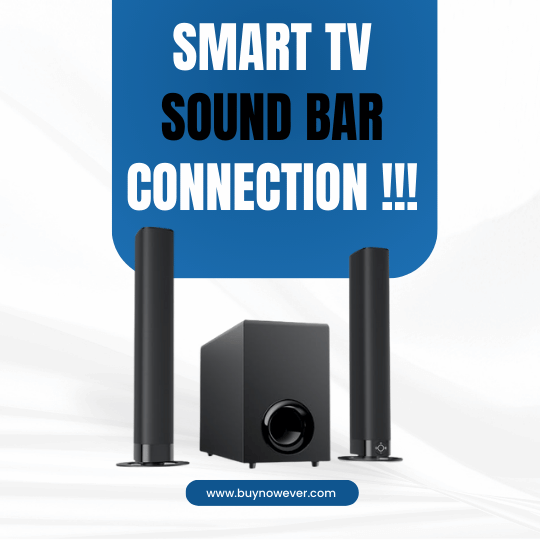
Smart TV Sound bar Connection: Easy Guide for Beginners
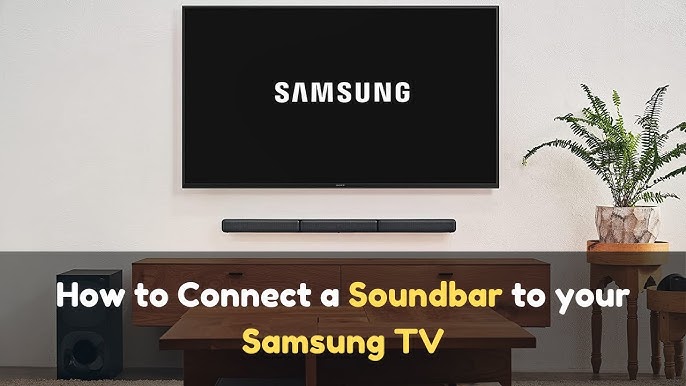
Tangled cables and confusing manuals? Our guide on Smart TV Sound bar Connection makes setup simple, so you can enjoy crystal-clear sound without the fuss.
Connecting your soundbar to your smart TV can feel like solving a puzzle without all the pieces. But imagine this: in just a few simple steps, you could be enveloped in rich, immersive sound that transforms your viewing experience. Sounds enticing, right?
This guide will walk you through the easy, frustration-free process of connecting your soundbar to your smart TV. By the end, you’ll not only master the setup but also unlock the full audio potential of your entertainment system. Dive in and discover how effortless it can be to elevate your home theater experience!
Connecting a soundbar to your smart TV is a great way to enhance your viewing experience. The rich audio from a soundbar can transform your living room into a mini-theater. But before you connect, you need to choose the right soundbar. This choice can impact the quality of your sound experience.
Finding The Right Size
The size of the soundbar matters. It should match the width of your TV. This ensures balanced sound and aesthetic appeal. Consider these guidelines:
For TVs under 55 inches, a soundbar between 30 and 40 inches works well.
For TVs 55 inches or larger, opt for a soundbar over 40 inches.
Remember, a soundbar that’s too small can result in uneven sound distribution.
Checking The Connectivity Options
Modern soundbars offer various connectivity options. Ensure compatibility with your TV. Common connections include:
Connection Type
Description
HDMI ARC
Allows control of both TV and soundbar with one remote.
Optical Cable
Provides high-quality audio but requires a separate remote.
Bluetooth
Wireless connection for minimal cable clutter.
Ensure your TV supports the connection type you prefer.
Understanding Sound Quality
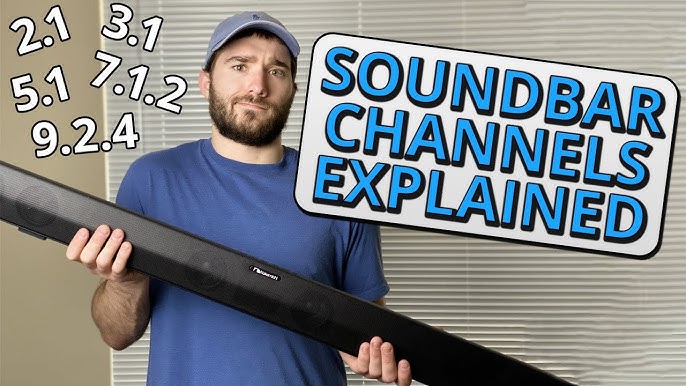
Sound quality is crucial. Look for features like Dolby Atmos for immersive audio. Consider the number of channels. More channels mean better surround sound. A 2.1 channel system is basic. A 5.1 or 7.1 system offers richer sound.
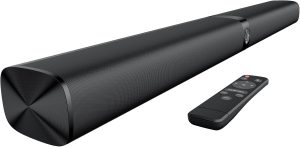
Sound Bar for Smart TV, 80W Soundbar with Bluetooth/ARC/Opt/AUX Connect, Dynamic Volume Boost, 3 Equalizer Modes, 2 in 1 Detachable Soundbar for TV/PC/Gaming/Projectors
Your budget plays a role in your choice. Set a budget before shopping. Balance between cost and features. High-end models offer advanced features. But there are budget-friendly options with good sound quality.
Choose wisely. A good soundbar enhances your TV experience significantly.
Types Of Connections
Connecting a sound bar to a smart TV can enhance your audio experience significantly. Whether you’re watching movies or listening to music, a sound bar can deliver clearer and louder sound. There are several ways to connect your sound bar to your TV, each offering different advantages. Choosing the right connection depends on your equipment and personal preferences. Let’s explore these connection types in detail.
Hdmi Arc
The HDMI ARC (Audio Return Channel) is one of the most popular ways to connect a sound bar to a smart TV. It allows audio to flow in both directions, simplifying your setup. Here’s why HDMI ARC is beneficial:
Simplified connection: Only one cable is needed to send audio from the TV to the sound bar and back.
High-quality sound: Supports high-definition audio formats like Dolby Atmos.
Control convenience: Use your TV remote to control the sound bar’s volume.
To connect via HDMI ARC:
Check if your TV and sound bar have HDMI ARC ports.
Use a compatible HDMI cable to link them.
Enable HDMI ARC settings on your TV.
Ensure your equipment supports ARC to enjoy seamless connectivity. This connection method is ideal for those who seek simplicity with superior sound quality.
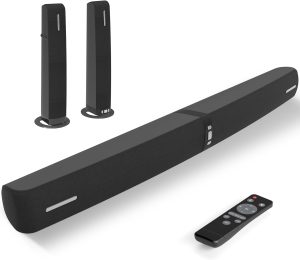
Sound Bar for Smart TV,90W Soundbar with Bluetooth/ARC/Optical/AUX Connect, Auto Volume Boost, 3 Customizable Equalizer Modes, 2 in 1 Detachable Soundbar for TV/PC/Gaming/Projectors
Optical cables are another excellent option for connecting a sound bar to a smart TV. They transmit digital audio signals using light, ensuring high-quality sound. Here’s what makes optical cables appealing:
Reliable sound quality: Optical connections are not affected by electrical interference.
Easy setup, Simple plug-and-play installation.
Compatibility: Works with most modern TVs and sound bars.
Steps to connect using an optical cable:
Step
Action
1
Locate the optical port on your TV and sound bar.
2
Connect the optical cable to both devices.
3
Select the optical input on the sound bar.
Optical cables provide a straightforward way to get excellent sound without the complexity of HDMI ARC.
Bluetooth
Bluetooth is perfect for those who favor wireless connections. It allows you to connect your sound bar to your smart TV without cables. Consider these advantages:
Wireless freedom: No physical cables between devices.
Flexibility: Place your sound bar anywhere within Bluetooth range.
Convenience: Easilyly connect multiple devices to your sound bar.
To set up Bluetooth:
Enable Bluetooth on your TV and sound bar.
Search for available devices on your TV.
Select your sound bar from the list.
Bluetooth is an excellent choice for those who prefer a clutter-free environment. Keep in mind that sound quality might vary depending on your capabilities.
3.5mm Aux Cable
The 3.5mm aux cable is a traditional and simple method for connecting sound bars to TVs. Though not as advanced as other options, it offers ease and compatibility. Key points include:
Simplicity: Easy to find and use.
Universal compatibility: Works with most devices with a headphone jack.
Cost-effective: Generally cheaper than other connection types.
Connecting using a 3.5mm aux cable involves:
Step
Action
1
Find the headphone jack on your TV and sound bar.
2
Plug the aux cable into both jacks.
3
Adjust the sound bar to the aux input setting.
While the 3.5mm aux cable doesn’t support high-definition audio, it’s perfect for basic setups and older devices.
Preparing Your Devices
Connecting a sound bar to your smart TV can enhance your viewing experience. Proper preparation is key. Ensuring your devices are ready will make the connection process smooth. You’ll need to check the available ports on your TV and get your sound bar ready for setup. Let’s dive into these steps to make sure you’re all set.
Checking TTVPorts
Before connecting your sound bar, check the ports on your TV. This step is crucial as it determines the type of connection you can use. Most smart TVs come with several options:
HDMI ARC: This is the most common and preferred option. It allows two-way communication between your TV and sound bar, supporting high-quality audio.
Optical Digital Audioprovides excellent sound quality. Suitable if your TV and sound bar support it.
3.5mm Audio Jack: A basic option. Use this if other connections are not available.
RCA Ports: Older TVs might have these. They consist of red and white connectors.
Check the back or sides of your TV. Identify which ports it has. Once you know this, decide which connection method works best for you.
Port Type
Audio Quality
Two-way Communication
HDMI ARC
High
Yes
Optical
High
No
3.5mm Jack
Medium
No
RCA
Low
No
Setting Up The Sound Bar
Once you’ve checked your TV ports, it’s time to set up your sound bar. Follow these steps to prepare it:
Unbox your sound bar: Take it out of the packaging. Keep all cables and the remote handy.
Find a suitable spot: Ideally, place it directly below or above your Tfor r the best sound distribution.
Connect power: Plug the sound bar into a power outlet. Make sure it’s switched on.
Choose the connection type: Depending on your TV ports, select HDMI, Optical, or another method.
Connect to TV: Use the appropriate cable to connect the sound bar to the TV. Ensure the connections are secure.
Configure settings: Turn on the TV and sound bar. Access the TV’s audio settings. Select the sound bar as the audio output device.
Follow these steps carefully. This ensures that your sound bar is set up correctly. Enjoy enhanced audio from your favorite shows and movies.
Connecting Sound Bar To Smart Tv TV onnecting your sound bar to your smart TV can enhance your viewing experience. It can give you clearer and more vibrant audio. Whether you’re watching a thrilling action movie or a quiet drama, having a sound bar can make a big difference. Here are some simple ways to connect your sound bar to your smart TV. Each method has its own benefits and setup steps.
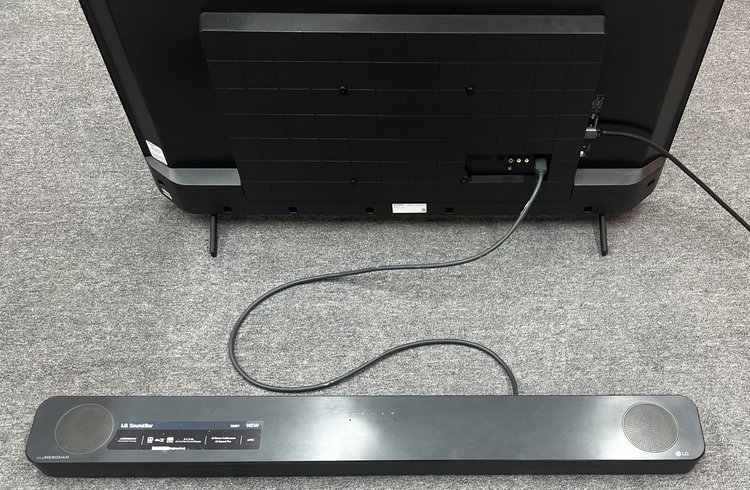
Using HdHDMI ARCDMI ARC (Audio Return Channel) is a popular choice for connecting a sound bar to a smart TV. It allows audio to travel both ways along the cable, meaning fewer cables behind your TV. This can simplify your setup.
Ensure your TV and sound bar both support HDMI ARC.
Locate the HDMI ARC port on your TV, usually labeled as “ARC”.
Connect one end of the HDMI cable to the TV’s ARC port.
Connect the other end to the sound bar’s ARC port.
Once connected, adjust your TV settings:
Go to your TV’s settings menu.
Select the sound or audio settings.
Choose the HDMI ARC option for audio output.
HDMI ARC can provide high-quality sound and is easy to set up. It also supports modern audio formats, ensuring you get the best audio experience.
Using Optical Cable
The optical cable, or TOSLINK, is another great option. It transfers digital audio signals using light, providing excellent sound quality. Here’s how to set it up:
Find the optical audio output port on your TV.
Connect one end of the optical cable to this port.
Connect the other end to the optical input on your sound bar.
After the physical connection:
Access your TV’s audio settings.
Select the optical or digital audio output.
Ensure your sound bar is set to the correct input mode.
Optical cables provide clear audio without interference. They are a reliable choice for high-quality sound. Just make sure your devices have the necessary ports.
Using Bluetooth
If you prefer a wireless setup, Bluetooth is a convenient option. It eliminates the need for cables, giving a clean look. Follow these steps to connect via Bluetooth:
Ensure both your TV and sound bar have Bluetooth capability.
Turn on the Bluetooth function on your TV.
Set your sound bar to pairing mode.
On your TV:
Go to the Bluetooth settings.
Search for available devices.
Select your sound bar from the list.
Bluetooth connections can be affected by distance and obstacles. Keep your devices close for the best performance. This method offers flexibility and reduces clutter.
Using 3.5mm Aux Cable
The 3.5mm aux cable is a simple and widely available option. It’s a basic audio connection that works with most devices. Here’s how to use it:
Locate the headphone or audio output jack on your TV.
Insert one end of the aux cable into this jack.
Connect the other end to the aux input on your sound bar.
For setup:
Adjust your TV’s audio settings if necessary.
Select the headphone or audio out option.
Set your sound bar to the aux input mode.
The aux cable is a straightforward and cost-effective solution. It’s ideal for those who want a quick connection without dealing with complex settings. Just plug and play.
Configuring Audio Settings
Connecting a sound bar to your smart TV can enhance your audio experience significantly. After setting up the physical connection, configuring the audio settings is crucial for optimal sound quality. This process ensures that your TV and sound bar are in sync, providing clear and immersive sound. Let’s dive into the details of configuring the audio settings, focusing on both your TV and sound bar.
Adjusting TV Settings
Once your sound bar is connected to the smart TV, the next step is adjusting the TV settings. Start by accessing the audio menu on your TV. This menu is usually found under “Settings” or “Sound. Here’s how you can optimize the settings:
TV Speakers: Disable the TV’s built-in speakers to prevent audio overlap.
Audio Output: :S Select the correct audio output source. Common options include HDMI ARC, Optical, or Bluetooth.
Volume Control: Adjust the volume settings to ensure the TV remote controls the sound bar volume.
Some TVs have advanced sound settings. Here, you can tweak bass, treble, and balance. A table below provides a quick guide:
Setting
Recommended Adjustment
TV Speakers
Off
Audio Output
HDMI ARC or Optical
Volume Control
Sound Bar
These steps ensure your TV sends audio directly to the sound bar, improving sound clarity and sync.
Sound Bar Settings
After configuring your TV, focus on the sound bar settings. This step fine-tunes the audio output for your environment. Begin by checking the input source on the sound bar. Ensure it matches the connection type used, such as HDMI or optical.
Next, explore the sound modes available on your sound bar:
Standard Mode: Ideal for everyday use. Balances audio across all frequencies.
Movie Mode: Enhances bass and surround sound. Perfect for films and TV shows.
Music Mode: Op timizes sound for music playback. Focuses on clarity and depth.
Adjust the subwoofer settings if your sound bar includes one. Increasing the subwoofer level boosts bass, adding depth to your audio. A simple adjustment can make music and action scenes more dynamic.
Finally, check for any firmware updates for your sound bar. Updates can improve performance and compatibility. Updating is often as simple as downloading software from the manufacturer’s website.
Configuring these settings ensures your sound bar delivers the best sound quality, making your viewing experience more enjoyable.
Troubleshooting Common Issues
Connecting a sound bar to a smart TV can enhance your viewing experience significantly. But sometimes, issues arise that can disrupt this connection. Knowing how to troubleshoot common issues can save you time and frustration. Below, we explore frequent problems such as no sound, audio sync issues, and connection problems, providing simple solutions to get your setup back on track.
No Sound
Experiencing silence when yousoundbarar is connected can be frustrating. Here are some steps to diagnose and fix this issue:
Check the Volume:Ensure the sound bar volume is turned up and not muted.
Verify Connections: Double-check that all cables are securely connected to both the TV and the sound bar.
Input Settings:Make sure Vis is set to the correct audio output channel.
Software Updates: Ensure both the TV and sound bar have the latest firmware updates.
If the above steps do not solve the problem, consider resetting both devices. This can often resolve any lingering issues that might be affecting sound output.
Audio Sync Issues
Audio sync problems can cause the sound to not match the video, leading to a disjointed experience. To address this:
Adjust Audio Delay: Many sound bars and TVs have settings to adjust the audio delay. Navigate to the settings menu and tweak the delay until the audio matches the video.
Check Connection Type: If using HDMI ARC, ensure the cable supports this feature. Optical cables might require manual adjustments.
Firmware Updates: Software updates can fix known sync issues. Check for updates on both devices.
Sometimes, switching the audio output format on the TV can also help align the audio with the video.
Connection Problems
Connection issues can prevent the sound bar from linking with the TV. Here are a few solutions:
Issue
Solution
Cables Not Detected
Ensure cables are not damaged. Try a different cable if possible.
Bluetooth Pairing Issues
Unpair and re-pair the devices. Keep them within a close range.
HDMI ARC Not Working
Ensure HDMI-CEC is enabled on the TV. Use an ARC-compatible port.
Restarting both devices can often resolve connectivity issues. If problems persist, consult the user manual for more detailed troubleshooting steps.
Frequently Asked Questions
How Do I Connect A Soundbar To A Smart Tv?
Connect the soundbar using an HDMI cable or an optical cable. Ensure both devices are powered on. Select the appropriate input source on the TV. If using HDMI ARC, enable the ARC setting on both the TV and soundbar. This setup ensures high-quality audio output and seamless integration.
Can I Use Bluetooth To Connect My Soundbar?
Yes, you can connect your soundbar to your smart TV using Bluetooth. Enable Bluetooth on both devices. Pair the TV with the soundbar by selecting it from the available devices list. Bluetooth connection allows wireless audio streaming, providing flexibility and reducing cable clutter around your entertainment setup.
What Settings Should I Adjust On My TV?
Adjust the audio output settings on your TV to match the soundbar connection type. For HDMI ARC, enable the ARC setting. If using an optical cable, set the audio output to optical. These settings ensure optimal sound performance and synchronization between your smart TV and soundbar.
Why Is My Soundbar Not Working With My TV?
Check all cable connections and ensure they are secure. Verify that the soundbar is powered on and set to the correct input source. Ensure your TV’s audio output settings match your connection type. Restart both devices if necessary. These steps can resolve most connectivity issues.
Conclusion
Connecting your sound bar to your smart TV enhances your viewing experience. The process is easy with clear steps. Just follow the instructions and enjoy better sound. Check the cable types and ports on both devices. Use the right cables for a seamless connection.
Sound quality improves dramatically. You can immerse yourself in movies and shows. Troubleshooting is essential if issues arise. Make sure connections are secure. Your setup is complete when the sound plays perfectly. Enjoy your favorite content with rich audio. Your TV experience becomes more engaging and enjoyable.