Why Is My iPhone Charging So Slowly? Fast Solutions Inside
Is your iPhone taking forever to charge? You’re not alone, and it can be really frustrating when your phone won’t power up quickly.
Slow charging doesn’t just waste your time—it can also leave you feeling stuck, especially when you need your phone the most. But why is your iPhone charging so slowly? Understanding the reasons behind this can help you fix the problem fast and get back to using your phone without the wait.
Keep reading, and you’ll discover simple tips and surprising causes that might be slowing down your charging speed.
Slow charging on your iPhone can be frustrating, especially when you need your device ready quickly. Several common issues cause slow charging. Knowing these causes helps fix the problem fast and avoid damage to your phone. Below are the main reasons why your iPhone may charge slowly.
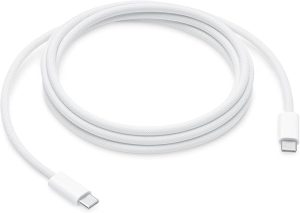
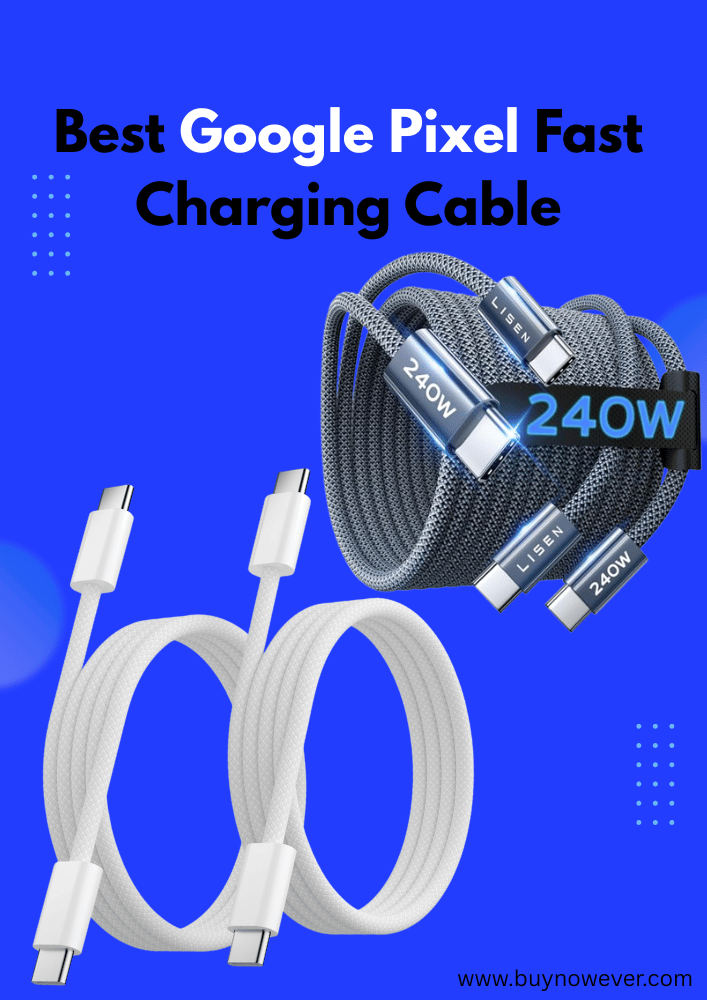
Apple 240W USB-C to USB-C Woven Charge Cable (2 m): Fast and Convenient Charging
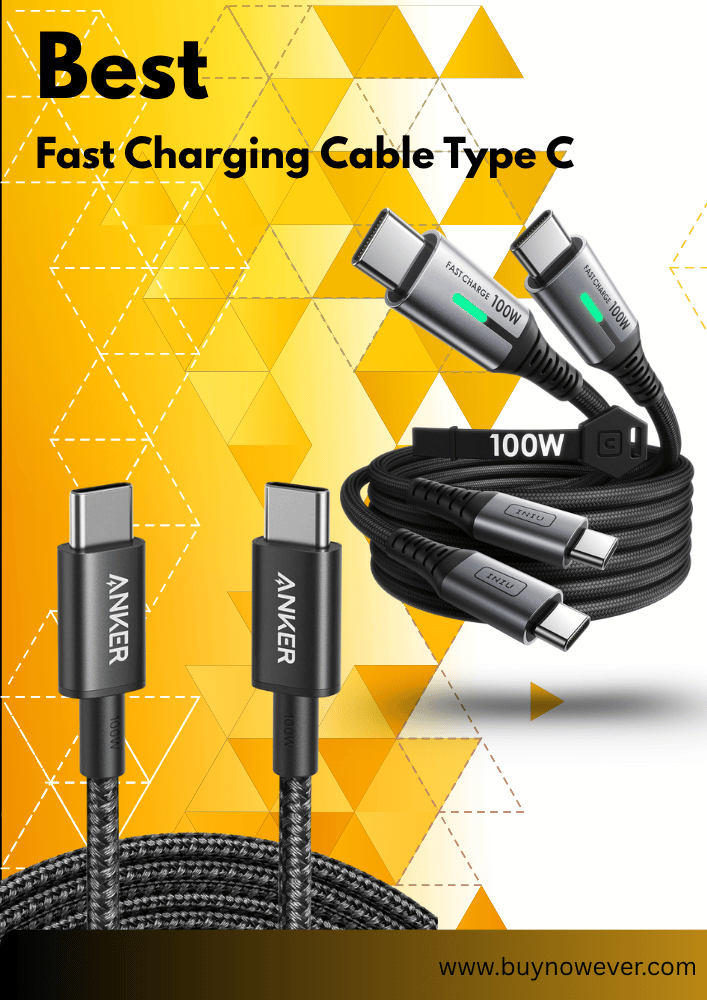
The charging cable is the main link between your iPhone and the power source. A faulty or damaged cable often causes slow charging. Over time, cables wear out due to bending, twisting, or pulling. Inside the cable, wires may break or short-circuit, reducing power flow.
Signs of a faulty charging cable include:
Visible frays or cuts on the cable
Loose connections at either end
Intermittent charging or no charging
Charging speed much slower than usual
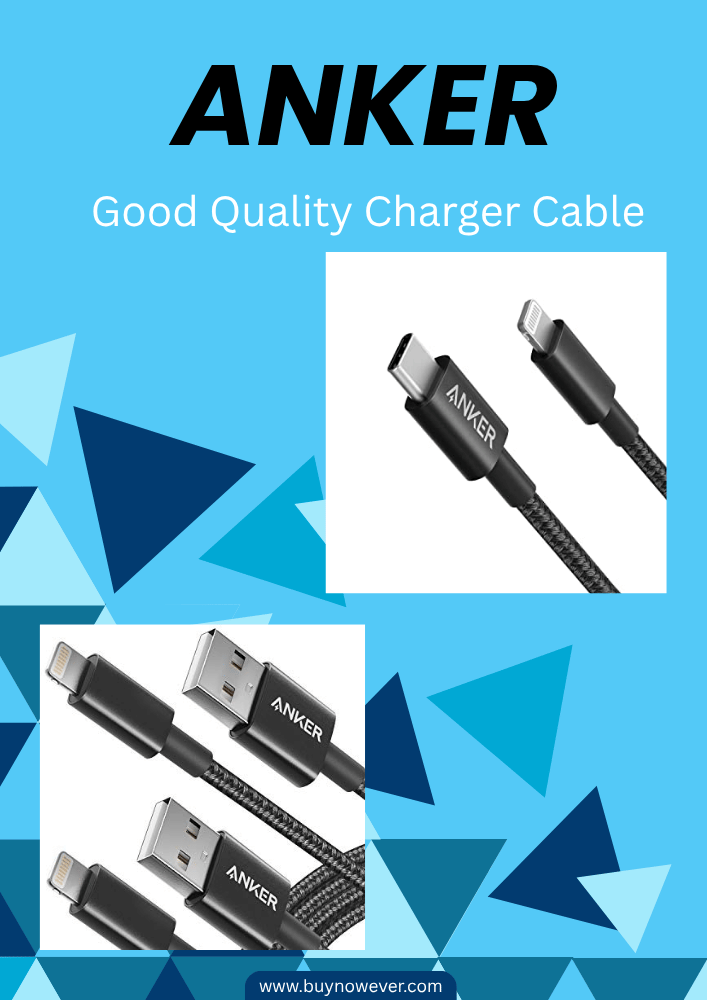
Testing your cable with another device or using a different cable can identify if the cable is the problem. Use only certified cables to protect your iPhone. Cheap or third-party cables may not support fast charging and can damage your phone.
Cause
Effect on Charging
Solution
Frayed or broken wires
Reduced or no power transfer
Replace the cable with a certified one
Loose connectors
Intermittent charging
Secure or replace the cable
Non-certified cable
Slow charging speed
Use Apple-certified cables
Damaged Power Adapter
The power adapter converts electricity from the outlet to a safe level for your iPhone. A damaged adapter cannot supply enough power, causing slow charging. Heat, drops, or internal faults can damage adapters over time.
Warning signs of a damaged power adapter include:
The adapter feels hot during use
Charging stops unexpectedly
Slow or no charging despite a good cable
Try using another power adapter to check if your adapter is the issue. Use only adapters with the correct power output for your iPhone model. Low-wattage adapters charge more slowly.
Adapter Condition
Charging Result
Recommended Action
Overheating
Reduced performance, risk of damage
Stop using and replace the adapter
Incorrect wattage
Slow charging speed
Use a proper Apple adapter
Internal damage
No or intermittent charging
Replace the adapter immediately
Dirty Charging Port
The charging port on your iPhone connects the cable to the phone’s battery. Dirt, lint, or debris inside this port can block the connection and slow charging. This buildup often comes from pockets, bags, or dusty environments.
Signs of a dirty charging port include:
Loose or unstable cable connection
Charging starts and stops randomly
Visible dust or lint inside the port
Cleaning the port carefully can restore proper charging speed. Use a soft brush or toothpick to remove dirt gently. Avoid using metal tools that can damage the port. Check the port regularly to keep it clean.
Power off the iPhone before cleaning.
Use a flashlight to inspect the port.
Remove debris with a small, soft brush or wooden toothpick.
Blow gently to clear remaining dust.
Test charging after cleaning.
Background App Activity
Apps running in the background use battery power and can slow down charging. High battery use means the phone charges more slowly because it uses power while charging. Some apps refresh data, update content, or run location services continuously.
Common battery-draining activities include:
Streaming music or videos
Navigation apps running
Apps are refreshing in the background
Push notifications are updated frequently
Reducing background activity improves charging speed. Close unused apps and disable background refresh for non-essential apps. Lower screen brightness and turn on Airplane Mode for faster charging.
Activity
Effect on Charging
How to Manage
Background app refresh
Consumes battery, slows charging
Turn off in Settings > General
Active GPS or navigation
High power use, slower charging
Close the app or disable location
Push notifications
Frequent updates drain battery
Limit notifications in Settings
Battery Health And Aging
Slow charging on your iPhone often relates to its battery health and aging. Over time, iPhone batteries lose their ability to hold a charge well. This natural wear affects how quickly your device charges and how long it lasts between charges. Understanding battery health helps explain why charging speed drops.
Impact Of Battery Wear
iPhone batteries use lithium-ion technology, which degrades with use. Each charge cycle slightly reduces the battery’s capacity. After many cycles, the battery cannot store as much energy as before. This wear causes slower charging and shorter battery life.
Signs of battery wear include:
Longer charging times
Unexpected shutdowns
Battery percentage jumps
Reduced maximum charge capacity
As the battery ages, internal resistance rises. This resistance limits the flow of electricity during charging. As a result, the charger provides power more slowly to protect the battery and device.
Battery Age (Charge Cycles)
Approximate Capacity Remaining
Effect on Charging
0-300
90-100%
Fast charging, normal speed
300-600
80-90%
Charging slows slightly
600+
Below 80%
Significant slow charging
Battery wear is a natural process. It impacts charging speed more as your iPhone gets older.
Checking Battery Health Status
iPhone offers a simple way to check battery health. This feature shows battery capacity and performance capability. It helps understand how much the battery has degraded.
Steps to check battery health:
Open Settings on your iPhone.
Tap Battery.
Select Battery Health & Charging.
View the maximum capacity percentage.
Check Peak Performance Capability.
Maximum Capacity shows the current battery capacity compared to when new. A lower percentage means more wear.
Peak Performance Capability indicates if your iPhone can deliver full power. If performance management is active, slow charging might occur.
Battery Health Status
Meaning
Charging Impact
Above 80%
The battery is healthy
Normal charging speed
Below 80%
Battery degraded
Charging slows, may need replacement
Performance Management Active
The battery can’t support peak power
Slow charging and reduced performance
Regularly checking battery health helps spot issues early. It guides decisions on battery replacement or charging habits.
Software Issues Affecting Charging
Software issues often cause an iPhone to charge slowly. These problems affect how the device handles power and battery management. iPhones rely on software to control charging speed and energy use. If the software is not working well, charging can take longer. Understanding common software-related causes helps fix slow charging and improve battery life.
Outdated iOS Version
Running an old iOS version can slow down your iPhone’s charging process. Apple regularly releases updates that improve battery efficiency and fix bugs. Without these updates, your device might not charge properly.
Signs your iPhone needs an update:
Charging takes much longer than usual
Battery percentage jumps irregularly
Apps close unexpectedly during charging
Updating iOS helps in several ways:
Fixes bugs that interfere with charging
Improves battery health management
Optimizes background tasks to save power
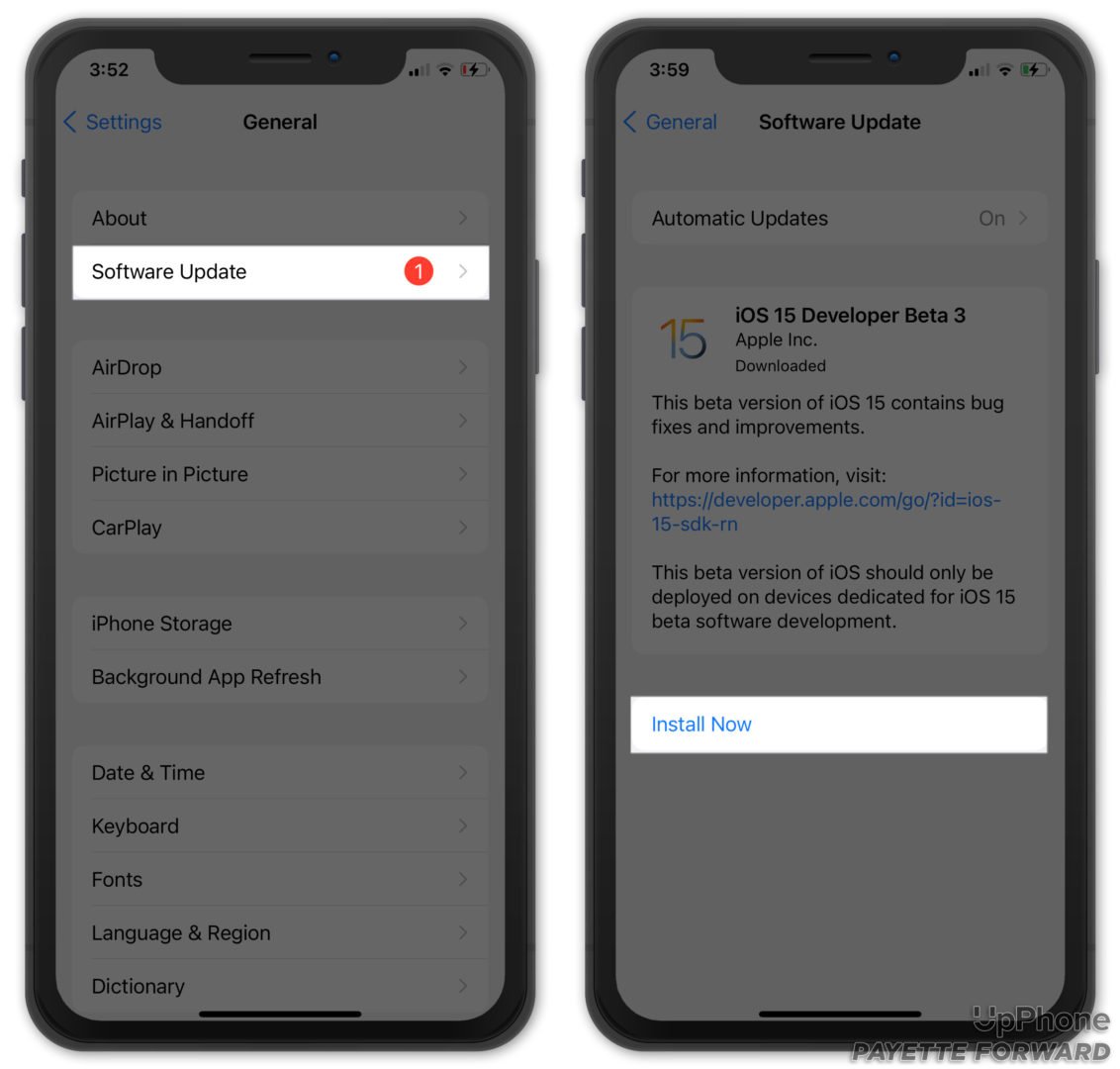
Use this table to check your iOS version and update status:
Step
Action
1
Open Settings
2
Tap General
3
Select Software Update
4
Download and install any available updates
Keeping iOS updated ensures smooth charging and better battery performance.
Battery-draining Apps
Apps that use a lot of power can slow down your iPhone’s charging speed. Some apps run constantly in the background or demand high processing power. This makes your phone use energy faster than it charges.
Common battery-draining apps:
Games with high graphics
Video streaming services
Navigation apps using GPS
Social media apps with constant updates
Check which apps drain your battery:
Go to Settings > Battery
Scroll down to see battery usage by app
Identify apps using the most power
To reduce app impact on charging:
Close apps not in use
Limit background activity for heavy apps
Disable location services if unnecessary
Turn off notifications for less important apps
Managing apps reduces battery drain and speeds up charging.
Background Processes
Background processes are tasks your iPhone runs even when not in use. These include system updates, syncing data, and app refreshes. They consume power and slow down charging.
Common background processes that affect charging:
iCloud syncing
App background refresh
Automatic downloads and updates
Push notifications
To check and control background activity:
Open Settings
Tap General > Background App Refresh
Turn off background refresh for apps that are not essential
Also, pause automatic updates and downloads during charging:
Go to Settings > App Store
Turn off App Updates and Automatic Downloads
Limiting background activity helps your iPhone charge faster and saves battery life.
Optimizing Charging Speed
Many iPhone users notice their device charges slowly at times. Several factors affect charging speed, including the charger, apps running, and device settings. Optimizing charging speed can save time and improve battery health. Simple steps help your iPhone charge faster and more efficiently.
Use Official Accessories
Using Apple-certified chargers and cables is crucial for fast, safe charging. Non-certified or damaged accessories can slow charging or harm your battery. Apple designs chargers to work best with iPhone hardware and software.
Official accessories provide:
Proper power output: Ensures the charger delivers the correct voltage and current.
Safety features: Protects against overheating and short circuits.
Durability: Better build quality means longer life and consistent performance.
Here is a quick comparison:
Accessory Type
Charging Speed
Safety
Price
Official Apple Charger
Fast
High
Moderate
Certified Third-Party Charger
Moderate to Fast
Moderate to High
Lower
Cheap Non-Certified Charger
Slow
Low
Low
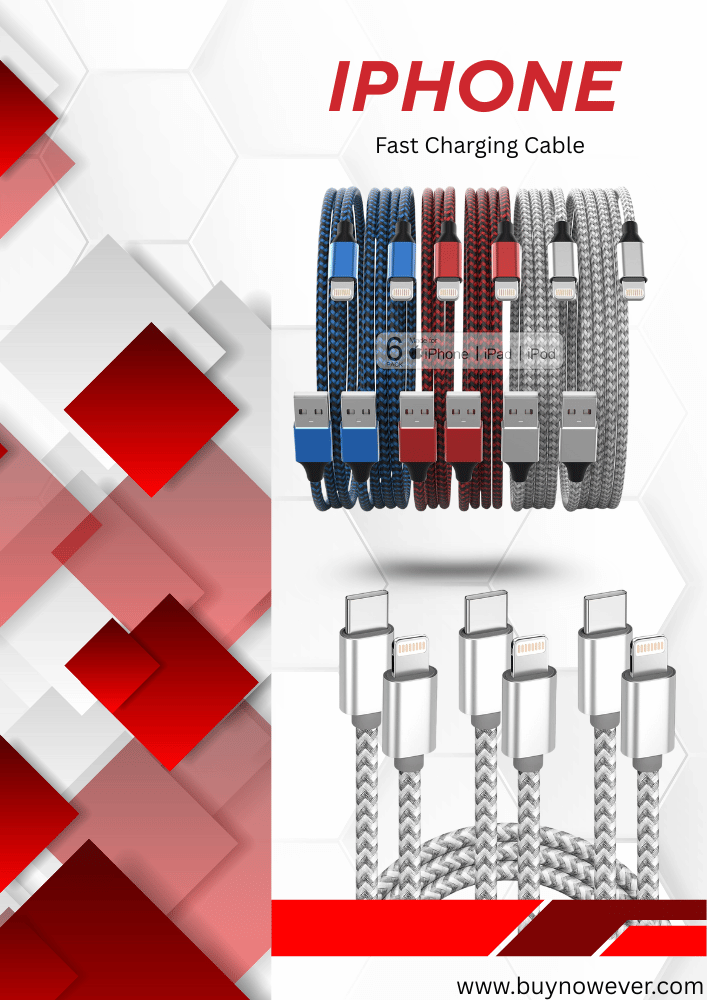
Always check for the “Made for iPhone” label when buying cables or chargers. Replace frayed or worn cables immediately. This simple step improves charging speed and protects your device.
Enable Airplane Mode
Turning on Airplane Mode reduces power use during charging. It stops wireless signals like cellular, Wi-Fi, and Bluetooth. These signals use battery power, slowing the charging process.
Benefits of Airplane Mode while charging:
Less battery drain: Fewer background tasks use energy.
Faster charge: More power goes directly to charging the battery.
Reduced heat: Lower activity means less heat, protecting battery health.
To enable Airplane Mode:
Open Control Center by swiping down from the top-right corner.
Tap the airplane icon to activate Airplane Mode.
Charge your iPhone while in this mode for faster results.
Remember, enabling Airplane Mode stops calls and messages. Use it when quick charging is more important than staying connected.
Close Unnecessary Apps
Running many apps slows charging. Apps work in the background, using CPU and battery power. Closing apps frees resources and speeds up charging.
How to close apps:
Double-click the Home button or swipe up and hold on newer models.
Swipe up on app previews to close them.
Apps that drain battery the most include:
Video streaming apps
Games
Navigation apps
Social media apps
Keeping only necessary apps open reduces power use. Your iPhone can then focus on charging instead of running tasks.
Avoid Using iPhone While Charging.
Using your iPhone during charging slows the process. Screen activity, app use, and connectivity increase power consumption. This lowers the net charging speed.
Effects of using an iPhone while charging:
The battery charges more slowly due to higher power use.
The device heats up, which can reduce battery efficiency.
Charging cycles may wear the battery faster over time.
Try these tips to avoid usage during charging:
Place the iPhone in a quiet place.
Turn on Do Not Disturb to limit notifications.
Set a timer or reminder to check the phone after charging.
Resting your iPhone while charging improves speed and battery health. Less heat and power use mean better performance in the long run.
Hardware Problems To Consider
Slow charging on your iPhone can be frustrating. Sometimes, the issue lies in hardware problems. These problems affect how your phone takes in power. Understanding these hardware issues helps to find the right fix quickly. Let’s explore two common hardware causes: charging port damage and battery replacement needs.
Charging Port Damage
The charging port is where you plug in the cable. If it gets damaged, charging slows down or stops. Dirt, dust, or lint can build up inside the port. This buildup blocks the connection between the charger and the phone.
Signs of charging port damage:
Loose or wobbly charger connection
Charging stops and starts randomly
Visible dirt or debris inside the port
Charger cable fits only in one position
Physical damage can occur if the charger is forced in the wrong way. Bent or broken pins inside the port stop power flow. Water or moisture can also cause corrosion, leading to slow charging.
Problem
Effect on Charging
Possible Fix
Dirt or debris
Blocks power flow, slows charging
Careful cleaning with a toothpick or soft brush
Bent pins
Stops proper connection
Professional repair or port replacement
Corrosion
Weakens electrical contact
Drying and repair by a technician
Check the port carefully. Use a flashlight to look inside. Clean gently to avoid more damage. If problems continue, visit a repair shop for a check-up.
Battery Replacement Needs
The battery wears out over time. A weak battery may charge slowly or lose power fast. iPhone batteries have a limited number of charge cycles. After many uses, the capacity drops.
Signs your battery needs replacement:
Phone dies quickly even after charging
Battery percentage jumps up and down
The phone becomes warm while charging
Charging takes much longer than usual
Battery health can be checked inside iPhone settings. This shows maximum capacity compared to when new. Below 80% capacity means the battery is worn.
Battery Health (%)
Effect
Action
90-100
Good condition, normal charging
No replacement needed
80-89
Reduced capacity, slower charging
Monitor use, consider replacement soon
Below 80
Battery worn out, slow charging
Replace the battery for better performance
Replacing the battery improves charging speed and phone life. Apple or authorized centers offer genuine battery replacements. Avoid cheap third-party batteries as they may cause more issues.
Tips For Maintaining Battery Health
Many iPhone users notice their devices charging slowly over time. This issue often relates to battery health. Maintaining your iPhone’s battery health helps charge speed and overall battery life. Simple habits and care can make a big difference. Below are key tips to keep your battery healthy and charging efficiently.
Regular Software Updates
Keeping your iPhone’s software up to date plays a vital role in battery performance. Apple regularly releases updates to fix bugs, improve energy management, and optimize charging processes. Outdated software can cause slow charging and drain the battery faster.
Benefits of regular updates:
Bug fixes: Updates fix issues that may slow down charging.
Improved battery management: New software can better control power use.
Enhanced charging algorithms: Updates often optimize how fast your iPhone charges.
Follow these tips for software updates:
Go to Settings > General > Software Update.
Check for available updates regularly.
Download and install updates promptly.
Update Type
Impact on Battery
Recommended Frequency
Minor patches
Fix bugs affecting charging speed
Monthly
Major iOS releases
Improve battery management and features
Yearly or as available
Regular updates keep your iPhone running smoothly and help avoid slow charging issues.
Avoid Extreme Temperatures
Battery health suffers when your iPhone faces very hot or cold conditions. Extreme temperatures can reduce battery efficiency and cause slow charging. Prolonged exposure may damage the battery permanently.
Temperature guidelines for iPhone use:
Ideal operating range: 0°C to 35°C (32°F to 95°F)
Avoid leaving the phone in direct sunlight for long periods.
Do not charge your iPhone in very cold or hot places.
Common effects of extreme temperatures on batteries:
Temperature Range
Effect on Battery
Below 0°C (32°F)
Temporary loss of battery capacity and slow charging
Above 35°C (95°F)
Battery damage and reduced lifespan
Keep your iPhone in moderate temperatures to ensure better charging speed. Use shade or remove the phone from a hot car. Cold weather may slow charging temporarily, but warming it up helps restore normal function.
Proper Charging Habits
Charging your iPhone correctly affects battery health and charging speed. Poor habits can cause slow charging or reduce battery life. Follow these simple practices for better results:
Use original or certified chargers: Cheap or fake chargers may charge slowly or harm the battery.
Avoid charging to 100% all the time: Keeping the battery between 20% and 80% extends its life.
Don’t let the battery drain completely often: Deep discharges strain the battery.
Unplug once fully charged: Avoid leaving your iPhone plugged in for hours after 100%.
Here is a quick checklist for good charging habits:
Use Apple-certified cables and adapters.
Charge in a cool environment.
Charge your iPhone regularly, but avoid full discharges.
Remove the case if it traps heat during charging.
Consistent, proper charging habits help keep your battery healthy and prevent slow charging over time.
Frequently Asked Questions
Why is my iPhone charging so slowly?
Your iPhone charges slowly when the cable, adapter, or charging port delivers insufficient power or suffers from dirt and damaged.
Does using my iPhone while charging slow it down?
Yes, using your iPhone while charging consumes power and slows down charging speed.
Can a non-certified cable cause iPhone charging to slow?
Yes, non-certified or low-quality cables often reduce charging speed and prevent fast charging.
How can I fix iPhone charging so slowly at home?
You can fix it by cleaning the port, using a certified cable, checking the adapter, and enabling fast charging in settings.
Conclusion
Slow iPhone charging can feel frustrating and slow down your day. Checking your cable, charger, and port helps find common problems fast. Keeping your phone updated and avoiding heavy app use while charging can improve speed. Sometimes, battery health affects how quickly your iPhone charges.
Small fixes often make a big difference. Stay patient and try these tips to enjoy faster charging soon. Your iPhone will thank you with better power and longer use.