You’ve probably noticed how many USB-C cables are out there, but have you ever stopped to wonder All Usb C Cables the Same Speed or not? When you use the wrong cable, your devices may charge slowly or transfer data at a frustrating pace, even though they look identical. Choosing the right cable makes all the difference in speed, power, and performance.
That’s frustrating, especially when you need things done fast. You’ll discover why not all USB-C cables are created equal and how to pick the right one to get the speed you deserve. Keep reading—your devices will thank you.
Usb-c Cable Basics
USB-C cables are everywhere today. Many believe all USB-C cables offer the same speed. That is not true. Understanding the USB-C cable basics helps to know why speeds can differ. USB-C is a connector type, not a speed standard. Knowing its design and uses helps choose the right cable for your needs.
Connector Design
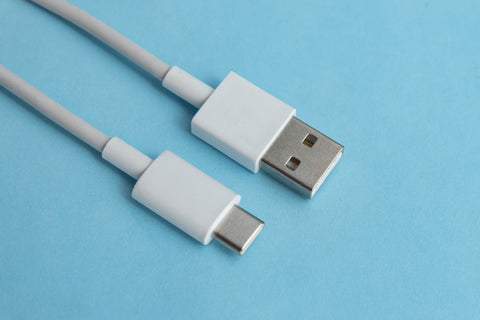
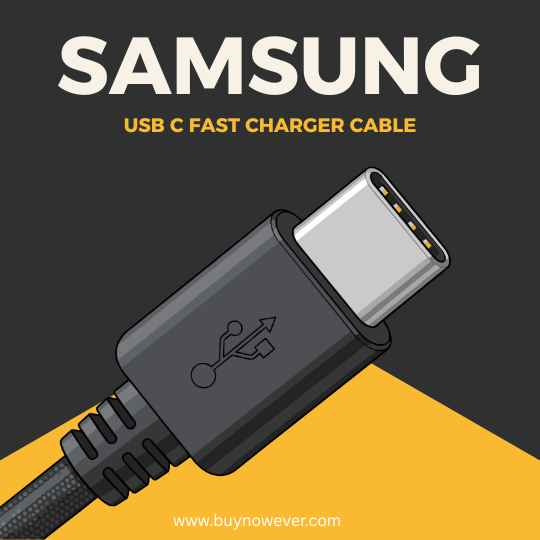
The USB-C connector looks the same on all cables, but its design supports many different features. It is small, oval, and reversible. You can plug it in any way, which is very convenient. Inside, the connector has 24 pins. These pins carry power, data, and video signals.
Not all USB-C cables use all pins the same way. Here are key points:
Reversible design: Plug upside down or right side up.
24 pins: For power, data, and video.
Different wiring: Affects speed and power delivery.
Shielding: Quality affects signal quality and speed.
USB-C cables support many standards. Some carry USB 2.0 signals only. Others support USB 3.1, 3.2, or Thunderbolt 3 and 4. These standards affect speed greatly.
Cable Type
Max Data Speed
Power Delivery
USB 2.0 USB-C
480 Mbps
Up to 7.5W
USB 3.1 Gen 1 USB-C
5 Gbps
Up to 15W
USB 3.2 Gen 2 USB-C
10 Gbps
Up to 100W
Thunderbolt 3/4 USB-C
40 Gbps
Up to 100W
Understanding the connector design helps to pick the right cable. The USB-C port shape does not tell about speed. Look for cable specifications to know the real speed.
Common Uses
USB-C cables serve many purposes. They are not just for charging phones. Their use depends on the device and cable quality.
Here are common uses:
Charging: From small phones to big laptops.
Data Transfer: Moving files between devices.
Video Output: Connecting to monitors or TVs.
Audio: Some USB-C cables carry sound signals.
Power Delivery: Fast charging with up to 100W.
Different devices need different cable types. For example, a laptop may need a cable that supports 100W charging and 10 Gbps data speed. A phone might only need a USB 2.0 cable for charging and slow data transfer.
Some cables work only for charging. Others handle high-speed data and video. Mixing cables and devices without checking specs may cause slow speeds or no video output.
Here is a simple guide for choosing a cable based on use:
Use
Recommended Cable
Reason
Phone Charging
USB 2.0 or 3.1
Basic power and data needs
Fast Laptop Charging
USB-C with Power Delivery (100W)
High power delivery
Data Transfer
USB 3.1 or higher
Higher data speeds
Video Output
Thunderbolt 3/4 or USB-C with DisplayPort
Supports video signals
Choosing the right USB-C cable depends on the device and its needs. Not all USB-C cables have the same speed or features. Knowing the basics helps to avoid slow connections and charging issues.
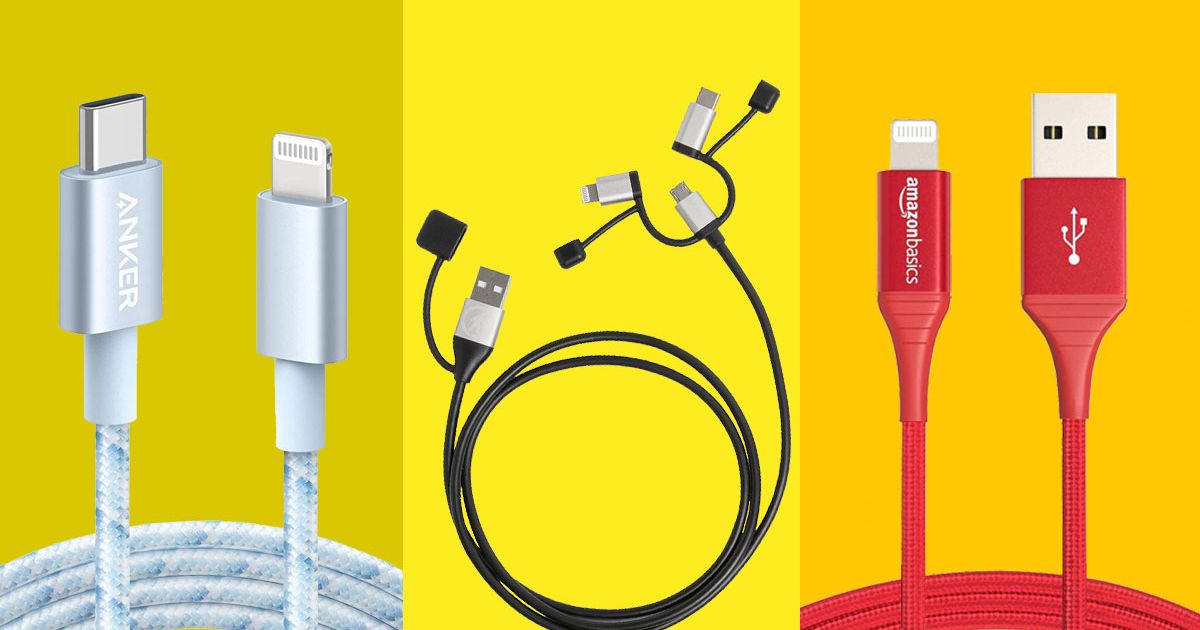
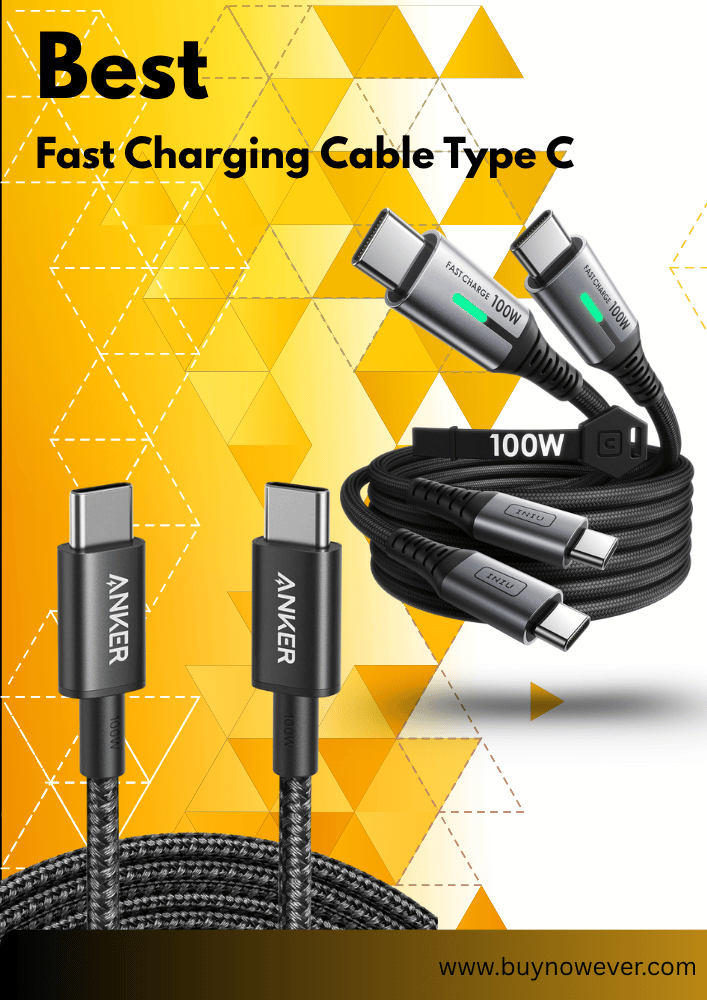
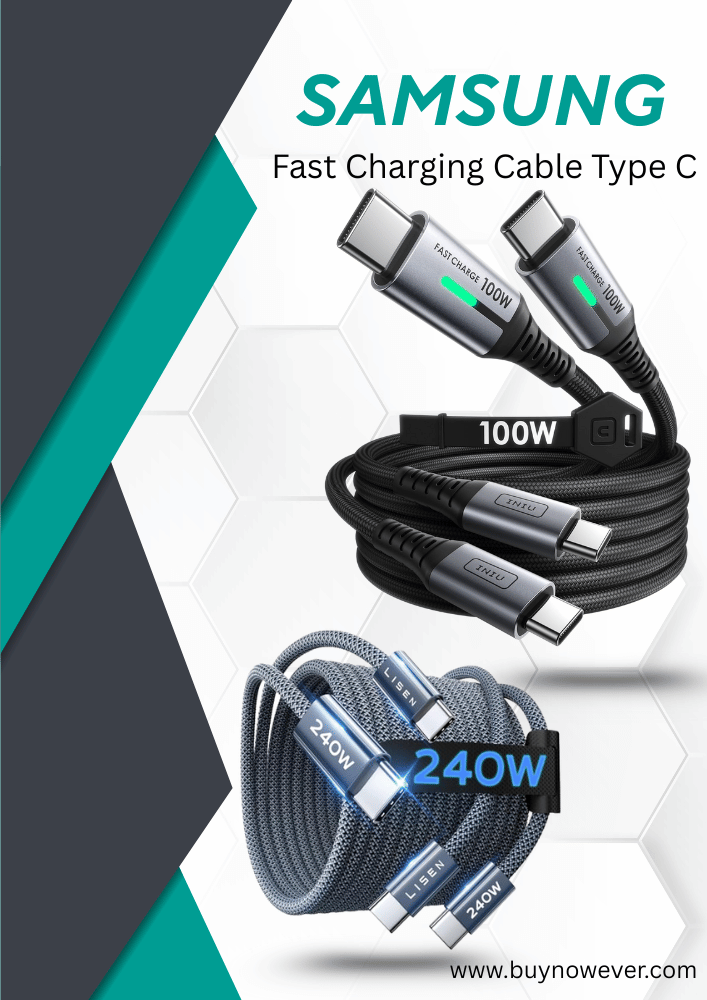
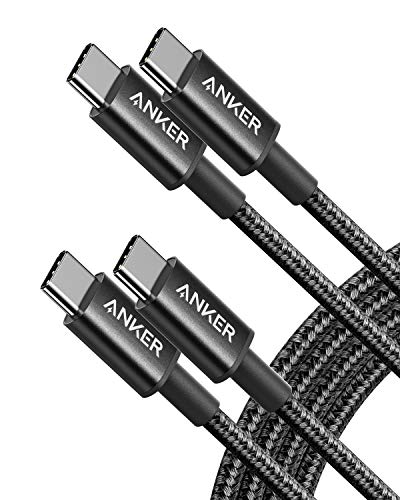
Anker USB-C to USB-C Cable, Type-C 60W Fast Charging Cable (6 FT, 2-Pack) for iPhone 17 Series, iPad mini,6 and More
Not all USB-C cables transfer data at the same speed. The speed depends on the USB standard the cable supports. Data transfer speed matters for tasks like moving files, streaming videos, or backing up devices. Choosing the right cable can save time and avoid frustration. Understanding differences in USB versions and their speeds helps make better choices. USB 2.0 vs USB 3.x
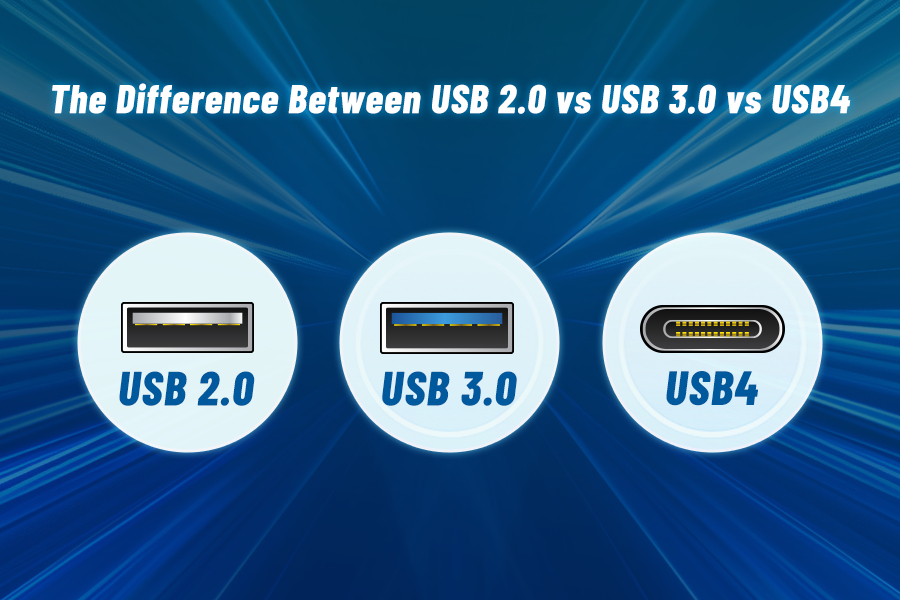
USB 2.0 and USB 3.x are the most common USB standards for data transfer. USB 2.0 is older and slower, while USB 3.x offers much faster speeds. Both use USB-C connectors now, but their speeds vary greatly.
Here are the key differences:
USB 2.0 supports speeds up to 480 Mbps (megabits per second).
USB 3.0 offers speeds up to 5 Gbps (gigabits per second).
USB 3.1 Gen 2 doubles that to 10 Gbps.
USB 3.2 can reach up to 20 Gbps using two lanes.
The speed jump from USB 2.0 to USB 3.x is significant. USB 3.x cables have extra wires inside to handle higher data rates. USB 2.0 cables may physically fit USB-C ports, but will limit speed.
Standard
Max Speed
Common Uses
USB 2.0
480 Mbps
Charging, basic data transfer
USB 3.0
5 Gbps
External drives, faster transfers
USB 3.1 Gen 2
10 Gbps
High-speed storage, video
USB 3.2
20 Gbps
Professional use, fast backups
Thunderbolt 3 And 4
Thunderbolt 3 and 4 use the USB-C connector but are different from USB 3.x standards. They offer much higher speeds and more features. Thunderbolt cables support data, video, and power through one cable.
Key points about Thunderbolt 3 and 4:
Both support speeds up to 40 Gbps.
They can connect to monitors, external GPUs, and fast storage devices.
Thunderbolt 4 adds stricter requirements for compatibility and security.
Not all USB-C cables support Thunderbolt speeds; special cables are needed.
Thunderbolt cables use active electronics to achieve these speeds. Using a regular USB-C cable with a Thunderbolt device will limit speed and features.
Feature
Thunderbolt 3
Thunderbolt 4
Max Speed
40 Gbps
40 Gbps
Display Support
Two 4K displays or one 5K
Two 4K displays or one 8K
Compatibility
Wide, but cable quality matters
Stricter, ensures full features
Impact On Performance
Using the right USB-C cable affects device performance a lot. A slow cable can bottleneck data transfer, causing delays. Faster cables improve file transfers, reduce wait times, and allow better use of connected devices.
Performance depends on:
Cable rating: Higher-rated cables support faster speeds.
Device support: Devices must support high speeds to benefit.
Cable length: Longer cables may reduce speed or power delivery.
For example, backing up large files with a USB 2.0 cable can take minutes longer. Using a USB 3.2 or Thunderbolt cable cuts that time drastically.
Power delivery also varies. Some cables charge devices faster while transferring data. Choosing a cable without knowing its speed rating can limit device capabilities.
Summary of performance impacts:
Faster cables save time on data transfer.
Better cables support higher resolution video output.
Slow cables may cause connection drops or errors.
Quality cables protect your devices and ensure stable transfers.
Power Delivery Variations
Not all USB-C cables deliver power the same way. Power Delivery (PD) variations affect how fast and how safely your devices charge. USB-C supports different power levels depending on the cable and charger. Some cables handle low power for small gadgets. Others carry high power for laptops or fast-charging phones. Understanding these differences helps you pick the right cable for your needs.
Charging Capabilities
USB-C cables vary in their charging abilities. Some cables support standard charging at 5 volts and 3 amps (15 watts). Others offer fast charging with higher volts and amps. Fast charging reduces wait time for your device to reach full battery.
Key points about charging capabilities:
Standard Charging: Usually 5V/3A, suitable for phones and small devices.
Fast Charging: Supports 9V or 12V with up to 5A, ideal for tablets and fast-charge phones.
High Power Delivery: Up to 20V and 5A, used for laptops and other power-hungry devices.
Not all cables support these power levels. Using a low-rated cable with a high-power charger can limit charging speed or cause safety issues. Look for cables labeled with their power support to avoid problems.
Power Level
Voltage (V)
Current (A)
Power (W)
Typical Use
Standard
5
3
15
Phones, small gadgets
Fast Charging
9-12
3-5
27-60
Tablets, fast-charge phones
High Power Delivery
20
5
100
Laptops, high-power devices
Cable Wattage Ratings
Each USB-C cable has a wattage rating. This rating shows the maximum power the cable can carry safely. Wattage depends on the cable’s design and materials. Using a cable with a lower wattage rating than your charger or device needs can cause slow charging or damage.
Important facts about cable wattage ratings: Low-wattage
e cables: Usually rated up to 60W. Suitable for phones and small devices.
High-wattage cables: Rated up to 100W or more. Needed for charging laptops and large devices.
Thicker cables often support higher wattage because they have better wiring.
Certification matters: Certified cables meet safety and performance standards.
Choosing the right cable wattage prevents overheating and ensures fast charging. Check the cable’s label or packaging for its wattage rating. Match it to your device’s power needs for best results.
Wattage Rating
Voltage (V)
Current (A)
Device Type
Up to 60W
20
3
Phones, tablets, sand ome laptops
Up to 100W
20
5
Most laptops, high-power devices
Factors Affecting Speed
Not all USB-C cables provide the same speed. Several factors affect how fast data moves through these cables. Understanding these factors helps you pick the right cable for your needs. Speed depends on more than just the cable’s shape or connector. Quality, length, and device compatibility play big roles in data transfer rates and charging speeds.
Cable Quality And Length
The quality of a USB-C cable greatly impacts its speed and reliability. High-quality cables use better materials and have proper shielding to reduce interference. Poor-quality cables may cause slower speeds or unstable connections.
Length also affects speed. Longer cables can cause data loss or slower charging due to signal weakening. Here is a quick look at how cable length and quality relate to speed:
Factor
Effect on Speed
Notes
High-Quality Cable
Maintains max speed
Good shielding, thicker wires
Low-Quality Cable
May reduce speed
Poor materials, weak shielding
Short Cable (<1 meter)
Best speed
Less signal loss
Long Cable (>2 meters)
Possible speed drop
More resistance, signal loss
Use a cable length that fits your setup without excess. Choose cables made by trusted brands to ensure good quality.
Device Compatibility
Device compatibility affects USB-C cable speed as much as the cable itself. The devices on both ends must support the same USB standards to reach top speeds.
Some key points about device compatibility:
USB Versions Matter: USB 2.0, 3.0, 3.1, 3.2, and USB4 offer different speeds.
Backward Compatibility: Devices support older USB versions, but at slower speeds.
Alternate Modes: Some devices support video or power delivery through USB-C, affecting cable choice.
Here is a simplified table showing common USB-C standards and max speeds:
USB Standard
Max Data Speed
Typical Use
USB 2.0
480 Mbps
Basic data transfer, charging
USB 3.1 Gen 1
5 Gbps
Faster data transfer
USB 3.2 Gen 2
10 Gbps
High-speed data transfer
USB4
40 Gbps
Ultra-fast data, video, and charging
Matching your device’s USB version with the cable’s specs ensures the best speed. Using a high-speed cable with a slow device won’t increase speed. Both devices and cables must support the same standard for top performance.
Identifying Cable Speed
Not all USB-C cables transfer data at the same speed. Identifying the speed of a USB-C cable is essential before buying or using it. Many cables look alike but have different capabilities. Understanding how to spot the right cable helps avoid slow transfers or charging issues. This section explains how to check a cable’s speed through labeling and testing.
Labeling And Certification
Most USB-C cables have labels or markings that show their speed and certification. These marks tell you if the cable supports fast data transfer, charging, or video output. Look carefully at the packaging or the cable itself for these signs.
USB-IF Certified: The USB Implementers Forum (USB-IF) tests and certifies cables. Certified cables meet specific standards for speed and safety.
Speed Ratings: Labels like “USB 2.0,” “USB 3.1 Gen 1,” or “USB 3.2 Gen 2” indicate the maximum data speed.
Power Delivery (PD) Mark: Shows if the cable supports fast charging up to a certain wattage.
Alternate Modes: Symbols for DisplayPort or Thunderbolt mean the cable can handle video signals.
Here is a quick guide to common USB-C cable labels and their speeds:
Label
Max Data Speed
Notes
USB 2.0
480 Mbps
Basic data transfer is slow for large files
USB 3.1 Gen 1
5 Gbps
Good for most uses, faster file transfer
USB 3.2 Gen 2
10 Gbps
High speed, suitable for large files and video
Thunderbolt 3/4
40 Gbps
Very high speed, supports video and charging
Check the cable’s label or box before buying. Certified cables guarantee the speed and quality you expect.
Testing Methods
Testing a USB-C cable confirms its real speed and performance. Some cables might say they are fast, but actual tests show the truth.
Use these methods to test your cable:
File Transfer Test: Move a large file between devices and time it. Faster cables transfer files more quickly.
Speed Test Software: Use apps like CrystalDiskMark or Blackmagic Disk Speed Test to check data rates.
Charging Test: Use a USB power meter to see how much power the cable delivers.
Visual Inspection: Look for thick wires and good connectors. Thin cables may not handle high speeds or power.
Here is a summary of tools and what they measure:
Test Type
What It Checks
Required Tools
File Transfer
Speed of data transfer
Computer, large file
Speed Test Software
Read/write speed on devices
Software app
Charging Test
Power delivery capability
USB power meter
Visual Inspection
Build quality and cable thickness
None
Testing helps avoid slow or unsafe cables. It ensures the cable meets your needs for speed and power.
Choosing The Right Cable
Choosing the right USB-C cable is essential to get the best speed and performance for your devices. Not all USB-C cables offer the same data transfer rates or charging power. Selecting a cable depends on what you need it for. Understanding these differences helps avoid slow transfers or weak charging. This guide explains how to pick the best cable based on your use and budget.
Use Case Considerations
Different devices and tasks require different USB-C cable capabilities. Knowing your specific needs helps choose the right cable speed and power capacity.
Data Transfer: For moving large files, look for cables supporting USB 3.1 Gen 2 or Thunderbolt 3. These offer speeds up to 10 Gbps or higher.
Charging: Some cables only support low power, while others handle fast charging with up to 100W power delivery.
Video Output: If connecting to monitors, ensure the cable supports Alternate Mode (Alt Mode) for video signals.
General Use: Simple charging or small file transfers work well with basic USB 2.0 cables.
Here is a quick reference table to match cable types with common uses:
Use Case
Recommended Cable Type
Max Speed
Power Delivery
Fast Data Transfer
USB 3.1 Gen 2 or Thunderbolt 3
10 Gbps or higher
Up to 100W
Fast Charging
USB-C with Power Delivery (PD)
Up to 480 Mbps
Up to 100W
Video Output
USB-C with Alt Mode support
Varies by device
Varies
Basic Charging/Data
USB 2.0 or lower
480 Mbps
Up to 15W
Budget Vs Performance
Price often relates to cable speed and quality. Higher-cost cables usually support faster data rates and more power. But not every expensive cable is necessary for all users.
Consider these points to balance budget and performance:
Identify Needs: Use a cable matching your device’s requirements, not the highest specs.
Check Reviews: Look for reliable brands with good user feedback.
Beware of Low-cost Cables: Cheap cables may have poor build quality or limited speed.
Invest Wisely: Spend more for cables used often or for demanding tasks like video or fast charging.
Below is a simple comparison of typical USB-C cable prices and features:
Price Range
Typical Speed
Power Delivery
Best For
Under $10
USB 2.0 (480 Mbps)
Up to 15W
Basic charging, small file transfers
$10 – $25
USB 3.1 Gen 1 (5 Gbps)
Up to 60W
Regular data transfer, mid-level charging
$25 and above
USB 3.1 Gen 2 / Thunderbolt 3 (10 Gbps+)
Up to 100W
High-speed data, fast charging, video output
Frequently Asked Questions
Are All Usb-c Cables The Same Speed For Data Transfer?
No, USB-C cables have different speeds depending on their specifications and standards.
Can Usb-c Cable Speed Affect Charging Time?
Yes, cable speed can impact charging speed if it supports higher power delivery.
How To Identify Fast Usb-c Cables?
Look for USB 3. 1, 3. 2, or Thunderbolt 3 labels for faster data and charging.
Do Cheaper Usb-c Cables Work Slower?
Cheaper cables may have lower quality and slower speeds or weaker power support.
Is Cable Length Related To Usb-c Speed?
Longer cables can sometimes slow down data transfer or charging efficiency.
Conclusion
Not all USB-C cables deliver the same speed. Some cables support faster data transfer than others. The cable’s rating and quality matter a lot. Choose cables based on your device’s needs. A cheap cable may cause slow charging or transfer.
Always check the specifications before buying. This helps avoid frustration and saves time. Knowing the difference keeps your devices working well. Use the right cable for the best performance. It makes a clear difference in daily use. Simple choices lead to better results.