Are you confused about the difference between USB 2.0 and USB 3.0? You’re not alone.
When you plug in a device, understanding which USB version you’re using can make a big difference in speed and performance. Imagine transferring your favorite movies or important files in seconds instead of minutes. This article will help you see exactly how USB 2.
0 and 3. 0 compare, so you can make smarter choices for your devices and save time every day. Keep reading to discover what you need to know.
USB 2.0 Basics
Understanding the basics of USB 2.0 is key to grasping the differences between USB 2.0 and USB 3.0. USB 2.0 is a widely used standard that has been around since the year 2000. It set the foundation for connecting devices like keyboards, mice, printers, and external storage to computers. Though newer versions like USB 3.0 offer faster speeds and better features, USB 2.0 remains common in many devices due to its simplicity and reliability. This section explains the core features of USB 2.0, focusing on speed, power delivery, and compatibility.

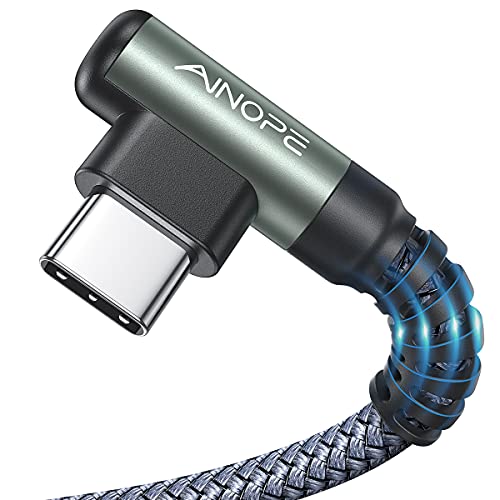
AINOPE 2 Pack USB Extensions Cable High Speed USB 3.0 Extension Cord Type A Male to Female Sturdy Braided Material Fast Data Transfer Compatible with USB Keyboard, Mouse, Flash Drive, Grey,10FT+10FT
To buy this product, click here.
Speed And Performance
USB 2.0 supports a maximum data transfer rate of 480 Mbps (Megabits per second). This speed allows forthe smooth transfer of files such as documents, photos, and music. It is much faster than the original USB 1.1 standard but slower than USB 3.0, which can reach speeds up to 5 Gbps.
Here are some key points about USB 2.0 speed and performance:
- Transfer rate: 480 Mbps (High-Speed USB)
- Suitable for devices like keyboards, mice, and printers
- Works well for standard file transfers and media playback
- Not ideal for large files or high-definition video streaming
| Feature | USB 2.0 | USB 3.0 |
|---|---|---|
| Max Speed | 480 Mbps | 5 Gbps |
| Data Transfer | Half-duplex | Full-duplex |
| Best for | Basic peripherals | High-speed devices |
USB 2.0 transfers data in one direction at a time, known as half-duplex. This limits how fast information moves compared to USB 3.0’s full-duplex capability, which allows data to flow both ways simultaneously.
Power Delivery
USB 2.0 provides power to connected devices along with data transfer. It can supply up to 500 mA (milliamps) at 5 volts. This amount is enough to power many small devices without needing an extra power source.
Details about USB 2.0 power delivery include:
- Standard power output: 2.5 watts (5V x 0.5A)
- Supports charging of smartphones and small gadgets
- Not sufficient for devices requiring high power, like tablets or hard drives
- Power is shared with data lines, which can limit charging speed
The limited power output means some devices need separate chargers. USB 3.0 improves on this by offering more power, up to 900 mA, which supports faster charging and larger devices.
Compatibility
One major advantage of USB 2.0 is its wide compatibility. It works with almost all computers, laptops, and many older devices. USB 2.0 ports and cables are easy to find and use.
Key points about USB 2.0 compatibility:
- Works with USB 1.1 and USB 3.0 devices (backward and forward compatibility)
- USB 2.0 devices can connect to USB 3.0 ports, but at USB 2.0 speeds
- Many older devices only support USB 2.0
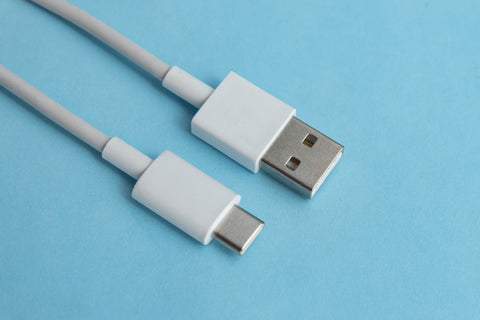
- Standard USB Type-A connectors are common in USB 2.0
Using USB 2.0 ensures connectivity across many devices without extra adapters. It is a reliable choice for simple connections where speed is not the main concern.

Usb 3.0 Features
USB 3.0 is a major upgrade from USB 2.0, offering faster data transfer and better features. It improves how devices connect and share information. The new version supports higher speeds, smarter power use, and updated connectors. These changes make it easier to use and more efficient for many devices. Understanding these features helps you see why USB 3.0 is better for modern electronics.
Enhanced Speed
One of the biggest improvements in USB 3.0 is its speed. USB 2.0 can transfer data up to 480 Mbps (megabits per second). USB 3.0 increases this speed to 5 Gbps (gigabits per second). This means USB 3.0 is over 10 times faster than USB 2.0. It allows you to move large files quickly, like videos, photos, and backups.
Speed benefits include:
- Faster file transfers reduce waiting time.
- Improved performance for external hard drives and flash drives.
- Smoother video streaming and editing.
- Better support for high-speed peripherals like cameras and gaming devices.
Here is a quick comparison of transfer speeds:
| USB Version | Max Data Transfer Speed |
|---|---|
| USB 2.0 | 480 Mbps |
| USB 3.0 | 5 Gbps |
This speed boost makes USB 3.0 ideal for heavy data tasks. It also improves device responsiveness during data transfer.
Improved Power Management
USB 3.0 manages power better than USB 2.0. It provides more power to connected devices while using energy efficiently. This helps devices charge faster and work better without wasting electricity.
Key points about USB 3.0 power management:
- Delivers up to 900 mA of power, compared to 500 mA in USB 2.0.
- Supports better power-saving modes to reduce energy use when idle.
- Allows devices to negotiate power needs for safe charging.
- Improves battery life on laptops and mobile devices by reducing power drain.
The improved power system also helps new devices run smoothly without extra power adapters. This makes USB 3.0 a flexible and energy-smart choice for many users.
Connector Design
USB 3.0 connectors look similar to USB 2.0 but have important differences inside. They include extra pins to support faster data transfer and better power delivery. The design keeps USB 3.0 backward compatible, so it works with older USB 2.0 ports and cables.
Features of USB 3.0 connectors:
- Additional pins for higher-speed data lines.
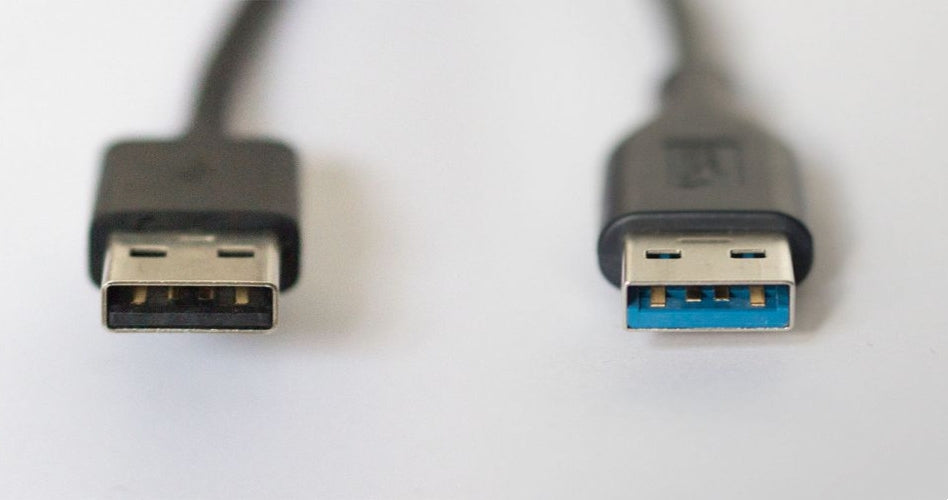
- Usually have a blue color inside to identify them.
- Same shape and size as USB 2.0 Type-A connectors.
- New USB 3.0 Micro-B connectors for smaller devices.
- Backward compatibility ensures older devices still work.
This connector design balances new capabilities with user convenience. It allows easy upgrading without replacing all cables and ports at once.
Comparing Usb 2.0 And 3.0
USB 2.0 and USB 3.0 are two common versions of the Universal Serial Bus standard used for connecting devices. Both serve the same purpose: to transfer data and power between computers and peripherals. Comparing USB 2.0 and 3.0 helps to understand their differences in speed, design, and usability. This knowledge is useful when choosing the right USB for your devices and tasks.
Data Transfer Rates
One of the main differences between USB 2.0 and USB 3.0 is the speed of data transfer. USB 2.0 has a maximum speed of 480 megabits per second (Mbps). This speed is enough for many everyday tasks like connecting a mouse or keyboard, or transferring small files.
USB 3.0 offers much faster data transfer rates. It can reach up to 5 gigabits per second (Gbps), which is over 10 times faster than USB 2.0. This speed boost is helpful for large file transfers, such as HD videos or backups.
| Feature | USB 2.0 | USB 3.0 |
|---|---|---|
| Maximum Data Transfer Rate | 480 Mbps | 5 Gbps |
| Effective Speed | Up to 35 MB/s | Up to 625 MB/s |
For everyday users, USB 2.0 is sufficient for simple tasks. For users who work with large files or need fast backups, USB 3.0 is a better choice. Faster speeds save time and improve device performance.
Physical Differences
USB 2.0 and USB 3.0 ports and plugs look similar but have some key physical differences. These differences help users identify which USB version they are using.
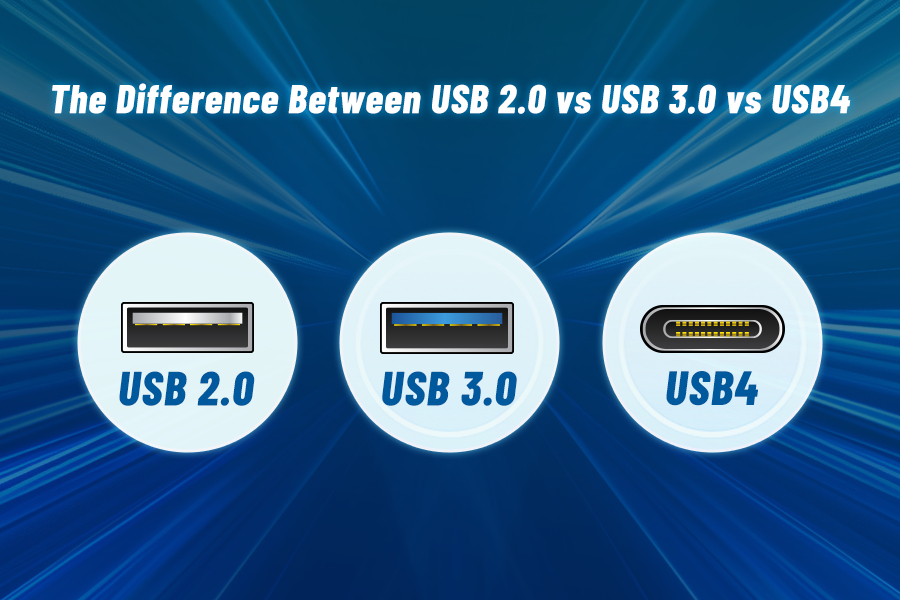
- Color Coding: USB 2.0 ports usually have a black or white insert inside the port. USB 3.0 ports have a blue insert to show they support higher speeds.
- Number of Pins: USB 2.0 connectors have 4 pins. USB 3.0 connectors have 9 pins. The extra pins allow faster data transfer and better power delivery.
- Connector Types: Both versions use the standard USB-A and USB-B connectors. USB 3.0 also introduced new connectors like USB 3.0 Micro-B, which is different from USB 2.0 Micro-B.
| Aspect | USB 2.0 | USB 3.0 |
|---|---|---|
| Port Color | Black or White | Blue |
| Number of Pins | 4 | 9 |
| Connector Types | USB-A, USB-B, Micro-B | USB-A, USB-B, Micro-B (different design) |
These physical differences help avoid confusion and ensure devices connect at their best possible speed. Most USB 3.0 ports and cables are backward compatible with USB 2.0 devices.
Use Cases
Choosing between USB 2.0 and USB 3.0 depends on what you want to do with your devices. Each version fits different needs.
- USB 2.0 Use Cases:
- Connecting keyboards, mice, and printers
- Charging small devices like smartphones
- Transferring small files or documents
- Using older devices without USB 3.0 support
- USB 3.0 Use Cases:
- Transferring large files, such as videos and photos
- Connecting external hard drives and SSDs
- Video streaming and high-speed data tasks
- Charging devices faster with higher power output
USB 3.0 is ideal for users who need speed and efficiency. USB 2.0 works well for basic connections and older devices. Knowing these use cases helps in selecting the right USB for your setup.
Backward Compatibility
Backward compatibility is a key feature in USB technology. It means new USB devices can work with older USB ports. This ensures users don’t need to replace all their devices when upgrading. USB 3.0 ports support USB 2.0 devices and cables, making transitions smooth and cost-effective.
What Does Backward Compatibility Meanfor USBb?
Backward compatibility allows different USB versions to connect without problems. A USB 3.0 device works in a USB 2.0 port, but at USB 2.0 speeds. Similarly, a USB 2.0 device fits into a USB 3.0 port and works normally. This feature protects your existing devices and accessories.
How Usb 3.0 Supports Usb 2.0 Devices
- Physical compatibility: USB 3.0 ports accept USB 2.0 plugs.
- Data transfer: USB 3.0 switches to USB 2.0 speed when needed.
- Power delivery: USB 3.0 provides the right power for older devices.
Limitations Of Backward Compatibility
Backward compatibility has some limits. Using a USB 2.0 device in a USB 3.0 port means:
- The transfer speed stays at USB 2.0 levels.
- Some advanced USB 3.0 features won’t work.
- Performance depends on the older device’s capabilities.
USBb 2.vs USBsb 3.0 Compatibility Table
| Connection | Will it Work? | Data Speed | Notes |
|---|---|---|---|
| USB 3.0 device in a USB 3.0 port | Yes | Up to 5 Gbps | Full speed and features |
| USB 3.0 device in a USB 2.0 port | Yes | Up to 480 Mbps | Works at USB 2.0 speed |
| USB 2.0 device in a USB 3.0 port | Yes | Up to 480 Mbps | Works normally |
| USB 2.0 device in a USB 2.0 port | Yes | Up to 480 Mbps | Standard connection |
Choosing The Right Usb Version
Choosing the right USB version can affect how well your devices work and how fast data transfers happen. USB 2.0 and USB 3.0 are common types, but they differ in speed, power, and compatibility. Picking the right one depends on what devices you use, your budget, and how long you want your setup to last. Understanding these factors helps make a smart choice.
Device Requirements
Each device has its own needs for USB connections. Some devices only support USB 2.0, while others work better with USB 3.0. Knowing what your devices require helps you avoid slow speeds or connection problems.
- Older devices: Many older keyboards, mice, and printers use USB 2.0. They do not need the faster speeds of USB 3.0.
- Modern gadgets: External hard drives, flash drives, and some cameras benefit from USB 3.0’s higher speed.
- Power needs: USB 3.0 can provide more power to devices, which helps charge smartphones or run bigger gadgets.
| Device Type | Recommended USB Version | Reason |
|---|---|---|
| Keyboard and Mouse | USB 2.0 | Low data transfer speed needed |
| External Hard Drive | USB 3.0 | Faster data transfer and power supply |
| Smartphones and Tablets | USB 3.0 | Faster charging and data sync |
| Printers | USB 2.0 | Standard speed is sufficient |
Check your device’s manual or packaging to find the recommended USB version. Using the right USB version ensures smooth performance and avoids compatibility issues.
Cost Considerations
Cost plays a big role in choosing between USB 2.0 and 3.0. USB 2.0 devices and cables usually cost less. USB 3.0 products can be a bit pricier but offer better speed and power.
When buying cables or devices, consider these points:
- USB 2.0: More affordable, widely available, good for basic needs.
- USB 3.0: Higher cost, better performance, ideal for heavy data use.
- Compatibility: USB 3.0 ports work with USB 2.0 devices, but at slower speeds.
| Item | Approximate Price Range | Notes |
|---|---|---|
| USB 2.0 Cable | $2 – $5 | Basic data transfer |
| USB 3.0 Cable | $5 – $10 | Faster speed, better build |
| External Hard Drive USB 2.0 | $40 – $70 | Lower speed, lower price |
| External Hard Drive USB 3.0 | $60 – $100 | Faster transfers, more expensive |
Choose based on your budget and how much speed matters. Spending a little more on USB 3.0 can save time in the long run.
Future Proofing
Technology changes fast. Picking a USB version that lasts is smart. USB 3.0 is newer and supports faster speeds and more power. This helps with new devices and software in the future.
Reasons to consider future proofing:
- Speed: USB 3.0 transfers data up to 10 times faster than USB 2.0.
- Power: USB 3.0 can deliver more power, useful for charging and running devices.
- Compatibility: USB 3.0 ports accept USB 2.0 devices, but not the other way around.
Think about how long you plan to use your devices. Investing in USB 3.0 means better support for future gadgets and faster data handling.
Example: USB port compatibility
- USB 3.0 port: works with USB 3.0 and USB 2.0 devices
- USB 2.0 port: works only at USB 2.0 speed
Choosing USB 3.0 helps avoid the need to upgrade again soon. It is a safer choice for new purchases.
Frequently Asked Questions
What Is The Main Speed Difference Between Usb 2.0 And 3.0?
USB 2. 0 transfers data up to 480 Mbps, while USB 3. 0 reaches speeds up to 5 Gbps.
Can Usb 3.0 Ports Work With USB 2.0 Devices?
Yes, USB 3. 0 ports are backward compatible with USB 2. 0 devices but run at slower speeds.
How Do Usb 2.0 And 3.0 Differ In Power Output?
USB 3. 0 provides more power (900mA) than USB 2. 0 (500mA), allowing faster device charging.
What Physical Differences Help Identify Usb 2.0 Vs 3.0 Ports?
USB 3. 0 ports often have blue plastic inside, while USB 2. 0 ports are usually black or white.
Is Usb 3.0 Better For External Hard Drives Than Usb 2.0?
Yes, USB 3. 0 offers faster data transfer, making it better for external storage devices.
Conclusion
USB 3. 0 transfers data much faster than USB 2. 0. It also uses more power but saves time. USB 2. 0 works fine for simple devices like keyboards or mice. USB 3. 0 is better for hard drives and big files.
Most new devices now support USB 3. 0 ports. Choosing the right USB depends on your needs. Speed and compatibility matter the most. Understanding these differences helps you pick the best option. Simple, clear, and useful for everyday tech use.