How to Connect JBL Earbuds to iPhone: Effortless Guide
Imagine stepping outside, ready to conquer your day with your favorite playlist or podcast. Your JBL earbuds are your trusty companions, and with just a quick step to connect JBL Earbuds to iPhone, your music journey begins without limits.
It sounds simple enough, but sometimes technology throws a curveball. You’re not alone; many people face this challenge. That’s where this guide comes in. We’ll walk you through the process, ensuring you can enjoy your music without any hassle. So, grab your earbuds and your iPhone—you’re about to discover just how easy it is to connect them.
Connecting your JBL earbuds to your iPhone can be a breeze if you know the steps. This guide will walk you through the process, ensuring you get the most out of your listening experience. Let’s dive into getting started with your JBL earbuds and iPhone connection.
Step 1: Ensure Your Earbuds Are Charged
Before anything else, make sure your JBL earbuds are fully charged. A fully charged battery ensures smooth connectivity and uninterrupted usage. To check, look for the charging indicator light on the case. If the light is blinking or off, charge them using the provided USB cable. A steady light usually means they are ready for use.
Step 2: Turn On Bluetooth On Your Iphone
Your iPhone needs Bluetooth enabled to connect with the earbuds. Open Settings on your iPhone. Find the Bluetooth option and tap on it. Toggle the switch to turn Bluetooth on. You should see a list of available devices once it’s enabled.
Step 3: Pairing Your JBL Earbuds
With Bluetooth on, it’s time to pair your devices. Take your JBL earbuds out of the case. They should automatically enter pairing mode. On your iPhone, look for your earbuds under Other Devices in the Bluetooth menu. Tap on your JBL earbuds’ name to connect. A successful connection will move the earbuds to My Devices with a “Connected” status.
Step 4: Test The Connection
Once connected, test the sound quality. Open your favorite music app or play a video to ensure both earbuds work correctly. If you encounter any issues, try reconnecting or checking if the earbuds need a reset.
Troubleshooting Common Issues
No Sound: Ensure the volume is up on both your iPhone and earbuds.
Earbuds Not Connecting: Restart Bluetooth or reset your earbuds.
Sound Is Uneven: Adjust the balance settings on your iPhone.
By following these steps, you should have your JBL earbuds connected to your iPhone in no time, ready to deliver high-quality audio.
Prepare Your JBL Earbuds
Connecting your JBL earbuds to an iPhone can enhance your audio experience. To ensure a smooth connection, it’s essential to prepare your earbuds properly. This preparation includes charging them fully and powering them on correctly. By following these simple steps, you’ll be able to enjoy your music or calls without interruptions. Let’s dive into how to prepare your JBL earbuds for pairing with your iPhone.
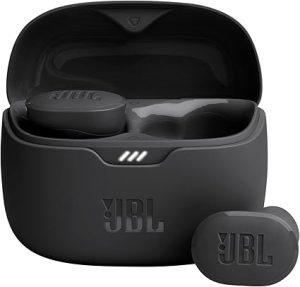
JBL Tune Buds – True wireless Noise Cancelling earbuds, JBL Pure Bass Sound, Bluetooth 5.3, 4-Mic technology for Crisp, Clear Calls, Up to 48 hours of battery life, Water and dust resistant (Black)
Before you start using your JBL earbuds, make sure they are fully charged. A full charge ensures uninterrupted listening. Here’s how you can charge them effectively:
Locate the charging case: Your JBL earbuds come with a charging case. It’s not just for storage but also for charging.
Check the charging cable: Use the USB cable that came with your earbuds. It guarantees compatibility and optimal charging speed.
Connect to a power source: Plug the USB cable into a power adapter or a computer USB port. Then, connect the other end to the charging case.
Place earbuds in the case: Ensure the earbuds are seated correctly in the charging case. They should fit snugly, and the charging light should turn on.
Charging indicators are crucial. Most JBL earbuds have LED indicators:
Indicator Light
Status
Flashing
Charging
Solid
Fully Charged
Allow the earbuds to charge until the light is solid. This ensures they are ready for use.
Powering On
Once your earbuds are fully charged, the next step is to power them on. Here’s how to do it:
Most JBL earbuds have a simple power-on process:
Remove earbuds from the case: Taking them out usually triggers the power-on function.
Manual power-on: If they don’t turn on automatically, press the power button on each earbud for a few seconds.
Check the LED indicators: Look for a blinking light. It indicates the earbuds are in pairing mode.
If your earbuds have a touch sensor, follow these steps:
Tap the sensor on each earbud.
Listen for an audio prompt indicating power-on.
Ensure that both earbuds are powered on. This step is essential for stereo sound and optimal performance. With these steps complete, your JBL earbuds are now ready to connect to your iPhone.
Access iPhone Settings
Connecting your JBL earbuds to your iPhone is simple and only takes a few steps. First, you need to access your iPhone settings. This step is crucial to ensure a smooth pairing process. Without accessing the correct settings, your devices might not connect properly. Let’s dive into how you can navigate these settings efficiently.
Open Bluetooth Settings
The first step is to open the Bluetooth settings on your iPhone. Follow these easy instructions:
Unlock your iPhone and go to the home screen.
Find the Settings app, which looks like a gear icon.
Tap on the Settings app to open it.
Scroll down until you see the Bluetooth option.
Tap on Bluetooth to enter the Bluetooth menu.
In the Bluetooth menu, you can see a list of devices that have been paired before. If your JBL earbuds are not listed, they need to be in pairing mode. To do this, press the pairing button on your earbuds. Once they are in pairing mode, they should appear in the list of available devices.
The Bluetooth settings also allow you to manage your connections. You can rename devices or remove them from the list. This helps keep your connections organized and ensures a smooth pairing experience every time.
Ensure Bluetooth Is On
Once you’re in the Bluetooth settings, it’s important to ensure that Bluetooth is turned on. Here’s how you can check:
At the top of the Bluetooth menu, you will see a toggle switch.
If the switch is green, Bluetooth is already on.
If the switch is gray, tap on it to turn Bluetooth on. This action enables your iPhone to search for nearby devices.
Turning on Bluetooth allows your iPhone to connect with your JBL earbuds. If Bluetooth is off, the earbuds will not appear in the list of available devices. This simple step is often overlooked but is crucial for successful pairing.
Once Bluetooth is on, you can select your JBL earbuds from the list of devices. Tap on the earbuds to connect. A message will appear indicating that the devices are connected. If they don’t connect immediately, ensure your earbuds are in pairing mode. Sometimes, moving closer to your iPhone can improve the connection.
Always keep Bluetooth on when using wireless devices. It not only helps in connecting but also maintains the connection while you’re using your earbuds.
Pairing Process
Connecting your JBL earbuds to an iPhone is straightforward. The pairing process is simple and quick, allowing you to enjoy your favorite tunes or podcasts without hassle. This guide will walk you through the steps to ensure your earbuds are perfectly paired with your iPhone. Follow these easy instructions to get your audio experience up and running in no time.
Select Your Earbuds
Begin by making sure your JBL earbuds are ready for pairing. This usually involves powering them on. If your earbuds have a button, press it until the light starts blinking. This indicates they are ready to connect. Follow these steps:
Ensure your earbuds are charged.
Locate the power button or pairing button.
Press and hold the button until the LED light flashes.
Once your earbuds are in pairing mode, grab your iPhone. Open the Settings app and tap on Bluetooth. Make sure Bluetooth is turned on. You will see a list of available devices. Look for your JBL earbuds in the list. They may appear under a name like “JBL Earbuds” or a model number. Tap on the name to select it.
Steps
Actions
Charge Earbuds
Ensure full battery
Activate Pairing Mode
Press the button until the light blinks
Enable Bluetooth on iPhone
Go to Settings > Bluetooth
Confirm Pairing
After selecting your earbuds, the next step is to confirm the pairing. Your iPhone will try to connect to the earbuds. Wait a few seconds for the connection to establish. A notification or sound may indicate successful pairing.
Check for a notification on your iPhone.
Listen for a sound from your earbuds.
Verify the connection in the Bluetooth settings.
If pairing fails, repeat the steps. Ensure the earbuds are still in pairing mode. Sometimes, restarting your iPhone can help resolve connection issues. Once paired, your JBL earbuds will appear under My Devices in the Bluetooth settings. You can adjust settings like volume or disconnect from here.
Remember, keeping your device’s software up-to-date can improve connectivity and performance. Regularly check for updates in your iPhone’s settings. Enjoy seamless audio with your JBL earbuds!
Troubleshooting Tips
Connecting JBL earbuds to an iPhone can be smooth sailing. But sometimes, hiccups happen. From connection issues to the need for a reset, these troubleshooting tips guide you through common problems. Let’s dive into solutions that can get your earbuds singing again.
Connection Issues
Struggling to connect your JBL earbuds to your iPhone? You’re not alone. Many users face this issue, but it’s often easy to fix. Here are some steps to resolve connection problems:
Check Bluetooth: Ensure Bluetooth is turned on in your iPhone’s settings. A simple toggle off and on can sometimes do the trick.
Forget Device: If your earbuds show up in the list but won’t connect, try forgetting the device. Go to Settings > Bluetooth, tap the “i” next to your JBL earbuds, and choose “Forget This Device”. Then, try pairing again.
Charge Your Earbuds: A Low battery can hinder connection. Ensure your JBL earbuds have enough charge.
Distance: Keep the earbuds close to your iPhone. Walls and other obstacles can interfere with the connection.
Here’s a quick reference table for troubleshooting:
Problem
Solution
Bluetooth Off
Toggle Bluetooth on/off
Device Not Found
Check the earbuds’ battery and proximity
Connection Error
Forget and re-pair the device
Resetting Earbuds
If connection issues persist, resetting your earbuds might help. Resetting can resolve many unknown problems. Follow these steps to reset your JBL earbuds:
Place Earbuds in Case: Ensure both earbuds are placed securely in the charging case.
Press and Hold: Locate the reset button. Usually found inside or on the back of the charging case.
Hold for 10 Seconds: Press and hold the reset button for about 10 seconds. You might see a light flash or hear a tone indicating a reset.
Reconnect: Once reset, remove the earbuds from the case. Open Bluetooth settings on your iPhone and pair again.
Resetting is a powerful tool for fixing stubborn issues. But remember, it will erase any custom settings. Always try other solutions first.
Using Your Earbuds
Once you’ve successfully connected your JBL earbuds to your iPhone, it’s time to explore their functionality. These earbuds offer a seamless experience for enjoying music and handling phone calls. With user-friendly controls, you can easily navigate through your favorite playlists or stay connected with friends and family. Let’s dive into how you can make the most out of your JBL earbuds.
Controlling Music
Controlling music with JBL earbuds is intuitive and straightforward. These earbuds are designed to provide an effortless listening experience. Below are some ways you can control music playback:
Play/Pause: Tap the earbud once to play or pause your music.
Skip Tracks: Double-tap the earbud to skip to the next song.
Previous Track: Triple-tap to return to the previous song.
Adjusting the volume is just as simple:
Action
Control
Increase Volume
Swipe up on the earbud
Decrease Volume
Swipe down on the earbud
Using these controls, you can enjoy your favorite tunes without needing to reach for your phone. This hands-free approach ensures you stay focused on your activities while enjoying high-quality sound.
Making Calls
JBL earbuds make handling calls easy and convenient. You can answer and end calls with simple gestures, ensuring that you stay connected while on the move. Here’s how you can manage calls:
Answering Calls: Tap the earbud once to answer an incoming call.
Ending Calls: Tap once to end the call.
Rejecting Calls: Double-tap to reject an incoming call.
Using your earbuds for calls offers several benefits:
Hands-Free Experience: Keep your hands free for other tasks.
Clear Sound Quality: Enjoy clear audio during calls.
Noise Cancellation: Reduce background noise for better call clarity.
These features ensure that you can communicate efficiently and comfortably, whether you’re at home or on the go. JBL earbuds are designed to enhance your calling experience, providing both convenience and quality.
Maintaining Your Earbuds
Connecting your JBL earbuds to your iPhone can greatly enhance your audio experience. Once paired, it’s essential to maintain your earbuds for optimal performance. Proper maintenance not only extends their lifespan but also ensures they continue to deliver high-quality sound. Below, you’ll find helpful tips on cleaning and caring for the battery of your JBL earbuds.
Cleaning Tips
Keeping your JBL earbuds clean is crucial for both hygiene and performance. Dirt and wax can block sound and damage your earbuds. Follow these simple cleaning tips:
Use a soft, dry cloth: Gently wipe the earbuds to remove dust and grime.
For stubborn dirt, use a cotton swab lightly dampened with water. Avoid getting moisture into the speaker openings.
Remove and clean ear tips: If your earbuds have removable tips, take them off and wash them with warm water and mild soap. Dry thoroughly before reattaching.
Avoid harsh chemicals: Do not use alcohol or strong cleaning agents, as they can damage the material.
To further protect your earbuds, store them in their case when not in use. This reduces the buildup of dust and prevents accidental damage.
Battery Care
Proper battery care can significantly extend the life of your JBL earbuds. Here are some tips to ensure your battery lasts longer:
Avoid overcharging: Disconnect your earbuds once fully charged to prevent battery degradation.
Charge regularly: Keep your earbuds charged by topping off the battery after each use.
Use the original charger: Always use the charger provided by JBL to ensure optimal charging conditions.
Avoid extreme temperatures: Keep your earbuds away from very hot or cold environments, as they can harm the battery.
For a quick reference, here is a table summarizing the main tips:
Task
Action
Cleaning
Use a soft cloth, clean ear tips, and avoid moisture
Battery Care
Avoid overcharging, charge regularly, and use the original charger
These practices will help keep your JBL earbuds in excellent condition, ensuring reliable performance and longer use.
Frequently Asked Questions
How Do I Pair My JBL Earbuds to My iPhone?
Turn on Bluetooth on your iPhone. Open the JBL earbuds case. Press and hold the pairing button on the earbuds until they appear in the list of available devices. Select your JBL earbuds from the list to pair them with your iPhone.
Enjoy your music!
How Do I Put My JBL In Pairing Mode?
To pair your JBL speaker, turn it on and press the Bluetooth button. The Bluetooth light will blink, indicating pairing mode. Use your device to connect by selecting JBL from the Bluetooth list.
Why Are My JBL earbuds Not Pairing?
JBL earbuds may not pair due to a low battery, Bluetooth not enabled, or being too far from the device. Try resetting the earbuds, checking Bluetooth settings, and ensuring devices are in range. Ensure no other devices are connected.
Why isn’t my JBL connecting To My iPhone?
Ensure Bluetooth is on and devices are within range. Restart both the JBL speaker and iPhone. Update your iPhone’s software and check JBL compatibility. Remove other paired devices that might interfere. Reset Bluetooth settings if issues persist. Contact JBL support for further assistance if needed.
How Do I Pair JBL Earbuds With My iPhone?
Turn on Bluetooth. Open your iPhone’s settings. Select “Bluetooth” and choose your JBL earbuds from the list.
Why won’t my JBL earbuds Connect To my iPhone?
Check if your earbuds are in pairing mode. Restart Bluetooth on your iPhone. Make sure they are charged.
Conclusion
Connecting JBL earbuds to your iPhone is simple and quick. Follow the steps, and you’ll enjoy music in minutes. Start by ensuring your earbuds are charged. Then, activate Bluetooth on your iPhone. Next, put your earbuds in pairing mode. Watch for them in your device’s Bluetooth list.
Tap to connect. Done! You’re ready to experience crystal-clear sound. Remember, easy steps lead to great audio enjoyment. Troubleshooting issues? Check battery and Bluetooth settings. Practice makes perfect. Try again if needed. Now, you’re equipped to connect effortlessly. Enjoy your music on the go!