Why is My Android Charging So Slowly: Top Fixes You Need Now
Is your Android phone taking forever to charge? You plug it in, expecting a quick boost, but the battery bar crawls painfully slow.
It’s frustrating, especially when you need your phone ready to go. You might wonder, “Why is my Android charging so slowly? ” The good news is, you’re not alone—and there are simple reasons behind this problem. Keep reading to discover what’s causing the delay and how you can fix it fast.
Your phone’s charging speed can improve more than you think!
Slow charging on your Android device often points to common issues. Identifying these causes helps fix the problem quickly. Many factors affect charging speed, from hardware to software. Understanding these reasons saves time and improves your phone’s power-up routine.
Faulty Charger Or Cable
A damaged or low-quality charger or cable often causes slow charging. Chargers and cables wear out over time. Broken wires or loose connectors reduce power flow to the battery.
Look for these signs in your charger or cable:
Frayed or exposed wires
Loose USB or charging port connections
Discoloration or burn marks
Inconsistent charging speeds
Using a charger with lower wattage than your device needs can also slow down charging. For example, a 5W charger will charge a phone designed for 18W slowly.
Charger Wattage
Effect on Charging Speed
5W
Slow charging, suitable for small devices
10-18W
Standard charging speed for most phones
20W and above
Fast charging supported by many newer models
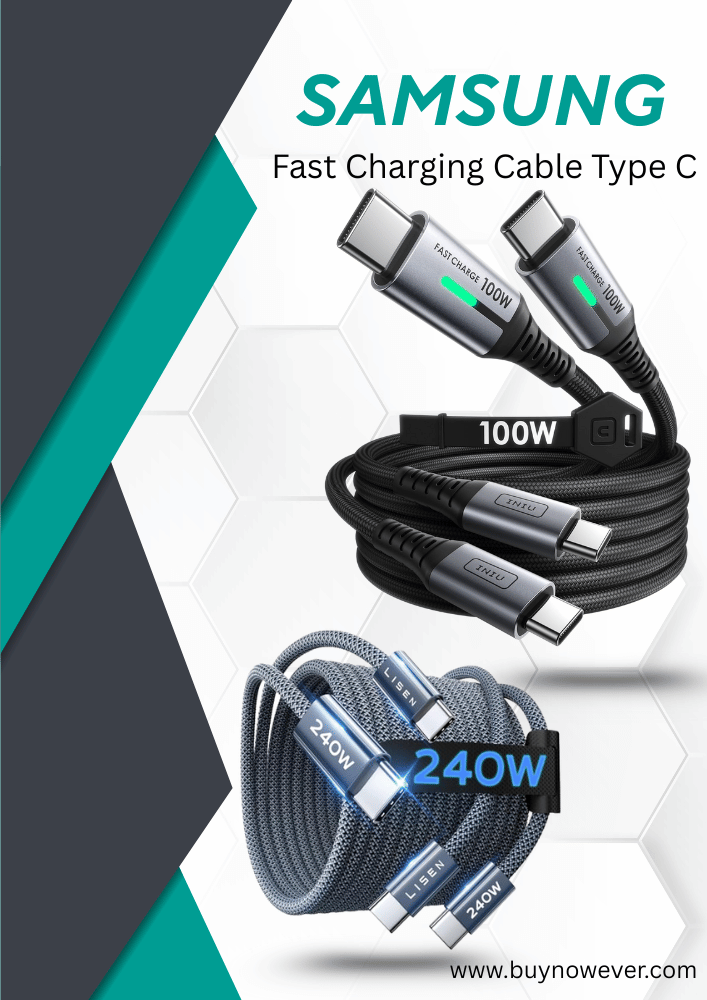
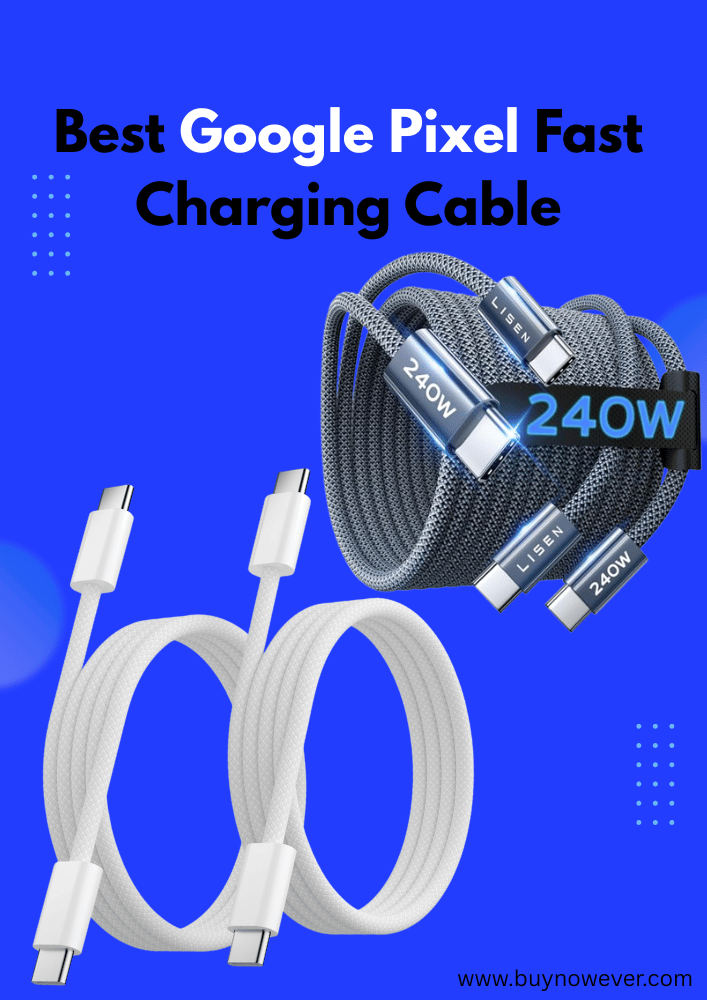
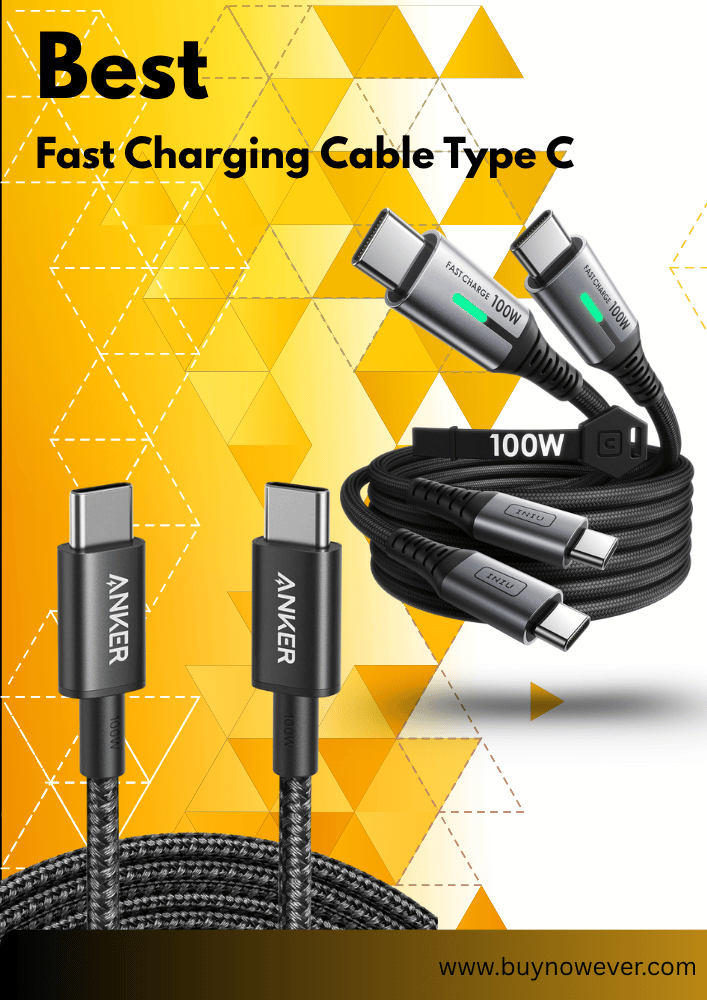
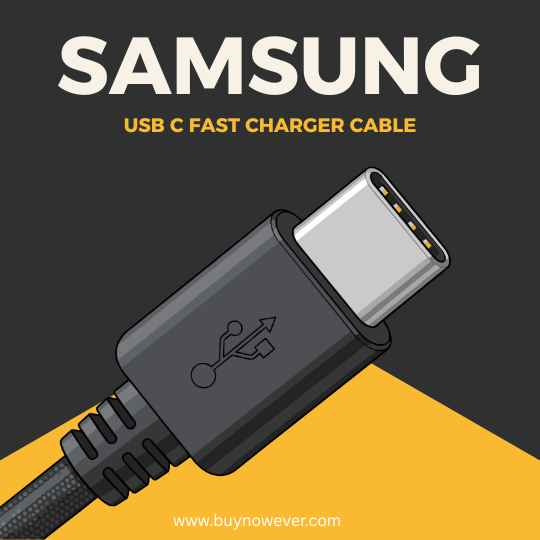
Always use the original or certified charger and cable. Cheap third-party cables may not deliver full power. Replace faulty chargers or cables immediately to restore normal charging speeds.
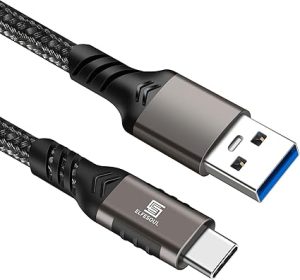
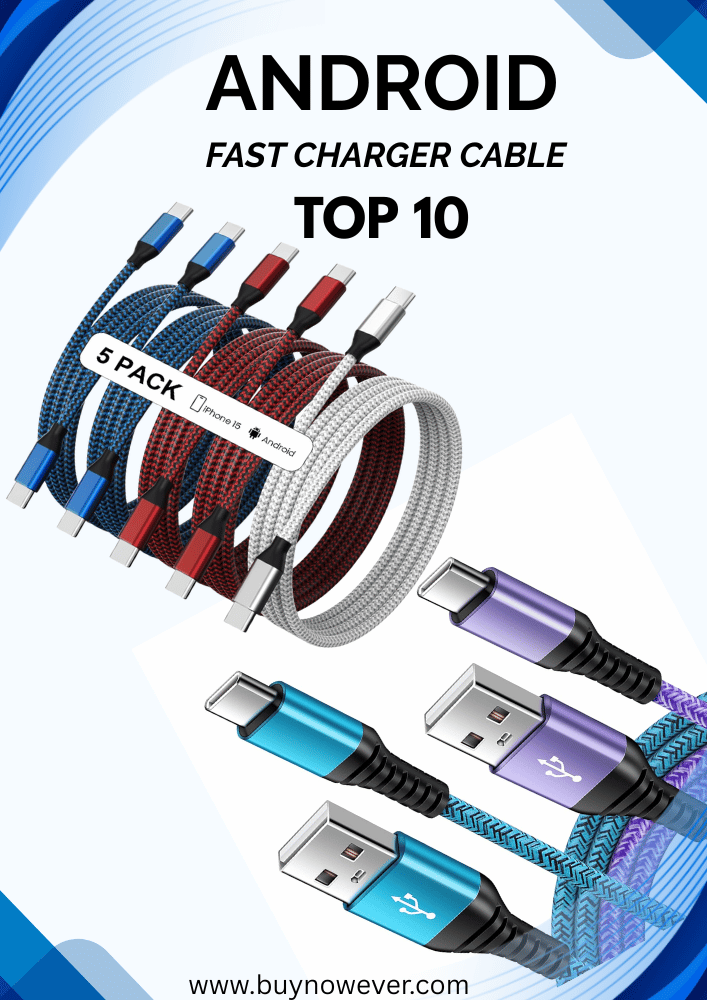
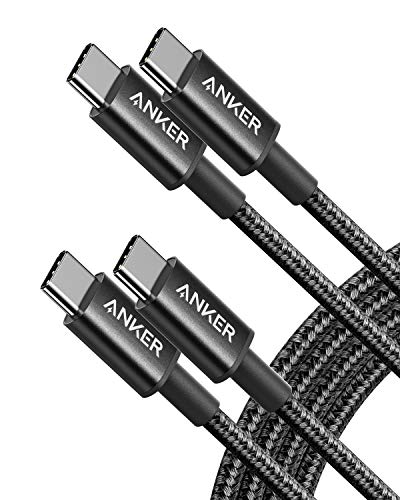
USB-C Cable 10ft, USB-A to USB-C Cable USB 3.1 USB 3.2 Gen2 10Gbps Data Charger Cord for Samsung Galaxy S24 S23 S22 S21 S20 S10 S9 S8+, Android Auto USB Cord and iPhone 15/15 Pro, Nylon Braided.
A dirty or blocked charging port can slow down your phone’s charging. Dust, lint, and debris collect inside the port. This buildup stops the charger from making a good connection with the phone.
Common signs of a dirty port include:
Loose charger fit
Intermittent charging
Phone not charging at all
Cleaning the charging port carefully can solve the issue. Follow these steps:
Turn off your phone to avoid damage.
Use a small, soft brush or toothpick.
Gently remove dust and lint from the port.
Do not insert metal objects deeply.
Check the charging speed again after cleaning.
Regular cleaning prevents slow charging caused by dirt. Avoid using compressed air or water inside the port.
Background Apps
Apps running in the background can slow down charging. These apps use battery power and processing speed, causing the phone to charge more slowly.
Examples of apps that drain battery:
Social media apps
Games
Streaming services
Navigation apps
Close unused apps before charging. Use these methods:
Open Recent Apps and swipe them away
Use battery saver mode
Disable background data for some apps
Check battery usage in settings to find heavy apps
Reducing background activity lets the charger focus on powering the battery. This speeds up charging and keeps your phone cool.
Battery Health Issues
Aging or damaged batteries reduce charging speed. Over time, batteries lose capacity and take longer to charge. This is normal for all rechargeable batteries.
Signs of battery health issues:
Charging stops before 100%
The battery drains quickly
Phone heats up during charging
Check battery health using apps or phone settings. Some Android phones show battery status under “Battery” in settings.
If battery health is poor, consider these options:
Replace the battery at an authorized service center
Use power-saving modes to reduce battery stress
Avoid extreme temperatures during charging
Good battery health keeps charging fast and efficiently. Maintaining your battery helps prevent slow charging problems.
Charger And Cable Tips
Slow charging on Android devices often ties back to problems with chargers and cables. These two parts carry power from the outlet to the phone. Using the right charger and cable is crucial to keep your device charging fast and safely. Poor accessories or damaged cables can reduce charging speed or even harm your phone’s battery. This section covers simple tips to check and improve your charger and cable setup.
Using Original Accessories
Using original accessories made by your phone’s manufacturer ensures the best charging speed. These accessories match your device’s power needs perfectly. Third-party chargers and cables might look similar, but often deliver less power. This leads to slow charging or overheating.
Benefits of using original accessories:
Proper voltage and current for your phone
Better safety standards to protect battery health
Longer lifespan for both charger and phone
Support for fast charging technologies
Original chargers often have certification marks, such as “UL” or “CE.” Look for these marks to confirm safety and quality. Using original accessories may cost more,e but it saves time and avoids battery problems.
Accessory Type
Charging Speed
Safety
Compatibility
Original Charger & Cable
Fast
High
Perfect
Third-Party Certified
Medium to Fast
Medium
Good
Cheap/No Brand
Slow
Low
Risky
Always check your phone’s box or manual for the recommended charger type. Use the original cable that came with your phone or a high-quality replacement that matches the same standards.
Checking Cable Damage
Cables wear out over time. Bends, frays, or cuts can reduce charging speed or stop charging completely. Damaged cables may also cause short circuits or harm your phone. Regularly inspect your cable for any visible damage.
Signs of cable damage include:
Frayed or broken outer insulation
Exposed wires
Loose connectors
Charging stops or disconnects frequently
Phone heats up near the charging port
Test the cable on another device to see if it charges properly. If the cable is damaged, replace it immediately to avoid battery or device damage. Use cables with reinforced connectors or braided covers for longer life.
Follow these steps to check cable health:
Unplug the cable and look closely along its length.
Bend the cable gently near the connectors to find weak spots.
Clean the connectors with a soft cloth to remove dust.
Try charging with a different cable to compare speeds.
Damaged cables are a common reason for slow charging. Keep spare cables handy to avoid charging interruptions.
Trying Different Chargers
Not all chargers work the same. Chargers have different power outputs, measured in watts (W). Using a charger with low power output causes slow charging. Your phone needs a charger that meets or exceeds its required wattage.
Common charger power outputs:
Charger Type
Output (Volts x Amps)
Power (Watts)
Charging Speed
Standard USB Charger
5V x 1A
5W
Slow
Fast Charger
9V x 2A
18W
Fast
Quick Charge 3.0
Varies
18W+
Very Fast
USB-C PD Charger
5-20V x 3A
Up to 60W+
Very Fast
Try charging your phone with different chargers to spot slow chargers. Use chargers designed for smartphones, not low-power accessories like Bluetooth speakers.
Some tips for choosing chargers:
Match the charger output to your phone’s recommended wattage
Use chargers with fast charging support if your phone allows it
Avoid using old or damaged chargers
Check the charger cable compatibility with your device
Testing multiple chargers helps find the best option. It also rules out whether slow charging is due to the charger or the phone itself.
Optimizing Charging Port
Slow charging on your Android device often starts at the charging port. Dirt, dust, and debris can block the connection between the charger and your phone. Optimizing the charging port improves power flow, making charging faster and more reliable. Simple care steps can keep your port clean and safe, boosting charging speed and device health.
Cleaning Techniques
Cleaning the charging port removes dirt and dust that slows down charging. A dirty port stops the charger from connecting well, causing slow or no charging. Use gentle tools to avoid damage.
Turn off your phone before cleaning to avoid short circuits.
Use a soft brush or a dry toothbrush to remove loose dust.
Compressed air can blow out dirt from hard-to-reach spots. Hold the can upright and use short bursts.
A toothpick or a wooden stick can carefully remove stuck debris. Do not push too hard to avoid damage.
Here is a simple step-by-step table:
Step
Action
Tips
1
Turn off your phone
Prevent short circuits during cleaning
2
Brush the port gently
Use a soft brush to avoid damage
3
Blow compressed air
Short bursts, hold can upright
4
Remove debris with a toothpick
Be gentle, avoid pushing deeply
Regular cleaning keeps the port clear. It prevents slow charging caused by poor contact.
Avoiding Port Damage
Charging port damage causes slow charging or no charging at all. Avoid rough handling and exposure to dirt to keep the port safe. Here are key tips to protect the charging port:
Use only compatible chargers and cables. Wrong accessories can harm the port.
Insert the cable gently. Forcing it may bend or break connectors inside.
Keep the port dry. Moisture causes corrosion and charging issues.
Avoid frequent unplugging and plugging. This wears out the port over time.
Use a phone case with port protection. Some cases cover the port to stop dust and dirt.
Check this damage prevention guide:
Risk
Prevention
Broken connectors
Insertthe cable slowly and correctly
Dust buildup
Use a case with a port cover
Corrosion from moisture
Keep the port dry and avoid wet places
Wear and tear
Limit frequent unplugging
Proper care extends the life of your charging port. It ensures fast, steady charging every time.
Software Factors
Slow charging on an Android device often relates to software factors. These factors affect how the phone uses power during charging. Many users do not realize that apps and settings run in the background. They can drain power and slow charging speed. Understanding software elements helps fix slow charging issues without hardware changes.
Closing Background Apps
Background apps use CPU and battery even when you do not see them. This constant activity slows down charging because the phone uses power while charging. Closing these apps helps the battery gain charge faster.
Identify apps running in the background: Go to Settings > Battery > Battery Usage.
Close apps manually: Use the Recent Apps button and swipe apps away.
Use built-in tools: Some phones have “Optimize” or “Device Care” to stop background apps automatically.
Some apps keep restarting themselves. To stop this:
Go to Settings > Apps.
Select the app.
Tap “Force Stop” and then “Disable” if not needed.
Running too many apps in the background causes this:
Effect
Explanation
High CPU Usage
Background apps use the processor, slowing charging speed.
Battery Drain
Apps consume power while charging, reducing net charge gain.
Heat Generation
More activity produces heat, which lowers charging efficiency.
Updating Software
Outdated software may cause slow charging problems. Android updates include bug fixes and power management improvements. Running the latest version ensures the phone charges well.
Steps to check and update software:
Go to Settings > System > Software Update.
Tap “Check for updates.”
Download and install any available updates.
Updates improve charging by:
Fixing bugs that cause battery drain.
Optimizing charging algorithms.
Improving compatibility with chargers.
Ignoring updates can lead to:
Slow charging speeds.
Unexpected battery use.
Phone overheating.
Some phones also update apps automatically. Keeping apps up-to-date helps reduce conflicts and background power use. Check Play Store settings for auto-updates.
Battery Saver Mode
Battery Saver Mode reduces phone activity to save power. It limits background processes and reduces performance. This mode also affects charging speed.
How Battery Saver Mode impacts charging:
Reduces CPU speed to save energy.
Limits background data and app activity.
May reduce screen brightness and turn off animations.
While it saves battery, it can slow charging because the system restricts power flow to prevent overheating or damage.
To check or disable Battery Saver Mode:
Go to Settings > Battery.
Find Battery Saver or Power Saving Mode.
Turn it off during charging for faster results.
Some phones automatically turn on Battery Saver at low battery levels. This may cause slow charging when the battery is almost empty. Turning off the mode manually can speed up charging.
Battery And Hardware
Slow charging on Android devices often traces back to the battery and hardware. Batteries lose efficiency with time, affecting charge speed. Hardware issues can also block proper power flow. Understanding these factors helps fix slow charging problems.
Battery Age And Wear
Batteries wear out after many charging cycles. An old battery holds less charge and charges more slowly. This happens because the battery’s chemical parts degrade. As a result, the phone takes longer to reach full power.
Signs of battery wear include:
Phone drains power fast
Charging slows down suddenly
Phone heats up while charging
Battery percentage jumps oddly
Battery health affects charging speed. Android devices show battery status in settings. Check the battery health there or use apps like AccuBattery. Knowing battery condition helps decide next steps.
Battery Age (Months)
Expected Charging Speed
Battery Capacity (%)
0-12
Fast
90-100%
12-24
Moderate
70-90%
24+
Slow
Below 70%
Old batteries can slow charging by half or more. Keeping the battery healthy extends charging speed. Avoid full discharges and extreme temperatures to protect battery life.
Replacing The Battery
Replacing an old battery restores charging speed and phone life. Most Android phones allow battery replacement, but the process varies by model. Use a professional service or follow trusted guides for DIY replacement.
Benefits of replacing the battery:
Faster charging times
Improved battery life
Reduced overheating
Better overall device performance
Before replacing, check if the phone is under warranty. Some brands offer free or discounted battery replacement within warranty. Outside warranty, compare prices of original vs. third-party batteries.
Replacement Option
Cost
Pros
Cons
Official Service Center
High
Genuine battery, warranty support
Costly, may take time
Third-Party Repair
Medium
Faster, cheaper
Risk of a low-quality battery
DIY Replacement
Low
Cheap, immediate
Needs skill, voids warranty
After replacement, monitor battery health regularly. Use proper chargers to maintain performance. A new battery can make charging fast and smooth again.
Charging Environment
Charging your Android device slowly can be frustrating. One key reason is the charging environment. This means the place and conditions where you charge your phone. A good charging environment helps your phone charge faster and last longer. Two main factors in this environment are temperature and power source. Both affect how your phone gets power and how quickly it fills the battery.
Avoiding High Temperatures
High temperatures can slow down your Android’s charging speed. Heat makes the battery work harder and can stop the phone from charging quickly to protect itself. Charging in a hot place or under direct sunlight is bad for your phone’s battery.
Keep these tips in mind to avoid heat problems:
Charge in a cool, shaded area. Avoid windows or places with direct sunlight.
Remove phone cases that trap heat during charging.
Don’t use your phone heavily while charging, as this raises the temperature.
Keep vents clear if charging near fans or air conditioning.
Temperature Range
Effect on Charging
Below 32°C (90°F)
Optimal charging speed
32°C – 40°C (90°F – 104°F)
Reduced charging speed
Above 40°C (104°F)
Charging may stop to protect the battery
Heat can damage battery health over time. Charging in a cool place extends battery life and improves charging speed.
Using Proper Power Sources
The power source you use affects how fast your Android charges. A low-quality or weak power source gives less current, which slows charging. Using the original charger or a good replacement is best.
Consider these points about power sources:
Wall chargers provide the best and most stable power.
Charging via USB ports on laptops or TVs gives less power and charges more slowly.
Power banks vary in quality; choose one with good output.
Wireless chargers usually charge more slowly than wired chargers.
Check the charger’s output before use. It is often written on the charger label:
Output: 5V / 2A
Higher numbers mean faster charging. For example, 5V/3A charges faster than 5V/1A.
Charger Type
Typical Output
Charging Speed
Original Wall Charger
5V / 2A or higher
Fast
Laptop USB Port
5V / 0.5A – 1A
Slow
Wireless Charger
Varies (usually lower)
Slow to Moderate
Power Bank
Varies by model
Varies
Use the right charger and cable. Cheap cables may not carry full current, causing slow charging. Always pick quality accessories to keep the charging speed high.
Frequently Asked Questions
Why is my Android charging so slowly, even with a fast charger?
Your Android charges slowly when you use a low-quality cable, a weak adapter, or a damaged charging port that limits power flow.
Can background apps cause Android charging to slow down?
Yes, background apps drain power while charging and reduce how fast your Android battery fills up.
Does using the phone while charging make Android charge slowly?
Yes, active screen use increases power consumption and slows down Android charging speed significantly.
How can I fix Android charging so slowly at home?
You can fix Android charging so slowly by changing the cable, cleaning the port, enabling fast charging, and using a certified adapter.
Conclusion
Slow charging on your Android can have many reasons. Check your charger and cable for damage. Avoid using your phone while charging. Clean the charging port gently if it looks dirty. Make sure your phone software is up to date.
Sometimes, apps running in the background slow down charging. Try charging from a different power source. Small changes can improve charging speed. Keep these tips in mind to fix slow charging problems. Your phone will charge faster and work better soon.