Have you ever wondered what makes your computer connect smoothly to so many devices? Understanding Best USB 2.0 helps you unlock faster data transfers and better device compatibility for everyday use.
Whether you’re plugging in a flash drive, a keyboard, or a printer, knowing what USB 2. 0 is will give you the power to choose the right cables and ports for your needs. Keep reading to discover how this technology impacts your everyday tech and why it still matters today.
USB 2.0 Basics
USB 2.0 Basics covers the foundation of a widely used technology for connecting devices. USB 2.0 is a standard for data transfer and power supply between computers and peripherals like keyboards, mice, printers, and external drives. It was introduced in 2000 and became popular because it improved speed and compatibility over the earlier USB 1.1 standard. Understanding its basics helps users recognize how it affects device performance and connectivity.
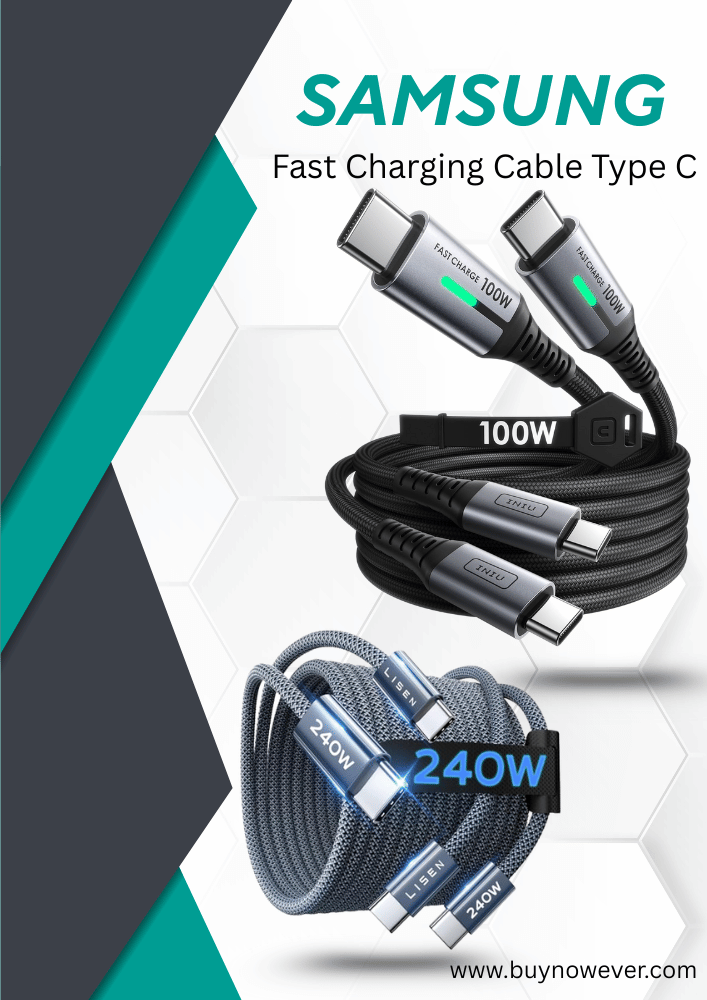
etguuds USB C Cable [20ft/6m], 1-Pack, Long USB-A 2.0 to USB-C Cable, Fast Charging Type C Charger Cord Nylon Braided for Samsung Galaxy Note, LG, Moto, Pixel, Switch, and Other USB C Devices
USB 2.0 offers a maximum data transfer speed of 480 megabits per second (Mbps). This speed is also called “High-Speed USB.” It is much faster than the older USB 1.1, which had a top speed of 12 Mbps. Fast data transfer means files move quickly between devices, saving time.
The real transfer speed depends on several factors:
Type of device connected
Cable quality and length
Computer’s hardware and software
Devices like external hard drives or flash drives benefit the most from USB 2.0 speeds. For small devices like keyboards and mice, speed is less important.
USB Version
Maximum Speed
Speed Description
USB 1.1
12 Mbps
Low-Speed / Full-Speed
USB 2.0
480 Mbps
High-Speed
USB 3.0
5 Gbps
SuperSpeed
High-Speed USB 2.0 is suitable for most everyday uses. It works well for transferring photos, music, and documents quickly. It also supports power delivery to small devices, charging them while transferring data.
Compatibility With Devices
USB 2.0 is designed to work with many devices. It supports both older and newer USB versions. This ensures users can connect various peripherals without problems.
Here is how USB 2.0 handles compatibility:
Backward Compatible: USB 2.0 ports can connect to USB 1.1 devices, but the speed will be slower.
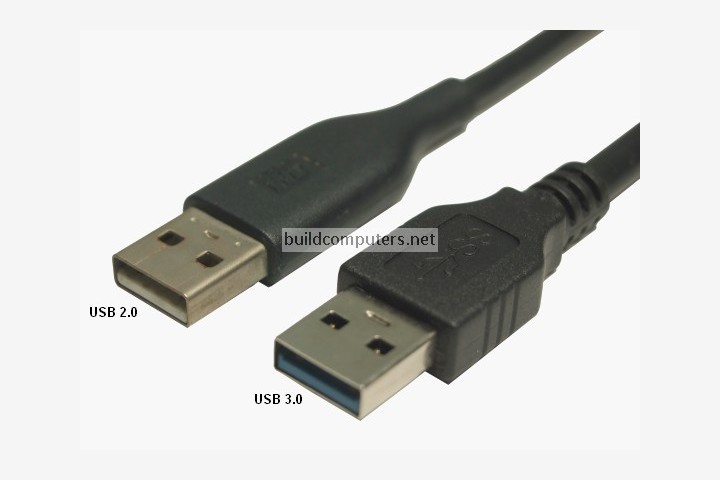
Forward Compatible: USB 3.0 devices can work with a USB 2.0 port,s but at USB 2.0 speeds.
Plug and Play: Devices usually work immediately after connection, with no extra setup.
Common devices that use USB 2.0 include:
Keyboards and mice
Printers and scanners
Webcams
External hard drives
Flash drives
Most computers and laptops come with USB 2.0 ports. This universal acceptance makes USB 2.0 a reliable choice for general device connections. Its broad compatibility reduces the need for multiple cables or adapters.
Technical Features
USB 2.0 is a widely used technology for connecting devices like keyboards, mice, and storage drives to computers. Understanding its technical features helps you know why it is still popular. These features focus on how devices connect and the power USB 2.0 can provide. They define how fast data moves and how much energy can flow through the USB cable.
Connector Types
USB 2.0 supports several connector types to fit different devices and needs. The most common connectors include:
Type-A: The standard rectangular plug found on most computers and chargers.
Type-B: A square-shaped connector often used for printers and scanners.
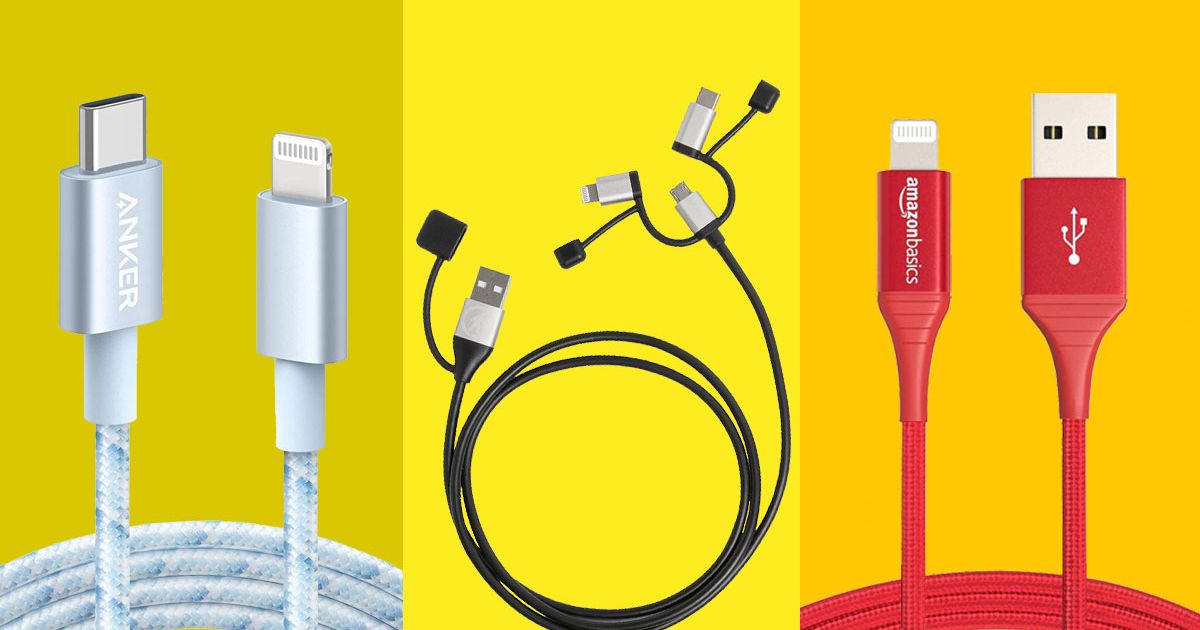
Mini-USB: A smaller connector used in older mobile phones and cameras.
Micro-USB: A thinner and smaller connector, common in smartphones and tablets before USB-C.
Each connector type is designed to prevent incorrect connections. For example, Type-A only fits one way, reducing errors. USB 2.0 cables have four wires inside:
Power (+5V)
Ground
Data+
Data-
These wires handle both power and data transfer. The USB 2.0 standard limits cable length to 5 meters (about 16 feet) for reliable performance.
Connector Type
Shape
Common Use
Type-A
Rectangular
Computers, chargers
Type-B
Square
Printers, scanners
Mini-USB
Small rectangle
Older phones, cameras
Micro-USB
Thin rectangle
Smartphones, tablets
Power Supply Capabilities
USB 2.0 can supply power to devices, making it useful for charging and running small gadgets. It delivers a maximum of 5 volts and up to 500 milliamps (mA) of current. This means it can provide up to 2.5 watts of power.
This power level suits devices like:
Keyboards
Mice
External hard drives
Small USB fans or lights
Some devices need more power. USB 2.0 cannot support high-power gadgets like tablets or large external drives without extra power sources.
Power management in USB 2.0 works through a handshake process:
The device requests power from the host (computer).
The host checks if it can supply the needed power.
If yes, the host allows power flow up to 500 mA.
This process protects devices from damage due to too much current. The USB 2.0 standard also allows devices to enter low-power states, saving energy when idle.
Power Feature
Specification
Notes
Voltage
5 V
Standard USB voltage
Current
Up to 500 mA
Maximum current per port
Power
2.5 W
Maximum power output
Differences From Usb 1.1 And 3.0
USB 2.0 is a widely used standard for connecting devices like keyboards, mice, printers, and external drives to computers. It improved upon the older USB 1.1 and laid the groundwork for the faster USB 3.0. Understanding the differencebetweenom USB 1.1 and 3.0 helps explain why USB 2.0 became so popular and what limits it has compared to the newer versions.
Speed Comparison
One of the main improvements of USB 2.0 over USB 1.1 is the speed. USB 1.1 supports a maximum data transfer rate of 12 Mbps (megabits per second). This speed was enough for simple devices like keyboards and mice, but too slow for data-heavy devices like external hard drives.
USB 2.0 increased the speed to 480 Mbps, which is 40 times faster than USB 1.1. This speed boost made USB 2.0 suitable for a wider range of devices, including faster storage and multimedia equipment.
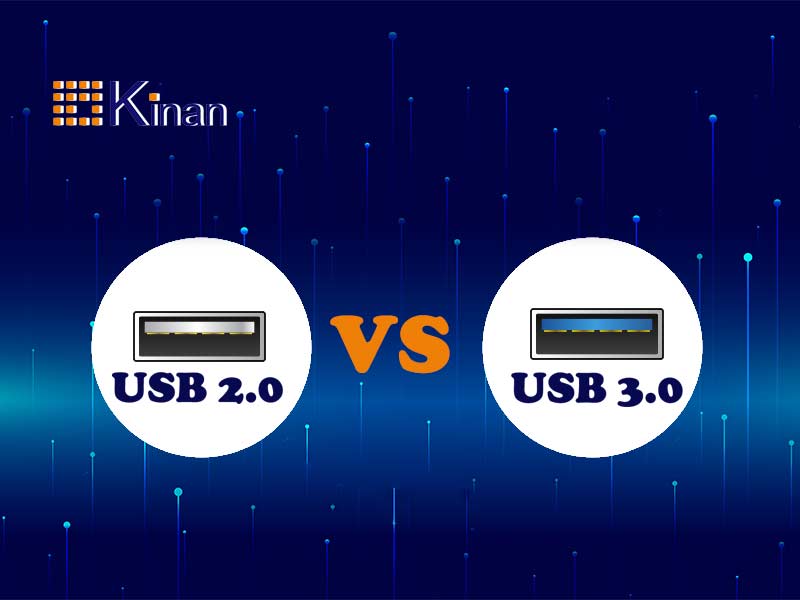
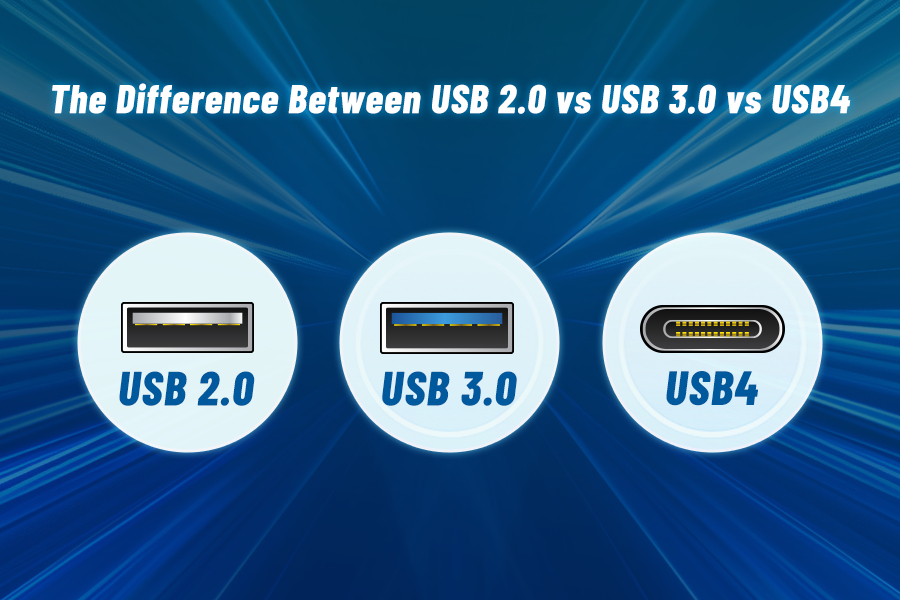
Compared to USB 3.0, USB 2.0 is much slower. USB 3.0 supports speeds up to 5 Gbps (gigabits per second), which is over 10 times faster than USB 2.0.
USB Version
Maximum Speed
Typical Use
USB 1.1
12 Mbps
Keyboards, mice, simple devices
USB 2.0
480 Mbps
External drives, printers, and cameras
USB 3.0
5 Gbps
High-speed storage, video devices
Summary of speed differences:
USB 1.1: Slow, good for simple devices.
USB 2.0: Much faster, supports more devices.
USB 3.0: Very fast, for heavy data use.
This speed jump helped USB 2.0 become the most common USB version for many years.
Enhanced Functionality
USB 2.0 brought more than just speed improvements. It added important new features that improved device compatibility and performance.
Key enhancements over USB 1.1 include:
Better power management: USB 2.0 can provide up to 500 mA of power to devices, compared to 100 mA in USB 1.1. This means it can support devices that need more electricity without extra power cables.
Backward compatibility: USB 2.0 works with USB 1.1 devices and ports. This means older devices still function when plugged into USB 2.0 ports.
Improved data signaling: USB 2.0 uses more efficient data transfer methods. This helps reduce errors and improve overall connection quality.
Support for more device types: USB 2.0 expanded support for devices like webcams, external hard drives, and audio devices.
Compared to USB 3.0, USB 2.0 lacks some newer features:
USB 3.0 offers full-duplex communication (sending and receiving data at the same time), while USB 2.0 only supports half-duplex.
USB 3.0 provides even higher power output (up to 900 mA) for devices.
USB 3.0 introduces new connectors and cables for better performance.
In summary, USB 2.0 improved on USB 1.1 by offering stronger power delivery, better compatibility, and support for more devices. It sits between USB 1.1 and 3.0 as a solid, widely used standard with good speed and functionality.
Common Uses
USB 2.0 is a widely used technology for connecting devices to computers and other electronics. It allows data transfer and communication between devices at speeds up to 480 Mbps. The common uses of USB 2.0 cover many everyday gadgets and tools. This section explains where USB 2.0 is most often found and why it remains important despite newer versions.
Peripheral Connectivity
USB 2.0 is popular for connecting many types of peripherals. These are devices that add extra functions to a computer or laptop. USB 2.0 ports allow simple plug-and-play connections, making it easy to attach and detach devices without restarting.
Common peripherals that use USB 2.0 include:
Keyboards and mice: Basic input devices rely on USB 2.0 for power and data.
Printers and scanners: USB 2.0 supports fast enough data transfer for printing and scanning tasks.
Webcams: Video input devices often connect via USB 2.0 for live streaming and video calls.
Game controllers: Wired controllers use USB 2.0 for low-latency input.
External audio devices: Speakers, microphones, and sound cards connect through USB 2.0 ports.
Here is a simple table showing common peripherals and their typical USB versions:
Peripheral
USB Version
Typical Use
Keyboard
USB 1.1 / USB 2.0
Input device for typing
Printer
USB 2.0
Print documents and images
Webcam
USB 2.0
Video calls and recording
Game controller
USB 2.0
Gaming input device
USB 2.0 supports enough speed and power for these devices. It also provides a universal connection standard, reducing compatibility issues. Many devices still use USB 2.0 ports because they are reliable and cheap.
Data Storage Devices
USB 2.0 is very common for connecting storage devices to computers. Storage devices store digital data such as files, photos, and videos. USB 2.0 allows easy transfer of data between the device and the computer.
Examples of storage devices using USB 2.0:
USB flash drives: Small, portable devices for quick file transfer.
External hard drives: Larger storage for backups and extra space.
Memory card readers: Devices that read SD cards and other memory cards.
USB 2.0’s transfer speed of 480 Mbps suits most everyday storage needs. It is enough for moving documents, music, and standard video files. Larger or faster data transfers may need USB 3.0 or higher, but USB 2.0 remains common.
Advantages of USB 2.0 for storage devices:
Wide compatibility with many devices and operating systems.
Plug-and-play support for easy use without extra software.
Low cost and wide availability.
Stable connection and power supply for external drives.
Here is a comparison of USB 2.0 with other versions for storage use:
Feature
USB 2.0
USB 3.0
Max Speed
480 Mbps
5 Gbps
Power Output
500 mA
900 mA
Compatibility
Works with most devices
Backward compatible with USB 2.0
Cost
Lower
Higher
USB 2.0 remains a trusted choice for everyday data storage tasks. Its balance of speed, compatibility, and cost makes it useful for many users worldwide.
Limitations And Challenges
USB 2.0 is a widely used standard for connecting devices to computers. It offers faster data transfer than its predecessor, USB 1.1. Despite its popularity, USB 2.0 has several limitations and challenges that affect its performance and compatibility. Understanding these issues helps users know what to expect from devices using this standard.
Bandwidth Constraints
USB 2.0 supports a maximum data transfer speed of 480 Mbps. While this was fast at the time of its release, many modern devices require higher speeds. This speed limit can cause delays and slow performance, especially with large files or high-demand applications.
Common bandwidth issues include:
Slow file transfers: Large videos or backups take longer than expected.
Multiple devices sharing bandwidth: When several devices connect via a single USB hub, the total bandwidth is shared, reducing speed for each device.
Performance bottlenecks: High-speed devices like external SSDs cannot reach their full potential.
Here is a quick comparison of USB standards and their speeds:
USB Version
Max Speed
Typical Use
USB 1.1
12 Mbps
Keyboards, mice
USB 2.0
480 Mbps
Printers, flash drives
USB 3.0
5 Gbps
External hard drives, cameras
Due to these bandwidth constraints, USB 2.0 may not be ideal for tasks requiring fast data flow. Users might notice lag or slow response times in demanding situations.
Device Support Issues
USB 2.0 faces challenges with device compatibility. While it supports many devices, some newer gadgets need advanced features available only in later USB versions.
Key device support problems include:
Power limitations: USB 2.0 supplies less power than newer standards, causing issues with devices that need more energy.
Driver compatibility: Older USB 2.0 drivers may not support the latest devices or operating systems.
Reduced functionality: Some devices work but with limited features when connected to USB 2.0 ports.
Examples of device compatibility challenges:
High-resolution webcams may not perform well.
External SSDs may connect but run at slower speeds.
Some smartphones require USB 3.0 for fast charging and data transfer.
These issues make USB 2.0 less suitable for cutting-edge devices. Users may need to upgrade hardware or use adapters to ensure full functionality and better performance.
Future Relevance
USB 2.0 remains a key technology in many devices despite newer versions emerging. Its future relevance lies in its widespread compatibility and adequate speed for many uses. Understanding how USB 2.0 fits in the evolving tech landscape helps predict its role in the coming years.
Continued Usage In Devices
USB 2.0 still powers many gadgets and tools around the world. It is common in devices where ultra-fast data transfer is not critical. This includes keyboards, mice, printers, and some audio devices.
Reasons for ongoing use:
Cost-effectiveness: USB 2.0 components are cheaper to produce and integrate.
Wide compatibility: Almost all computers and many gadgets support USB 2.0 ports.
Sufficient speed: For many tasks like charging or connecting simple devices, USB 2.0 speed is enough.
Here is a quick comparison of USB 2.0 with other standards:
Feature
USB 2.0
USB 3.0
USB 3.1
Max Speed
480 Mbps
5 Gbps
10 Gbps
Power Output
2.5 W
4.5 W
7.5 W
Compatibility
Very High
High
Moderate
Many users keep devices with USB 2.0 because the connection works reliably. For example, external hard drives for backup or data transfer often use USB 2.0. The simplicity and stability of this standard make it a good choice for everyday use.
Transition To Newer Standards
Newer USB versions offer faster speeds and more power. USB 3.0 and USB 3.1 are common in modern devices. They support higher data transfer rates and faster charging.
However, the transition is gradual. USB 2.0 remains part of many devices for several reasons:
Backward compatibility: Newer USB ports often support USB 2.0 devices.
Device lifespan: Older devices continue working without needing upgrades.
Cost and design: Manufacturers balance cost and performance when choosing USB versions.
Key differences driving change:
USB 3.0+ offers 10 to 20 times faster data transfer.
Power delivery improves, enabling faster charging and powering larger devices.
New ports use different connectors like USB-C, which can support multiple functions.
Here is a summary of the benefits and challenges in shifting from USB 2.0:
Aspect
Benefits of New USB Standards
Challenges
Speed
Much faster file transfers
Older devices may not support faster speeds
Power
Better charging and power delivery
Requires compatible cables and ports
Compatibility
Supports more device types
Legacy devices may need adapters
Devices will likely keep USB 2.0 ports for years. The shift to USB 3.0+ will continue, but at a steady pace. Users benefit from knowing when to upgrade and when USB 2.0 is enough.
Frequently Asked Questions
What Is Usb 2.0 And How Fast Is It?
USB 2.0 is a data transfer standard with speeds up to 480 Mbps, faster than USB 1. 1.
Which Devices Commonly Use Usb 2.0 Ports?
Keyboards, mice, printers, flash drives, and many older gadgets use USB 2. 0 ports.
How Does USB 2.0 Differ FromUSBb 3.0?
USB 3.0 offers faster speeds (up to 5 Gbps) and better power management than USB 2. 0.
Can Usb 2.0 Connect To Usb 3.0 Devices?
Yes, USB 2.0 devices work with USB 3. 0 ports, but at USB 2.0 speeds.
Is Usb 2.0 Still Useful Today?
USB 2.0 works well for basic devices and charging, despite newer USB versions.
Conclusion
USB 2.0 remains a common and useful technology today. It allows devices to connect and share data easily. Most computers and many gadgets support it. The speed is enough for simple tasks like transferring files or using a mouse.
While newer USB versions are faster, USB 2.0 still works well for many users. Its wide compatibility makes it a reliable choice. Understanding USB 2.0 helps you choose the right cables and devices. Simple, fast, and easy to use—that’s USB 2.0