Best USB-C Cables Explained: Are They All the Same?
USB-C Cables Explained: Are all USB-C cables really the same? You might think so, since they all look alike and fit the same ports.
But the truth is, not every USB-C cable works the same way or delivers the same speed and power. Choosing the wrong cable could slow down your charging, limit your device’s performance, or even cause damage. If you want to make sure your devices stay safe and work at their best, keep reading.
This guide will help you understand what makes USB-C cables different and how to pick the right one for your needs.
Not all USB-C cables are the same. They look alike but serve different purposes. Types of USB-C cables vary by power, data speed, and video support. Knowing these differences helps pick the right cable for your devices. Some cables handle fast charging, some move data quickly, and others carry video signals. Understanding these types avoids buying a cable that can’t do what you need.
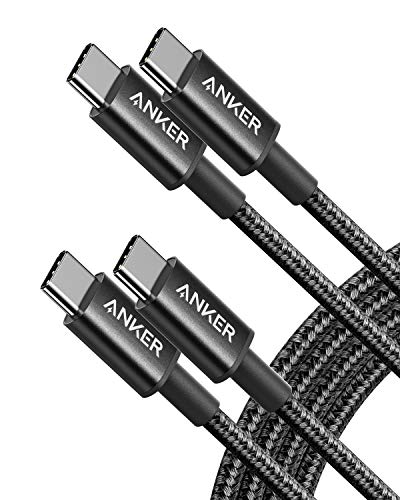
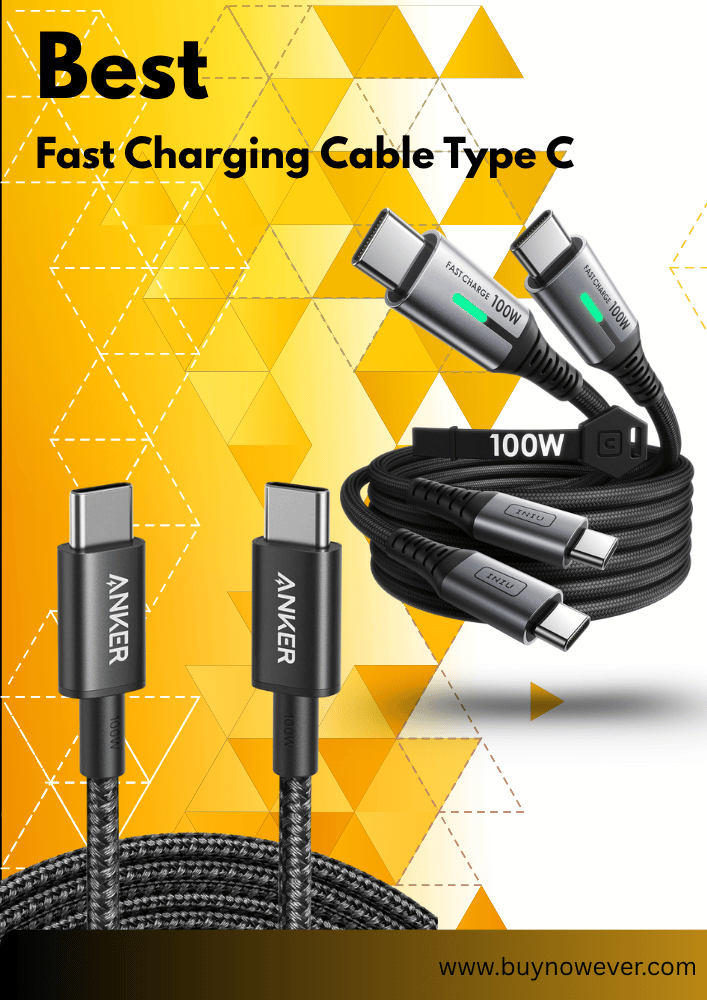
Anker USB-C to USB-C Cable (6FT, 2-Pack), Type-C 100W Charger Cord Fast Charging for iPhone 17 Series, MacBook Pro 2020, Pixel and More(Black)
Power Delivery Variations
USB-C cables support different power levels. This feature is called Power Delivery (PD). Some cables deliver low power for small devices. Others provide high power for laptops and fast charging.
Here are common power delivery levels:
15W (3A at 5V): Basic charging for phones and small gadgets.
60W (3A at 20V): Mid-range power for tablets and some laptops.
100W (5A at 20V): High power for most laptops and fast charging.
Not all cables support 100W charging. Using a low-power cable on a high-power device causes slow charging or no charging.
The cable’s thickness and quality affect power delivery. Thicker cables with better wiring handle higher power safely. Look for cables labeled with their PD rating to ensure compatibility.
Power Level
Current & Voltage
Devices Supported
15W
3A @ 5V
Phones, small accessories
60W
3A @ 20V
Tablets, mid-size laptops
100W
5A @ 20V
Laptops, fast charging devices
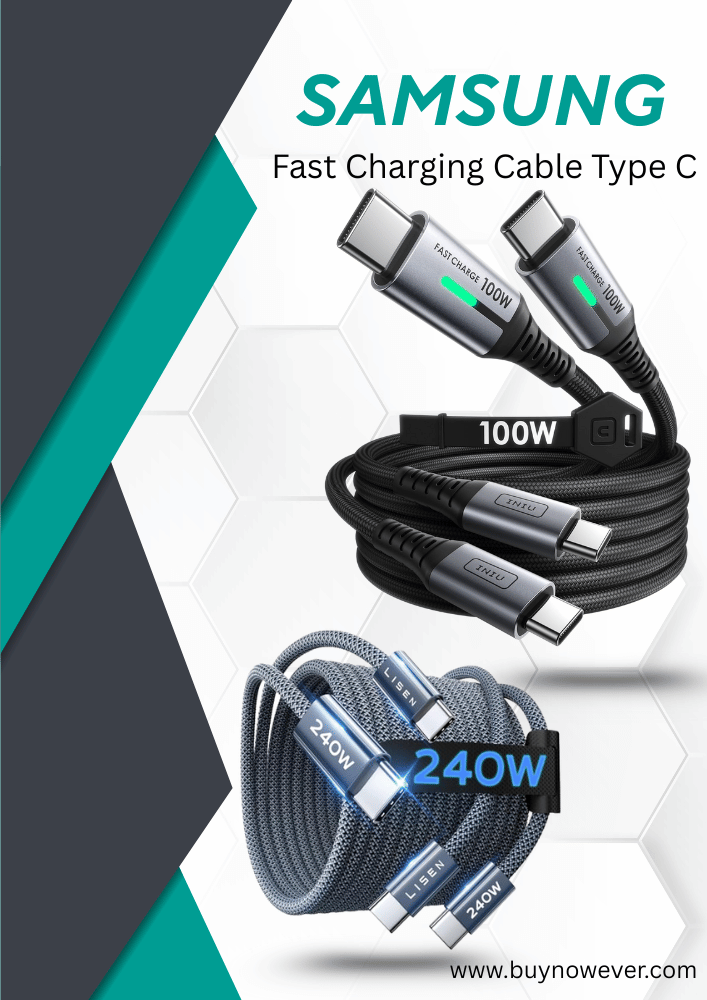
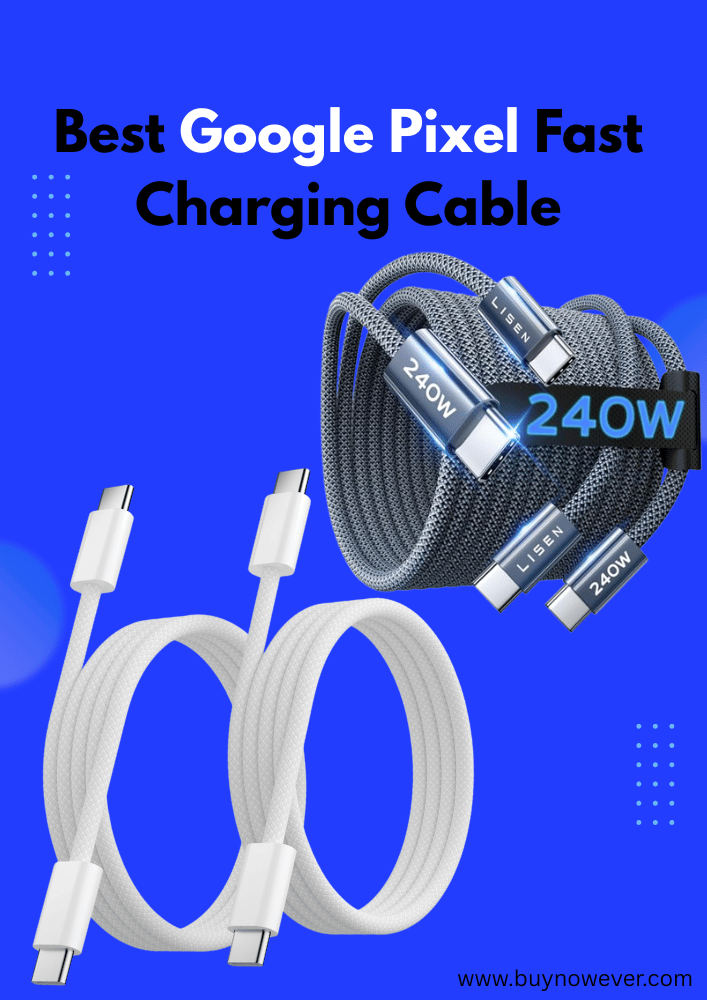
LISEN USB C Cable, 5-Pack [3.3/3.3/6.6/6.6/10FT] for iPhone 17 Charger Cord, 60W USB C to USB C Fast Charging Cable for iPhone 17 Air 16 15 Pro Max, Samsung Z Flip 7/S25/S24, Switch 2, iPad, MacBook
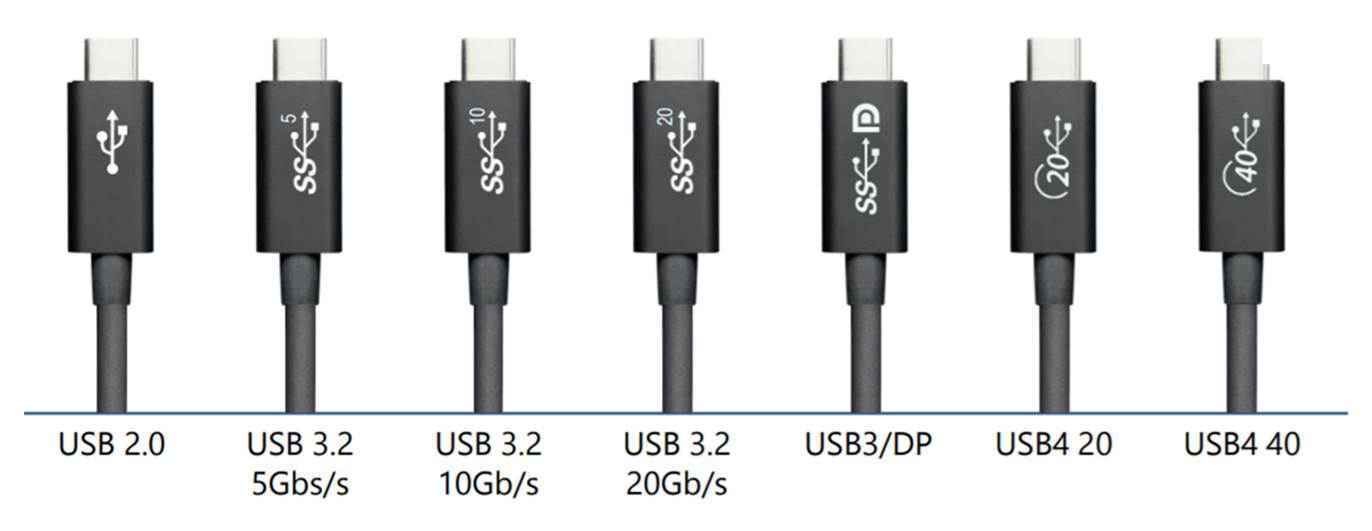
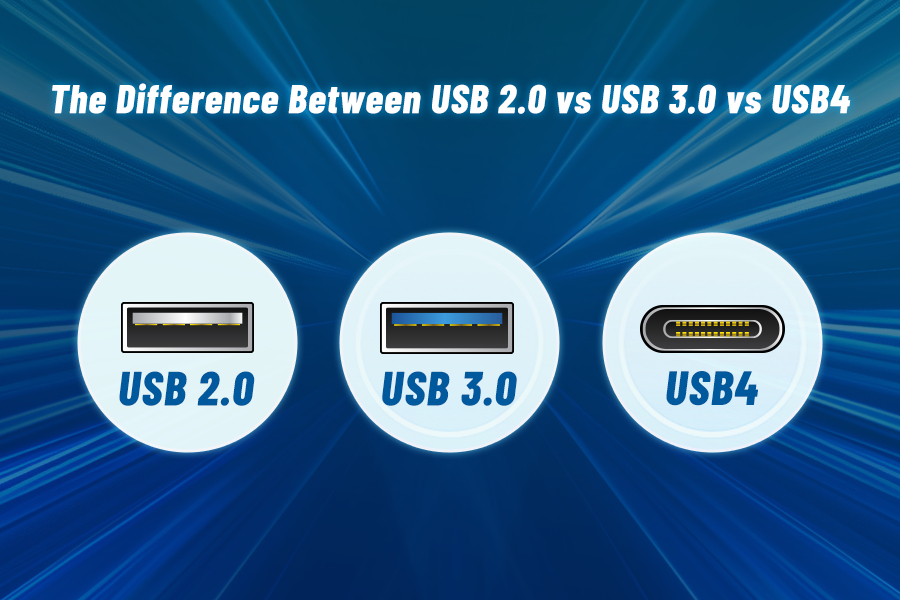
USB 2.0: Up to 480 Mbps. Good for basic charging and slow data transfer.
USB 3.1 Gen 1: Up to 5 Gbps. Suitable for everyday file transfers.
USB 3.1 Gen 2: Up to 10 Gbps. Faster transfers for large files and backups.
USB4 and Thunderbolt 3/4: Up to 40 Gbps. High-speed for professional use and multiple devices.
Using a slow cable limits transfer speed, even if the device supports faster rates. Check cable specs before buying.
USB Standard
Max Speed
Typical Use
USB 2.0
480 Mbps
Basic charging, slow data transfer
USB 3.1 Gen 1
5 Gbps
Every day, file transfers
USB 3.1 Gen 2
10 Gbps
Fast file transfers
USB4 / Thunderbolt 3/4
40 Gbps
High-speed, professional use
Video Support Differences
Not all USB-C cables carry video signals. Some support video output through Alternate Modes. This lets the cable connect to monitors and TVs.
Types of video support include:
DisplayPort Alternate Mode: Common for high-res monitors.
HDMI Alternate Mode: Connects directly to HDMI displays.
No video support: Cables made only for charging and data.
Video support depends on cable design and device compatibility. Using a cable without video support stops the display from working.
Here is a quick overview:
Video Support
Use Case
Notes
DisplayPort Alt Mode
Connecting to monitors
Supports 4K and higher resolutions
HDMI Alt Mode
Connecting to TVs, projectors
Direct HDMI connection without an adapter
No Video Support
Charging, data only
Cannot transmit video signals
Cable Construction And Quality
Not all USB-C cables are built the same. The quality and construction of these cables affect performance, safety, and lifespan. Understanding the differences helps choose the right cable for charging, data transfer, or video output. Cable construction and quality focus on the materials used, how durable the cables are, and the trustworthiness of the brand making them.
Materials Used
The materials in a USB-C cable impact its speed, power delivery, and durability. Most cables have three main parts: the connectors, the wires inside, and the outer jacket.
Connectors: Usually made from metal like nickel or gold-plated copper. Gold plating reduces corrosion and improves the connection.
Internal Wires: Copper is common because it conducts electricity well. Some cables use thicker or purer copper for better performance.
Shielding: Layers of foil or braided wire reduce interference. This helps keep data signals clean and fast.
Outer Jacket: Plastic or braided nylon protects the cable from bending and wear.
Material
Purpose
Benefit
Gold-plated connectors
Prevent corrosion
Stable connections, longer life
Pure copper wires
Conduct electricity
Fast charging and data transfer
Foil/Braided shielding
Reduce interference
Clear signals, less data loss
Nylon braided jacket
Protect cable
Durability, flexible, and tangle-free
Low-quality cables may use cheap metal or thin wires. This causes slow charging and breaks easily. Choosing cables with good materials ensures better performance and longer use.
Durability Factors
Durability depends on how well a cable handles bending, pulling, and daily use. Poorly made cables break quickly, causing frustration and extra costs. Important durability factors include:
Strain Relief: The thick part near the connectors stops the cable from bending too much. Strong strain relief prevents wire breakage.
Jacket Material: Nylon braided jackets last longer than cheap plastic ones. They resist cuts, twists, and tangles.
Connector Quality: Connectors that fit well do not loosen or fall out. Metal connectors last longer than plastic ones.
Flexibility: Flexible cables resist damage better when bent repeatedly.
Here’s a quick durability comparison:
Feature
High Durability
Low Durability
Strain Relief
Thick and flexible
Thin or missing
Outer Jacket
Nylon braided
Thin plastic
Connector Material
Metal with solid pins
Plastic or loose fit
Durable cables save money over time. They keep working well even after heavy use. Checking for these features helps avoid frequent replacements.
Brand Reliability
Trustworthy brands invest in quality control and meet safety standards. Unknown brands may offer cheap cables, but with risks like overheating or slow charging. Brand reliability shows in:
Certifications: Look for USB-IF certification. It means the cable meets official USB standards.
Customer Reviews: Positive feedback shows consistent quality and good support.
Warranty: Reliable brands offer warranties. This protects buyers from defects.
Transparency: Clear product info and specs help buyers understand what they get.
Common reliable brands often include:
Anker
Belkin
Samsung
Apple (for Apple devices)
Choosing trusted brands reduces the risks of cable failure or damage to devices. It also ensures the cable performs as promised.
Compatibility With Devices
USB-C cables have become the standard for many devices, but they are not all the same. Compatibility with devices varies depending on the cable’s design, power delivery, and data transfer capabilities. Choosing the right USB-C cable ensures your device charges properly and transfers data efficiently. This section explains compatibility with common devices like smartphones, laptops, and accessories.
Smartphones And Tablets
Most modern smartphones and tablets use USB-C for charging and data transfer. However, not all USB-C cables support fast charging or high-speed data transfer. Some cables only handle basic charging at slow speeds, while others support fast charging protocols such as USB Power Delivery (PD) or Qualcomm Quick Charge.
Basic USB-C cables provide standard charging and data transfer up to 480 Mbps.
Fast charging cables deliver higher power, often up to 60W or more, enabling quicker charging.
High-speed data cables support USB 3.1 or USB 3.2, allowing data speeds up to 10 Gbps or higher.
Using a cable that matches your device’s charging and data needs prevents slow charging or failed connections. Some smartphones require cables that support specific fast charging standards. Tablets often need cables that handle higher power for quicker charging.
Device Type
Recommended USB-C Cable Feature
Charging Speed
Data Speed
Basic Smartphones
USB 2.0 or 3.0 Cable
5W – 10W
480 Mbps
Fast Charging Smartphones
USB PD Supported Cable
18W – 60W+
480 Mbps – 10 Gbps
Tablets
High Power USB PD Cable
30W – 100W
Up to 10 Gbps
Laptops And Desktops
Laptops and desktops often require USB-C cables that support high power and fast data transfer. Many modern laptops use USB-C for charging and connecting external devices. A cable with low power delivery or slow data speed will limit performance.
Most laptops need cables that support:
Power Delivery (PD): Up to 100W for charging larger devices.
USB 3.1 or higher: For fast data transfer, especially when connecting drives or displays.
Alternate modes: Such as Thunderbolt 3 or DisplayPort for video output.
Desktops may use USB-C for peripherals, but generally do not require high-power cables for charging. Using a cable without proper data or video support may result in slower speeds or no video output.
Device
Power Requirement
Data Transfer
Special Features
Ultrabooks
Up to 65W
10 Gbps (USB 3.1 Gen 2)
Video output (DisplayPort Alt Mode)
Gaming Laptops
Up to 100W
40 Gbps (Thunderbolt 3)
Video and data over one cable
Desktops
Low (no charging)
Varies by port
Peripherals only
Peripherals And Accessories
USB-C cables connect many peripherals like external hard drives, monitors, keyboards, and hubs. The cable must match the device’s power and data needs for proper function. A low-quality cable can cause connection drops or slow speeds.
Key points for peripherals:
External drives need cables that support USB 3.1 or higher for fast data transfer.
Monitors often require cables supporting DisplayPort Alternate Mode for video.
Keyboards and mice only need basic USB 2.0 or 3.0 cables.
USB hubs should have cables rated for enough power delivery to support connected devices.
Choosing the correct USB-C cable ensures accessories work without issues. Some cables include extra shielding or better connectors to reduce interference and maintain stable connections.
Peripheral
Recommended Cable Feature
Power Needs
Data Speed
External Hard Drives
USB 3.1 Gen 2 or higher
Bus powered (up to 15W)
10 Gbps or more
Monitors
DisplayPort Alt Mode
Varies
Up to 10 Gbps+
Keyboards & Mice
USB 2.0 or 3.0
Low power
480 Mbps
USB Hubs
High-power delivery cable
Depends on connected devices
Varies
Safety And Certification
Not all USB-C cables are created equal, especially when it comes to safety and certification. Many cables look similar but vary greatly in quality and reliability. Safety and proper certification ensure that a USB-C cable works correctly without damaging your devices or causing hazards. Understanding these factors helps you choose the right cable that protects your gadgets and offers stable performance.
Usb-if Certification
USB-IF stands for USB Implementers Forum, the group that sets the official standards for USB products. Cables with USB-IF certification meet strict rules for quality, safety, and performance. This certification means the cable has passed tests to confirm it supports proper charging speeds and data transfer rates without risks.
Certified USB-C cables offer important benefits:
Safe power delivery: Prevents overheating and damage to devices.
Reliable data transfer: Ensures faster and error-free communication.
Durability: Built with quality materials to last longer.
Compatibility: Works well with a wide range of devices.
Feature
USB-IF Certified Cable
Non-Certified Cable
Safety
Meets strict safety standards
May cause overheating or short circuits
Charging Speed
Supports fast and stable charging
Charging may be slow or unstable
Data Transfer
Reliable and consistent
Prone to errors and disconnections
Durability
High-quality materials
Lower quality, wears out quickly
Look for a USB-IF logo or certification statement on the cable packaging. This small step protects your devices and ensures smooth performance.
Risks Of Non-certified Cables
Using USB-C cables without certification can lead to many problems. These cables often lack proper safety features and use low-quality parts. This increases the risk of device damage, poor charging, and data loss.
Common risks include:
Overheating: Non-certified cables might not handle power correctly, causing excessive heat.
Device damage: Unsafe voltage or current can harm batteries and internal components.
Slow charging: Poor wiring may reduce charging speed significantly.
Data errors: Unstable connections cause file corruption or failed transfers.
Short lifespan: Fragile cables can break or fray easily.
Many cheap cables do not follow USB standards. Some may even lack important features like proper shielding or correct wiring. These flaws increase safety risks for users.
Consider this:
Non-certified cables can cause sparks or short circuits.
Device warranties may become void if damaged by a poor-quality cable.
Replacing damaged devices can cost much more than buying a certified cable.
Choosing certified cables reduces these risks and protects your investment. Safety matters. Certification provides peace of mind.
Choosing The Right USB-C Cable
Choosing the right USB-C cable is not as simple as picking the first one you see. USB-C cables vary in speed, power, and compatibility. Selecting the wrong cable can lead to slow charging, poor data transfer, or device damage. Understanding your needs helps find a cable that works best with your devices. This section breaks down key factors for choosing the right USB-C cable to match your usage and budget.
Assessing Your Needs
Start by knowing what you want your USB-C cable to do. Different cables support different power levels and data speeds. Devices like smartphones, laptops, or gaming consoles have various requirements.
Consider these points:
Charging power: Some cables support up to 100W, ideal for laptops. Others only handle 15W or 18W for phones.
Data transfer speed: USB 2.0 cables transfer at 480 Mbps. USB 3.1 or 3.2 cables can reach 5 Gbps or more.
Video support: Need to connect to monitors? Look for cables with DisplayPort or Thunderbolt support.
Length: Longer cables may lose power or speed. Choose a length that suits your setup without excess slack.
Device
Recommended Cable Specs
Typical Use
Smartphone
USB 2.0 or 3.1, 18W charging
Fast charging, data syncing
Laptop
USB 3.1 or Thunderbolt, 60-100W charging
Power delivery, high-speed data
Monitor
USB-C with DisplayPort Alt Mode
Video output
Check your device specs to match the cable. Using a low-power cable with a laptop can cause slow charging. A cable without video support won’t work for external displays. Assess needs carefully for best performance and safety.
Budget Considerations
USB-C cables come in many price ranges. Price often reflects quality, features, and brand reputation. A low-cost cable might save money, but could fail faster or not support the needed speeds.
Keep these tips in mind:
Cheaper cables may lack proper shielding, causing interference.
High-quality cables use better materials and have longer warranties.
Some cables are certified by USB-IF, ensuring they meet standards.
Expensive cables offer extra features like braided designs or ruggedness.
Price Range
Typical Features
Who It’s For
Under $10
Basic charging, USB 2.0 speeds
Casual users, backup cables
$10-$25
Faster data, higher power support
Most users, everyday use
$25 and up
Certified, durable, extra features
Professionals, heavy users
Balance the budget and needs. Spending a bit more can save headaches later. Avoid cables that seem too cheap to be true. Reading reviews helps find reliable options within budget.
Where To Buy
Choose reputable sources for buying USB-C cables. Quality varies greatly between sellers. Fake or subpar cables can damage devices or fail quickly.
Consider these places:
Official brand stores: Best for genuine cables matching your device.
Trusted online retailers: Amazon, Best Buy, or specialized tech shops.
Local electronics stores: Immediate purchase and return options.
Be cautious with unknown websites or very low-priced offers. Check product details and reviews. Look for cables certified by USB-IF or with clear specifications.
Many brands provide warranty and customer support. This adds value beyond just the cable itself. Buying from trusted sources protects your investment and devices.
Credit: repairmart.com.au
Frequently Asked Questions
Are all USB-C cables The Same Speed?
No, USB-C cables differ in speed. Some support fast data transfer, others slower.
Can USB-C cables Charge Devices Equally Fast?
No, charging speed varies. Some cables support fast charging, others only slow charging.
Do USB-C cables Work With All Devices?
Not always. Some cables support video, data, or charging only.
How To Identify A Good USB-C Cable?
Check the cable’s specs for speed, power, and compatibility.
Are Cheap USB-C Cables Safe To Use?
Some cheap cables may lack safety features and damage devices. Choose certified ones.
Conclusion
Not all USB-C cables work the same way. Some carry more power or data than others. Choosing the right cable depends on what you need. Check the cable’s speed and charging ability before buying. Cheap cables may not last or work well.
A good cable saves time and protects devices. Keep this in mind when picking your next USB-C cable. Small details make a big difference in performance. Now you know why all USB-C cables are not equal.