Imagine having a personal assistant that listens, learns, and makes your life easier with just a simple voice command. That’s exactly what the Google Home Mini offers, turning your home into a smart hub where convenience is just a “Hey Google” away. To get started, you’ll need to Set Up Google Home Mini, a quick and easy process that unlocks a world of possibilities. With just a few simple steps, you’ll be on your way to a smarter, more connected home.
But before you can enjoy this seamless experience, there’s one crucial step: setting it up. Are you ready to transform your space and elevate your everyday tasks? Setting up your Google Home Mini is easier than you might think. In this guide, you’ll discover the straightforward steps to get your device up and running.
Whether you want to play your favorite tunes, get weather updates, or control smart home devices, your Google Home Mini is just waiting to become your go-to gadget. Stick around to learn how you can set it up quickly and start enjoying a smarter living space today.
The Google Home Mini is a smart speaker that makes life easier. Setting it up is simple and quick. This guide will help you understand the essential steps. You’ll be enjoying voice commands in no time.
Device And Internet Connection
First, ensure you have the Google Home Mini device. You also need a stable Wi-Fi connection. Both are crucial for the setup process.
Google Account
A Google Account is necessary. It helps sync your preferences and settings. Make sure you have one ready.
Google Home App
Download the Google Home app on your smartphone. It’s available on both Android and iOS. This app will guide you through the setup process.
Power Source
Connect your Google Home Mini to a power source. Use the provided cable and adapter. The device needs to be powered on throughout the setup.
Bluetooth And Location Services
Enable Bluetooth and Location Services on your phone. These settings help the app detect your Google Home Mini easily.
Physical Setup
Setting up the Google Home Mini can enhance your smart home experience. This compact device can play music, answer questions, and control other smart devices. To start enjoying its features, you need to set it up physically. This involves unboxing, powering it on, and finding the right place for it in your home. Let’s dive into these steps for a smooth setup experience.
Google Nest Mini 2nd Generation Smart Speaker, GA00781JP – Charcoal
Begin by carefully opening the Google Home Mini box. Inside, you will find:
The Google Home Mini device
A power adapter
Instruction manual
Handle each item with care. The instruction manual provides guidance, but we will break it down further. Make sure you have all the items. If anything is missing, contact the store or Google support. It’s essential to have everything to proceed with the setup.
Inspect the device for any visible damage. The Google Home Mini should be smooth and intact. If you notice any issues, it might be best to seek a replacement. Following these steps ensures you have a complete and undamaged product to work with.
Powering On
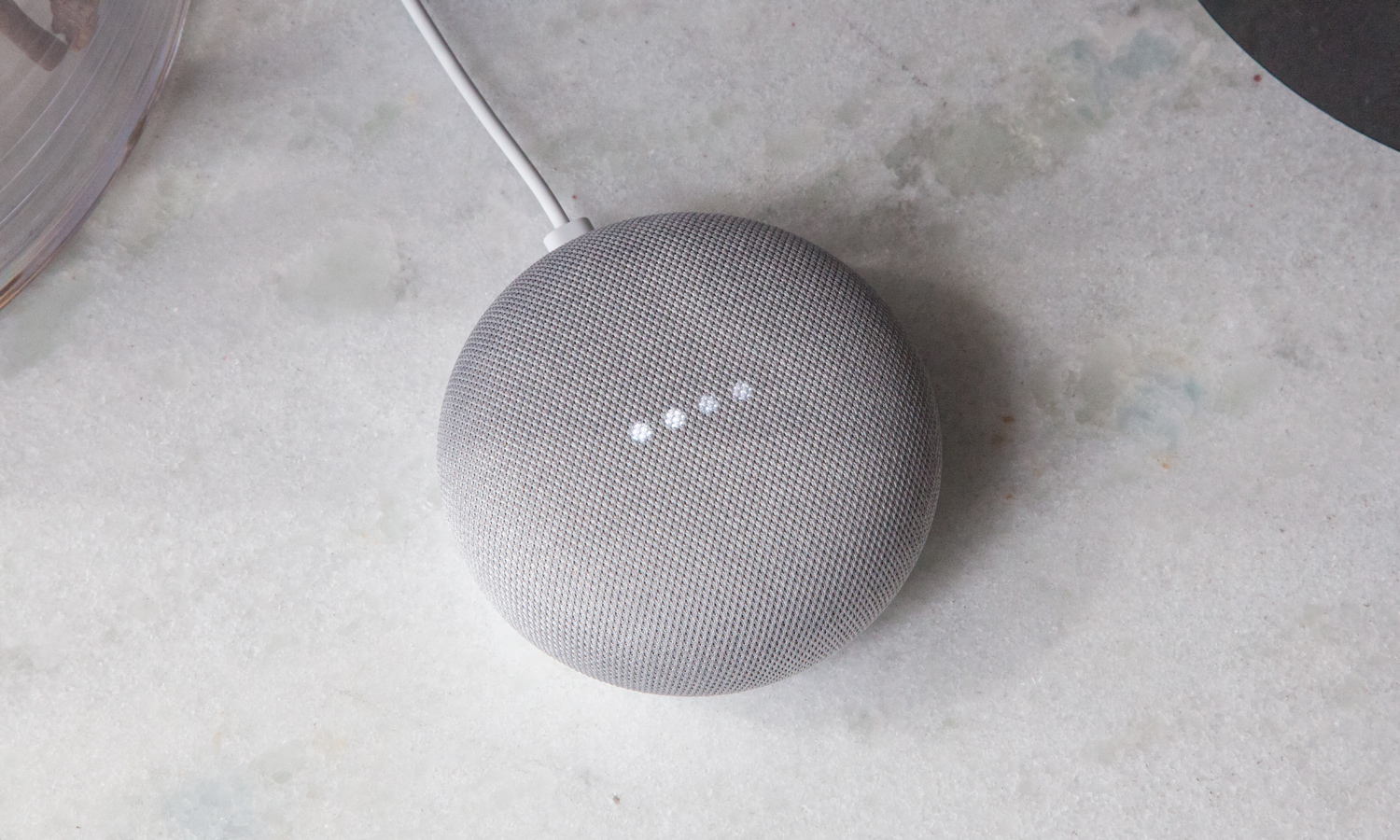
To power on the Google Home Mini, use the included power adapter. Connect the adapter to the device. Then, plug it into a power outlet. The device should light up, indicating it is turning on.
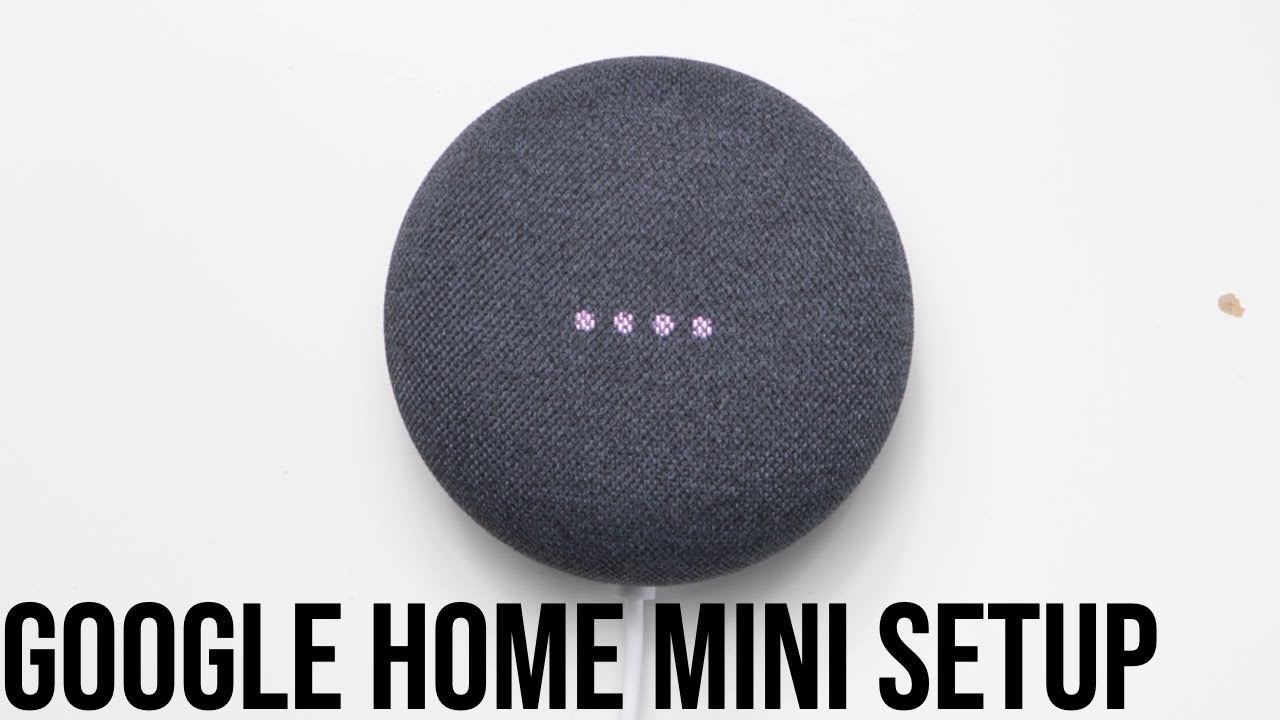
Once powered on, you may need to wait a few moments. The device will run its initial setup checks. During this time, it’s normal to see some lights on the top of the device. These lights show the device is booting up.
Ensure the power outlet is working properly. If the device does not light up, try another outlet. Also, check the power adapter for any signs of damage. A properly powered device is crucial for further setup steps.
Placement Tips
Choosing the right spot for your Google Home Mini is important. Here are some tips:
Place it in a central location for the best voice recognition.
Avoid corners or enclosed spaces to ensure clear sound.
Keep it away from water sources to prevent damage.
Ensure it’s within Wi-Fi range for uninterrupted connectivity.
Think about where you spend most of your time. The living room or kitchen might be ideal. These areas allow you to use voice commands conveniently. Also, consider the device’s ability to hear you over background noise. A well-chosen location enhances its functionality and your overall experience.
Connecting To Wi-fi
Setting up a Google Home Mini can be an exciting experience. This smart device can play music, control smart home gadgets, and answer questions. To get started, you need to connect it to Wi-Fi. This step is crucial for the Google Home Mini to function properly. Connecting to Wi-Fi allows it to access the internet and perform tasks. Let’s explore how to connect your Google Home Mini to Wi-Fi.
Choosing The Right Network
Choosing the right network is key to a smooth setup. Your Google Home Mini needs a stable Wi-Fi connection. Here are some tips to help you select the best network:
Use a 2.4 GHz band: It’s more reliable for smart devices.
Check signal strength: Ensure your Wi-Fi signal is strong where you place the device.
Secure your network: Use a password to protect your network.
Make sure your phone is connected to the same network. This helps during the setup process. If you have multiple networks, choose the one with the best signal. A weak signal can cause delays and interruptions.
Network Feature
Recommendation
Frequency Band
2.4 GHz
Signal Strength
Strong
Network Security
Password Protected
Troubleshooting Connection Issues
Sometimes, connecting the Google Home Mini can face issues. Here are some common problems and solutions:
Device not connecting: Restart your router and Google Home Mini.
Wrong password: Double-check your Wi-Fi password.
App not working: Update the Google Home app on your phone.
If the issue persists, try resetting your device. Hold the reset button for about 15 seconds. This will clear any previous settings. Reconnect your device to Wi-Fi after resetting. Make sure your phone and Google Home Mini are near the router. This can improve the connection quality. If all else fails, contact Google support for assistance.
Using The Google Home App
Setting up a Google Home Mini can enhance your smart home experience. It acts as a personal assistant, providing hands-free help with its voice-activated features. To get started, using the Google Home App is essential. This app guides you through the setup process, ensuring your device works perfectly. By following a few simple steps, you can have your Google Home Mini ready in no time. Let’s explore how to set up this handy device using the app.
Downloading The App
First, download the Google Home App on your smartphone or tablet. It’s available for both Android and iOS devices. Simply visit the Google Play Store or the Apple App Store. Search for “Google Home” and tap “Install” to download.
Once installed, open the app. You’ll need a Google account to proceed. Sign in with your existing account or create a new one. Having a Google account lets you access all the app’s features.
Ensure your Wi-Fi is active on your device. The app will require this to connect the Google Home Mini. A stable internet connection ensures a smooth setup process.
Here’s a quick checklist for downloading:
Visit the Google Play Store or Apple App Store.
Search for “Google Home.
Tap “Install” to download.
Open the app and sign in with a Google account.
Ensure Wi-Fi is active on your device.
Linking Your Device
After downloading the app, it’s time to link your Google Home Mini. Make sure the device is plugged in and powered on. The app will detect nearby devices ready for setup.
Follow the on-screen instructions to connect your Google Home Mini to your Wi-Fi network. This step is crucial for the device to function properly.
If prompted, enter your Wi-Fi password. The app will confirm when the device is successfully linked. You can give your device a unique name for easy identification.
Here’s what you need to do:
Ensure Google Home Mini is powered on.
Follow the on-screen instructions in the app.
Connect to your Wi-Fi network.
Enter Wi-Fi password if prompted.
Confirm successful connection.
Setting Up Voice Match
Voice Match allows Google Home Mini to recognize different users. This feature personalizes responses for each user in your household. To set up, open the app and select Voice Match from the settings menu.
The app will guide you through the process. You’ll be asked to repeat certain phrases. This helps the device learn your voice.
Multiple users can set up their voice profiles. Each user will need their own Google account linked to the app. This ensures personalized results for everyone.
Steps to set up Voice Match:
Open the Google Home App and go to settings.
Select “Voice Match”
Follow the instructions to repeat phrases.
Ensure each user has a linked Google account.
Complete the setup for personalized responses.
Exploring Features
The Google Home Mini is a compact, smart speaker that brings the power of Google Assistant into your home. Setting it up is simple and quick. Once set up, you can explore a variety of features that enhance your daily life. From controlling smart devices to playing your favorite music, the Google Home Mini is a versatile tool. Let’s dive into how you can explore its features.
Voice Commands
Google Home Mini responds to voice commands, making it easy to use. You can ask it to perform tasks using simple phrases. Here are some examples of what you can do with voice commands:
Check the weather: Say “Hey Google, what’s the weather today?”
Set reminders: “Hey Google, remind me to call Mom at 5 PM.”
Ask questions: “Hey Google, how far is the moon?”
Control volume: “Hey Google, turn up the volume.”
Google Home Mini can also recognize different voices. This feature allows it to give personalized responses. This means each family member can get their own schedule or playlist. Voice commands make everyday tasks easier and faster.
Smart Home Integration
The Google Home Mini can connect to smart home devices. This allows you to control lights, thermostats, and more with your voice. Here’s how it integrates with your smart home:
Device Type
Example Command
Lights
“Hey Google, turn off the living room lights.”
Thermostat
“Hey Google, set the temperature to 72 degrees.”
Locks
“Hey Google, lock the front door.”
Connecting these devices is simple. Use the Google Home app to add devices to your network. This setup helps create a seamless smart home experience. It allows you to control your home with just your voice.
Music And Media Options
With Google Home Mini, playing music is easy and fun. You can stream music from various services like Spotify and YouTube Music. Just use simple voice commands to start playing your favorite tunes. Here’s how you can enjoy music and media:
Play a song: “Hey Google, play some pop music.”
Control playback: “Hey Google, pause the music.”
Adjust volume: “Hey Google, volume up to 5.”
Choose a service: “Hey Google, play jazz on Spotify.”
Google Home Mini also supports podcasts and audiobooks. Just ask it to play your favorite podcast or book. With these options, you can enjoy a variety of audio entertainment. All controlled by your voice.
Customization Options
Setting up a Google Home Mini opens a world of possibilities. The device is more than a smart speaker; it’s a personal assistant ready to cater to your needs. Customization options make the Google Home Mini uniquely yours. They ensure every interaction with the device suits your lifestyle. Personalizing settings and creating routines are key elements. These options enhance the functionality and user experience. Dive into the details and learn how to make the most of your Google Home Mini.
Personalizing Settings
Personalizing your Google Home Mini is crucial for a tailored experience. Adjusting settings helps align the device with your preferences. Start by linking your accounts. Connect Google services and other apps. This integration allows seamless access to information. Customize the voice recognition feature. It ensures Google Home Mini understands your requests accurately. Set your preferred language for interactions.
Manage notifications to receive timely updates. Choose the frequency and type of alerts you wish to receive. Adjust volume settings to suit your environment. Balance the sound for clear communication. Personalize the device name for easy identification.
Link accounts: Connect apps for seamless integration.
Voice recognition: Ensure accurate understanding of requests.
Language settings: Choose the preferred language for interactions.
Manage notifications: Select frequency and type of alerts.
Volume settings: Balance sound for clear communication.
Device name: Personalize for easy identification.
Creating Routines
Creating routines with Google Home Mini simplifies daily tasks. Automating actions saves time and enhances efficiency. Begin with basic routines. Set morning alarms and reminders. Sync them with your calendar for seamless management. Automate lights and appliances. Control them with voice commands or schedule them at specific times.
Design custom routines to match your lifestyle. Include music playback and news updates in your morning routine. Adjust routine settings as your needs change. Group actions under a single command for ease. This allows multiple tasks with one instruction. Use the Google Home app for setup and modifications.
Routine Type
Actions
Morning Routine
Alarm, news updates, music playback
Evening Routine
Dim lights, play relaxation music
Custom Routine
Personalized tasks and actions
Common Issues
Setting up the Google Home Mini can be a breeze. This handy device offers a multitude of features. However, some users encounter common issues during setup. Connectivity problems and voice recognition errors are two frequent challenges. These can cause frustration and hinder the overall experience. Addressing these issues promptly ensures a smoother setup process. Let’s explore how to tackle these obstacles effectively.
Connectivity Problems
Connectivity problems are a common hurdle for Google Home Mini users. These issues can disrupt seamless integration. Here are some factors to consider:
Wi-Fi Signal Strength: Ensure a strong Wi-Fi signal. Weak signals can cause disconnections.
Network Compatibility: Verify your network supports Google Home Mini. Some networks may not be compatible.
Router Settings: Check your router settings. Updates or reconfigurations may be necessary.
Device Distance: Keep the device near the router. Long distances weaken connectivity.
Sometimes, a simple restart of the router can resolve issues. Additionally, ensure your Google Home Mini is up-to-date with the latest firmware. Regular updates can fix bugs and improve performance.
Voice Recognition Errors
Voice recognition errors can diminish the Google Home Mini experience. These errors often occur due to various reasons. Consider the following solutions:
Microphone Sensitivity: Ensure the microphone is clear. Background noise can affect voice detection.
Voice Training: Use the voice training feature. This helps the device understand your voice better.
Language Settings: Verify the language settings. Incorrect settings can lead to misunderstandings.
Device Placement: Position the device in a quieter area. This reduces interference and improves recognition.
Sometimes, repeating commands slowly and clearly can enhance recognition. If problems persist, consider resetting the device. This action often resolves persistent voice errors. Regular updates also ensure the best voice recognition performance.
Frequently Asked Questions
How Do I Set Up My Google Home Mini?
Plug in your Google Home Mini. Download the Google Home app on your smartphone. Open the app and tap “Set up device. ” Follow the on-screen instructions to connect your device to Wi-Fi. Personalize settings as needed, and you’re all set!
How Do You Reset A Google Home Mini?
Press and hold the factory reset button under your Google Home Mini for about 15 seconds. Wait until you hear a sound confirming the reset. Your device will reboot and return to factory settings. Reconnect it to your Wi-Fi network to complete the setup process.
How Do I Connect My Google Home Mini To A New Wi-fi?
Open the Google Home app on your smartphone. Tap your device, then “Settings. ” Select “i-Fi,” and tap “Forget. ” Go back to the home screen, tap “+,” then “Set up device. ” Follow the instructions to connect your Google Home Mini to the new Wi-Fi network.
How Do I Put A Google Home Mini In Pairing Mode?
Press and hold the side of the Google Home Mini for about 5 seconds. The device will play a sound, indicating it’s in pairing mode. Use the Google Home app to complete the setup.
How Do I Start Setting Up My Google Home Mini?
Plug in your Google Home Mini. Download the Google Home app on your phone. Follow on-screen instructions.
Conclusion
Setting up your Google Home Mini is simple and quick. Just follow each step carefully. Connect to Wi-Fi, download the Google Home app, and let it guide you. Now, enjoy controlling your smart home with just your voice. Play music, check the weather, and more.
Your device will help make everyday tasks easier. Remember, patience is key during setup. Once done, your Mini becomes a helpful assistant. It listens and responds to your needs. Explore its features and enjoy the convenience. Happy setting up!