Garmin Watches and iPhones: See How They Work Together
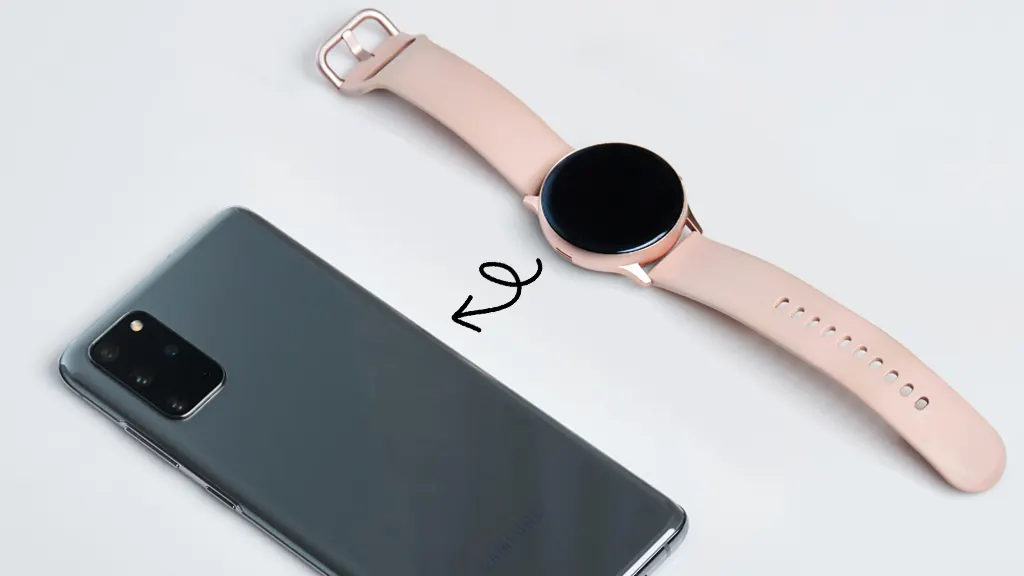
Are you wondering if your Garmin watch will work smoothly with your iPhone? You’re not alone—many users want to know how well Garmin Watches and iPhones work together.
Many people want to enjoy the best features of their Garmin device without worrying about compatibility issues. Imagine tracking your workouts, receiving notifications, and syncing data—all directly on your iPhone. Sounds great, right? You’ll discover exactly how Garmin watches connect with iPhones, what you need to know to set them up, and tips to get the most out of both devices.
Continue reading to discover how to optimise your Garmin and iPhone for seamless integration.
Compatibility Between Garmin Watches And Iphones
Garmin watches offer a range of features, including fitness tracking, GPS, and smart notifications. Many iPhone users ask: Do Garmin watches work with iPhones? The answer is yes. Garmin devices are designed to connect smoothly with iOS devices. This connection lets users sync data, receive alerts, and control some watch settings through their iPhones. Understanding the compatibility between Garmin watches and iPhones helps users get the most from their devices.
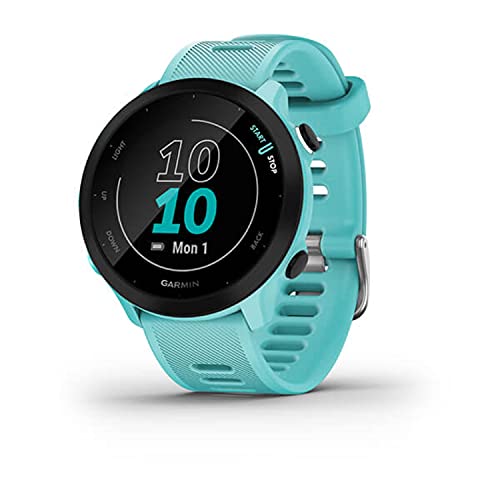
Garmin Forerunner 55, GPS Running Watch with Daily Suggested Workouts, Up to 2 Weeks of Battery Life, Black – 010-02562-00
Supported Iphone Models
Garmin watches support a wide range of iPhone models. Most iPhones with iOS 13 or later work well with Garmin devices. This includes iPhone 6s and newer models. Users need the Garmin Connect app installed on their iPhone to pair the watch. The app is free and available on the App Store.
Here is a list of supported iPhone models:
iPhone 6s and 6s Plus
iPhone 7 and 7 Plus
iPhone 8 and 8 Plus
iPhone X, XR, XS, and XS Max
iPhone 11, 11 Pro, and 11 Pro Max
iPhone 12, 12 Mini, 12 Pro, and 12 Pro Max
iPhone 13, 13 Mini, 13 Pro, and 13 Pro Max
iPhone 14 series
Older iPhones with iOS versions below 13 may not support all Garmin features. The Garmin Connect app requires Bluetooth 4.0 or later to pair and sync data properly. Users should keep their iPhones updated to avoid connection problems.
iPhone Model
Minimum iOS Version
Bluetooth Version Required
iPhone 6s and later
iOS 13
Bluetooth 4.0+
Older models (iPhone 5s and earlier)
Below iOS 13
Not supported
Garmin Watch Models Compatible With Ios
Most Garmin watch models support iPhone connectivity. The Garmin Connect app allows syncing workout data and receiving notifications on the watch. Here are popular Garmin watches that work well with iPhones:
Garmin Forerunner Series (e.g., 245, 645, 945)
Garmin Fenix Series (e.g., Fenix 5, 6, 7)
Garmin Venu and Venu 2
Garmin Instinct Series
Garmin Vivoactive Series
Garmin Approach Series (for golf)
These watches support features such as:
Activity tracking and health monitoring
Smart notifications like calls, texts, and app alerts
Music control and storage (on select models)
GPS and navigation syncing
Customizable watch faces and widgets
Not all Garmin features work fully on iOS. Some advanced functions may be limited due to Apple’s restrictions. Still, users get a rich experience with fitness and daily activity data syncing. The Garmin Connect app keeps all data organised and accessible on the iPhone.
Garmin Model
Key Features of the iPhone
Notes
Forerunner 245/645
Fitness tracking, smart notifications
Good for runners
Fenix 6/7
Advanced GPS, music, notifications
Outdoor and multisport use
Venu 2
AMOLED display, health tracking
Great for everyday wear
Instinct
Rugged design, GPS, notifications
Ideal for tough environments
Connecting Garmin Watches To Iphones
Connecting Garmin watches to iPhones allows users to track health, fitness, and notifications seamlessly. Garmin devices work well with iPhones through Bluetooth and the Garmin Connect app. This connection syncs activity data, updates software, and sends alerts from the phone to the watch. Setting up this connection is simple but requires a few steps to ensure smooth performance. Understanding how to install the Garmin Connect app, complete the pairing process, and fix common connection problems helps users get the most from their Garmin watch and iPhone.
Installing the Garmin Connect App
The Garmin Connect app is essential for syncing your Garmin watch with an iPhone. It acts as a bridge for data transfer and device management. The app is free and available on the Apple App Store.
Steps to install the Garmin Connect app:
Open the App Store on your iPhone.
Search for “Garmin Connect”.
Select the app and tap Get to download.
Once installed, open the app and create or log in to your Garmin account.
After installation, the app requests permissions. These include access to location services, Bluetooth, and notifications. Granting these permissions is necessary for the app to work correctly with your Garmin watch.
Permission
Purpose
Bluetooth
Connects watch and phone
Location
Tracks outdoor activities accurately
Notifications
Sends alerts from iPhone to the watch
Installing the Garmin Connect app is the first step toward a complete Garmin and iPhone experience. It ensures your watch syncs data and receives updates.
Pairing Process
Pairing the Garmin watch with the iPhone links both devices via Bluetooth. This process allows data exchange and enables smart notifications on the watch.
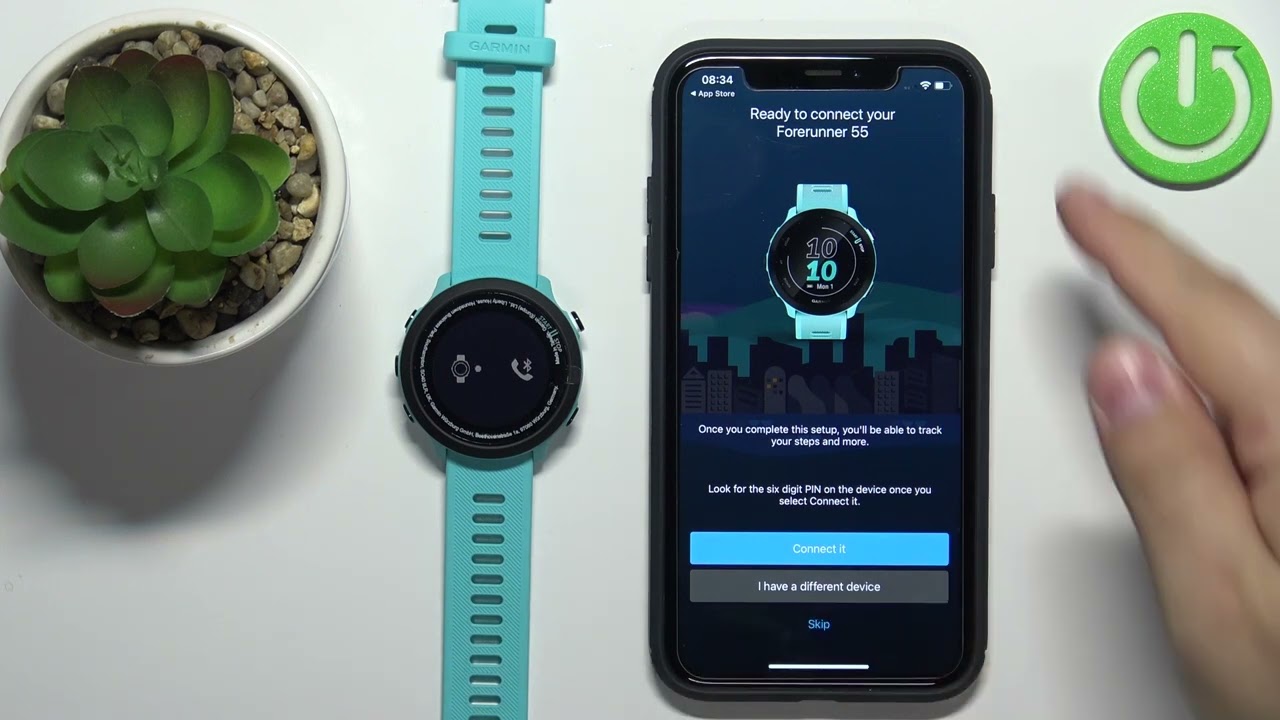
Follow these steps to pair your Garmin watch with an iPhone:
Open the Garmin Connect app on your iPhone.
Sign in with your Garmin account.
Turn on your Garmin watch and put it in pairing mode. Usually, this is done by selecting Pair Phone on the watch.
In the app, tap More or the menu icon, then choose Garmin Devices > Add Device.
The app will search for your watch. When it appears, select it.
Confirm the pairing code shown on both devices.
Allow any permissions or settings the app requests.
After pairing, the watch syncs data with the app automatically when Bluetooth is active. Users can customise settings, update software, and view health stats through Garmin Connect.
Tips for smooth pairing:
Keep both devices close during pairing.
Ensure Bluetooth is enabled on the iPhone.
Charge the watch before pairing to avoid interruptions.
Restart devices if pairing fails.
Troubleshooting Connection Issues
Connection problems between Garmin watches and iPhones can occur. Common issues include failed pairing, data not syncing, or dropped Bluetooth connections.
Here are ways to troubleshoot these issues:
Check Bluetooth: Make sure Bluetooth is on, and the watch is in range (within 10 meters).
Restart Devices: Turn off and on both your Garmin watch and iPhone.
Update Software: Use Garmin Connect to update the watch’s firmware and ensure the iPhone has the latest iOS version.
Reinstall Garmin Connect: Delete the app, then download and install it again.
Forget Device: On the iPhone, go to Bluetooth settings, find the Garmin watch, and select “Forget This Device.” Then pair again.
Clear Cache: In Garmin Connect, clear cached data to fix syncing problems.
Use this table to identify common issues and fixes:
Issue
Possible Cause
Solution
Watch not found during pairing
Bluetooth off or watch not in pairing mode
Enable Bluetooth; restart the watch and set pairing mode
Data not syncing
App not running in the background or network issues
Keep the app open; check the internet connection
Bluetooth disconnects often
Interference or low battery
Charge watch fully; move to a clear area
Following these steps resolves most connection issues quickly. Persistent problems may require contacting Garmin support.
Features Available On Garmin Watches With Iphones
Garmin watches work well with iPhones, offering many useful features. These features help you stay active, informed, and healthy. Connecting a Garmin watch to an iPhone lets you use smart tools directly from your wrist. This section explains key features available on Garmin watches with iPhones.
Activity Tracking And Syncing
Garmin watches track daily activities like steps, distance, and calories burned. They also monitor workouts such as running, cycling, and swimming. When paired with an iPhone, the watch syncs this data to the Garmin Connect app automatically.
Key points about activity tracking and syncing:
Real-time tracking: See your progress during workouts on the watch screen.
Automatic sync: Data uploads to your iPhone app without manual action.
Detailed reports: Review your activity history and trends in Garmin Connect.
Goal setting: Set targets for steps, distance, or calories and track progress.
Multi-sport support: Choose from many sports and fitness activities.
Activity
Tracked Metrics
Sync Frequency
Walking/Running
Steps, Distance, Pace, Calories
Automatic after workout
Cycling
Speed, Distance, Calories, Heart Rate
Automatic after workout
Swimming
Lap Count, Stroke Type, Calories
Sync when connected
The syncing process keeps your iPhone updated with the latest activity data. This helps track long-term progress and stay motivated.
Smart Notifications
Garmin watches show smart notifications from your iPhone. These include calls, texts, emails, and app alerts. You can read messages or see who is calling without taking out your phone.
Features of smart notifications on Garmin watches:
Call alerts: View caller ID and answer or reject calls.
Message previews: Read text messages and emails on your watch.
App notifications: Get alerts from social media and other apps.
Do Not Disturb mode: Silence notifications during meetings or sleep.
Custom notifications: Choose which apps send alerts to your watch.
Notifications appear quickly and clearly on the watch screen. This feature keeps you connected without constant phone use. You can respond to some messages using preset replies. This saves time and keeps you hands-free.
Music Control And Playback
Garmin watches allow music control when connected to an iPhone. You can play, pause, skip tracks, and adjust volume directly from the watch. Some Garmin models let you store music offline.
Details about music control and playback:
Remote control: Manage music playing on your iPhone.
Offline music: Download playlists on the watch (for supported models).
Bluetooth headphones: Connect wireless headphones to listen without your phone.
Supported apps: Control apps like Apple Music, Spotify, and others.
Easy navigation: Use the watch buttons or the touchscreen to change songs.
This feature improves the workout experience by letting you control music easily. You do not need to take out your iPhone during exercise or daily activities. Music control is smooth and responsive with Garmin watches.
Health Monitoring Functions
Garmin watches offer many health monitoring tools that work with iPhones. These help track heart rate, sleep quality, stress levels, and more. Data syncs to the iPhone app for detailed analysis.
Main health functions include:
Heart rate monitoring: Continuous and during workouts.
Sleep tracking: Measures sleep stages and duration.
Stress tracking: Uses heart rate variability to estimate stress.
Body battery: Shows energy levels based on activity and rest.
Pulse oximeter: Measures blood oxygen saturation (on supported models).
The Garmin Connect app displays charts and trends for health data. This helps you understand your body better and make healthy choices. Health monitoring on Garmin watches with iPhones works reliably and continuously.
Limitations When Using Garmin Watches With Iphones
Garmin watches work with iPhones, but some limitations exist that affect the user experience. These limits arise from differences between Apple’s iOS and Garmin’s software design. Understanding these restrictions helps set clear expectations for iPhone users. The watch still tracks fitness, shows notifications, and syncs data. Yet, some features work better or only appear on Android phones. This section highlights key limitations iPhone users face with Garmin watches.
Restricted Features Compared To Android
Garmin watches offer fewer features on iPhones than on Android devices. This difference occurs because iOS restricts how apps access system functions. Some Garmin features depend on deep system access, which Apple limits. Here are the main restrictions:
Limited Smart Notifications: On iPhones, Garmin watches show basic alerts but miss interactive replies for texts and messages.
Music Control Limits: Controlling music apps on iPhone is less flexible. Garmin watches may not fully support Apple Music playback.
Delayed Data Sync: Syncing workout data from the watch to the iPhone app can be slower.
No Third-Party App Downloads: Garmin watches allow installing apps via the Garmin Connect IQ store, but some apps don’t fully work with iOS.
Below is a simple comparison table of feature support:
Feature
Android
iPhone
Smart Replies
Supported
Not Supported
Music Control (Apple Music)
Limited Support
Very Limited
Third-Party Apps
Full Support
Partial Support
Data Sync Speed
Fast
Slower
These restrictions do not affect basic watch functions but reduce some smart features. Users expecting a full smartwatch experience on an iPhone may feel the limits.
Battery Life Impacts
Using a Garmin watch with an iPhone can affect battery life on both devices. The connection between the watch and iPhone requires Bluetooth, which uses power. iOS manages Bluetooth differently than Android, causing some battery drain issues.
On the Garmin watch, battery life may drop faster due to:
Frequent syncing attempts to update data with the iPhone.
Running background apps that try to maintain a connection.
Using notifications more intensively because of limited smart replies.
For the iPhone, battery impact happens because:
Bluetooth stays active for longer periods.
Garmin app runs in the background to keep data updated.
Push notifications from the watch require extra processing.
Here is a quick overview of battery impacts:
Device
Battery Impact
Reason
Garmin Watch
Moderate to High
Continuous Bluetooth use and syncing
iPhone
Low to Moderate
Background app activity and Bluetooth usage
To improve battery life, users can:
Turn off unnecessary notifications.
Limit background app refresh for Garmin Connect.
Use power-saving modes on the watch during low activity times.
App Integration Differences
The Garmin Connect app links the watch and iPhone. It collects fitness data, manages settings, and syncs workouts. The app works well on iOS but has fewer integration options than on Android.
Key differences include:
Limited Access to Health Data: Garmin Connect on iPhone can share some data with Apple Health, but syncing is not always complete or real-time.
Fewer Customisation Options: Setting up watch faces, widgets, or apps is simpler on Android due to better app permissions.
Notification Management: The app cannot fully control all iPhone notification types sent to the watch.
Comparison of app features:
Feature
Android Garmin Connect
iPhone Garmin Connect
Apple Health Sync
Not Applicable
Partial, delayed syncing
Watch Face Customisation
Full Control
Limited Control
Notification Settings
Complete Control
Partial Control
Overall, the Garmin Connect app on iPhone is solid but less flexible. Users who want full control over watch functions may find the Android version superior.
Optimising Garmin Watch Performance With Iphones
Garmin watches work well with iPhones, but to get the best experience, you must optimise their performance. Proper syncing and smooth communication between your Garmin device and iPhone help track your activities accurately. Fine-tuning settings and keeping software up to date improve reliability and add new features. Small steps can make a big difference in daily use. Here are key ways to optimise your Garmin watch performance with an iPhone.
Regular App Updates
The Garmin Connect app is essential for linking your watch to your iPhone. Regularly updating the app ensures new features and fixes work correctly. Updates also improve security and compatibility with the latest iOS versions.
Benefits of updating the Garmin Connect app:
Access to new features and activity types
Improved syncing speed and accuracy
Bug fixes that prevent crashes or data loss
Better battery management for your watch
Enhanced interface for easier navigation
To update the Garmin Connect app:
Open the App Store on your iPhone.
Tap your profile icon at the top right.
Scroll to find Garmin Connect in the update list.
Tap Update if available.
Set your iPhone to update apps automatically to avoid missing important improvements. Keeping the app fresh helps Garmin watches sync smoothly and perform better overall.
Firmware Updates For Garmin Watches
Firmware is the software inside your Garmin watch. Updating it fixes bugs, adds new tools, and improves device speed. Firmware updates often fix issues that appear after iPhone or app updates.
How to update Garmin watch firmware:
Open Garmin Connect on your iPhone.
Connect your watch via Bluetooth.
Go to Device Settings > Firmware Update.
Follow the prompts to download and install.
Key reasons to update firmware:
Update Reason
Details
Bug Fixes
Resolve glitches or crashes
New Features
Add workout modes or health sensors
Performance
Improve battery life and speed
Compatibility
Works better with the latest iOS versions
Regular firmware updates keep your Garmin watch running smoothly with your iPhone. Missing updates can cause syncing errors or slower performance.
Managing Permissions And Settings
Proper permissions on your iPhone allow Garmin Connect to access the necessary data for tracking and syncing. Adjusting settings improves data accuracy and privacy.
Essential permissions Garmin Connect needs:
Bluetooth: Connect your watch wirelessly.
Location Services: Track your routes and activities.
Notifications: Send alerts from your phone to the watch.
Background App Refresh: Keep data updated even when the app is closed.
To manage permissions:
Open Settings on your iPhone.
Scroll to Garmin Connect.
Toggle permissions like Location, Bluetooth, and Notifications.
Go to Settings > General > Background App Refresh and enable it for Garmin Connect.
Check settings inside the Garmin Connect app too. Enable syncing and health data sharing for full functionality.
Tip: Review permissions regularly to keep data secure and features working well.
Frequently Asked Questions
Do Garmin Watches Pair Easily With Iphones?
Garmin watches connect smoothly with iPhones using the Garmin Connect app via Bluetooth.
Can I Receive Iphone Notifications On Garmin Watches?
Yes, Garmin watches show calls, texts, and app alerts from iPhones.
Which Garmin Models Work Best With Iphones?
Most Garmin models, like Forerunner and Fenix, work well with iPhones.
Does Garmin Connect App Sync Data With Iphones?
The Garmin Connect app syncs health and activity data from Garmin watches to iPhones.
Can I Control Iphone Music From A Garmin Watch?
Some Garmin watches allow music control for songs playing on your iPhone.
Is GPS Tracking Accurate On Garmin Watches With Iphones?
Garmin watches use their own GPS, ensuring accurate tracking independent of iPhones.
Conclusion
Garmin watches work well with iPhones for most basic features. You can track your workouts, check notifications, and sync data easily. Some advanced functions may have limits due to app differences. Still, the connection stays reliable and simple to use.
Pairing takes just a few steps, and the watch stays connected throughout the day. For people who want fitness tracking with an iPhone, Garmin is a solid choice. It offers strong performance without too much hassle. A good option for many users.