How to Set the Time on a Smartwatch: Top Quick Guide
Ever glance at your smartwatch, only to find the time completely off? You’re not alone—here’s how to set the Time on a Smartwatch and fix it in seconds.
Setting the time on your smartwatch can sometimes feel like solving a puzzle, especially with the unique quirks of each device. But fear not! This guide will walk you through the process with ease. Imagine the satisfaction of having your smartwatch display the correct time, syncing perfectly with your daily schedule.
You’ll no longer have to second-guess if you’re early or late. Dive in, and discover just how simple it is to get your smartwatch ticking accurately.
Smartwatches have become a part of our daily lives, offering convenience right on our wrists. Setting the time on these devices is important, yet the process may vary across different models. To understand how to set the time on your smartwatch, it’s key to know the type of smartwatch you own. Each type has unique features and settings, which can affect how you manage time adjustments.
Smartwatches come in various types, each with its own set of features and functionalities. Understanding these types can help you set the time easily and efficiently.
1. Android Wear Smartwatches
Designed for Android users.
Works with Google Assistant.
Syncs with Google apps.
To set the time, ensure your smartwatch is connected to your Android phone. The time syncs automatically with your phone’s settings.
2. Apple Watch
Compatible with iOS devices.
Comes with Siri integration.
Provides seamless connectivity with Apple services.
For Apple Watches, the time is synced with your iPhone. Make sure your devices are paired and connected to keep the time updated.
3. Samsung Galaxy Watches
Uses Tizen OS.
Integrated with Bixby.
Compatible with Android and iOS.
To set the time, connect your Galaxy Watch to your phone via the Galaxy Wearable app. The time will update automatically based on your phone’s settings.
4. Hybrid Smartwatches
Combines traditional watch design with smart features.
Limited digital display.
Usually offers longer battery life.
These watches might require manual time setting. Refer to the user manual for specific instructions on adjusting the time.
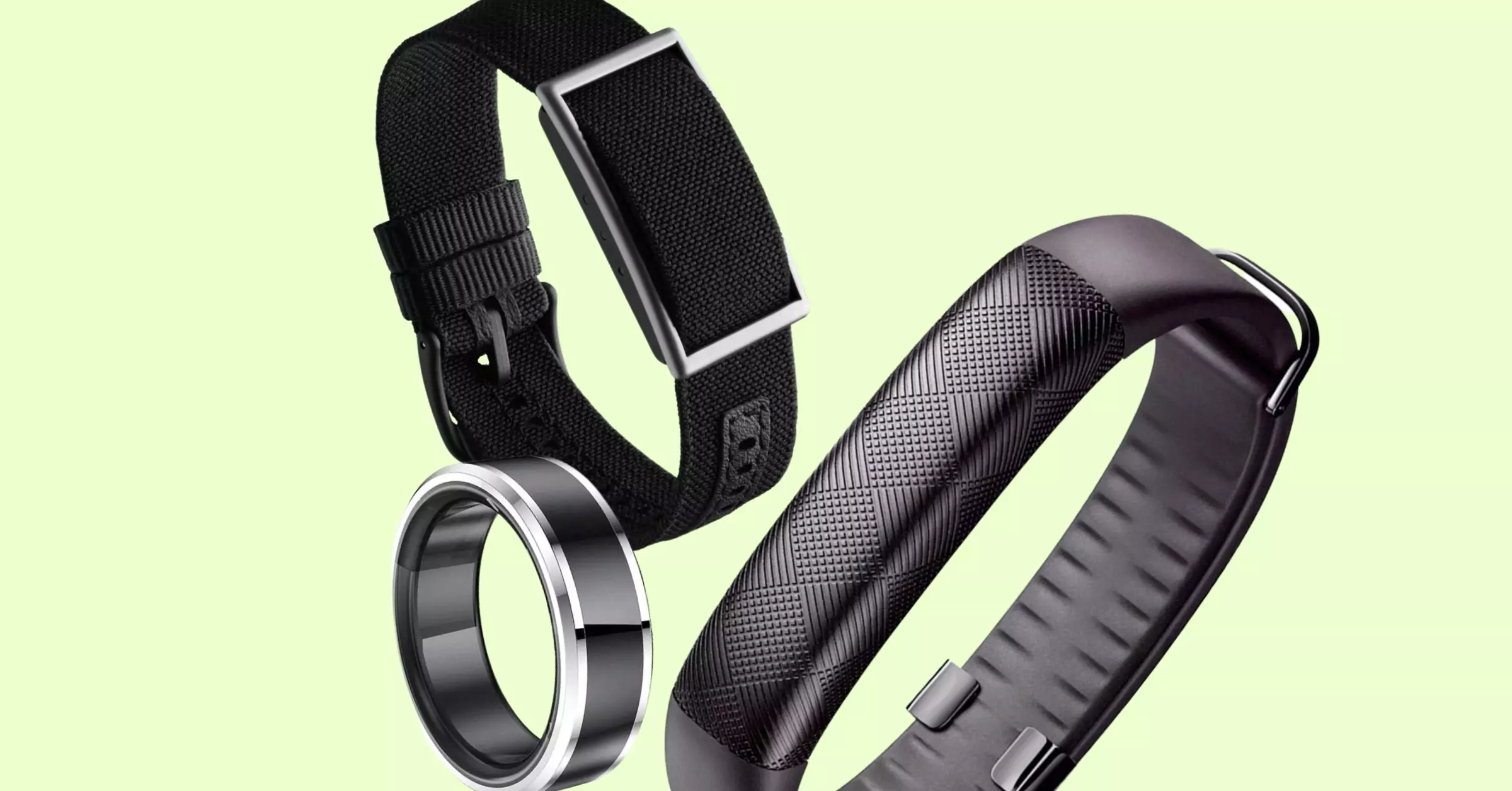
5. Fitness Trackers
Focuses on health and fitness tracking.
Basic smartwatch features.
Often water-resistant.
Fitness trackers often sync time with a companion app on your phone. Check the app settings to manage time updates.
Basic Time Setting
Smartwatches are more than just devices to tell time. They are versatile gadgets that keep you connected, track your fitness, and more. But before enjoying all these features, it’s essential to set the correct time. This step is crucial for accurate notifications and time management. Let’s dive into the basics of setting the time on your smartwatch.
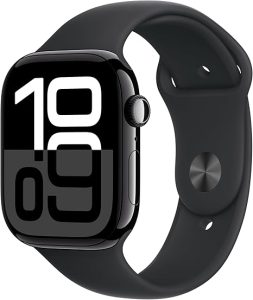
Apple Watch Series 10 [GPS 46mm case] Smartwatch with Jet Black Aluminium Case with Black Sport Band – M/L. Fitness Tracker, ECG App, Always-On Retina Display, Water Resistant
How To Access The Settings Menu
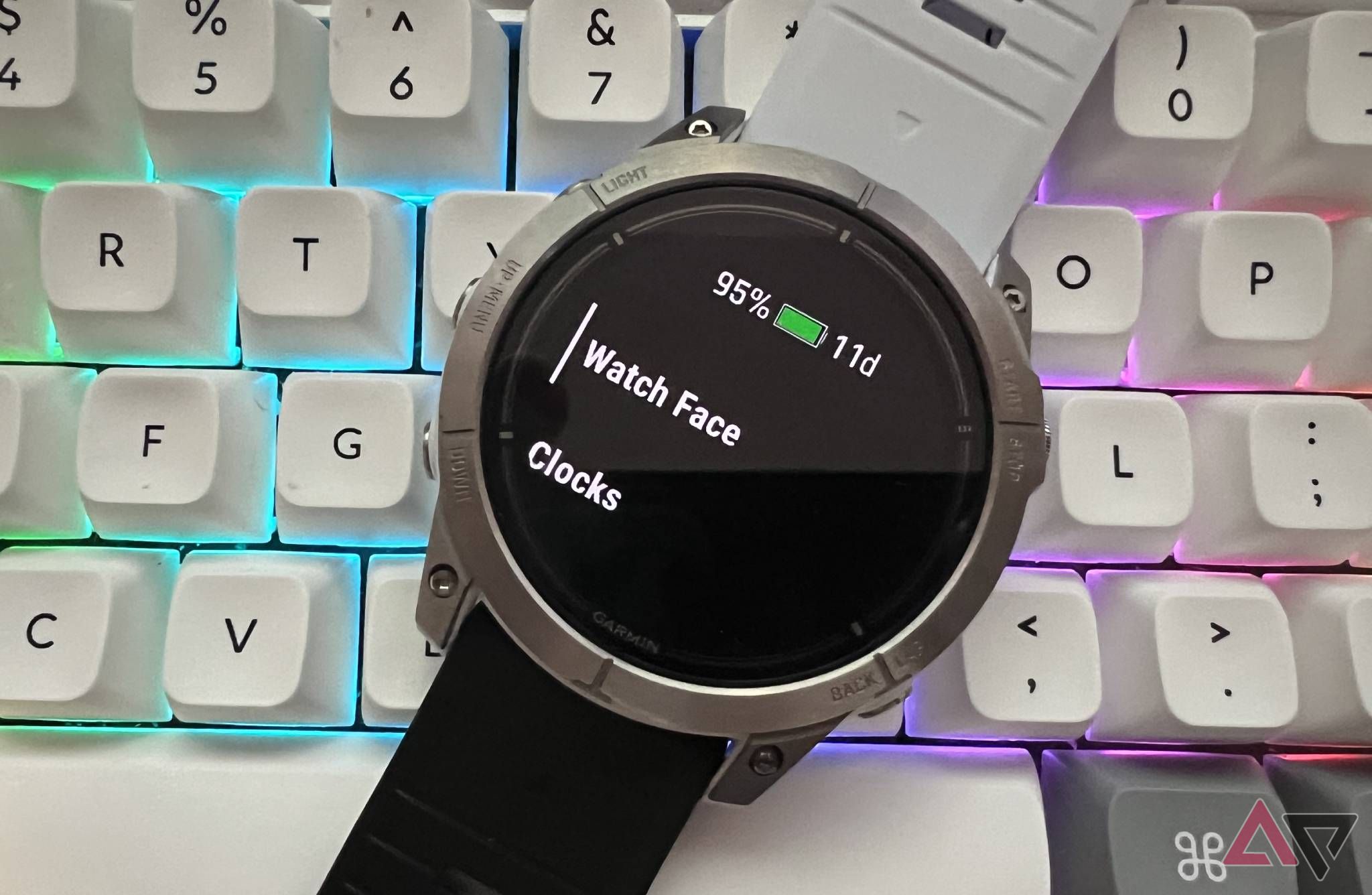
First things first, locate the settings menu on your smartwatch. This is typically represented by a gear icon on the home screen. Tap it. Once inside, look for an option labeled “Time” or “Date & Time”. This is your gateway to adjusting your watch’s clock.
Some smartwatches allow manual time setting. Within the “Date & Time” section, find the option for “Set Time”. Tap it. You will see a clock interface. Use the touchscreen to adjust the hours and minutes. Confirm the changes by tapping “OK” or “Save”. Your watch now shows the correct time.
Automatic Time Sync
Many smartwatches offer an automatic sync option. This feature ensures your watch always displays the correct time. To enable it, navigate to “Date & Time” and look for “Automatic Time “or “Sync with Phone”. Toggle it on. Your smartwatch will now sync with your smartphone or the nearest network. This method saves time and reduces manual errors.
Setting Time Zone
Traveling across time zones? You may need to update your time zone settings. In the “Date & Time” section, find “Select Time Zone”. Tap it and choose your current location from the list. This ensures your smartwatch shows the correct local time, no matter where you are.
Common Problems And Solutions
Time not updating: Check the battery level. Low power can cause sync issues.
Settings not saving: Restart the smartwatch and try again.
Incorrect time zone: Double-check your current location in settings.
Using The Companion App
Setting the time on your smartwatch might seem daunting. Fortunately, the companion app on your smartphone simplifies this task. Smartwatches often pair with apps, ensuring seamless synchronization. The app allows easy adjustments, keeping your watch accurate and reliable. This process is not only convenient but also essential for maintaining functionality.
Using The Companion App For Your Smartwatch
Begin by downloading the companion app. This app is usually available on both Android and iOS. Check the smartwatch brand for specific app recommendations. Once downloaded, open the app on your smartphone.
Pairing Your Devices
Ensure Bluetooth is active on your phone. This is crucial for connecting the smartwatch. Follow the app instructions to pair your devices. Look for the pairing option in the app settings.
Accessing Time Settings
After pairing, access the app’s time settings. This section might be labeled as “Device Settings” or “Watch Settings.” The interface varies between brands, but the function remains similar.
Adjusting Time
Locate the time setting option in the app.
Set the correct time zone.
Adjust the time manually if needed.
Save changes to update your smartwatch.
Syncing Time Automatically
Many smartwatches sync time automatically. Enable automatic updates in the app settings. This ensures your watch adjusts to your phone’s time settings. Automatic sync is ideal for accuracy.
Common Troubleshooting Tips
Issue
Solution
Bluetooth Connection Fails
Restart both devices and try again.
Incorrect Time Display
Check time zone settings in the app.
App Not Responding
Update the app to the latest version.
Syncing With Your Phone
Setting the time on a smartwatch is easier than you might think. One straightforward way to do this is by syncing it with your phone. This process ensures that your smartwatch displays the correct time, matching your phone’s settings. Let’s explore the steps to achieve seamless syncing.
Syncing Basics
To begin, make sure your smartwatch and phone are compatible. Check if your phone’s operating system supports your smartwatch. This ensures a smooth connection.
Android users: Verify compatibility with your smartwatch model.
iOS users: Ensure your Apple Watch is paired with your iPhone.
Connecting Your Devices
Before syncing, ensure Bluetooth is enabled on both devices. This wireless technology allows them to communicate effortlessly.
Open the settings on your phone.
Navigate to the Bluetooth section and turn it on.
Ensure your smartwatch is discoverable.
Using The Smartwatch App
Most smartwatches have a companion app. This app acts as a bridge between your smartwatch and phone.
Download the app from your phone’s app store.
Open the app and follow the on-screen instructions.
Select your smartwatch model from the list.
Once the devices are paired, the app will sync the time automatically.
Manual Syncing
If automatic syncing fails, you can adjust the time manually. Navigate to the settings on your smartwatch.
Select ‘Time’ or ‘Date & Time’.
Choose to set the time manually.
Adjust the hours and minutes as needed.
Common Issues And Solutions
Sometimes, syncing might not work as expected. Here are a few common issues and their solutions:
Issue
Solution
Bluetooth not connecting
Restart both devices and try again.
App not detecting the watch
Ensure the smartwatch is updated to the latest firmware.
Time not syncing
Check if the time settings on the phone are correct.
Adjusting Time Zones
Smartwatches are brilliant tools that keep you connected and on schedule. Setting the time correctly is crucial, especially if you travel often or live in a region with multiple time zones. Adjusting time zones on your smartwatch ensures accurate timekeeping and smooth functionality. This section will guide you through the steps of adjusting time zones on your smartwatch with ease.
Understanding Your Smartwatch Settings
Most smartwatches have a dedicated settings menu. Here, you can alter time zone settings. Locate the settings app on your smartwatch. It’s usually represented by a gear icon. Once inside, look for the ‘Date & Time’ section.
Automatic Time Zone Adjustment
Many smartwatches offer automatic time zone adjustment. Enable this feature to let your smartwatch detect time zones based on your location. This is useful for frequent travelers. Your smartwatch uses GPS or network information to adjust the time zone automatically.
Manual Time Zone Adjustment
If your smartwatch doesn’t support automatic adjustment, you can set the time zone manually. Follow these steps:
Open the settings app on your smartwatch.
Select ‘Date & Time’.
Find the option labeled ‘Time Zone’.
Choose your current time zone from the list provided.
Manual adjustment is necessary in areas with limited network access.
Using A Table For Quick Reference
Step
Description
Open Settings
Access the gear icon on your smartwatch.
Select Date & Time
Navigate to the ‘Date & Time’ section.
Choose Time Zone
Select your local time zone from the list.
Common Issues
Sometimes, smartwatches might show incorrect time zones due to GPS errors. Ensure your smartwatch has a stable internet connection for accurate adjustments. Restarting the device can also resolve discrepancies.
Adjusting time zones on your smartwatch is straightforward. Follow these steps to ensure your device reflects the correct time, no matter where you are.
Manual Time Adjustment
Smartwatches offer a wide range of features, but their core functionality includes keeping accurate time. Sometimes, you might need to adjust the time manually. Maybe you’ve traveled to a different time zone, or the automatic settings aren’t working as expected. Learning how to manually set the time can be very useful.
How To Access Time Settings
First, navigate to the settings menu on your smartwatch. This is often represented by a gear icon. Tap on it to open the settings options. Look for a section labeled “Time” or “Date & Time.”
Steps For Manual Time Adjustment
Tap on the “Date & Time” option.
Find the “Set Time” or “Adjust Time” button.
Enter the correct time using the available controls, usually by scrolling or tapping.
Confirm the changes to save the new time settings.
These steps may vary slightly depending on your smartwatch model. Always refer to the user manual for specific instructions.
If the time doesn’t update, restart your smartwatch.
Check if the battery is charged, as low power can affect settings.
Ensure your smartwatch is not in airplane mode.
Manual time adjustment is straightforward with a bit of practice. Keeping your device updated with the correct time ensures you stay punctual and organized.
Troubleshooting Common Issues
Smartwatches have become an essential part of our daily lives, keeping us connected and on track. Setting the correct time on your smartwatch is crucial. But what happens when things don’t go as planned? This section covers common issues faced while setting the time and provides simple solutions. Dive in to discover how to troubleshoot these challenges effortlessly.
Common Connection Issues
Sometimes, your smartwatch may struggle to sync with your phone. This can lead to incorrect time settings. Ensure Bluetooth is enabled on both devices. Check if your smartwatch is within range of your phone. Avoid interference from other devices.
Ensure both devices have sufficient battery.
Restart both devices to refresh the connection.
Update software to the latest version for compatibility.
Software Glitches
Software glitches can prevent accurate time setting. Regular updates can fix these. If your watch is not updating automatically, check for manual updates. Follow these steps:
Go to the settings menu on your smartwatch.
Select “System Updates.”
Install any available updates.
Updates often resolve glitches and improve performance.
Battery Issues
Low battery levels can affect time settings. A smartwatch needs sufficient power to maintain accurate time. Charge your device regularly and avoid battery drain. Monitor battery health:
Battery Indicator
Recommended Action
Low (<20%)
Charge immediately.
Moderate (20%-50%)
Plan for charging soon.
High (>50%)
Maintain regular usage.
Incorrect Time Zone Settings
Incorrect time zone settings can cause an inaccurate time display. Double-check your smartwatch settings. Ensure it matches your current location. Adjust time zone manually if needed:
Open the settings menu.
Select “Date & Time.”
Choose the correct time zone from the list.
Resetting Your Smartwatch
Resetting can resolve persistent issues. Perform a reset if other solutions fail. This restores factory settings. Steps to reset:
Navigate to the settings menu.
Select “System.”
Choose “Reset.”
Remember, resetting erases all data. Back up important information first.
Maintaining Accurate Time
Smartwatches are more than just timekeepers; they are smart personal assistants wrapped around your wrist. Setting the time accurately on a smartwatch ensures that all its features function correctly, from alarms to notifications. Accurate timekeeping is essential for syncing your schedule and keeping your day organized. Let’s explore how you can maintain precise time on your smartwatch.
Ensuring Accurate Time Settings
The first step is to make sure your smartwatch is connected to your smartphone. This connection allows it to automatically sync time settings with your phone, maintaining precision. Follow these simple steps:
Open the settings on your smartwatch.
Navigate to the time settings option.
Select the automatic time update feature.
Automatic updates keep your watch aligned with your phone’s time settings.
Regular Software Updates
Software updates are crucial for maintaining accurate time on your smartwatch. Manufacturers release updates to fix bugs and improve timekeeping functions. Here’s how to ensure your smartwatch is up to date:
Check for updates in your smartwatch settings.
Enable automatic updates to receive the latest software improvements.
Regularly sync your watch with your smartphone for seamless updates.
Keeping your software current ensures accurate timekeeping and optimal performance.
Sometimes, manual time adjustment is necessary. This is often required during travel or when your smartwatch loses connection with your smartphone. Here’s how to manually set the time:
Go to the time settings on your smartwatch.
Turn off automatic time update.
Set the time manually using the digital crown or touchscreen.
Manual adjustment provides flexibility when automatic settings are unavailable.
Time zone settings play a vital role in maintaining accurate time. A mismatch can lead to incorrect time display. Ensure your smartwatch time zone matches your current location. Follow these steps:
Access time zone settings in your smartwatch.
Select the correct time zone based on your location.
Sync with your smartphone for accuracy.
Consistent time zone settings prevent discrepancies in time display.
Frequently Asked Questions
How Do I Change The Time On My Smartwatch?
To change the time on your smartwatch, access the settings menu. Look for the “Date & Time” option. From there, you can manually set the time or sync it with your smartphone. Ensure your smartwatch is connected to Wi-Fi or Bluetooth for accurate updates.
Can My Smartwatch Update Time Automatically?
Yes, most smartwatches can update the time automatically. Ensure your smartwatch is connected to your smartphone via Bluetooth. This allows it to sync with your phone’s time settings. Check that the automatic time update feature is enabled in the settings menu for seamless updates.
Why Is My Smartwatch Showing The Wrong Time?
Your smartwatch may show the wrong time if it’s not synced with your smartphone. Ensure Bluetooth is enabled and both devices are connected. Also, check the time zone settings. A software update may also be required to fix any time discrepancies.
How Do I Sync My Smartwatch With My Phone?
To sync your smartwatch with your phone, enable Bluetooth on both devices. Open the smartwatch app on your phone. Follow the on-screen instructions to pair the devices. Once connected, your smartwatch should automatically sync data, including time and notifications.
Conclusion
Setting the time on your smartwatch is a simple task. Follow the steps outlined in this guide. You can easily keep your device up to date. Regularly checking your settings ensures accuracy. A well-set watch keeps you punctual. Enjoy the convenience of timely reminders.
Stay connected without any hassle. Tech should make life easier, not harder. Your smartwatch is now ready to serve you. No more missed appointments or late arrivals. Embrace the ease of modern technology. Always be on time with your smart device.