Have you ever been in the middle of an intense gaming session only to realize your Windows key is locked, and you don’t know how to unlock Windows key on gaming keyboard to access essential shortcuts? It’s frustrating, right?
Knowing how to unlock the Windows key on your gaming keyboard can save you from unnecessary pauses and keep your focus sharp. You’ll discover simple, step-by-step methods to quickly unlock your Windows key so nothing stands between you and your game.
Ready to regain full control of your keyboard? Let’s dive in.
Many gaming keyboards have a special feature that can disable the Windows key. This feature helps prevent accidental presses during gaming. Before trying to enable the Windows key, it is important to identify whether your keyboard has this lock feature. Knowing how to find and recognize the Windows key lock can save time and avoid confusion. This section explains how to identify the lock feature easily.
Locate The Windows Key
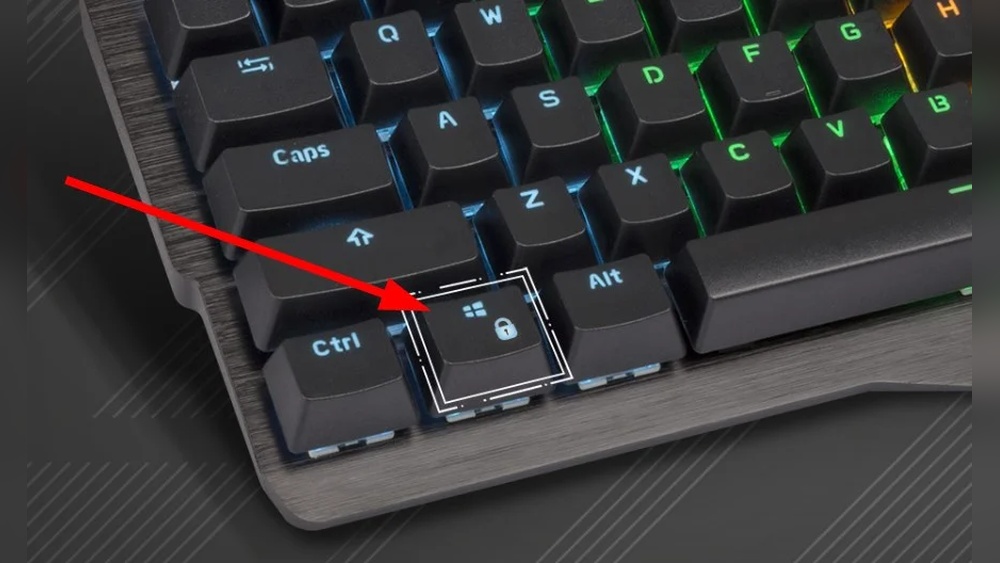
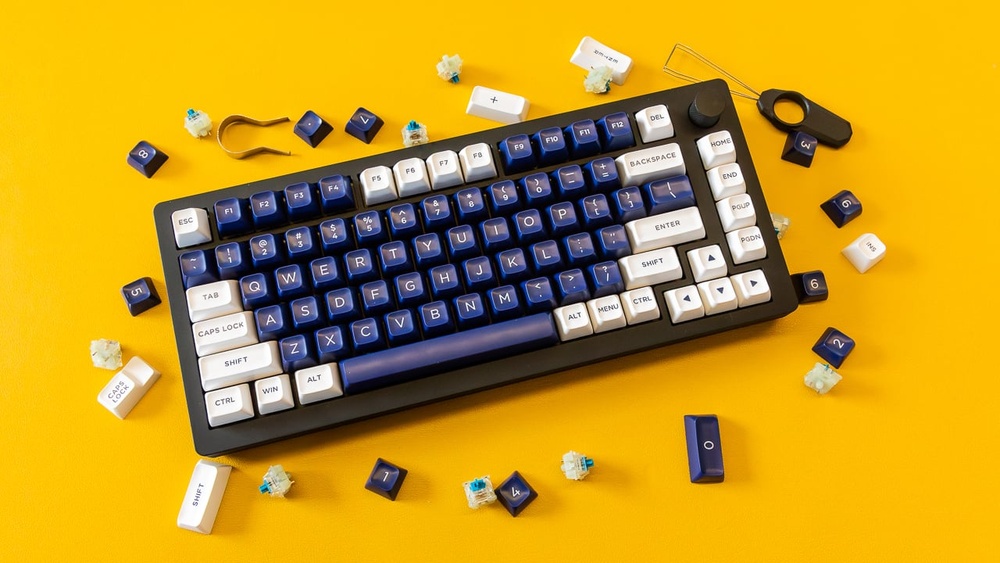
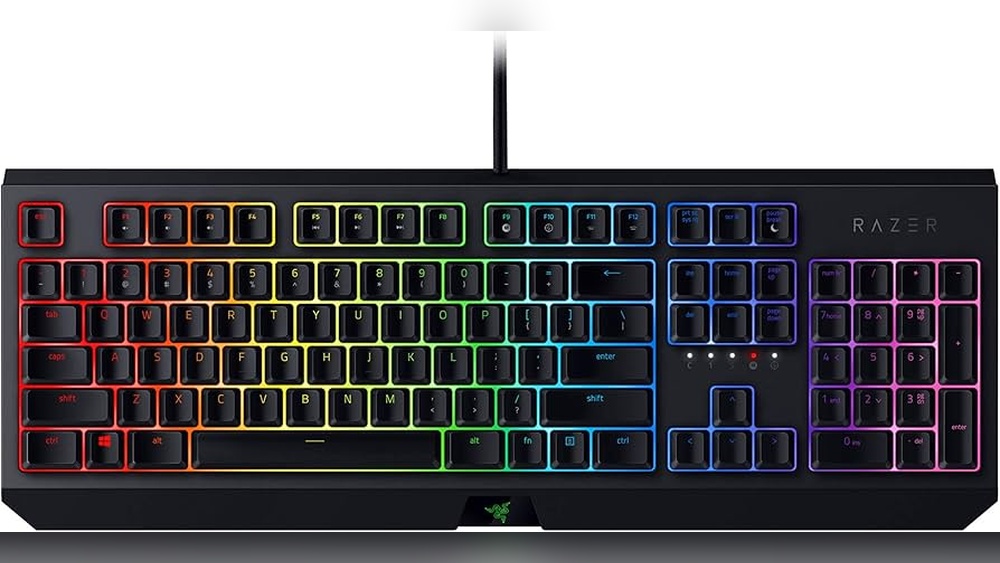
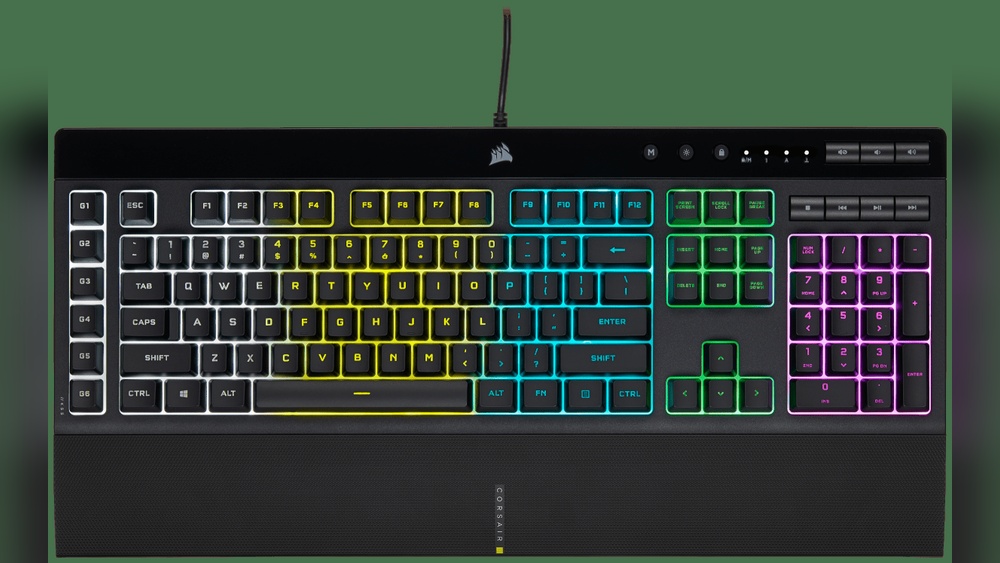
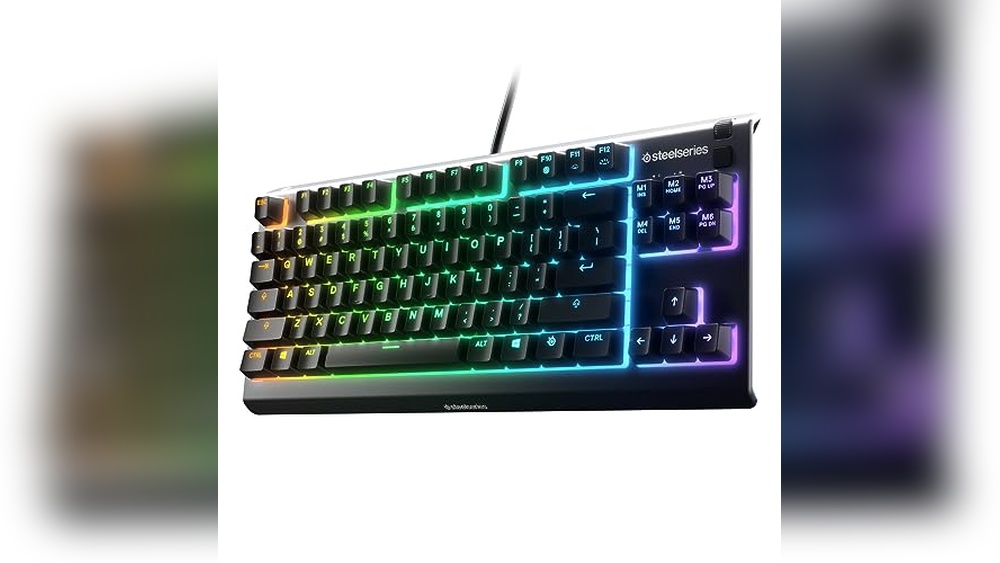
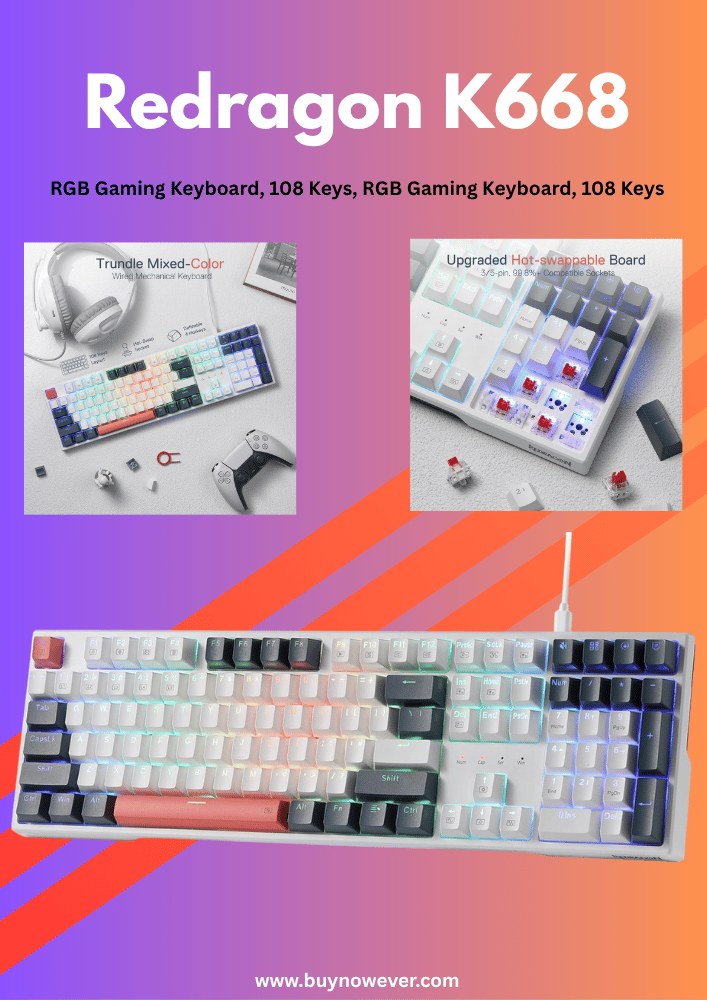
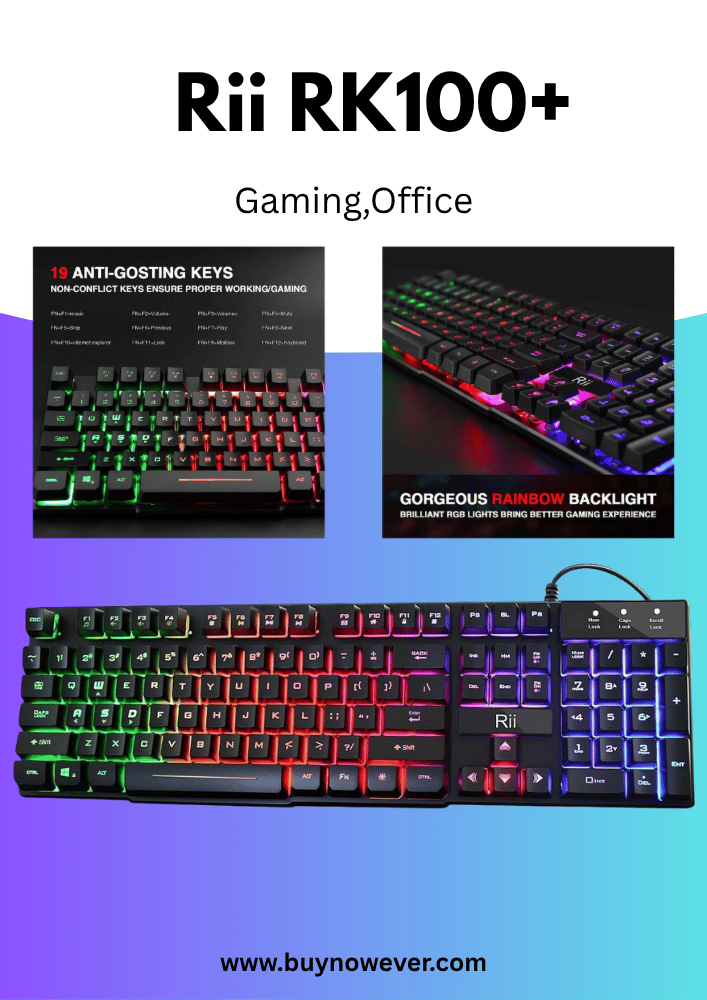
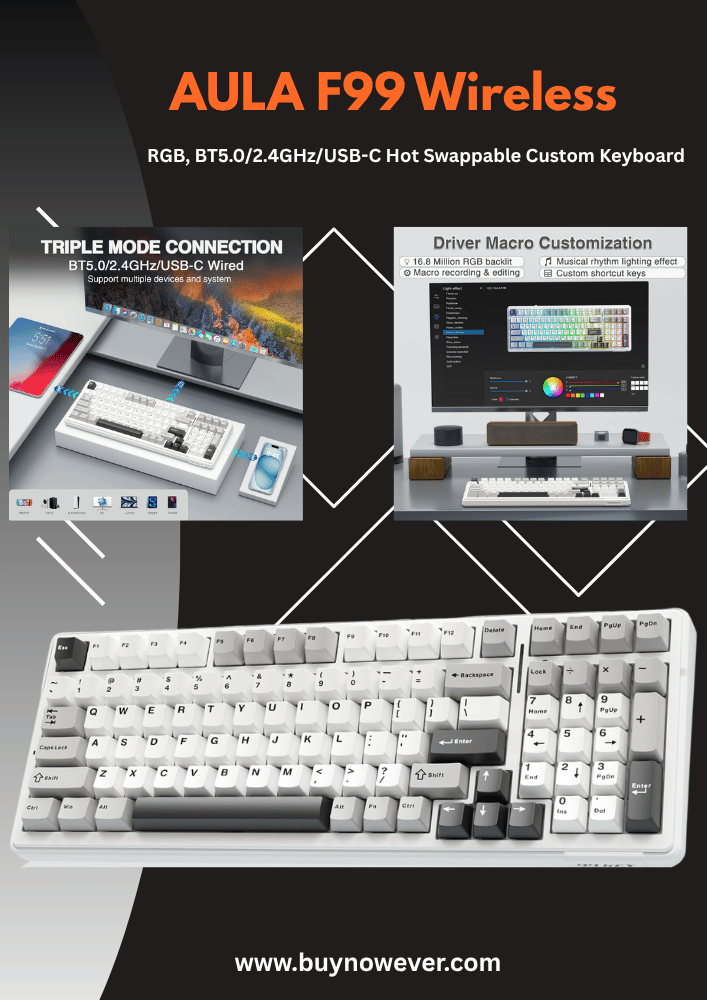
The Windows key is usually on the bottom row of the keyboard. It often has the Windows logo on it, which looks like a small flag. On most keyboards, you will find it between the Ctrl and Alt keys.
Standard position: Bottom left side, near the spacebar.
Secondary Windows key: Some keyboards have a second Windows key on the right side.
Different labels: Some keyboards might show a different icon or text instead of the Windows logo.
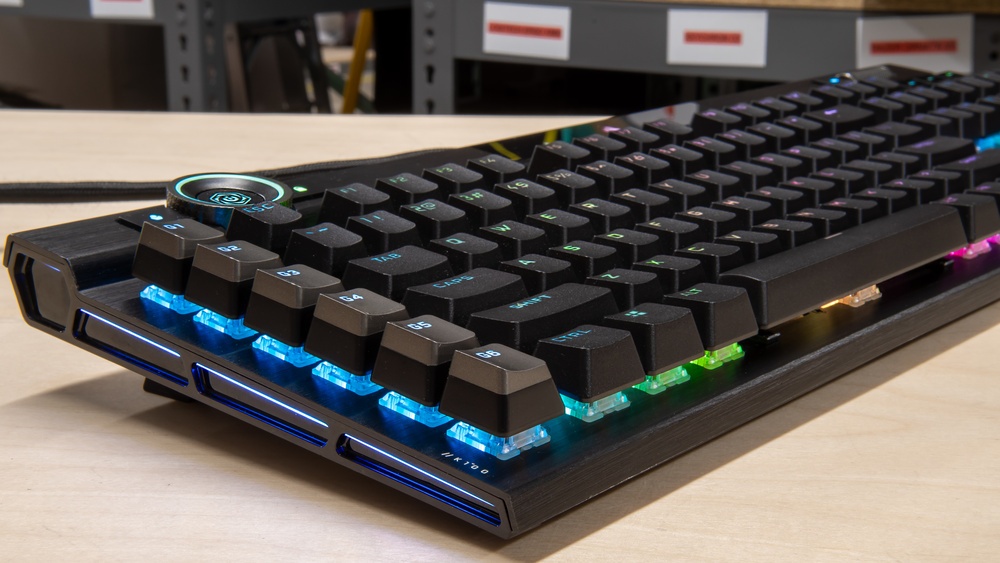
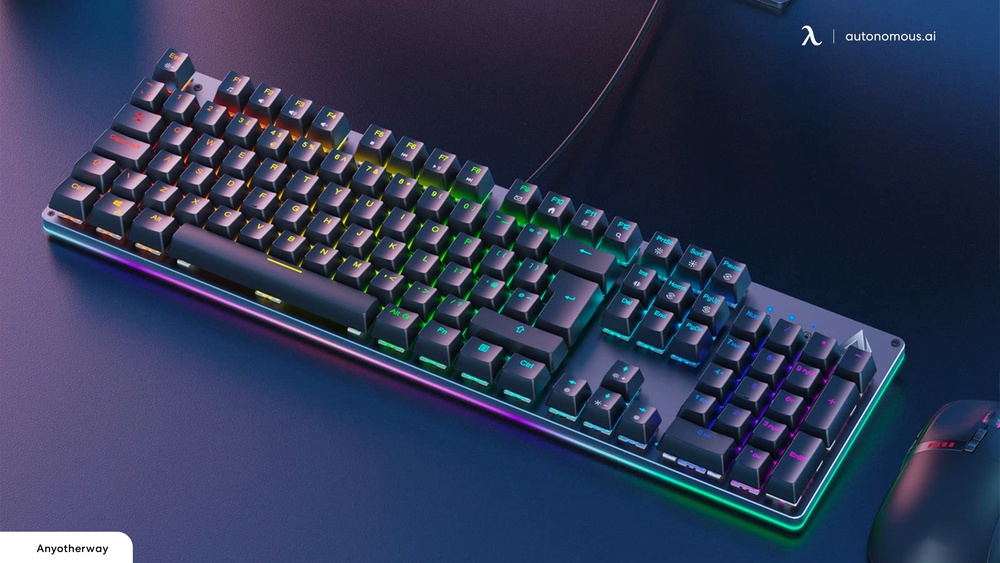
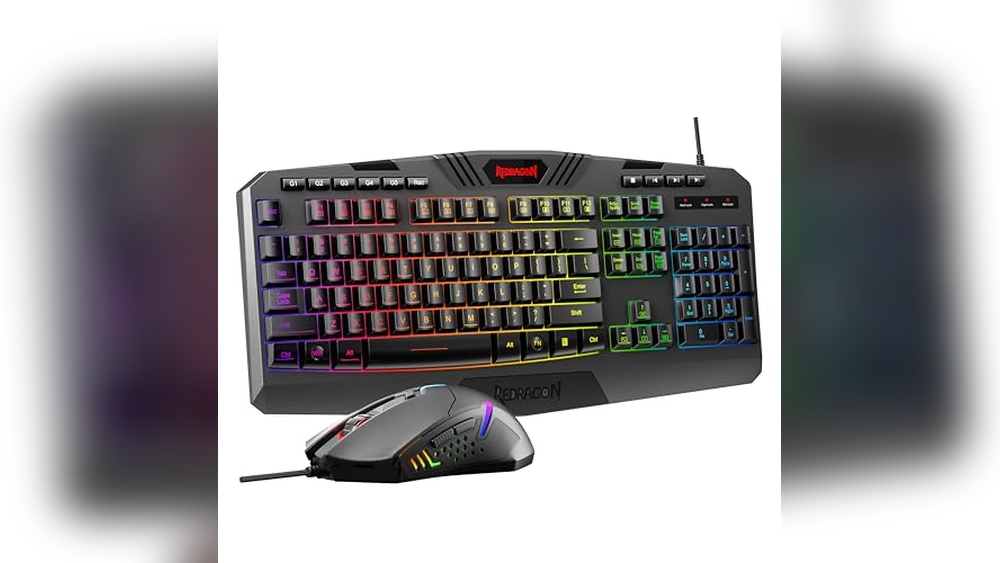
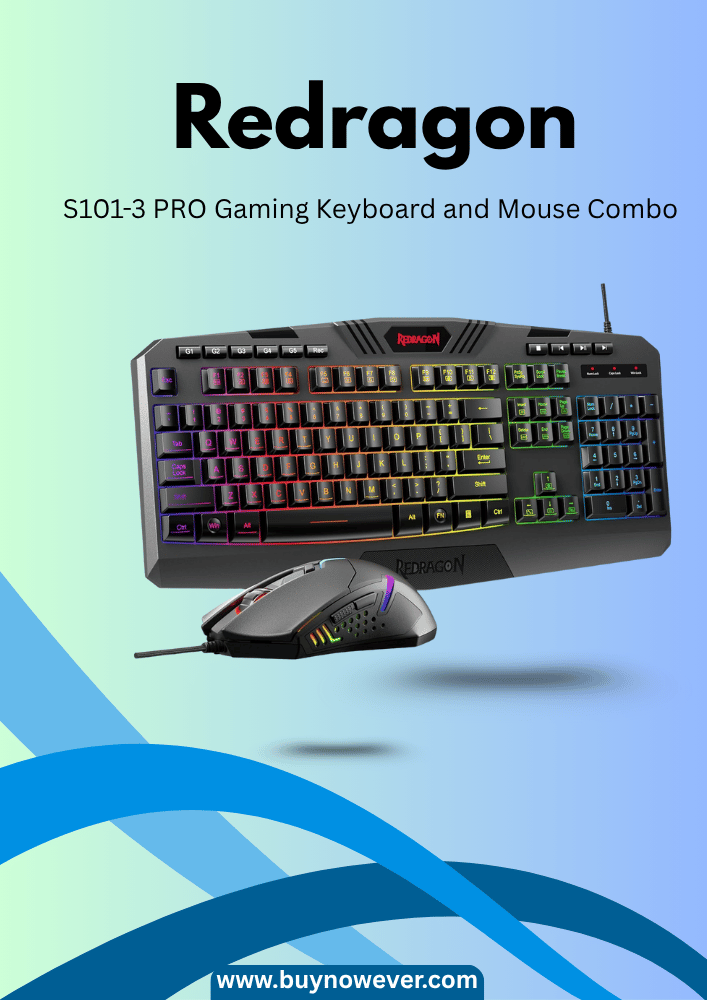
In gaming keyboards, the Windows key might have a special design or color to stand out. Sometimes, the key may be smaller or placed differently to prevent accidental presses.
Keyboard Type
Windows Key Location
Common Label
Standard Keyboard
Bottom row, left of the Alt key
Windows logo
Gaming Keyboard
Bottom row or custom position
Windows logo or custom icon
Laptop Keyboard
Usually, the bottom row varies by brand
Windows logo or key name
Knowing the Windows key location helps check if it is locked or disabled. Some gaming keyboards have a physical switch or software option to disable this key. Look for any unusual buttons near the Windows key or on the keyboard edges. These might control the lock feature.
Check the keyboard manual or labels.
The keyboard manual or packaging often explains the Windows key lock feature. It shows how to enable or disable the key. Manuals provide clear instructions for each keyboard model. If the manual is not available in print, check the manufacturer’s website for a digital copy.
Look for sections like:
Key functions or special features
Locking keys or the Windows key lock
Gaming mode or disable the Windows key
Labels on the keyboard itself can also provide hints. Some gaming keyboards include small icons or text near keys or on the keyboard frame. These labels might show a lock symbol or a key combination to control the Windows key.
Common key combinations to toggle the Windows key lock include:
Fn + Windows key
Fn + F6 or other function keys
Dedicated lock key with a lock icon
Reading the manual helps understand these shortcuts and their effects. It also explains any software tools that may be needed to manage the Windows key lock. Many gaming keyboards come with software to customize keys and enable or disable the Windows key easily.
Use Keyboard Shortcuts To Unlock
Many gaming keyboards have a Windows key lock feature to prevent accidental presses during gameplay. This helps avoid interruptions like opening the Start menu or switching windows. To quickly enable or disable this lock, using keyboard shortcuts is the fastest method. These shortcuts save time and let you stay focused on gaming without digging through software menus or settings.
Common Shortcut Combinations
Most gaming keyboards use standard key combinations to toggle the Windows key lock. These shortcuts are easy to remember and work on many models. The most common ones include:
Fn + Windows key – Pressing the Function (Fn) key together with the Windows key often locks or unlocks it.
Fn + F6 – Some keyboards assign the F6 key as a toggle for the Windows key lock.
Fn + F5 or Fn + F7 – These keys can also serve this function on certain gaming keyboards.
Try these shortcuts one by one. Press and hold the Fn key, then tap the suggested key. If the Windows key is locked, pressing it won’t open the Start menu. Repeat the shortcut to unlock it.
Here is a quick reference table:
Shortcut
Function
Fn + Windows key
Toggle Windows key lock
Fn + F6
Toggle Windows key lock
Fn + F5 or Fn + F7
Toggle Windows key lock (varies by model)
Manufacturer-specific Shortcuts
Some keyboard brands use their own shortcut keys to lock or unlock the Windows key. Knowing the exact combination can save time and confusion. Here are examples from popular manufacturers:
Razer: Press Fn + F10 to toggle the Windows key lock on many Razer gaming keyboards.
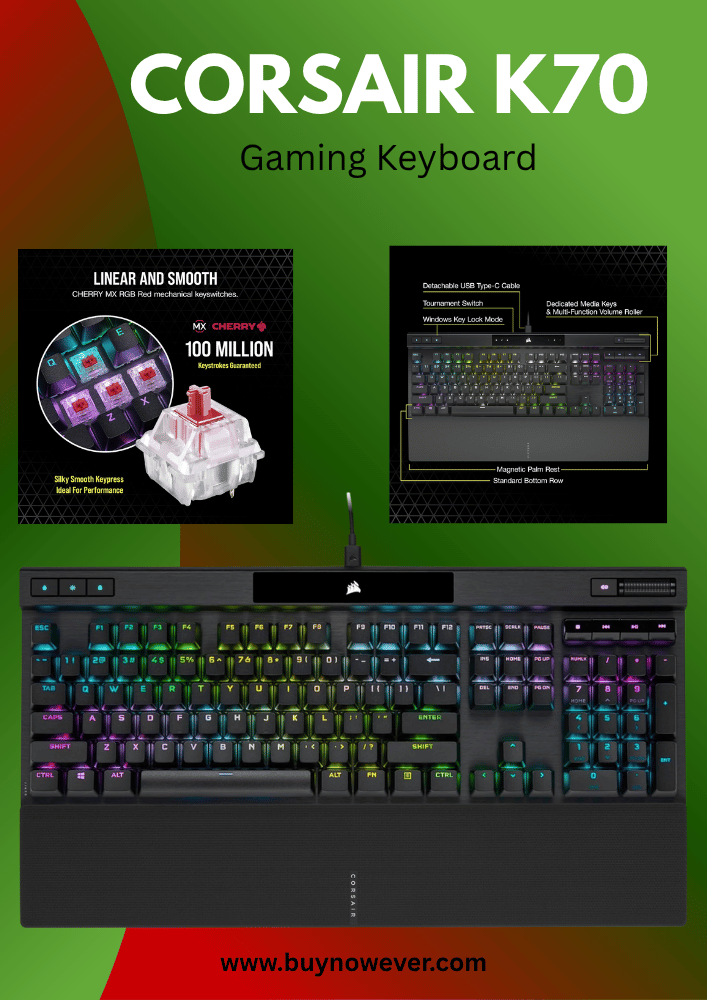
Corsair: Use Fn + Windows key or Fn + F1 depending on the model.
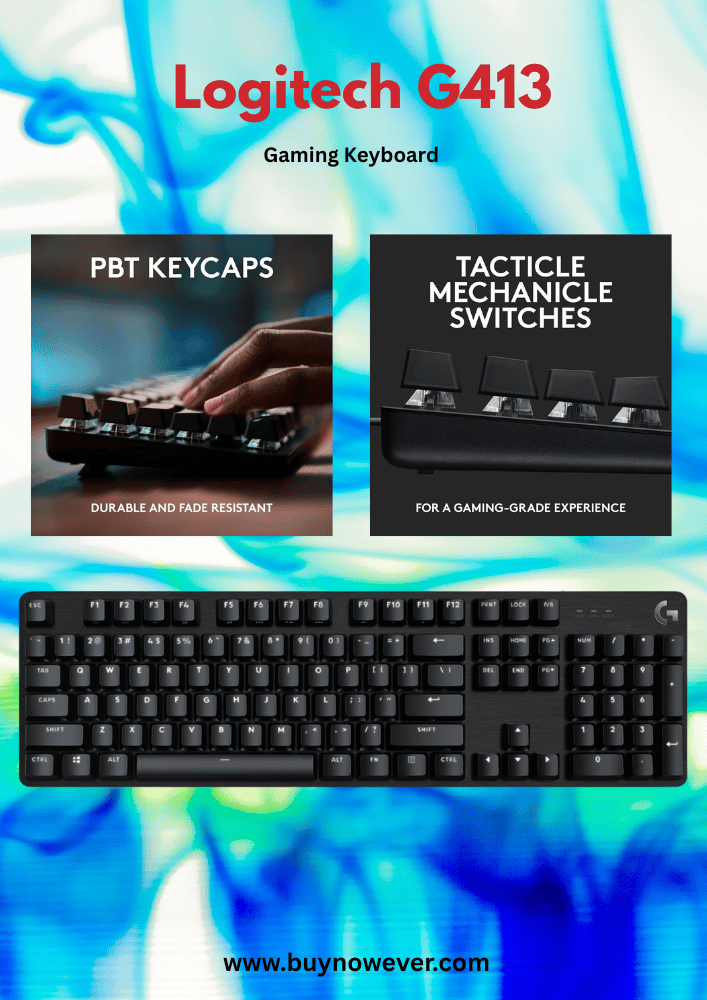
Logitech: Logitech gaming keyboards often use Fn + F8 a dedicated lock key marked with a Windows logo.
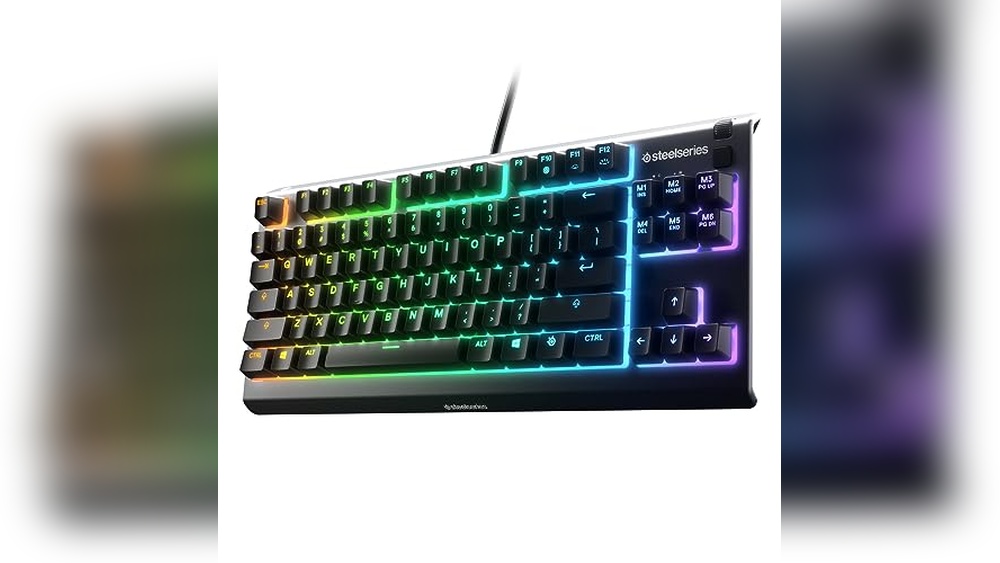
SteelSeries: Try Fn + Windows key or check the keyboard’s software for custom shortcuts.
Manufacturers sometimes include software utilities that allow reprogramming of these shortcuts. You can check the manual or support website for your keyboard model. If the shortcut doesn’t work, the software might have disabled or changed it.
Here is a summary table of manufacturer shortcuts:
Manufacturer
Shortcut
Notes
Razer
Fn + F10
Common on many Razer models
Corsair
Fn + Windows key or Fn + F1
Varies by keyboard model
Logitech
Fn + F8 or dedicated lock key
May have a physical lock key
SteelSeries
Fn + Windows key
Check the software for custom options
Utilize Keyboard Software
Many gaming keyboards block the Windows key to prevent accidental presses during gameplay. This can be frustrating when you need to use the key for shortcuts or multitasking. Utilizing keyboard software is a simple and effective way to enable or disable the Windows key as you prefer. Most gaming keyboards come with dedicated software that lets you customize key functions, including the Windows key lock. Using this software puts control in your hands without needing complex system tweaks.
Download Official Software
Start by downloading the official software for your gaming keyboard. Manufacturers provide this software on their websites for free. It is designed to work specifically with your keyboard model, ensuring full compatibility and functionality.
Visit the manufacturer’s website: Find the support or downloads section.
Select your keyboard model: Make sure to pick the exact model to avoid issues.
Download the software: It usually comes as an installer file.
Install the software: Follow the on-screen instructions to complete setup.
Using the official software ensures your keyboard functions correctly and avoids risks from third-party programs. The software often includes updates that improve performance and add new features. Keep the software updated to get the best experience.
Step
Description
1
Go to the keyboard brand website
2
Find your keyboard model
3
Download official keyboard software
4
Install and launch the software
Adjust Key Settings
After installing the software, open it to adjust the Windows key settings. Most keyboard software offers a straightforward interface to customize keys. Look for a section labeled “Key Assignment,” “Key Lock,” or “Gaming Mode.”
Here’s how to adjust the settings:
Locate the Windows key setting or gaming mode toggle.
Choose whether to enable or disable the Windows key.
Save your changes.
Some software allows you to create profiles. These profiles can switch the Windows key lock on or off based on your current activity. For example, you can have one profile with the Windows key disabled for gaming, and another with it enabled for work.
Benefits of adjusting key settings via software:
Quickly change Windows key behavior without unplugging the keyboard.
Customize other keys for better productivity or gaming experience.
Create multiple profiles for different uses.
Many programs also show the status of the Windows key lock on the screen. This helps avoid confusion about whether the key is active. Changing settings through software is safer than editing system files or the registry.
Troubleshoot Common Issues
Sometimes, the Windows key on a gaming keyboard does not work as expected. This issue can stop you from using shortcuts or accessing the Start menu. Troubleshooting common problems helps fix these issues quickly. Simple steps often bring the key back to life. This section covers easy ways to solve common Windows key problems on gaming keyboards.
Update Keyboard Drivers
Keyboard drivers control how your computer talks to the keyboard. Outdated or missing drivers can cause the Windows key to stop working. Updating drivers often solves this problem. Follow these steps to update your keyboard drivers:
Press Windows + X and select Device Manager.
Find and expand the Keyboards section.
Right-click your gaming keyboard and choose Update driver.
Select Search automatically for updated driver software.
Follow the instructions if a new driver is found.
Restart your computer to apply changes.
Updating drivers manually is also possible. Visit the keyboard manufacturer’s website. Search for the latest drivers using your keyboard’s model number. Download and install the correct version.
Step
Action
Notes
1
Open Device Manager
Use Windows + X, then select Device Manager
2
Locate Keyboard
Expand the Keyboards category
3
Update Driver
Right-click the keyboard, choose Update driver
4
Search Online
Select Search automatically for updated software
5
Restart PC
Apply changes after update
Note: Sometimes, the Windows key may be disabled by software or keyboard settings. Check any gaming software for Windows key lock options.
Test On Another Device
Testing the keyboard on another device helps find hardware problems. If the Windows key works on a different computer, the issue is with your original system. If it still does not work, the keyboard may be faulty.
Follow these steps to test your keyboard on another device:
Turn off your computer and unplug the keyboard.
Connect the keyboard to a second computer or laptop.
Check if the Windows key functions correctly.
Try using different USB ports for the connection.
Restart the second device if needed.
This test isolates the problem. If the key works on the second device, update or fix your original computer settings. If the key fails again, clean the keyboard or contact support.
Step
Action
Purpose
1
Unplug Keyboard
Prepare for testing
2
Connect to Another Device
Test the hardware function
3
Press Windows Key
Check if it works
4
Try Different USB Ports
Rule out port issues
5
Restart Device
Refresh connection
Tip: Keep your keyboard clean. Dust or dirt under keys can block their function.
Alternative Methods To Access the Windows Key
Some gaming keyboards block the Windows key to avoid accidental presses during gameplay. This can be frustrating when you need quick access to the Start menu or shortcuts. Alternative methods help regain Windows key functionality without relying on the physical key. These methods work well for users whose keyboards lack a dedicated Windows key or have it disabled by default. Below are two practical ways to access the Windows key functions easily.
Remap Keys
Remapping keys lets you assign the Windows key function to another key on your keyboard. This method is useful if your keyboard’s Windows key is disabled or missing. You can choose a less-used key to act as the Windows key. Software tools like Microsoft PowerToys or third-party apps make remapping simple and safe.
Here is a basic guide to remapping a key using Microsoft PowerToys:
Download and install Microsoft PowerToys from the official website.
Open PowerToys and select the Keyboard Manager module.
Click on Remap a key.
Choose the key you want to change (e.g., Right Ctrl or Menu key).
Select Win (Windows key) as the new function.
Save the changes and test the new key function.
Remapping keys offers these benefits:
Custom key assignments based on your preference.
Works with most Windows versions.
Can be reverted anytime without hardware changes.
Key to Remap
Recommended Use
Notes
Right Ctrl
Easy reach for the Windows key
Good for gaming setups
Menu key
Less used, suitable for remap
Usually near Right Ctrl
Caps Lock
Can be remapped if not used often
Might affect typing habits
Use On-screen Keyboard
The On-Screen Keyboard (OSK) is a built-in Windows tool that shows a virtual keyboard on the screen. It includes the Windows key and works with mouse or touch input. This method is helpful when your physical Windows key is blocked or broken.
Steps to open and use the On-Screen Keyboard:
Press Ctrl + Esc to open the Start menu.
Type On-Screen Keyboard and press Enter.
The virtual keyboard appears with all keys, including the Windows key.
Click on the Windows key on the OSK to perform Windows shortcuts.
The On-Screen Keyboard supports these uses:
Access Windows key functions without physical keys.
Works with touch screens and mouse clicks.
Available in all Windows versions by default.
Useful for quick shortcuts during gaming or work.
Below is a quick comparison of physical and On-Screen Keyboard use:
Feature
Physical Windows Key
On-Screen Keyboard Windows Key
Accessibility
Direct press
Click or tap
Speed
Faster for fast shortcuts
Slower, needs mouse/touch
Availability
May be disabled on gaming keyboards
Always available in Windows
Frequently Asked Questions
How Do I Enable The Windows Key On My Gaming Keyboard?
Most gaming keyboards have a dedicated key or switch to enable the Windows key. Look for a key labeled “Win Lock” or check your keyboard software settings.
Why Is My Windows Key Disabled During Gaming?
Keyboards often disable the Windows key to prevent accidental presses that interrupt gameplay. This is a common gaming mode feature.
Can I Use Software To Unlock The Windows Key?
Yes, some keyboard manufacturers provide software that lets you toggle the Windows key on or off easily.
What Keys Or Shortcuts Unlock The Windows Key?
Common shortcuts include pressing Fn + Windows key or a special “Win Lock” key, depending on your keyboard model.
Will Unlocking The Windows Key Affect My Gaming Performance?
Unlocking the Windows key might cause accidental menu interruptions, but it does not affect game speed or graphics.
Conclusion
You now know how to enable the Windows key on your gaming keyboard. This helps you switch between games and apps quickly. Some keyboards have a special key or button to do this. Others need you to press two keys at once.
Remember to check your keyboard’s manual if you get stuck. Playing games and using your computer will feel easier. Try these steps and enjoy smoother control. Keep your keyboard settings ready for any game or task. Simple tricks like these save time and avoid frustration.