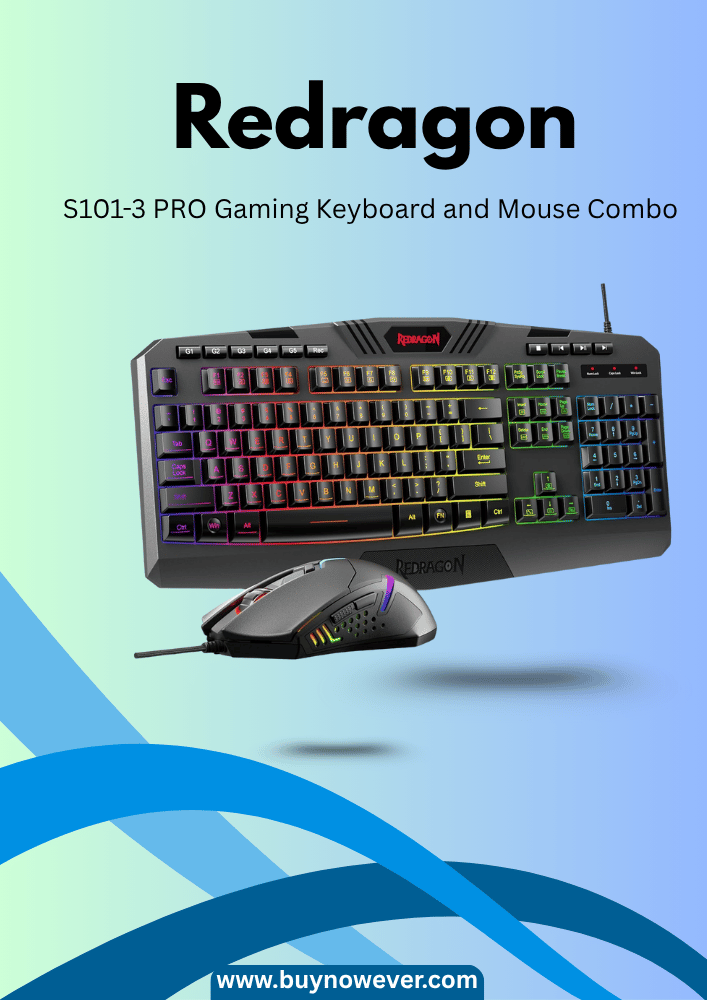
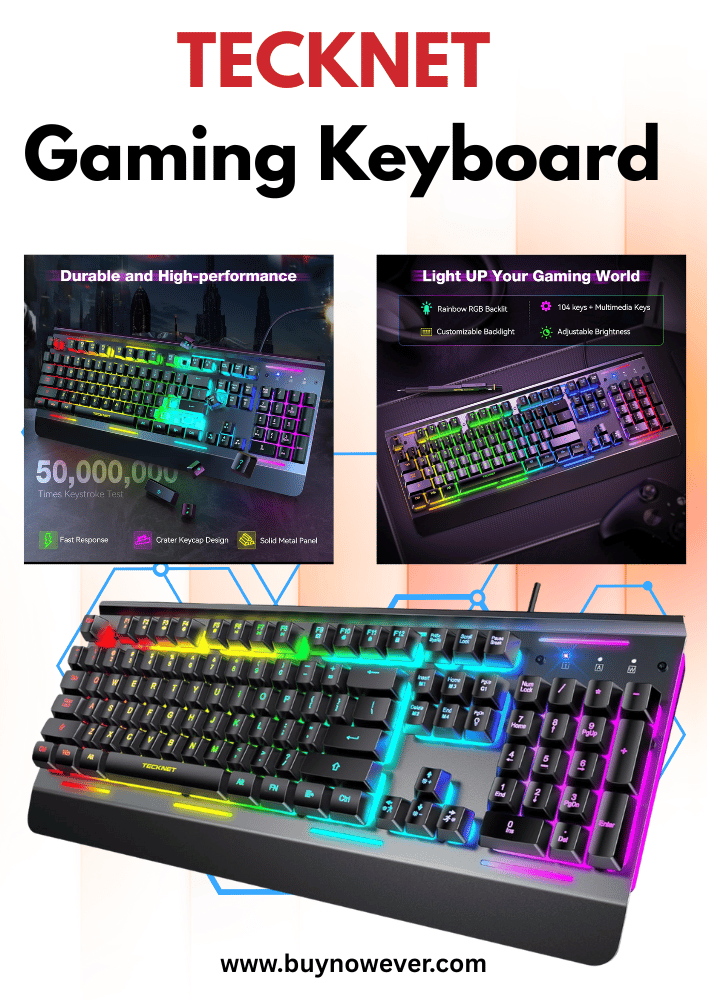
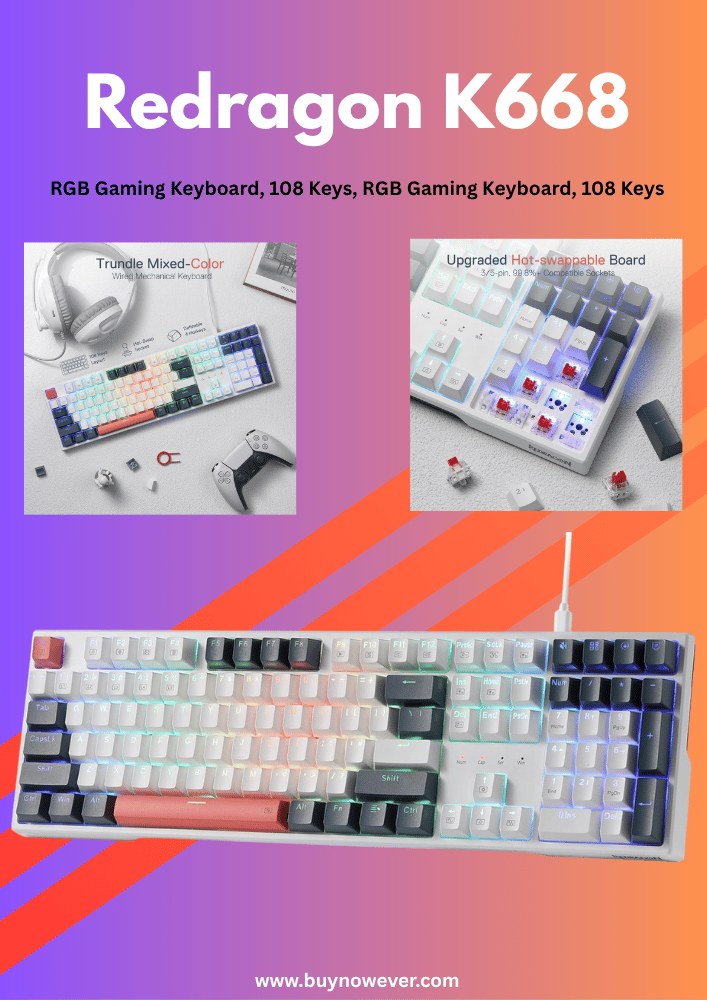
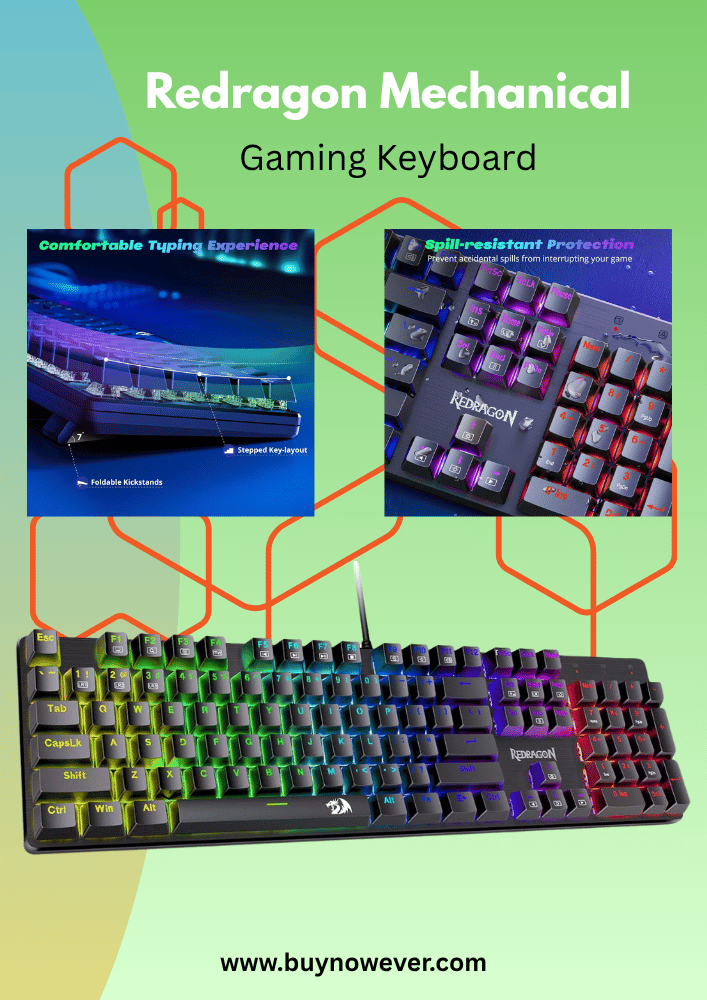
Customize Your Gaming Keyboard – Step-by-Step Guide for Pros
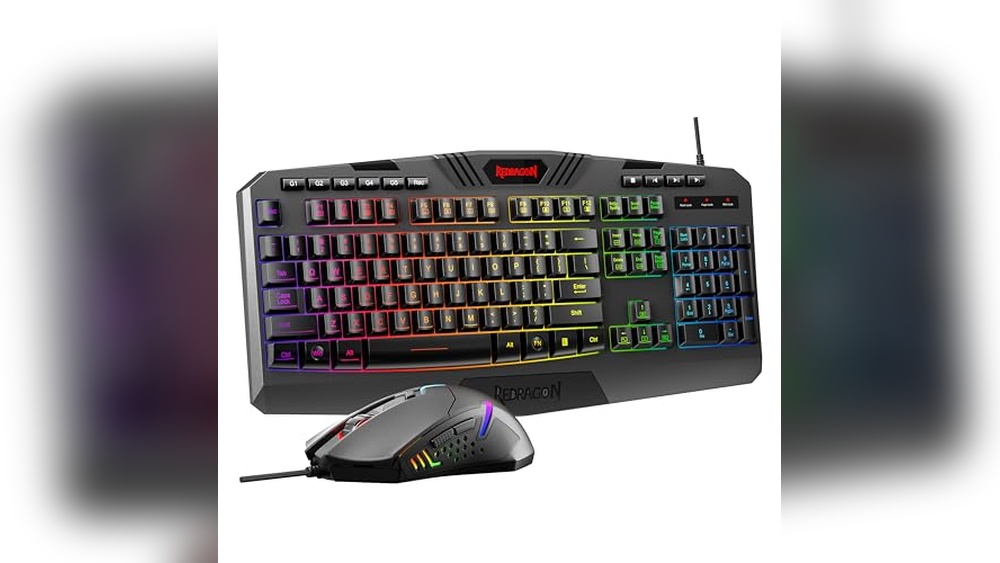
Your gaming keyboard is more than just a tool—it’s your command center. By learning to Customize Your Gaming Keyboard, you can set every key exactly how you want it, giving you a competitive edge over your opponents.
Customizing your gaming keyboard can make your gameplay smoother, faster, and more enjoyable. Whether you want to change the lighting, remap keys, or add macros, this guide will show you how to turn your keyboard into a powerhouse tailored just for you.
Ready to level up your gaming experience? Keep reading to discover simple steps that will transform your setup.
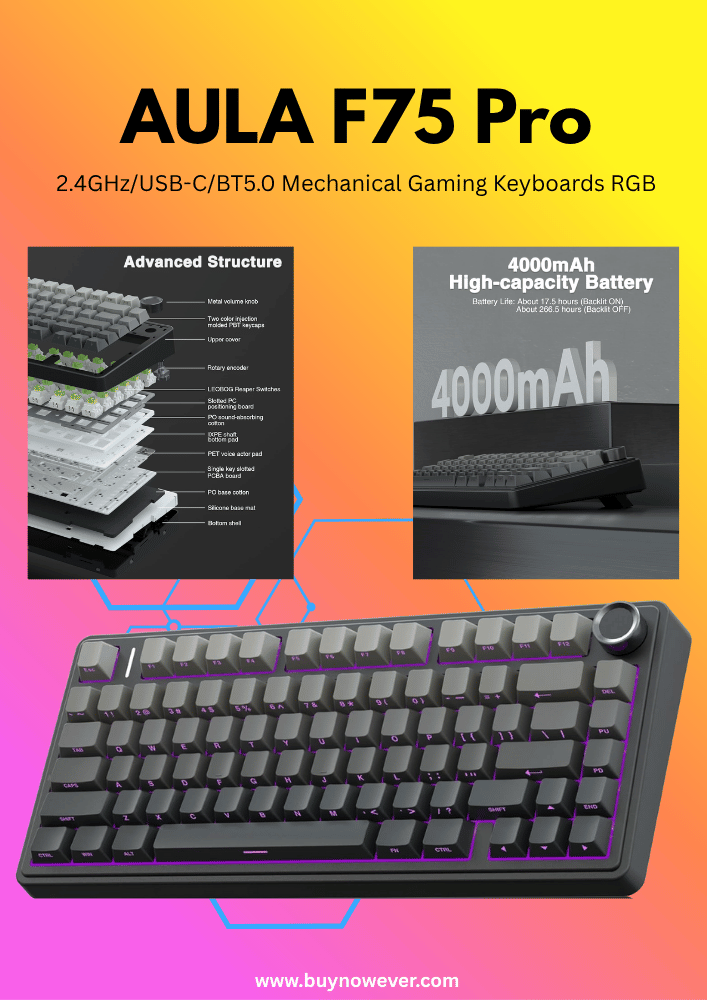
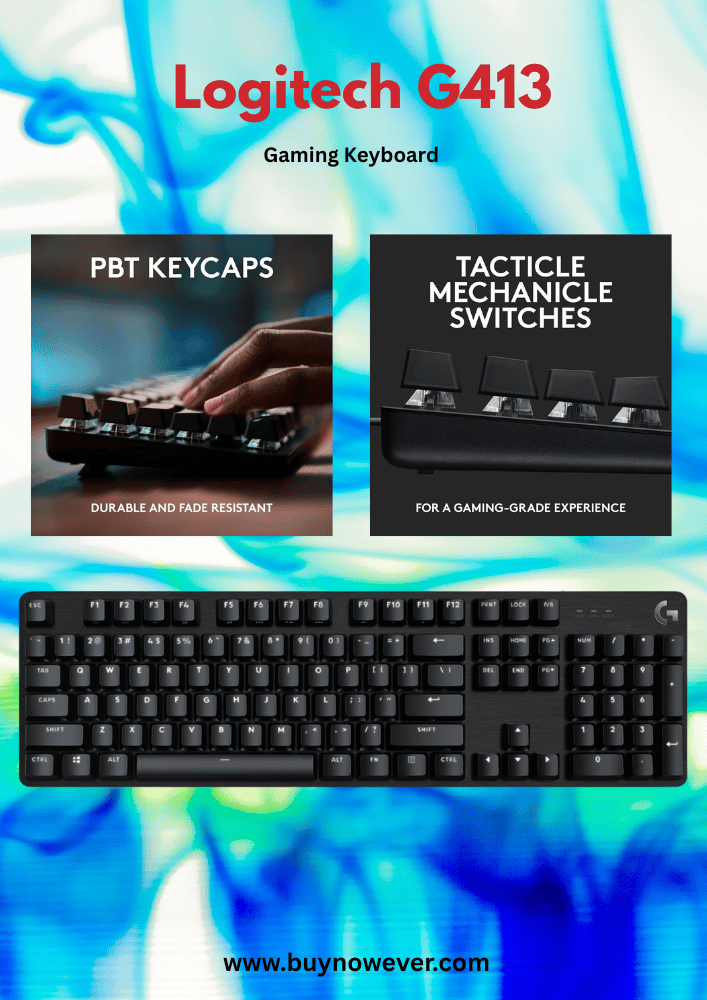
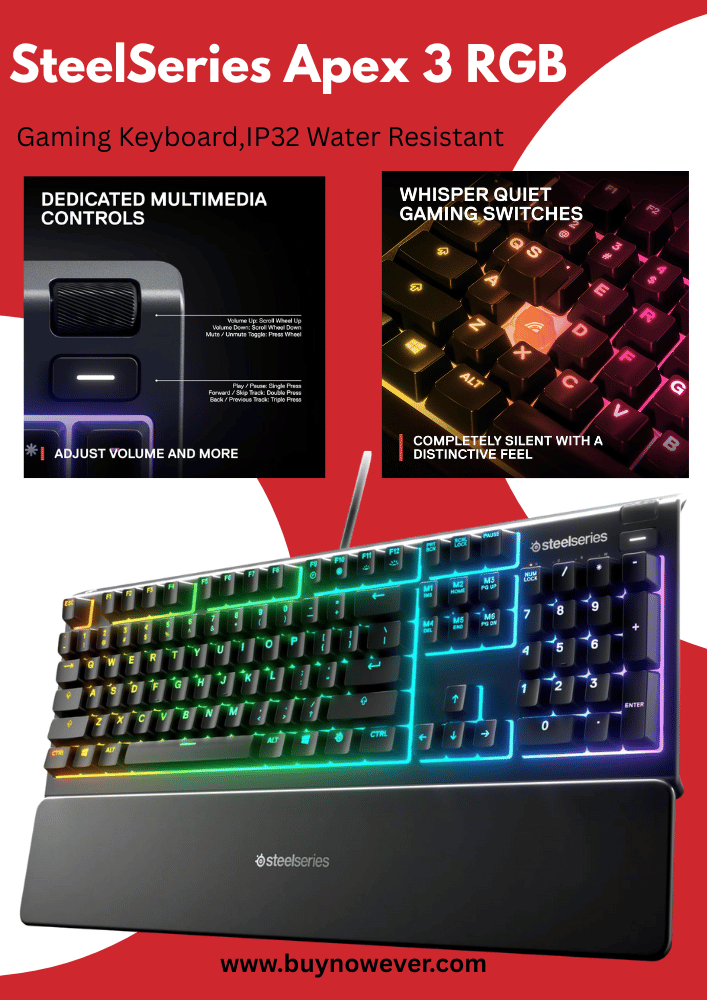
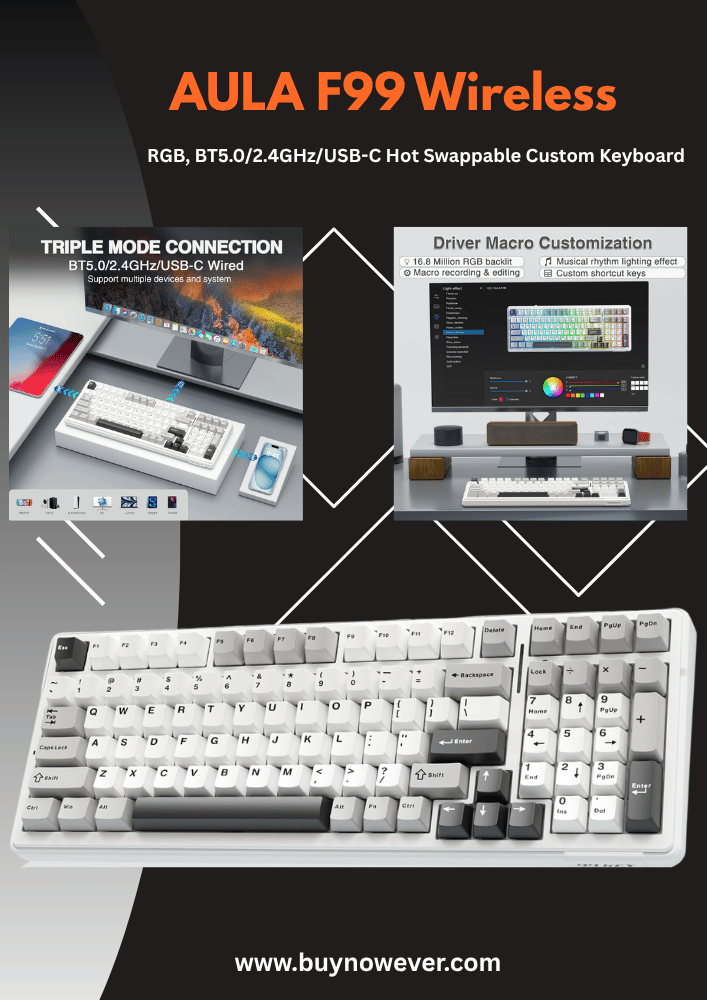
Choosing the right keyboard is the first step to customizing your gaming setup. The keyboard affects your comfort, speed, and accuracy during gameplay. Picking the right one depends on your personal style and gaming needs. Consider the type of keyboard, the key switches, and the size and layout before making a choice. This guide will help you understand the key features to look for.
Mechanical Vs Membrane
Two main types of keyboards exist: mechanical and membrane. Mechanical keyboards use individual switches for each key. Membrane keyboards have a thin layer that registers key presses.
Mechanical keyboards offer:
Better durability and longer lifespan
More precise and tactile feedback
Louder key presses, which some gamers prefer
Easy to customize key switches and keycaps
Membrane keyboards provide:
Quieter typing experience
Lower cost, usually more affordable
Lighter and thinner design
Less precise key feedback
Feature
Mechanical
Membrane
Durability
High (up to 50 million key presses)
Lower (around 5 million key presses)
Key Feedback
Clicky, tactile, or linear
Soft and quiet
Price
Higher
Lower
Customization
High (switches, keycaps)
Limited
Mechanical keyboards suit gamers who want performance and custom options. Membrane keyboards suit casual users or budget buyers.
Key Switch Types
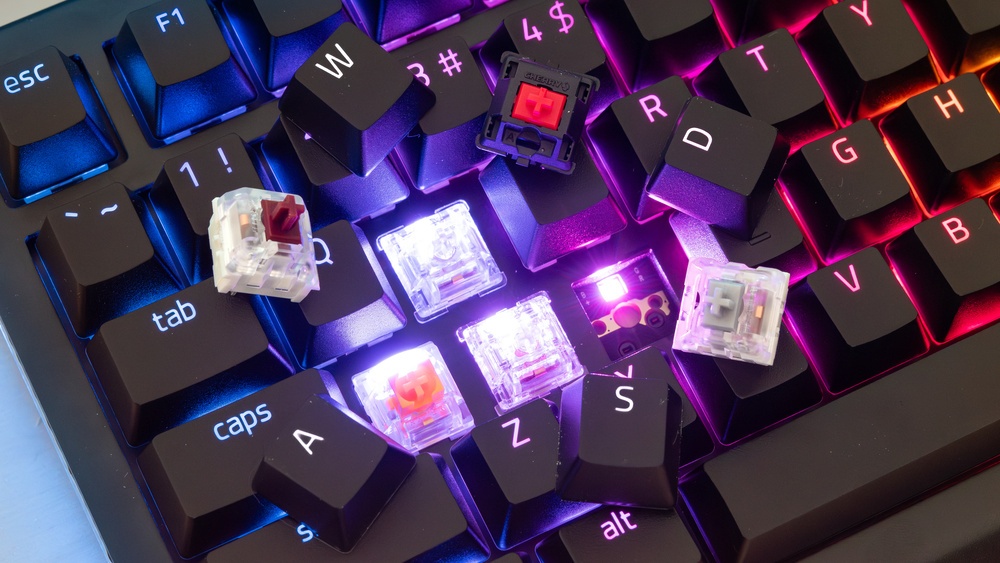
Key switches define how each key feels and sounds. Mechanical keyboards have many switch options. Each switch type changes the force needed to press the key and the sound it makes.
Common switch types include:
Linear switches: Smooth and quiet. No tactile bump. Good for fast key presses.
Tactile switches: Have a small bump to feel when the key registers. Provide feedback without loud click sounds.
Clicky switches: Tactile bump plus a loud click sound. Great for users who want audible feedback.
Switch Type
Feel
Sound
Best for
Linear
Smooth
Quiet
Fast-paced gaming
Tactile
Bump feedback
Moderate
Balanced gaming and typing
Clicky
Bump + click
Loud
Typing and feedback lovers
Choosing the right switch affects your gaming speed and comfort. Testing different switches helps find the best fit.
Size And Layout Options
Keyboard size and layout change how many keys are available and how compact the keyboard is. Size affects desk space and ease of use.
Common keyboard sizes include:
Full-size (100%): Has all keys, includinga number pad. Best for users who need all functions.
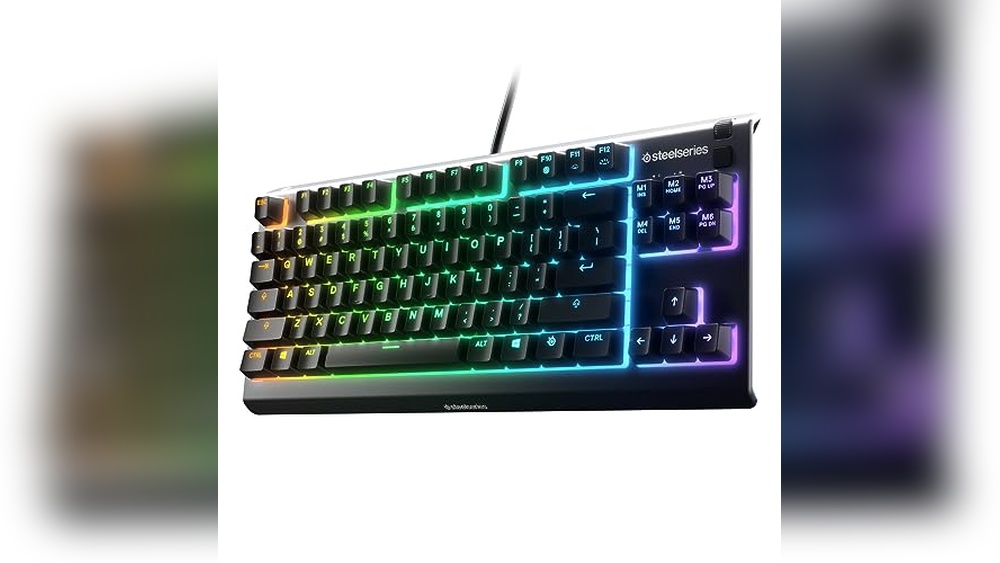
Tenkeyless (TKL, 87%): No number pad. Saves space and allows better mouse movement.
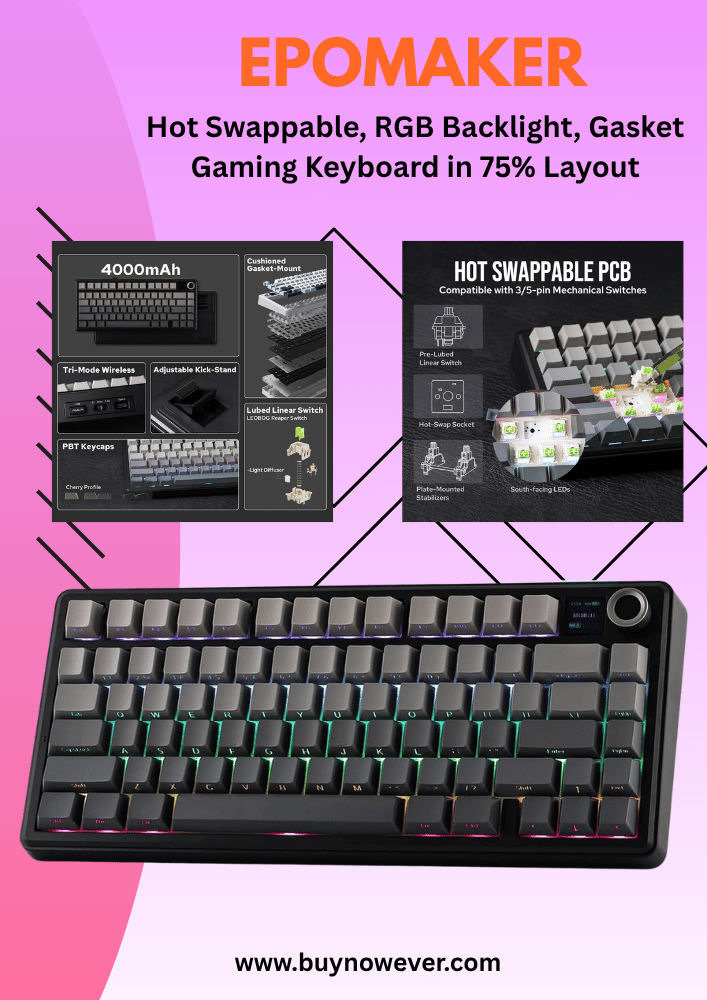
75%, 65%, 60%: Smaller layouts that remove function keys, arrow keys, or navigation keys. Very compact and portable.
Layouts vary by region and language. Most gaming keyboards use the standard QWERTY layout, but some offer alternative layouts for comfort.
Size
Keys Included
Desk Space
Best for
Full-size (100%)
104+ keys
Largest
Office work, gaming with a number pad
Tenkeyless (TKL, 87%)
87 keys
Medium
Gaming saves space
75%
~84 keys
Compact
Gaming, small desks
65%
~67 keys
Smaller
Portable setups
60%
~61 keys
Smallest
Minimalist, travel
Pick the size that fits your desk and gaming style. Smaller keyboards improve portability but may lack extra keys.
Keycap Customization
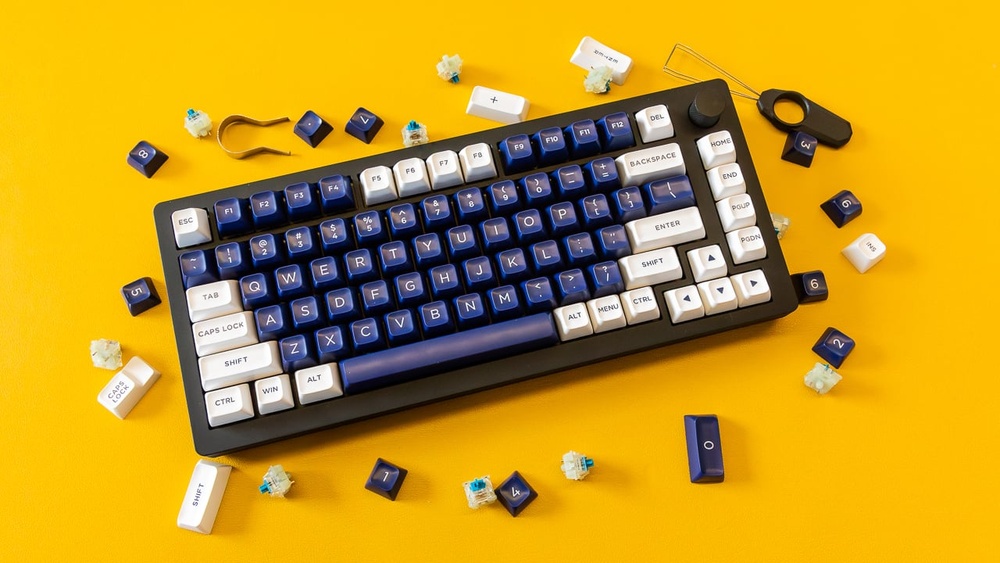
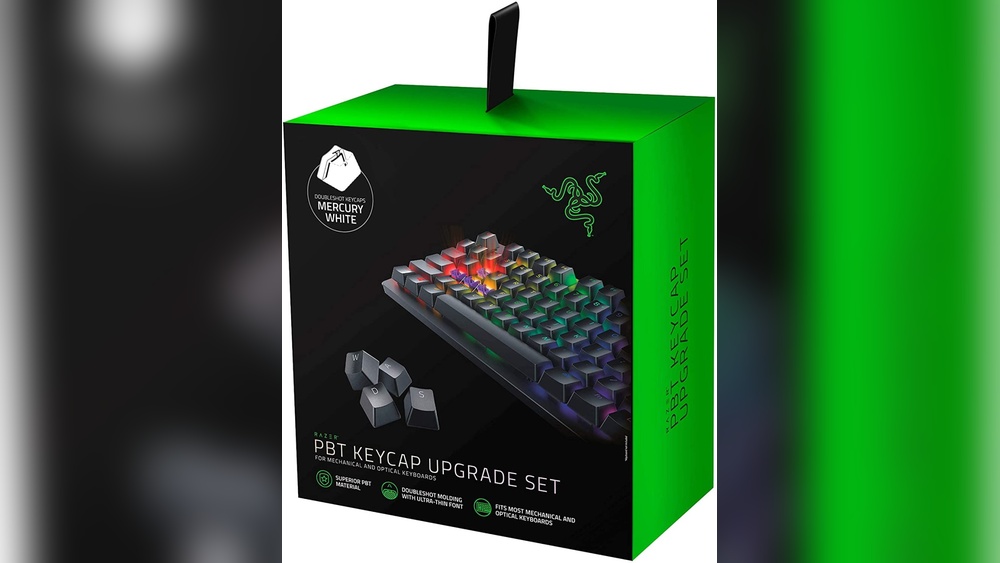
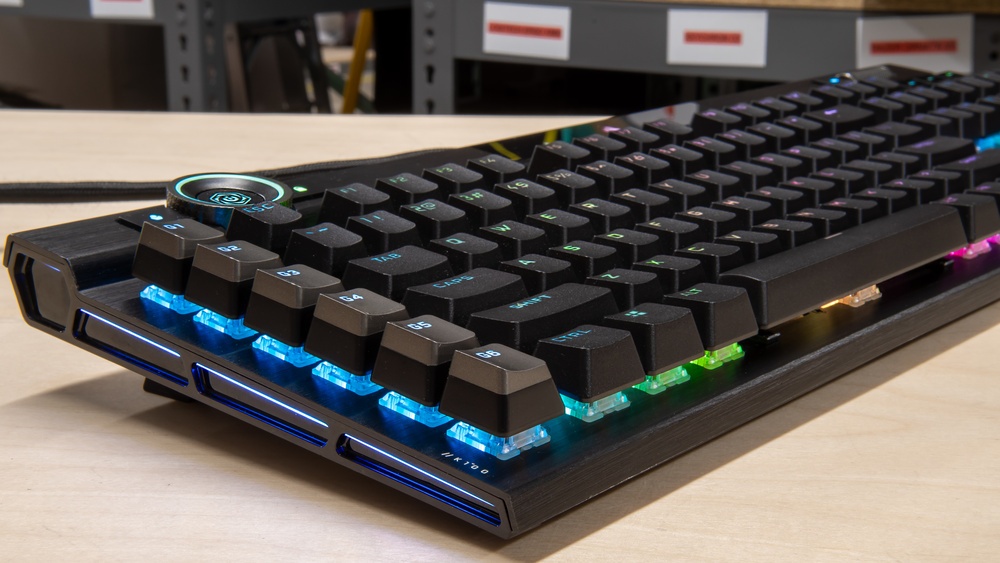
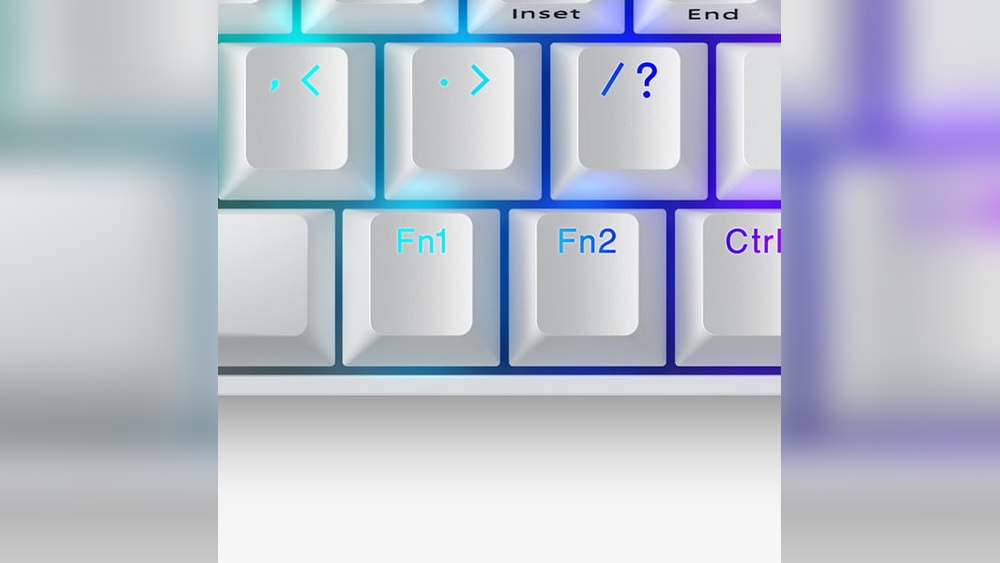
Customizing your gaming keyboard starts with keycap customization. Keycaps are the top part of each key, the part you press. Changing them can improve your typing feel and the keyboard’s look. Custom keycaps help personalize your setup and can make gaming more comfortable. This guide covers keycap material choices, profile styles, and custom keycap sets.
Material Choices
Keycap material affects durability, feel, and sound. The two most common materials are ABS and PBT. Both have pros and cons for gamers.
ABS (Acrylonitrile Butadiene Styrene): Smooth and shiny surface. Feels soft but wears out faster. Key legends may fade over time. Usually cheaper and easier to find.
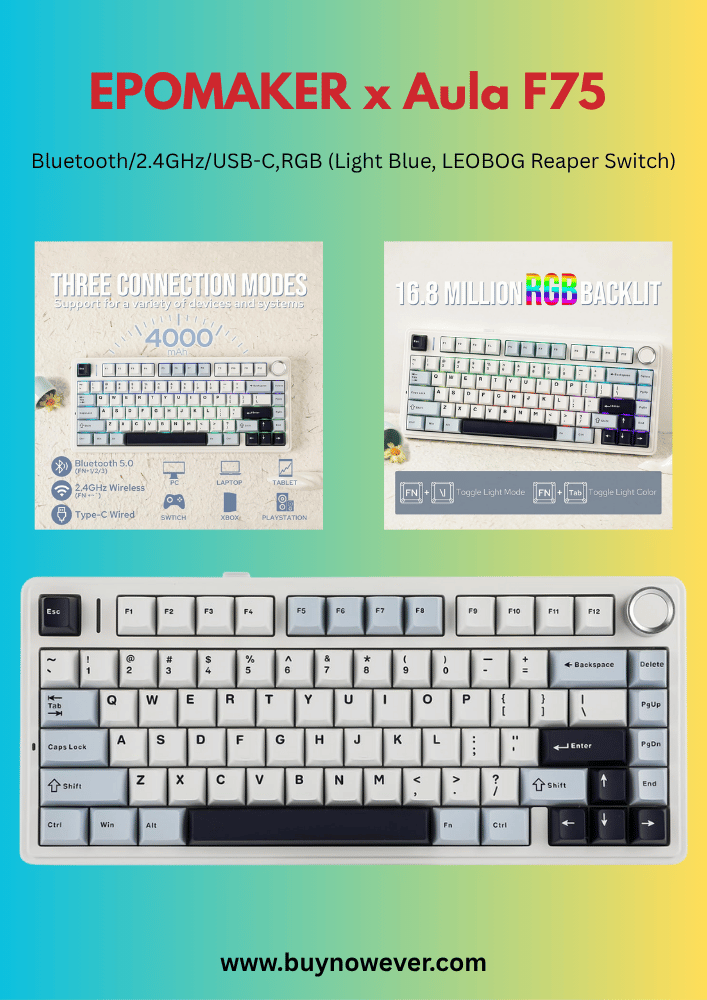
PBT (Polybutylene Terephthalate): More textured and matte finish. Very durable and resists shine. Legends last longer. Slightly thicker, which some users like for typing.
Other less common materials include:
POM (Polyoxymethylene): Smooth and slippery, with good durability.
Metal: Heavy and very durable, but expensive and loud.
Material
Texture
Durability
Legend Longevity
Price
ABS
Smooth, shiny
Moderate
Fades quickly
Low
PBT
Textured, matte
High
Lasts long
Medium
POM
Smooth
High
Good
Medium
Metal
Hard, cold
Very High
Permanent
High
Choosing the right material depends on your preferences for feel, sound, and budget.
Profile Styles
Keycap profile means the shape and height of the keys. Different profiles change how your fingers move and rest on the keyboard. Some profiles suit gaming better, others typing.
OEM: The most common. Medium height and curved shape. Comfortable for most users.
Cherry: Lower and shorter than OEM. Smooth curve for faster typing and gaming.
SA (Spherical All): Tall and rounded. Vintage look and feel. Can be tiring for long use.
XDA: Flat and uniform height. Easy to press all keys equally.
DSA: Flat and uniform, like XDA but with a slightly different shape.
Profile
Height
Shape
Best For
OEM
Medium
Curved
General use
Cherry
Low
Curved
Fast typing, gaming
SA
Tall
Rounded
Style, retro look
XDA
Uniform
Flat
Equal key feel
DSA
Uniform
Flat, low
Compact layouts
Select a profile that feels comfortable. Gaming needs quick and precise key presses. Profiles like Cherry or OEM fit well.
Custom Keycap Sets
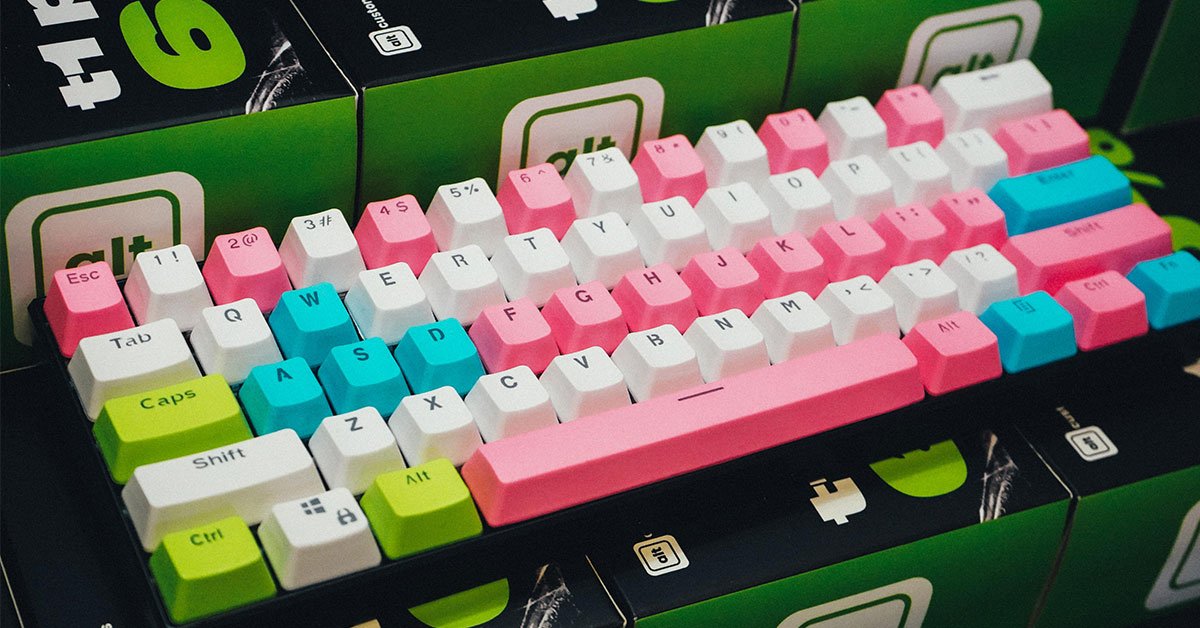
Custom keycap sets offer unique designs and colors. They let you style your keyboard to match your personality. Many sets include extra keys for different layouts.
Common features of custom sets:
Bright or subtle colors
Unique fonts and legends
Special symbols or icons for games
Different materials and profiles combined
Popular custom keycap themes include:
Gaming-themed with icons for abilities and functions
Retro or vintage style sets
Minimalist or monochrome designs
Artistic or anime-inspired designs
When buying custom sets, check compatibility with your keyboard layout. Some sets may lack keys for non-standard layouts. Also, consider if the legends are printed or dye-sublimated. Dye-sublimation lasts longer.
Custom keycaps enhance both aesthetics and usability. They make your gaming keyboard truly yours.
Lighting Effects
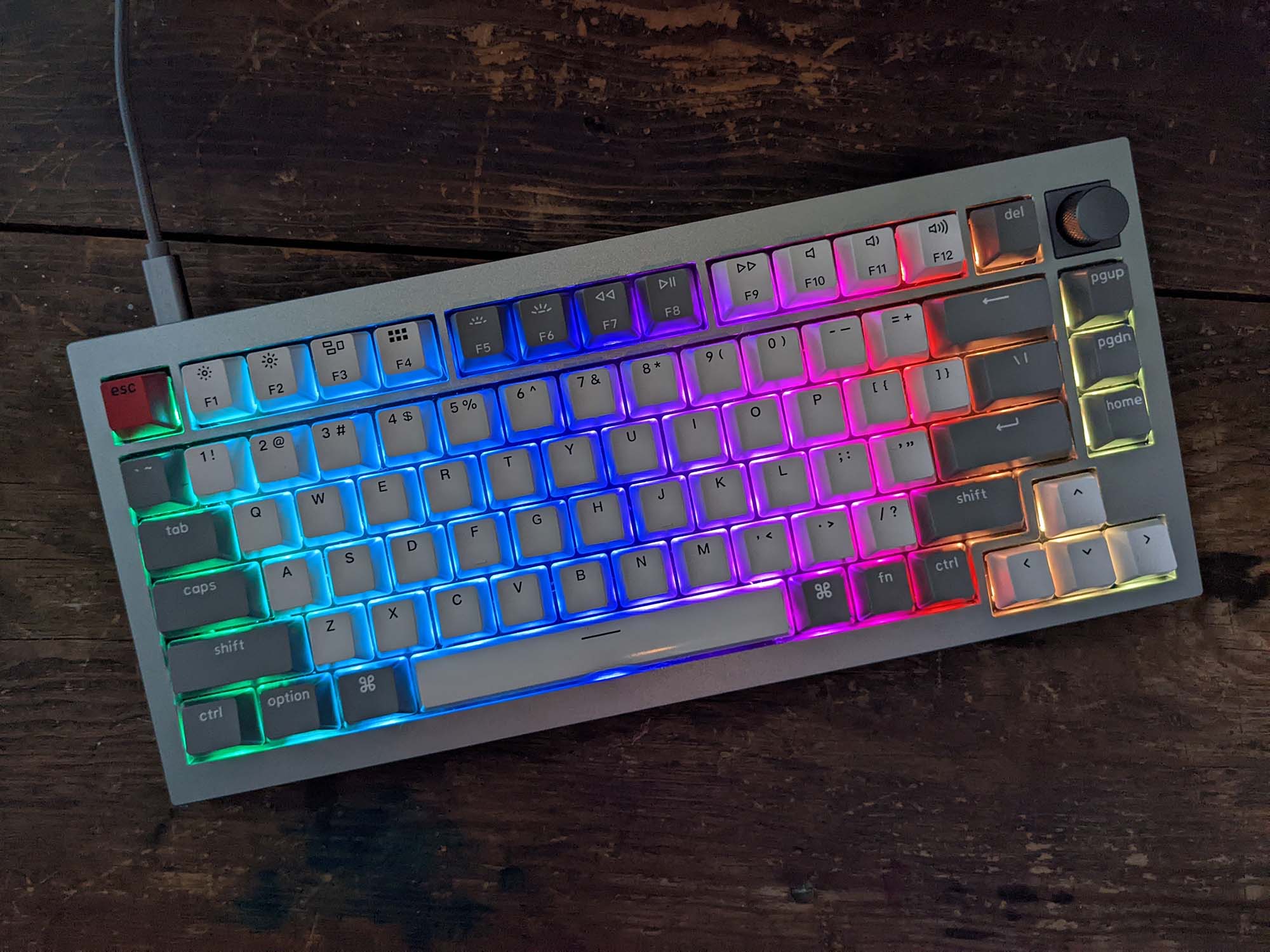
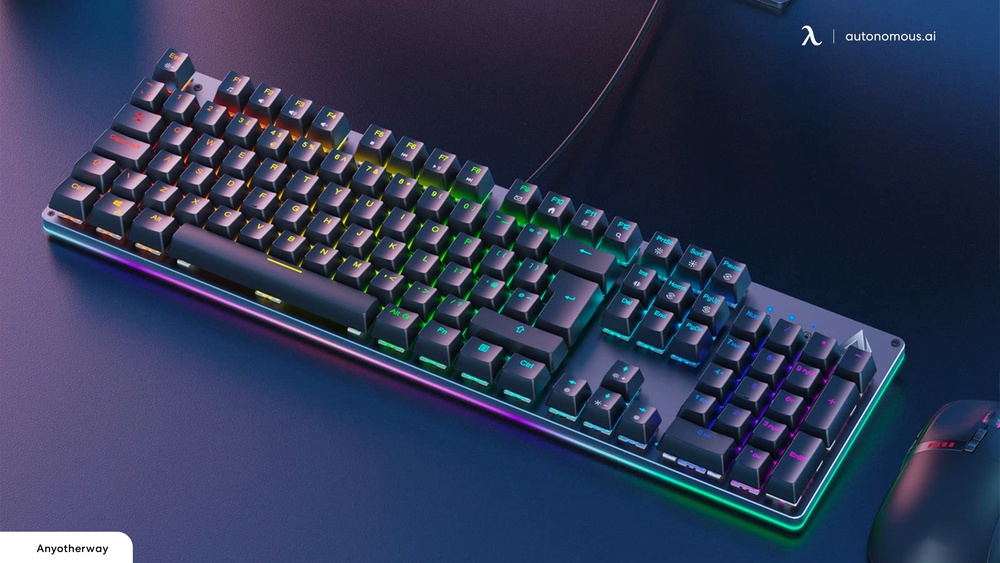
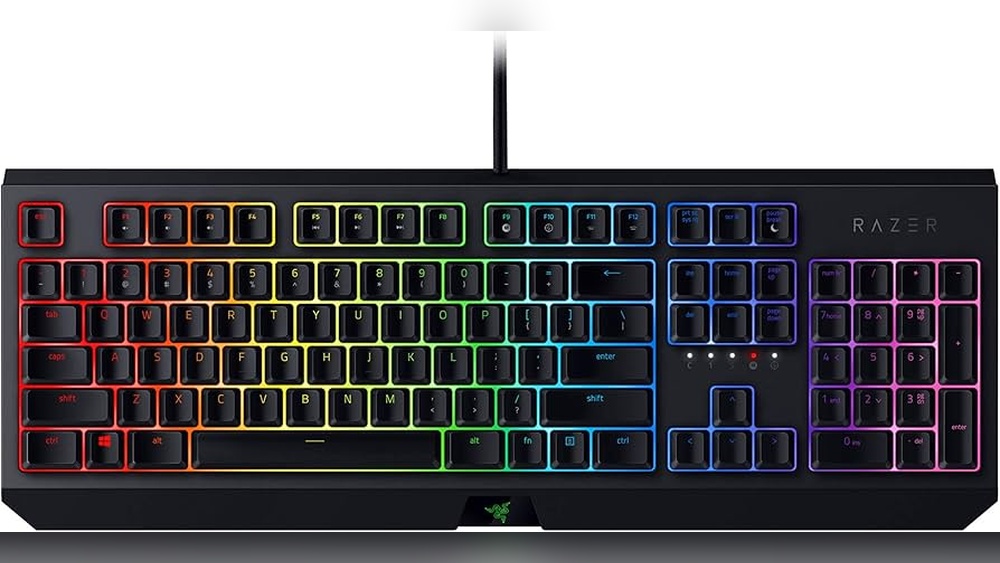
Lighting effects play a big role in customizing a gaming keyboard. They not only make your setup look cool but can also help improve your gaming experience. By changing the lights, you can create a unique style that fits your personality or game theme. Lights can also highlight important keys, making it easier to play fast and accurately. Understanding different lighting options helps you choose the best one for your needs.
Rgb Vs Single Color
There are two main types of lighting effects on gaming keyboards: RGB and single color. Each has its own benefits and suits different users.
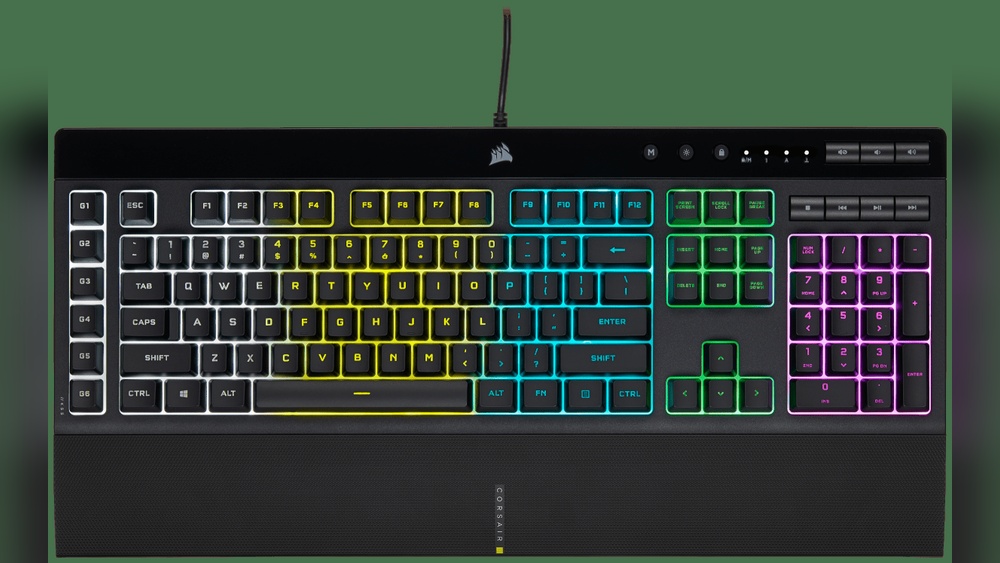
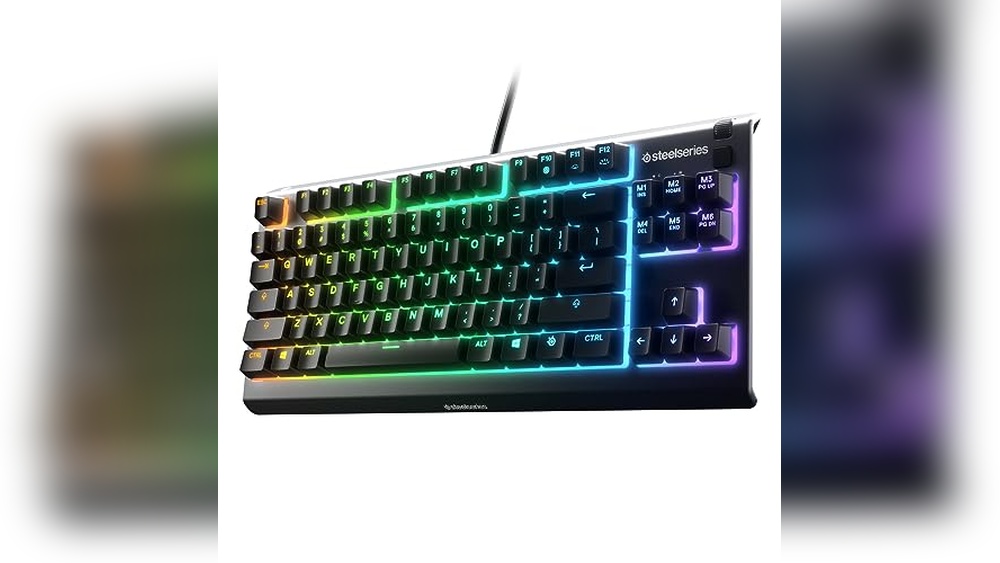
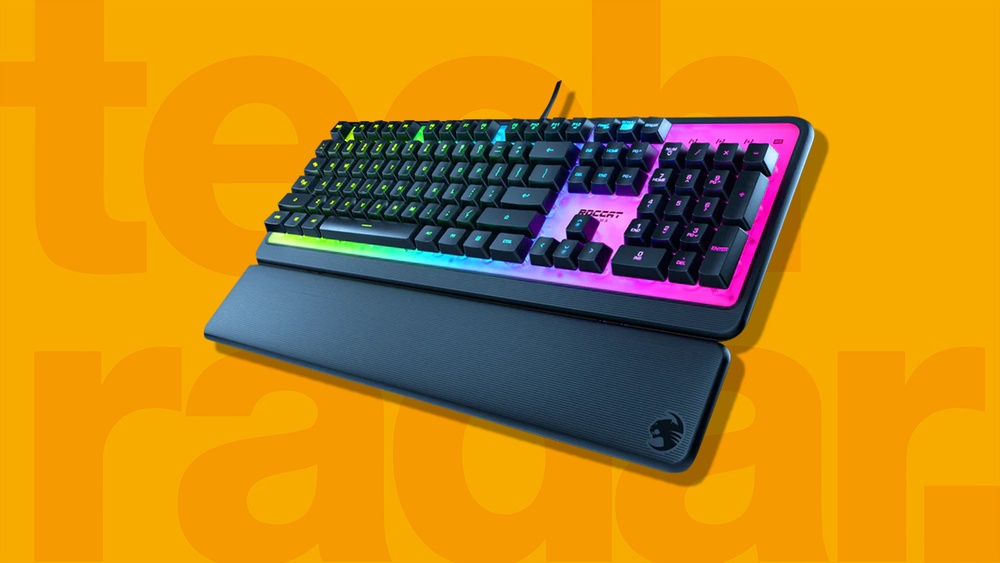
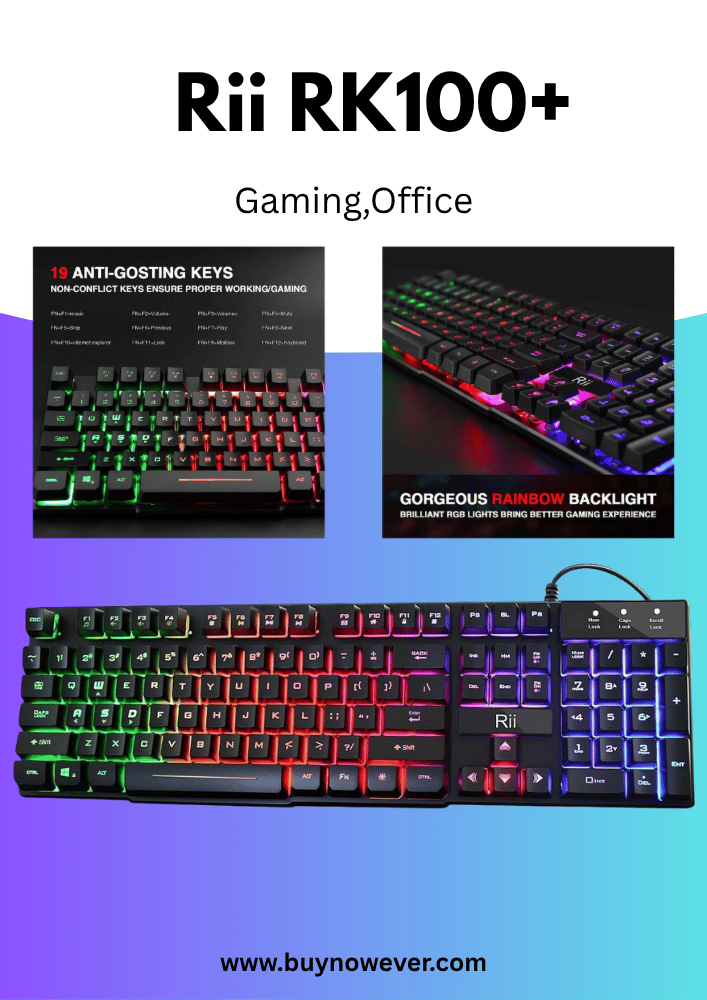
RGB lighting means the keyboard can show millions of colors. You can change every key’s color or create cool effects like waves and ripples. This type is popular because it offers lots of customization. You can match your keyboard lights with your PC or game themes easily.
Single color lighting means the keyboard lights up in one color only. It is simple but still looks nice. Many gamers like single-color lights because they are less distracting and easier to set up.
Feature
RGB Lighting
Single Color Lighting
Color Options
Millions of colors
One color only
Customization
High – custom effects and zones
Low – usually on/off and brightness
Power Usage
Higher
Lower
Price
Usually more expensive
Usually cheaper
Distraction Level
Can be distracting
Less distracting
Choose RGB if you want full control over colors and effects. Pick a single color if you want a simple, clean look.
Software Control
Most gaming keyboards come with software to control lighting effects. This software lets you change colors, brightness, and animations easily. It gives you a user-friendly way to customize your keyboard without guesswork.
With software, you can:
Set different colors for each key
Create lighting effects like breathing, waves, or reactive
Save profiles for different games or moods
Adjust brightness and speed of effects
The software often includes a simple interface with buttons and sliders. Some advanced programs let you assign macros or special commands to keys, synced with lighting changes.
Here is a basic example of a lighting control code snippet some software uses:
function setKeyColor(key, color) { keyboard.setKeyColor(key, color); } setKeyColor('W', 'FF0000'); // Set W key to red
Using software puts you in charge of how your keyboard looks and feels. Spend time exploring different settings to find your favorite look.
Syncing With Games
Many modern gaming keyboards can sync their lighting with games. This feature makes the lights change based on what happens in the game. It adds extra excitement and helps you react faster.
Examples of syncing:
Keys light up red when your health is low
Colors change to match the game’s environment
Special effects during game events like kills or level-ups
Game syncing uses software that connects to the game’s data. It then sends commands to the keyboard to change lighting in real time. This creates a more immersive experience.
Not all games support this feature. Popular games with good keyboard syncing include:
Fortnite
Overwatch
Call of Duty
League of Legends
Check if your keyboard and games support syncing. Update your keyboard software and game patches for the best results. Syncing lights can help you notice important game events faster and enjoy a dynamic look.
Programming Macros
Programming macros lets gamers customize their keyboards to perform multiple actions with a single key press. This feature saves time and improves gameplay efficiency. Macros can be simple or complex sequences of commands that automate repetitive tasks. Learning to program macros enhances your gaming experience by reducing effort and increasing precision.
Setting Up Macros
Setting up macros starts with understanding your keyboard’s software or built-in macro functions. Most gaming keyboards come with dedicated software for easy macro programming. Follow these basic steps:
Open your keyboard’s macro software. This software controls macro creation and assignment.
Select the key you want to assign the macro to. Some keyboards have dedicated macro keys.
Record the sequence of actions. This can include key presses, mouse clicks, and delays.
Edit the macro. Adjust timing or add extra commands if needed.
Save and apply the macro. Test it in your game or app to ensure it works correctly.
Here is a simple example of a macro sequence:
Step
Action
Description
1
Press W
Move forward
2
Press Space
Jump
3
Press Left Mouse Button
Shoot
Use delays between actions for better timing. Start with simple macros to avoid mistakes. Keep testing and adjusting until the macro feels natural.
Common Macro Uses
Macros help automate many gaming tasks. They reduce the need to press several keys quickly. This makes complex moves easier and faster. Common uses include:
Combo attacks: Perform a series of attacks with one key.
Building structures: Place materials or walls quickly in games like Fortnite.
Inventory management: Organize items or use potions fast.
Reload and shoot: Reload the weapon and shoot immediately.
Chat commands: Send preset messages during gameplay.
Here is a list of popular macro functions by game type:
Game Type
Macro Function
Benefit
FPS
Quick reload + shoot
Improves reaction time
MMORPG
Cast multiple spells
Saves time in battles
Strategy
Build units fast
Speeds up gameplay
Survival
Craft items quickly
Makes resource use efficient
Macros make repetitive actions less tiring. Use them to focus on strategy and fun instead of button-mashing.
Macro Software Tools
Macro software controls how macros are created and used. Most gaming keyboards come with their own tools. These programs offer easy recording and editing features. Popular macro software includes:
Razer Synapse: For Razer keyboards, supports complex macros and profiles.
Logitech G Hub: Works with Logitech devices, offers cloud storage for macros.
AutoHotkey: Free third-party tool for Windows, highly customizable but needs scripting knowledge.
Each tool has pros and cons. Here is a comparison table:
Software
Ease of Use
Features
Best For
Razer Synapse
Easy
Macro recording, profile management
Razer users
Logitech G Hub
Easy
Cloud sync, macro editor
Logitech users
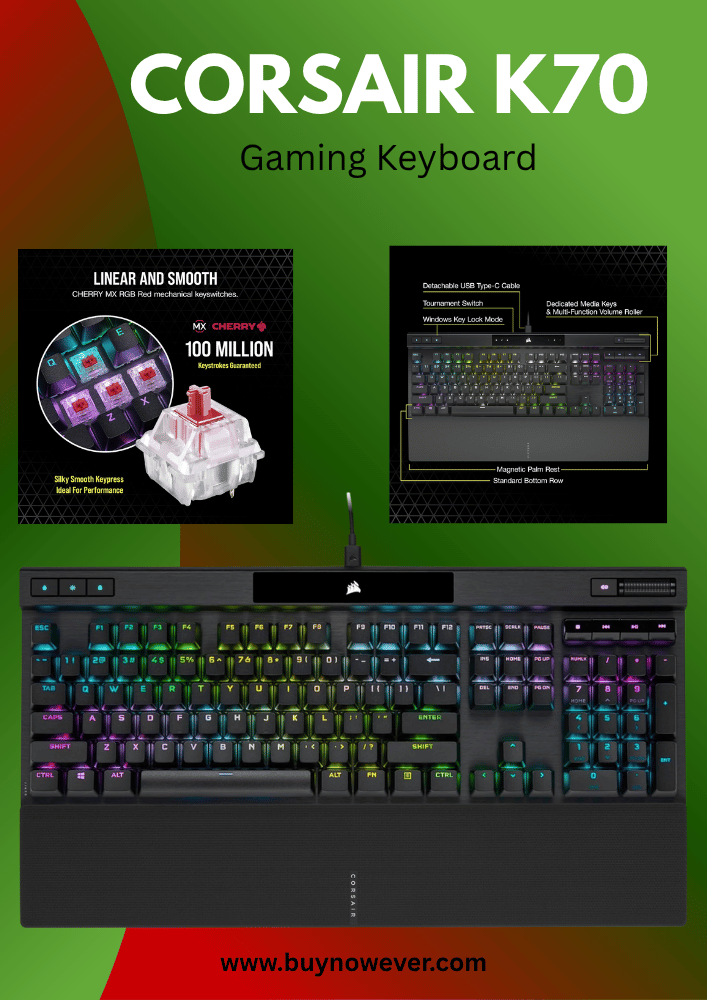
Corsair iCUE
Moderate
Advanced macro setup, lighting control
Corsair users
AutoHotkey
Hard
Script-based macros, wide customization
Advanced users
Choose software that fits your keyboard and skill level. Start with built-in tools before trying complex programs. Regular updates improve software stability and add features.
Physical Modifications
Customizing a gaming keyboard physically enhances comfort and performance. Physical modifications change how the keyboard feels and sounds. These tweaks help match the keyboard to personal preferences. Simple changes can make typing and gaming more enjoyable.
Replacing Switches
Switches control how keys respond and feel. Changing switches lets users pick a softer or louder key press. Mechanical keyboards often allow switch replacement. This upgrade improves typing speed and accuracy.
Here are common switch types:
Switch Type
Feel
Sound
Best For
Linear
Smooth, consistent
Quiet
Fast gaming
Tactile
Light bump on press
Moderate
Typing and gaming
Clicky
Strong bump, click noise
Loud
Typing feedback
Steps to replace switches:
Remove keycaps with a keycap puller.
Use a soldering iron for fixed switches or pull out hot-swappable switches.
Insert new switches carefully.
Reattach keycaps and test keys.
Replacing switches requires care. Use proper tools to avoid damage. Test each key after replacement to confirm function.
Adding O-rings
O-rings are small rubber rings placed under keycaps. They reduce key travel and noise. This makes typing quieter and softer. Installing O-rings is quick and cheap.
Benefits of O-rings:
Less noise on key press.
Reduced finger fatigue.
Shorter key travel distance.
Improved typing comfort.
Types of O-rings vary by thickness and hardness. Choose based on desired feel:
Thickness
Effect
1mm
Minimal travel reduction, slight noise dampening
1.5mm
Balanced travel and noise reduction
2mm
Significant travel reduction, quieter typing
How to install O-rings:
Remove keycaps using a puller.
Place the O-ring around the keycap stem.
Press the keycap back onto the switch firmly.
O-rings suit those who want quieter, softer key presses. Test different thicknesses to find comfort level.
Custom Cables
Custom cables improve keyboard style and durability. Factory cables may be plain and stiff. Custom cables come in many colors and materials. They add personality and reduce wear.
Benefits of custom cables:
More vibrant colors and designs.
Better flexibility and less tangling.
Stronger connectors and longer lifespan.
Matching other gaming gear aesthetics.
Popular custom cable types:
Cable Type
Description
Use
Coiled
Spring-like coil for adjustable length
Desk neatness, style
Paracord
Flexible, lightweight sleeving
Minimal resistance
USB-C or Micro USB
Connector type varies by keyboard
Compatibility
Steps to replace a cable:
Unplug the old cable from the keyboard.
Connect the custom cable to the keyboard port.
Plug the other end into the computer.
Test the connection and adjust the cable position.
Custom cables are easy to install. Choose one with the correct connector type. Match cable style to your gaming setup.
Maintenance Tips
Maintaining a customized gaming keyboard keeps it working well and feeling great to use. Regular care helps avoid problems and extends its life. This section covers simple maintenance tips that anyone can follow. From cleaning to updates and fixing common issues, these steps keep your keyboard in top shape.
Cleaning Techniques
Cleaning your gaming keyboard is important to keep keys responsive and bright. Dust, crumbs, and oils from fingers build up over time. Clean your keyboard regularly using these simple steps:
Unplug the keyboard before cleaning to avoid damage.
Remove keycaps gently using a keycap puller if possible.
Use compressed air to blow dust and debris from between keys.
Wipe the surface with a soft cloth slightly dampened with water or isopropyl alcohol.
Clean keycaps by soaking them in warm, soapy water for 20 minutes, then dry completely.
Use cotton swabs dipped in alcohol to clean tight spaces.
Here is a quick cleaning checklist:
Step
Tool
Purpose
Remove keycaps
Keycap puller
Access hard-to-reach areas
Blow out dust
Compressed air
Remove loose debris
Wipe surface
Soft cloth
Remove oils and stains
Clean keycaps
Soap and water
Deep clean keys
Regular cleaning prevents sticky keys and keeps your keyboard looking new. Avoid harsh chemicals that can damage the finish or electronics.
Firmware Updates
Firmware controls how your keyboard works. Updating firmware can fix bugs and add new features. Check your keyboard’s software often for updates. Follow these easy steps:
Visit the manufacturer’s website or use their software.
Download the latest firmware version for your model.
Connect your keyboard via USB for a stable connection.
Run the update tool and follow the on-screen instructions.
Do not disconnect the keyboard during the update.
Benefits of firmware updates include:
Improved key response and lighting effects
Bug fixes for common problems
Compatibility with new games and software
Added customization options
Keep firmware up to date to enjoy the best performance and latest features from your gaming keyboard.
Troubleshooting Common Issues
Sometimes, your customized gaming keyboard may face simple problems. Common issues include unresponsive keys, lighting errors, or connection problems. Use these steps to troubleshoot:
Check cable connections to ensure the keyboard is plugged in securely.
Restart your computer to reset device drivers.
Test keys using a keyboard tester tool online to find stuck or dead keys.
Reset keyboard settings to factory defaults via the keyboard software.
Reinstall drivers through your device manager to fix software conflicts.
If lighting does not work:
Verify that lighting profiles are active in the software.
Try different USB ports to rule out hardware issues.
Update firmware as described above.
Keep a simple troubleshooting chart handy:
Problem
Possible Cause
Solution
Unresponsive keys
Dust or debris
Clean keyboard, remove keycaps
Lighting not working
Software settings
Reset lighting profile
Keyboard not detected
Loose cable or driver error
Check cable, reinstall drivers
Most issues can be fixed quickly with these tips. Keep your keyboard clean, updated, and well-connected for smooth gaming.
Frequently Asked Questions
How Do I Change Key Functions On My Gaming Keyboard?
Most gaming keyboards have software to remap keys. Open it, select a key, and assign a new function.
Can I Customize Rgb Lighting On My Gaming Keyboard?
Yes, use the keyboard’s software or built-in controls to change colors, patterns, and brightness of the lights.
What Are Macros And How To Set Them On My Keyboard?
Macros record multiple key presses into one. Use the software to create and assign macros to keys.
Is It Safe To Update My Gaming Keyboard Firmware?
Yes, firmware updates fix bugs and add features. Download from the official website and follow the instructions carefully.
How Can I Clean My Gaming Keyboard Without Damage?
Turn off and unplug it. Use a soft brush or cloth and avoid liquids near electronics.
Conclusion
Customizing your gaming keyboard can improve your play and comfort. Small changes like key remapping and lighting make a big difference. Choose colors and layouts that suit your style and needs. Test each change to find what feels best for you.
Keep your setup simple at first, then add more tweaks. Enjoy the process and see how it helps your game. Your keyboard should fit you, not the other way around. Take time, and have fun customizing!