How to Turn off Gaming Mode on Keyboard: Quick & Easy Guide
Are you stuck trying to turn off Gaming Mode on Keyboard? It can get frustrating when keys don’t respond as expected, but our guide helps you regain full control quickly and easily.
Maybe you accidentally enabled it or want to switch back to normal typing fast. Luckily, turning off Gaming Mode is easier than you think. You’ll discover simple steps to get your keyboard back to normal in no time. Keep reading, and you’ll be typing smoothly again before you know it.
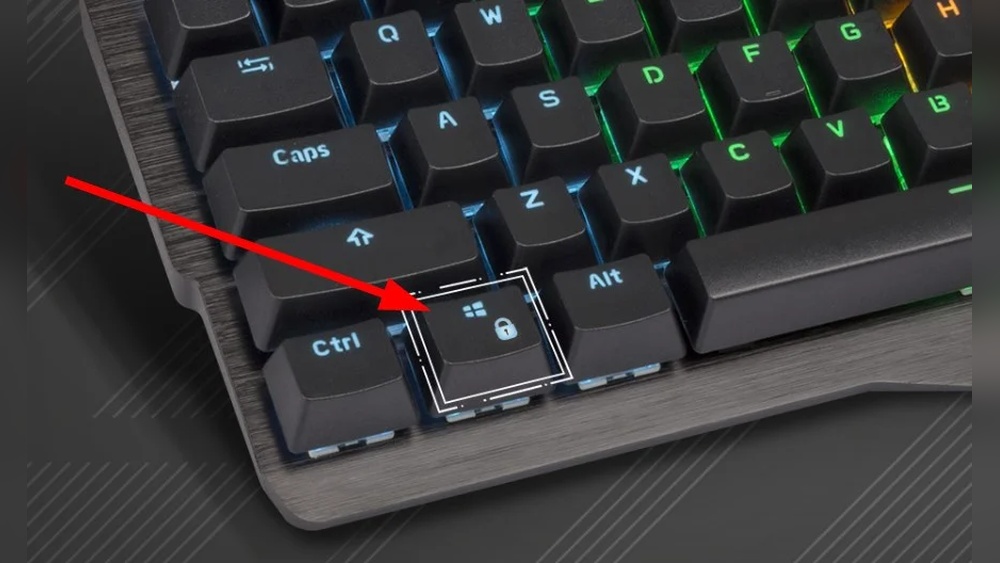
To turn off gaming mode on your keyboard, the first step is to locate the gaming mode key. This key is designed to disable certain functions, like the Windows key,y to prevent accidental interruptions during gameplay. Finding this key can be tricky because its name and position vary depending on the keyboard model and brand. Knowing where to find it helps you quickly toggle gaming mode on or off without hassle.
Common Key Names
The gaming mode key often has different names or symbols. Recognizing these names helps in spotting the key on your keyboard easily. Here are some common names and labels you might see:
Game Mode – A straightforward label found on many gaming keyboards.
G Mode – A shorter version, often printed on smaller keys.
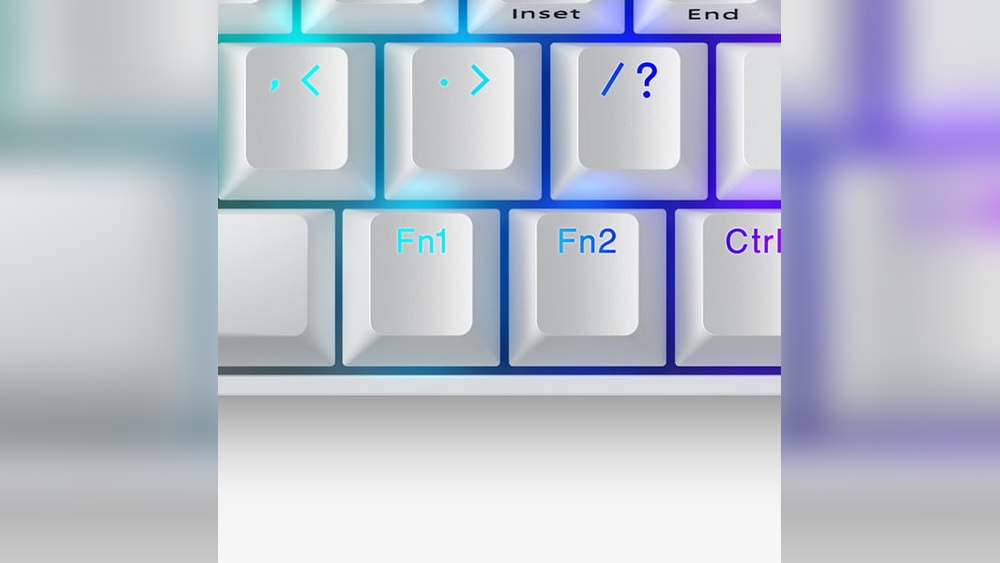
Fn + F Lock – Sometimes, gaming mode is activated by pressing a function key combo.
Windows Lock – This key specifically disables the Windows key during gaming.
Crossed-out Windows logo – A symbol showing the Windows key blocked.
Some keyboards combine the gaming mode function with other keys. For example, pressing Fn + F12 might toggle gaming mode. Other keyboards have a dedicated physical switch or button.
Key Name
Description
Example Location
Game Mode
Dedicated key to toggle gaming mode on/off
Top row, near function keys
Windows Lock
Disablethe s Windows key to avoid interruptions
Between Ctrl and Alt keys or as an Fn combo
Fn + F12
Function key combination for gaming mode
Top right corner of the keyboard
Tip: Check your keyboard manual or manufacturer’s website to confirm the exact key name and function.
Keyboard Layout Variations
Keyboard layouts differ across brands and models. This affects where the gaming mode key is located and how it looks. Some keyboards have a small switch, others use key combinations or special keys.
Here are some common layout types and how they handle gaming mode keys:
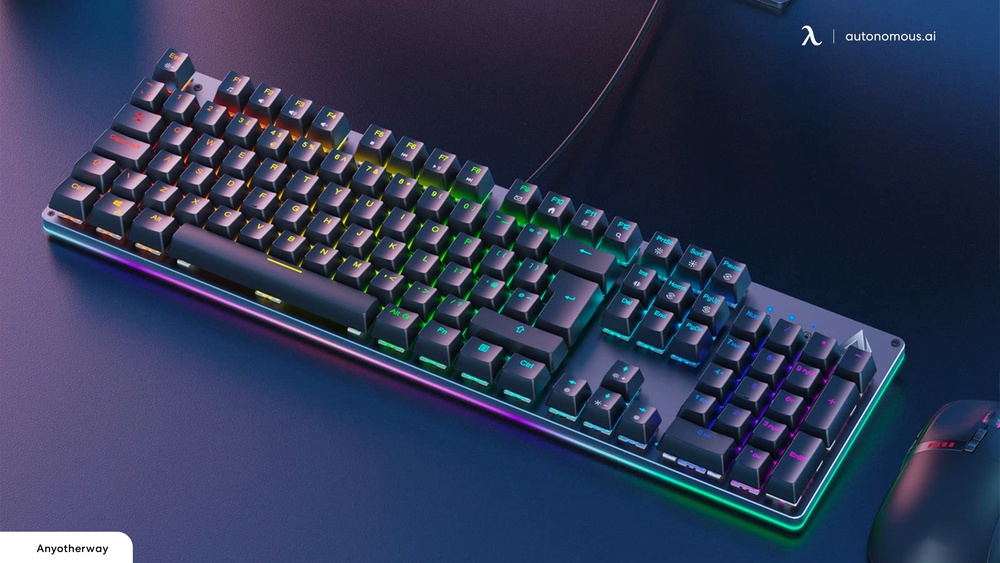
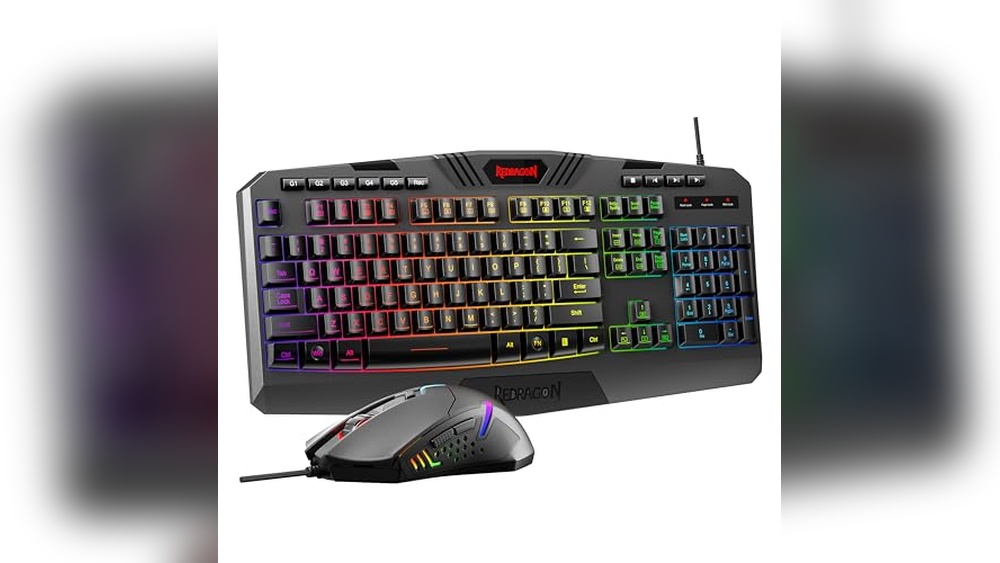
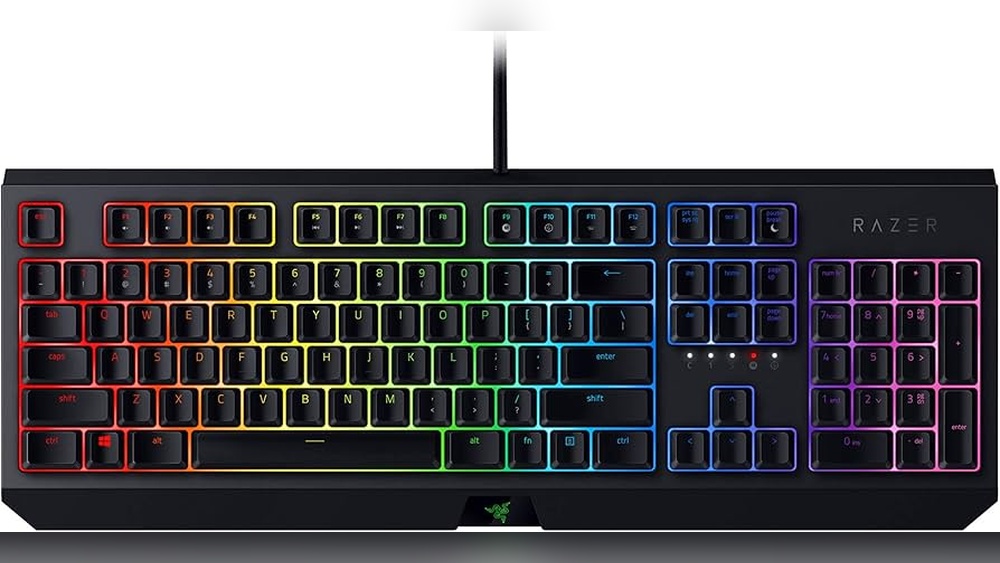
Full-size gaming keyboards: Often include a dedicated gaming mode button near the function keys or on the top row.
Tenkeyless keyboards: May use Fn key combinations due to fewer keys.
Compact and laptop keyboards: Usually rely on key combos like Fn + Windows or Fn + another function key.
Some gaming keyboards place the gaming mode key in a unique spot for easy access:
Above the arrow keys
Near the numeric keypad
Along the keyboard’s edge as a slider or switch
Keyboard Type
Gaming Mode Key Location
Activation Method
Full-size
Top row near F keys
Dedicated button or switch
Tenkeyless
Function key row
Fn + F12 or similar combo
Laptop/Compact
Function keys or side buttons
Fn + Windows key or others
Understanding your keyboard layout helps you find the gaming mode key fast. Try pressing keys labeled with gaming-related terms or use key combos with the Fn key. Keep your keyboard manual nearby for exact details.
Use Keyboard Shortcuts
Using keyboard shortcuts is a quick way to turn off gaming mode on your keyboard. Gaming mode blocks some keys, like the Windows key, to prevent interruptions during games. Instead of digging into software settings, many keyboards let you toggle gaming mode on or off with a simple key combination. This method saves time and works even without extra software installed.
Typical Shortcut Combinations
Most keyboards use common shortcut keys to switchthe gaming mode on or off. These shortcuts usually involve pressing the Fn key combined with another key. The exact key depends on the keyboard model, but often includes keys with game-related icons or labels.
Here are some typical shortcut combinations:
Fn + F6: Common on many gaming keyboards to toggle gaming mode.
Fn + F8: Used by some brands to enable or disable gaming mode.
Fn + Windows key: Disables the Windows key to prevent accidental presses.
Fn + Pause/Break: Another option on certain models.
These shortcuts often turn off gaming mode instantly. You might see a small light or icon on your keyboard indicating the mode status. If the light is on, gaming mode is active. Pressing the shortcut again turns it off.
The following table shows common shortcuts for popular keyboard brands:
Shortcut
Function
Notes
Fn + F6
Toggle gaming mode
Common on many gaming keyboards
Fn + F8
Toggle gaming mode
Used by some brands
Fn + Windows key
Disable Windows key
Prevents accidental game interruptions
Fn + Pause/Break
Toggle gaming mode
Less common but used on some models
Manufacturer Specific Shortcuts
Some keyboard makers use unique shortcuts to control gaming mode. These combinations depend on the brand and model. Checking your keyboard manual helps find the exact keys. Here are shortcuts from popular manufacturers:
Razer: Press Fn + F10 or Fn + Esc on some models.
Logitech: Use Fn + F8 a dedicated gaming mode key.
Corsair: PressOrr use the iCUE software for toggling.
ASUS ROG:Fn + F5 or a special gaming mode key with a gamepad icon.
Many keyboards include an LED indicator to show if gaming mode is active. This helps confirm the status without testing keys.
For some brands, you might need software to fully control or customize the gaming mode. For example, Corsair’s iCUE software allows you to assign keys and control gaming mode settings in detail. Without software, shortcuts still work for basic toggling.
Here is a quick reference table for manufacturer-specific shortcuts:
Brand
Shortcut
Extra Info
Razer
Fn + F10 or Fn + Esc
Some models vary
Logitech
Fn + F8 or dedicated key
Check the model manual
Corsair
Fn + F12 or iCUE software
Software enhances control
ASUS ROG
Fn + F5 or gaming icon key
LED indicator available
Access Keyboard Software
Accessing your keyboard’s software is the key step to turning off Gaming Mode. Most gaming keyboards come with special software. This software controls features like lighting, macros, and Gaming Mode. Without it, you cannot change settings easily. The software allows you to customize the keyboard according to your needs. You can enable or disable Gaming Mode with just a few clicks. Using the software is safer and faster than using keyboard shortcuts. It also gives you more control over how the keyboard behaves.
Installing Required Software
First, find out the brand and model of your keyboard. Visit the official website of the keyboard manufacturer. Look for the “Support” or “Downloads” section. Here you will find the software needed for your keyboard. Download the latest version of the software to avoid bugs.
Check if your computer meets the software requirements.
Close other programs before installing to avoid conflicts.
Run the installer and follow the on-screen instructions.
After installation, restart your computer if the software asks you to do so. The software usually appears as an icon on the taskbar or desktop. Sometimes, you may have to create an account to use the full features.
Keyboard Brand
Software Name
Website
Logitech
Logitech G Hub
logitech.com
Razer
Razer Synapse
razer.com
Corsair
Corsair iCUE
corsair.com
Navigating Settings To Disable Gaming Mode
Open the keyboard software after installation. Look for the section named “Gaming Mode,” “Game Mode,” or similar. This section controls keys that are disabled during gaming. Gaming Mode often blocks keys like Windows or Alt to avoid interruptions.
Follow these steps to disable Gaming Mode:
Click on the keyboard or device icon.
Find the “Gaming Mode” tab or option.
Toggle the Gaming Mode switch off or uncheck the box.
Save your changes before exiting the software.
Some software allows you to customize which keys to disable during Gaming Mode. You can turn off the entire mode or just specific keys.
Action
Effect
Disable Gaming Mode
All blocked keys work normally
Customize keys
Only selected keys are blocked
After turning off Gaming Mode, test your keyboard to confirm keys work. Open a text editor and press keys like Windows or Alt. If they respond, Gaming Mode is off. This method is more reliable than using keyboard shortcuts alone.
Troubleshoot Gaming Mode Issues
Gaming mode on keyboards helps prevent accidental key presses during games. Sometimes, this mode can cause problems or get stuck. Troubleshooting gaming mode issues can fix these problems and bring your keyboard back to normal. This guide explains two simple ways to solve gaming mode issues: resetting keyboard settings and checking for firmware updates.
Resetting Keyboard Settings
Resetting your keyboard settings can clear any glitches related to gaming mode. Many keyboards have a reset option that restores default settings. This can help if the gaming mode won’t turn off or if keys behave strangely.
Follow these steps to reset your keyboard:
Unplug the keyboard from your computer.
Press and hold the Escape (Esc) key and the Spacebar together.
While holding these keys, plug the keyboard back into the computer.
Keep holding the keys for about 5 seconds, then release.
Wait for the keyboard lights to flash or turn off, indicating a reset.
Some keyboards use different key combinations for reset. Check your keyboard manual for specific instructions.
Keyboard Brand
Reset Key Combination
Notes
Logitech
Esc + Spacebar
Standard reset for many models
Razer
Fn + Right Ctrl + Left Alt
Some models require a software reset
Corsair
Fn + F1
Check Corsair iCUE software
Resetting clears custom settings. You may need to reconfigure lighting or macros after.
Checking For Firmware Updates
Firmware controls how your keyboard works. Outdated firmware can cause the gaming mode to malfunction. Updating firmware often fixes bugs and improves performance.
Here’s how to check and update your keyboard firmware:
Visit the keyboard manufacturer’s website.
Find the support or downloads section.
Look for your keyboard model.
Download the latest firmware update tool.
Run the tool and follow the instructions to update firmware.
Some keyboards use software apps for updates and settings, like Logitech G Hub or Razer Synapse. Use these apps to check firmware status easily.
Brand
Update Method
Software/App
Logitech
Download from the website or use G Hub
Logitech G Hub
Razer
Use Razer Synapse software
Razer Synapse
Corsair
Use iCUE software
Corsair iCUE
After updating, restart your computer and test the keyboard. The gaming mode issue may be resolved.
Alternative Methods To Disable Gaming Mode
Disabling Gaming Mode on your keyboard can be necessary to restore normal key functions. Besides the common method of using software, there are alternative ways to turn off Gaming Mode. These methods help when software options are unavailable or if you prefer quick physical controls. Two practical alternatives include using onboard keyboard buttons and consulting the user manual for specific instructions. Both approaches can save time and simplify the process.
Using Onboard Keyboard Buttons
Many keyboards have dedicated keys or key combinations to toggle Gaming Mode on or off. This method works without opening any software or settings. Usually, a specific key or a combination of keys disables Gaming Mode instantly. The exact keys differ by keyboard brand and model, but the process is often simple and fast.
Common key combinations include:
Fn + F9 or another function key with a game controller icon
Fn + Windows key to enable or disable Gaming Mode
Dedicated Gaming Mode key marked by a joystick or gamepad symbol
Try these steps:
Locate the Fn key and the function key with a game icon on your keyboard.
Press both keys simultaneously.
Check if the Gaming Mode indicator light turns off.
Test your keyboard to see if all keys work normally.
The table below shows examples of key combinations for popular keyboard brands:
Brand
Key Combination to Disable Gaming Mode
Logitech
Fn + F8 or Fn + F12
Razer
Fn + F10
Corsair
Fn + Windows key
ASUS
Fn + F9
Using onboard buttons is quick and avoids software issues. It helps when you want to switch modes fast during gaming or work.
Consulting User Manual
Your keyboard’s user manual provides detailed instructions to disable Gaming Mode. Manuals include specific information for your keyboard model. They cover key combinations, software settings, and LED indicators related to Gaming Mode.
Steps to use the manual effectively:
Find the physical manual that came with your keyboard or download the PDF from the manufacturer’s website.
Look for sections titled “Gaming Mode,” “Function Keys,” or “Keyboard Settings.”
Read the instructions carefully to identify the exact keys or software steps needed.
Follow any troubleshooting tips if Gaming Mode does not turn off as expected.
The manual may include diagrams or images showing the location of keys. It also explains the LED signals that show when Gaming Mode is active or inactive.
Benefits of consulting the manual:
Accurate information tailored for your keyboard model
Clear guidance on both hardware and software methods
Helps avoid accidental key presses that could enable Gaming Mode again
Offers troubleshooting advice for persistent issues
Always keep your manual handy or save a digital copy. It ensures quick access to support without searching online.
Frequently Asked Questions
How Do I Disable Gaming Mode On My Keyboard?
Press the dedicated gaming mode key or use the keyboard software to turn it off.
What Keys Are Blocked In Gaming Mode?
Usually, the Windows key and some shortcut keys are blocked to avoid interruptions.
Can I Turn Off Gaming Mode Without Software?
Yes, many keyboards have a physical switch or key to disable gaming mode.
Why Is My Keyboard Stuck In Gaming Mode?
A stuck key or software glitch often causes this; restarting or updating helps.
Does Turning Off Gaming Mode Affect Keyboard Performance?
Turning it off restores normal key functions but does not impact typing speed.
Conclusion
Turning off gaming mode on your keyboard is quick and simple. Just follow the steps your keyboard brand suggests. This helps return your keys to normal use. You can switch modes anytime you want. No need to worry about confusing settings.
Keep your keyboard working the way you like. Enjoy smooth typing and easy control every day. This small change can improve your computer use a lot. Try it out and see the difference yourself.